
1. Úvod
This manual provides essential information for the safe and efficient operation of your iProda 2 in 1 Laptop, Model M1169YM. Please read this manual thoroughly before using the device and retain it for future reference. This convertible laptop features an 11.6-inch touchscreen, powered by an Intel N4100 processor, and runs on Windows 10 Pro.

Image: The iProda 2 in 1 Laptop can be used in multiple configurations, including traditional laptop, tent, stand, and tablet modes, showcasing jeho všestrannost.
2. Bezpečnostní informace
Dodržujte následující bezpečnostní opatření, abyste předešli poškození zařízení nebo zranění sebe sama:
- Nevystavujte zařízení extrémním teplotám, přímému slunečnímu záření nebo vysoké vlhkosti.
- Zabraňte pádu zařízení na zem nebo jeho vystavení silným nárazům.
- Use only the provided or approved power adapter for charging.
- Udržujte zařízení mimo dosah vody a jiných kapalin.
- Nepokoušejte se zařízení rozebírat ani opravovat sami. Obraťte se na kvalifikovaný servisní personál.
3. Obsah balení
Ověřte, zda jsou v balení přítomny všechny položky:
- iProda 2 in 1 Laptop (Model M1169YM)
- Napájecí adaptér
- Uživatelská příručka (tento dokument)
4. Konec produktuview
The iProda 2 in 1 Laptop is designed for versatility, offering multiple usage modes and essential connectivity options.
4.1. Klíčové vlastnosti
- 11.6palcový IPS dotykový displej: A responsive 10-point precision touchscreen with 1920x1080 resolution for interactive use.
- Konvertibilní design: 360-degree hinge allows seamless transition between laptop, tablet, tent, and stand modes.
- Procesor Intel N4100: Provides efficient performance for daily tasks.
- Windows 10 Pro: Pre-installed operating system for productivity and security.
- Rozšiřitelné úložiště: Supports M.2 2242 SSD for additional storage capacity.

Image: Key features of the iProda laptop, including its touchscreen, operating system, display specifications, and camera resolution.

Image: The laptop's 360-degree hinge allows it to convert into a tablet, enabling direct interaction via its precision touchscreen.
4.2. Porty a tlačítka
Familiarize yourself with the various ports and buttons on your laptop:
- Port typu C: Used for power supply and data transfer.
- Micro HDMI: Pro připojení k externím displejům.
- Micro USB: Pro připojení USB zařízení.
- Slot na kartu TF: For expanding storage with a TF (MicroSD) card.
- Vypínač: Zapnutí/vypnutí zařízení nebo jeho přepnutí do režimu spánku.
- Tlačítka hlasitosti: To adjust audio output.
- Sluchátkový konektor: Pro připojení sluchátek nebo externích reproduktorů.

Obrázek: Podrobný view of the laptop's side panels, indicating the location and function of each port and button for easy identification.
5. Nastavení
5.1. Nabíjení baterie
Before first use, fully charge the laptop's battery. Connect the provided power adapter to the Type-C port on the laptop and plug it into a power outlet. The charging indicator light will illuminate.
5.2. První spuštění a nastavení systému Windows
- Stiskněte a podržte tlačítko napájení, dokud se obrazovka nezapne.
- Postupujte podle pokynů na obrazovce a dokončete počáteční nastavení systému Windows 10 Pro, včetně výběru jazyka, síťového připojení a vytvoření uživatelského účtu.
6. Ovládání notebooku
6.1. Pomocí dotykové obrazovky
The 10-point precision touchscreen allows for intuitive interaction with Windows 10 Pro. Use gestures such as tapping, swiping, pinching, and stretching to navigate, zoom, and interact with applications.
6.2. Klávesnice a touchpad
The integrated keyboard and touchpad provide traditional input methods. The touchpad supports multi-touch gestures for scrolling, zooming, and switching applications.

Image: The laptop's full-size American keyboard and responsive touchpad, designed for comfortable typing and navigation.
6.3. Convertible Modes
The 360-degree hinge allows you to switch between various modes:
- Režim notebooku: Standardní konfigurace pro psaní a produktivitu.
- Režim tabletu: Fold the screen back completely for a tablet experience, ideal for browsing or drawing.
- Režim stanu: Position the laptop like a tent for media consumption or presentations.
- Režim stojanu: Flip the keyboard face down to use the screen as a display, suitable for watching videos.

Image: The laptop configured in tent mode, demonstrating its flexibility for viewzobrazování obsahu bez překážek na klávesnici.
7. Rozšíření úložiště
The laptop comes with 64GB eMMC storage. You can expand the storage capacity by installing an M.2 2242 SSD (128GB/256GB/512GB, not included).
7.1. Installing an M.2 2242 SSD
To install an M.2 2242 SSD:
- Power off the laptop and disconnect the power adapter.
- Carefully open the back cover of the laptop.
- Locate the M.2 slot.
- Insert the M.2 2242 SSD into the slot and secure it with the appropriate screw (if provided).
- Nasaďte zadní kryt.
- Upon booting, you may need to initialize and format the new SSD through Windows Disk Management.
Note: If you are unsure about this procedure, it is recommended to seek professional assistance.

Image: Visual representation of the M.2 SSD slot, illustrating how additional storage can be integrated into the laptop.
8. Konektivita
8.1. Připojení Wi-Fi
The laptop supports dual-frequency 2.4GHz/5GHz Wi-Fi. To connect to a wireless network:
- Klikněte na ikonu Wi-Fi v systémové liště.
- Vyberte požadovanou síť ze seznamu.
- Pokud se zobrazí výzva, zadejte heslo k síti a klikněte na tlačítko „Připojit“.
8.2. External Display (Micro HDMI)
Connect an external monitor or TV using a Micro HDMI to HDMI cable. Once connected, you can configure display settings (duplicate, extend, second screen only) through Windows display settings.
8.3. Zařízení USB
Use the Micro USB port or the Type-C port (with an appropriate adapter) to connect peripherals such as a mouse, keyboard, or external storage devices.
9. Údržba
9.1. Čištění
To clean the laptop, power it off and disconnect the power adapter. Use a soft, lint-free cloth slightly dampened with water or a screen cleaner for the display. Avoid harsh chemicals or abrasive materials.
9.2. Péče o baterie
Chcete -li prodloužit životnost baterie:
- Vyhněte se častému úplnému vybíjení baterie.
- Nevystavujte notebook vysokým teplotám.
- Pokud notebook skladujete delší dobu, ujistěte se, že je baterie nabitá na přibližně 50–70 %.
10. Řešení problémů
Zde jsou řešení běžných problémů, se kterými se můžete setkat:
| Problém | Řešení |
|---|---|
| Notebook se nezapne. | Ensure the battery is charged. Connect the power adapter and try again. If still unresponsive, perform a hard reset by holding the power button for 10-15 seconds. |
| Obrazovka je prázdná nebo bliká. | Restart the laptop. Check if an external display is connected and interfering. Update display drivers if possible. |
| Problémy s připojením k Wi-Fi. | Ensure Wi-Fi is enabled. Restart your router and the laptop. Check network settings in Windows. |
| Dotyková obrazovka nereaguje. | Restartujte notebook. Ujistěte se, že je obrazovka čistá. Zkontrolujte, zda nejsou nainstalovány nějaké čekající aktualizace systému Windows nebo aktualizace ovladačů pro dotykovou obrazovku. |
11. Specifikace
Technical specifications for the iProda 2 in 1 Laptop (Model M1169YM):
| Funkce | Detail |
|---|---|
| Značka | iProda |
| Číslo modelu | M1169YM |
| Operační systém | Windows 10 Pro |
| Velikost obrazovky | 11.6 palce |
| Rozlišení obrazovky | 1920 x 1080 pixelů (1080p) |
| Procesor | Intel N4100 (up to 2.4 GHz Burst Frequency) |
| BERAN | 4 GB DDR4 |
| Pevný disk | 64 GB eMMC |
| Grafická karta | Integrated (UHD 600 Graphics) |
| Bezdrátový typ | 2.4 GHz / 5 GHz Dual-frequency Wi-Fi |
| Průměrná životnost baterie | 8 Hours (3500mAh, 27Wh) |
| Hmotnost položky | 3.63 libry |
| Rozměry produktu | 11.99 x 11.6 x 0.5 palce |
| Technologie připojení | HDMI, USB Type-C, Micro USB |
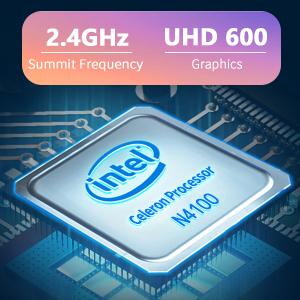
Image: The Intel Celeron N4100 processor, central to the laptop's performance, highlighting its clock speed and integrated graphics capabilities.

Image: The laptop's battery specifications, indicating its power capacity for extended use.
12. Záruka a podpora
For warranty information and technical support, please refer to the documentation included with your purchase or visit the official iProda website. Contact information for customer service can typically be found on the manufacturer's support page.