
FoMaKo FMK20UH NDI
FoMaKo NDI PTZ Camera FMK20UH NDI User Manual
Model: FMK20UH NDI Značka: FoMaKo
1. Úvod
This manual provides comprehensive instructions for the setup, operation, and maintenance of your FoMaKo NDI PTZ Camera FMK20UH NDI. This AI auto-tracking PTZ camera is designed for professional video production and live streaming, offering high-quality video output and versatile connectivity options.

Figure 1: FoMaKo NDI PTZ Camera FMK20UH NDI, showcasing the camera unit, remote control, and included mounting brackets.
2. Co je v krabici
Ověřte, zda jsou v balení přítomny všechny součásti:
- FoMaKo AI Tracking NDI PTZ Camera (20x optical zoom)
- IR dálkový ovladač
- Wall Mount, Ceiling Bracket
- USB kabel
- Napájecí adaptér 12V 2A
- Uživatelská příručka (tento dokument)
3. Vlastnosti produktu
The FoMaKo NDI PTZ Camera FMK20UH NDI is equipped with advanced features for versatile use:
- AI Auto Tracking Gen 3: Advanced algorithms for customized tracking, including real-time and regional tracking.
- Official NDI 6 & NDI HX3 Certified: Ensures stable and high-quality video transmission over network, compatible with major streaming software like vMix, OBS, Zoom.
- 20x optický zoom: Provides clear, detailed images even from a distance.
- Více rozhraní pro video výstup: Simultaneous HDMI, LAN/Ethernet, USB3.0, and NDI Live Streaming. Supports SRT, RTMP, VISCA protocols.
- Podpora PoE: Power over Ethernet simplifies setup with a single cable for power, control, and video/audio.
- H.264/H.265 Encoding: Ensures fluid motion video under low bandwidth conditions.
- High SNR CMOS: Combined with 2D & 3D noise reduction for high performance in low light.
- Leading Auto-Focus (AF) Technology: Fast, accurate, and stable auto-focus with Auto/Manual/One Push Focus modes.
- Remote Control & Presets: IR remote control with up to 255 presets (10 via remote).
- Snadné použití: Web browser control (default password 'admin'), built-in Gravity Sensor for auto-flip, adjustable Pan/Tilt/Zoom speed.

Obrázek 2: Vizuální znázornění klíčových vlastností produktu.
4. Nastavení
4.1 Počáteční připojení
Connect the camera to your network and power source using the provided cables. For PoE (Power over Ethernet) functionality, ensure your network switch supports 802.3AF 48V PoE. The camera can be controlled via a web browser by entering its IP address (default password is 'admin').
4.2 Možnosti montáže
Kamera podporuje různé způsoby instalace:
- Desktop: Umístěte kameru na rovný a stabilní povrch.
- Montáž na stativ: Attach the camera to a standard tripod using the integrated mounting screw hole.
- Montáž na stěnu: Use the provided wall mount bracket to secure the camera to a vertical surface.
- Montáž na strop: Use the provided ceiling bracket for inverted installation. The built-in gravity sensor supports auto-flip function for correct image orientation.

Figure 3: Depiction of the three primary installation methods for the camera.
5. Návod k obsluze
5.1 Automatické sledování pomocí umělé inteligence
The camera's third-generation AI tracking allows for precise subject following. You can adjust tracking modes, sensitivity, figure size, character position, and lost target actions. Real-time tracking and regional tracking are available.
- To turn on automatic tracking, simply press F2 na dálkovém ovladači.
- To switch tracking targets, press F4.
Video 1: Demonstration of the FoMaKo NDI PTZ camera's AI auto-tracking capabilities, showing the camera following a moving subject smoothly.

Figure 4: The camera's AI auto-tracking feature in action, highlighting its ability to follow subjects.
5.2 Dálkové ovládání
The included IR remote controller allows for quick adjustments to the camera's movement speed, including pan/tilt speed, preset speed, and zoom speed, providing seamless control and flexibility. You can set and recall up to 255 presets, with 10 directly accessible via the remote.

Figure 5: The camera's remote control, detailing its various function buttons for precise adjustments.
5.3 NDI Connection with OBS
The FoMaKo NDI PTZ Camera is NDI 6 & NDI HX3 Certified, allowing for seamless integration with live streaming software like OBS Studio. This enables high-quality video transmission with low latency over your network.
- Ensure the NDI Tools and NDI plugin for OBS are installed on your PC.
- Otevřete OBS Studio.
- In the 'Sources' panel, click the '+' icon.
- Select 'NDI™ Source' from the list. (If not present, ensure the NDI plugin is correctly installed).
- Create a new source and name it (e.g., "FOMAKO PTZ").
- In the properties window, select your camera's NDI stream from the 'Source name' dropdown.
- Adjust bandwidth and other settings as needed, then click 'OK'.
- Your camera's feed should now appear in OBS.
Video 2: Step-by-step guide on connecting the FoMaKo NDI PTZ camera to OBS Studio via NDI, demonstrating the process and live feed.

Figure 6: The camera's NDI output displayed within a live production software interface.
6. Aplikační scénáře
The FoMaKo NDI PTZ Camera is designed for a wide range of professional AV applications, including:
- Church worship live services
- Educational institutions (universities, training classrooms)
- Videokonference
- Live streaming and broadcasting (e.g., sports, concerts, events)
- Studio production
- Large conferences and summits
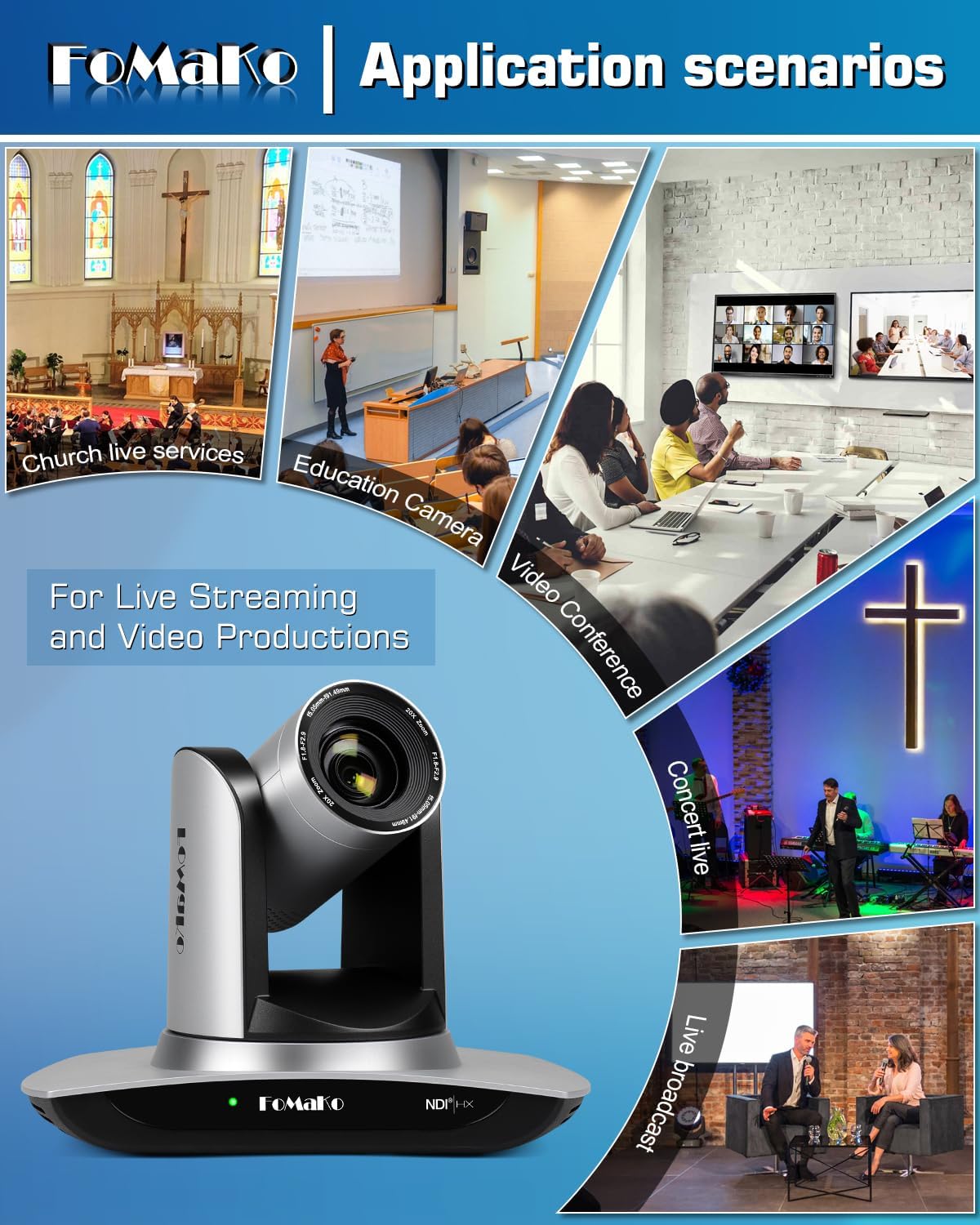
Figure 7: Diverse environments where the camera can be effectively utilized.
7. Údržba
To ensure the longevity and optimal performance of your FoMaKo NDI PTZ Camera, follow these maintenance guidelines:
- Čištění: K čištění těla fotoaparátu používejte měkký, suchý hadřík. Na objektiv použijte speciální hadřík a roztok na čištění objektivů. Nepoužívejte abrazivní čisticí prostředky ani rozpouštědla.
- Skladování: When not in use for extended periods, store the camera in a cool, dry place away from direct sunlight and excessive dust.
- Zacházení: Handle the camera with care to prevent physical damage. Avoid sudden impacts or dropping the unit.
- Aktualizace firmwaru: Periodically check the official FoMaKo website for firmware updates to ensure your camera has the latest features and performance improvements.

Figure 8: The camera lens, which requires careful cleaning.
8. Řešení problémů
Pokud narazíte na problémy s fotoaparátem, postupujte podle následujících běžných kroků pro řešení problémů:
- Žádný video výstup:
- Check all cable connections (HDMI, USB, LAN) to ensure they are secure.
- Verify the power adapter is correctly connected and the camera is powered on.
- Ensure the correct input source is selected on your display or streaming software.
- Špatná kvalita obrazu:
- Check lighting conditions; ensure adequate and even illumination.
- Čočku fotoaparátu čistěte měkkým hadříkem, který nepouští vlákna.
- Verify focus settings (Auto/Manual) and adjust if necessary.
- For NDI streams, ensure sufficient network bandwidth.
- Problémy se sledováním pomocí umělé inteligence:
- Ensure the subject is clearly visible and not obscured.
- Adjust tracking sensitivity and mode settings via the web rozhraní.
- Avoid rapid, erratic movements that may exceed tracking capabilities.
- Dálkové ovládání nereaguje:
- Zkontrolujte baterie v dálkovém ovladači.
- Ujistěte se, že mezi dálkovým ovladačem a infračerveným přijímačem kamery nejsou žádné překážky.
- Verify the camera is powered on.
For more detailed troubleshooting or persistent issues, please consult the full User Manual PDF available on the product's Amazon page or contact FoMaKo customer support.
9. Specifikace
| Funkce | Detail |
|---|---|
| Značka | FoMaKo |
| Číslo modelu | FMK20UH NDI |
| Hmotnost položky | 3.04 libry |
| Rozměry produktu | 5.67 x 9.98 x 6.65 palce |
| Název barvy | Stříbřitý |
| Speciální funkce | AI tracking NDI PTZ Camera |
| Technologie fotosenzoru | CMOS |
| Rozlišení záznamu videa | 1080p |
| Maximální ohnisková vzdálenost | 91.49 milimetrů |
| Maximální clona | 2.9 f |
| Formát záznamu videa | MP4 |
| Podporovaný formát zvuku | AAC/MP3/G.711A |
| Velikost obrazovky | 1 palce |
| Technologie připojení | NDI, LAN/Ethernet, HDMI, 3G-SDI, USB3.0, PoE, Infrared |

Figure 9: Rear panel of the camera detailing its multiple video output interfaces.
10. Záruka a podpora
FoMaKo is committed to providing excellent customer service and support for your product:
- 3letá omezená záruka: Your purchase is covered by a 3-year limited warranty.
- 30denní záruka vrácení peněz: Enjoy a 30-day no-questions-asked money-back guarantee for a risk-free purchase.
- Free Online Training: Resources are available to help you get started easily.
- 24/7 Expert Assistance: Expect responses within 24 hours for any inquiries (please include your Order ID).
- Vzdálená pomoc: Remote assistance can be provided for setup if necessary.
- Doživotní technická podpora: Benefit from lifetime customer technical support.
Your satisfaction is our priority. For support, please refer to the contact information provided in your product packaging or on the official FoMaKo webmísto.

Figure 10: FoMaKo's commitment to customer satisfaction and support.
Ask a question about this manual
Ask about setup, troubleshooting, compatibility, parts, safety, or missing instructions. Manuals+ will review the question and use this page’s manual context to help answer it.