
1. Úvod
This user manual provides detailed instructions for the proper use and maintenance of your Zebra DS8178 Wireless 2D/1D Barcode Scanner. Please read this manual thoroughly before operating the device to ensure optimal performance and safety. The DS8178 is designed for efficient and reliable barcode scanning in various environments, offering both 1D and 2D barcode reading capabilities with wireless connectivity.
2. Bezpečnostní informace
Dodržujte následující bezpečnostní opatření, abyste předešli zranění nebo poškození zařízení:
- Do not expose the scanner or cradle to extreme temperatures, moisture, or corrosive substances.
- Zabraňte přímému vystavení očí světelnému zdroji skeneru.
- K nabíjení používejte pouze určený napájecí adaptér a kabel USB.
- Nepokoušejte se zařízení rozebírat ani upravovat. Veškerý servis svěřte kvalifikovanému personálu.
- Udržujte zařízení mimo dosah silných magnetických polí.
3. Obsah balení
Ověřte, zda jsou v balení přítomny všechny položky:
- Zebra DS8178 Wireless Barcode Scanner
- USB Communication/Charging Cradle
- USB kabel
- Stručný průvodce (není součástí této příručky)
4. Konec produktuview
Familiarize yourself with the components of your Zebra DS8178 scanner and its cradle.

Obrázek 4.1: Strana view of the Zebra DS8178 Wireless Barcode Scanner, showing its ergonomic design.

Obrázek 4.2: Přední view of the Zebra DS8178 Wireless Barcode Scanner, highlighting the scanning window and trigger button.

Obrázek 4.3: Přední view of the USB Communication/Charging Cradle, featuring the pairing button.
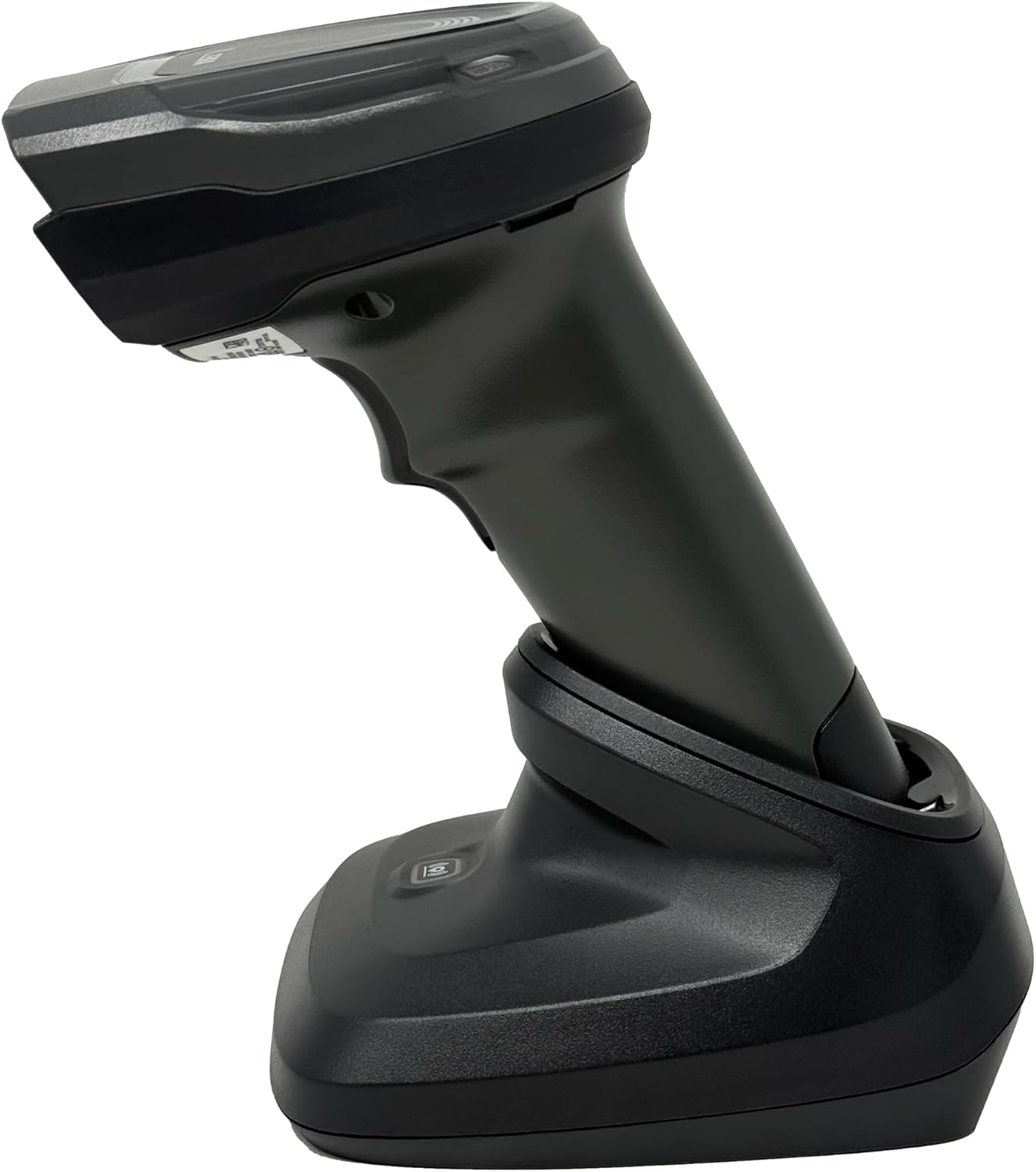
Obrázek 4.4: The Zebra DS8178 scanner securely docked in its USB cradle, ready for charging or communication.
4.1 Scanner Components
- Okno skenování: Oblast, přes kterou se čte čárové kódy.
- Spoušť: Activates the scanning beam.
- LED indikátory: Provide status feedback (e.g., battery, scan success).
- Přihrádka na baterie: Houses the removable/rechargeable battery.
4.2 Cradle Components
- Scanner Slot: Where the scanner docks for charging and communication.
- USB port: Connects the cradle to a host device (PC, laptop).
- Tlačítko párování: Initiates Bluetooth pairing with the scanner.
- LED indikátory: Show cradle status (e.g., power, connection).
5. Nastavení
5.1 Nabíjení skeneru
- Connect the USB cable to the cradle's USB port.
- Připojte druhý konec kabelu USB k napájenému portu USB na počítači nebo k adaptéru USB do zásuvky.
- Place the DS8178 scanner into the cradle. Ensure it is seated correctly.
- The scanner's LED indicator will show charging status. A full charge typically takes approximately 3-4 hours.
5.2 Connecting the Cradle to a Host Device
The cradle connects to your computer via a standard USB cable.
- Plug the USB cable into the USB port on the back of the cradle.
- Connect the other end of the USB cable to an available USB port on your desktop or laptop computer.
- Operační systém by měl automaticky detekovat a nainstalovat potřebné ovladače.
5.3 Párování Bluetooth
The DS8178 offers two primary Bluetooth pairing methods: via the cradle or direct to a host device.
5.3.1 Pairing via Cradle (Recommended for PC/Laptop)
- Ensure the cradle is connected to your host device (PC/Laptop) via USB.
- Place the DS8178 scanner into the cradle.
- The scanner will automatically pair with the cradle. Once paired, the scanner can be removed from the cradle and will communicate wirelessly with the host device through the cradle.
- A successful connection is indicated by a specific LED pattern on both the scanner and cradle (refer to the scanner's LED guide for details).
5.3.2 Direct Bluetooth Pairing (for Phones/Tablets or PC/Laptop without cradle)
- Power on the DS8178 scanner.
- Scan the "Pairing Barcode" (usually found in a quick start guide or on the scanner itself) to put the scanner into discoverable mode. Alternatively, press and hold the Bluetooth pairing button on the scanner (if available) or scan a specific Bluetooth pairing configuration barcode.
- On your phone, tablet, or computer, navigate to the Bluetooth settings.
- Hledat available devices. The DS8178 should appear in the list (e.g., "Zebra DS8178").
- Select the scanner to initiate pairing. You may be prompted to confirm a passkey or scan a pairing barcode displayed on your screen.
- Once paired, the scanner's LED will indicate a successful connection.
6. Provoz
6.1 Skenování čárových kódů
- Point the scan window of the DS8178 scanner at the barcode you wish to read.
- Stiskněte a podržte spoušť. Objeví se červený zaměřovací vzor.
- Center the aiming pattern over the barcode. For 1D barcodes, the aiming line should cross the entire barcode. For 2D barcodes, the aiming pattern should encompass the entire code.
- Once the barcode is successfully read, the scanner will emit an audible beep and/or the LED indicator will flash green.
- Uvolněte spoušť.
6.2 Cordless Range
The Zebra DS8178 offers a cordless range of up to 330 feet (100 meters) from its cradle or directly paired host device, depending on environmental conditions and line of sight. Obstructions such as walls or other electronic devices may reduce the effective range.
6.3 Režimy skenování
- Režim spouštění: The scanner reads a barcode only when the trigger is pressed.
- Presentation Mode (Hands-Free): When placed in the presentation cradle, the scanner can be configured to automatically detect and read barcodes placed within its field of view without requiring a trigger press. This mode is ideal for high-volume scanning applications.
7. Údržba
7.1 Čištění skeneru
To maintain optimal scanning performance, keep the scan window clean.
- Použijte měkký, čistý hadřík, který nepouští vlákna.ampened with water or a mild cleaning solution (e.g., isopropyl alcohol).
- Jemně otřete skenovací okénko a vnější část skeneru.
- Nepoužívejte abrazivní čisticí prostředky, rozpouštědla ani agresivní chemikálie.
- Ensure the scanner is powered off before cleaning.
7.2 Péče o baterii
The DS8178 features a 2500mAh removable and rechargeable battery. Proper battery care extends its lifespan.
- Před prvním použitím baterii plně nabijte.
- Vyhněte se pravidelnému úplnému vybíjení baterie.
- Pokud skener delší dobu nepoužíváte, skladujte jej na chladném a suchém místě.
- If the battery performance significantly degrades, it may need replacement. Contact support for genuine replacement batteries.
8. Řešení problémů
| Problém | Možná příčina | Řešení |
|---|---|---|
| Skener se nezapíná. | Slabá nebo vybitá baterie. | Charge the scanner using the USB cradle and cable. |
| Skener se nepřipojuje přes Bluetooth. | Not in pairing mode; out of range; interference; host device Bluetooth off. | Ensure scanner is in pairing mode. Check host device Bluetooth settings. Move closer to the host device. Reduce interference. |
| Skener nečte čárové kódy. | Barcode damaged/poor quality; scan window dirty; incorrect symbology enabled; scanner not aimed correctly. | Try scanning a different barcode. Clean the scan window. Ensure correct aiming. Check scanner configuration for enabled symbologies. |
| Do hostitele nebyla přenesena žádná data. | Not paired; application not in focus; incorrect interface settings. | Confirm successful Bluetooth pairing. Ensure the target application (e.g., text editor, POS software) is active and ready to receive input. |
9. Specifikace
| Funkce | Detail |
|---|---|
| Model | DS8178 |
| Značka | Zebra (formerly Symbol) |
| Technologie připojení | Bluetooth, USB Cable, Wireless |
| Kompatibilní zařízení | Desktop, Laptop, Phones, Tablets |
| Zdroj napájení | Battery Powered, Corded Electric, Rechargeable |
| Kapacita baterie | 2500mAh (Removable/Rechargeable) |
| Cordless Range | Až 330 stop (100 metrů) |
| Schopnost skenování | 1D a 2D čárové kódy |
| Skutečný úhel View | 17 stupňů |
| UPC / GTIN | 649661651499 |
10. Záruka a podpora
This Zebra DS8178 Barcode Scanner comes with a 90denní omezená záruka. This warranty covers defects in materials and workmanship under normal use. It does not cover damage caused by misuse, accidents, unauthorized modifications, or external causes.
For technical support, warranty claims, or to purchase genuine replacement parts (such as batteries), please contact your reseller or visit the official Zebra support website. Please have your model number (DS8178) and any purchase information ready when contacting support.