
Armor3 M07467-WH
Armor 3 NuChamp Uživatelská příručka bezdrátového herního ovladače
For Nintendo Switch® and Nintendo Switch® Lite (White)
Zavedení
Děkuji za nákupasing the Armor 3 NuChamp Wireless Gaming Controller. This manual provides detailed instructions on how to set up, operate, and maintain your new controller, ensuring an optimal gaming experience on your Nintendo Switch® or Nintendo Switch® Lite console.
Obsah balení
- 1 x Armor 3 NuChamp Wireless Gaming Controller (White)
- 1 x USB nabíjecí kabel
- 1 x Uživatelská příručka
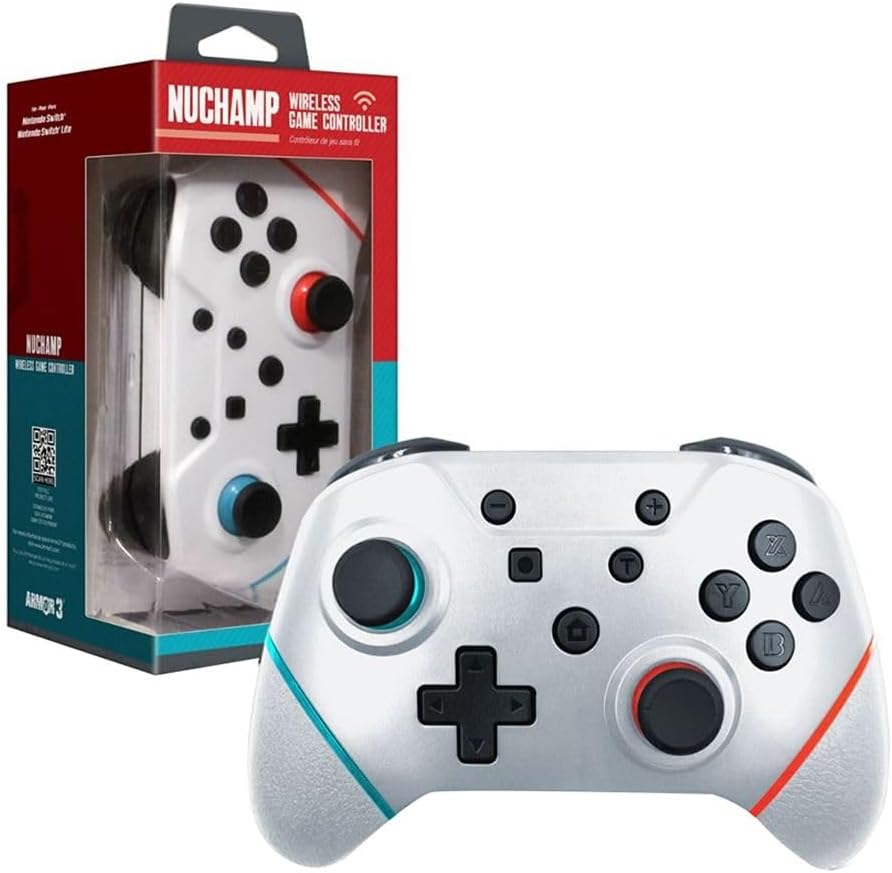
Image: The Armor 3 NuChamp Wireless Gaming Controller displayed next to its retail box, showcasinvýrobek a jeho obal.
Konec produktuview
Familiarize yourself with the various components of your NuChamp Wireless Gaming Controller.
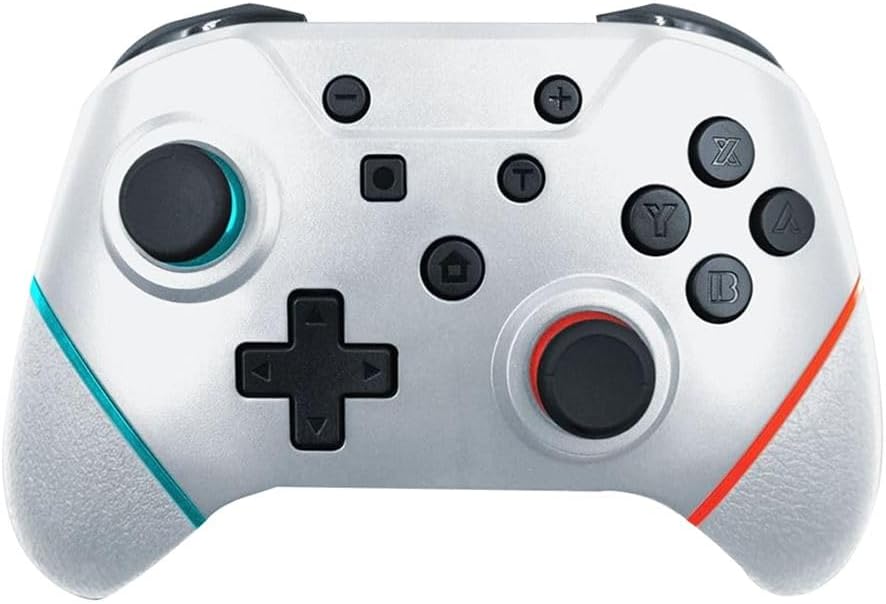
Obrázek: Přímá fronta view of the Armor 3 NuChamp Wireless Gaming Controller, highlighting its buttons, joysticks, and ergonomic design.
- Levá analogová páčka: Pro ovládání pohybu a kamery.
- D-Pad: Směrový vstup.
- Tlačítko mínus (-): System menu access.
- Tlačítko pro snímek obrazovky: Capture in-game screenshots.
- Tlačítko Domů: Return to the console's home screen.
- Pravá analogová páčka: Pro ovládání a zaměřování kamery.
- Tlačítka A/B/X/Y: Akční tlačítka.
- Tlačítko plus (+): System menu access.
- Tlačítka L/P: Knoflíky na ramenou.
- Tlačítka ZL/ZR: Trigger buttons.
- Pro Paddle Buttons: Reassignable buttons on the back of the controller.
- Port USB-C: Pro nabíjení a kabelové připojení.

Obrázek: Úhlové view of the Armor 3 NuChamp Wireless Gaming Controller, showing its ergonomic grips and the placement of the shoulder buttons and triggers.
Nastavení
1. Nabíjení regulátoru
Before first use, fully charge the controller. The built-in rechargeable battery lasts approximately 8 to 10 hours on a full charge.
- Connect the supplied USB charging cable to the USB-C port on the controller.
- Connect the other end of the cable to a USB power source (e.g., Nintendo Switch dock, USB wall adapter, computer USB port).
- The indicator lights on the controller will show charging status. They will typically stop blinking or turn solid when fully charged.
2. Pairing with Nintendo Switch® / Switch® Lite
The NuChamp controller uses Bluetooth for wireless connection.
- Na konzoli Nintendo Switch přejděte do nabídky HOME.
- Vybrat „Řadiče“, pak "Change Grip/Order".
- On the NuChamp controller, press and hold the Tlačítko Domů for a few seconds until the indicator lights begin to flash rapidly. This indicates the controller is in pairing mode.
- Once the controller appears on the Switch screen, release the Home button. The indicator lights will become solid, confirming successful pairing.
- If pairing fails, ensure the controller is charged and try again. You may need to restart your Switch console.
Návod k obsluze
Základní ovládací prvky
The NuChamp controller functions similarly to official Nintendo Switch Pro Controllers. All standard buttons (A/B/X/Y, D-Pad, Analog Sticks, L/R, ZL/ZR, Plus/Minus, Home, Screenshot) operate as expected in compatible games.
Funkce Turbo
The controller features a turbo function for rapid firing of buttons.
- Chcete-li aktivovat Turbo: Press and hold the button you wish to set to turbo (e.g., A button), then press the Tlačítko Turbo (usually a dedicated button or a combination, refer to specific controller markings if available). The button will now rapidly input when held down.
- Deaktivace Turba: Repeat the process: press and hold the turbo-enabled button, then press the Tlačítko Turbo znovu.
Reassignable Pro Paddle Buttons
The controller includes reassignable paddle buttons on the back for advanced customization.
- To assign a paddle button:
- Stiskněte a podržte Tlačítko programu (often a small button on the back or bottom of the controller) until an indicator light flashes.
- Press the paddle button you wish to assign (e.g., P1).
- Press the button you want to map to the paddle (e.g., A, B, X, Y, L, R, ZL, ZR, D-Pad directions).
- Stiskněte tlačítko Tlačítko programu again to save the assignment. The indicator light will stop flashing.
- To clear a paddle assignment: Repeat the assignment process, but instead of pressing a button to map, press the Tlačítko programu twice after selecting the paddle.
Motion Controls and Force Feedback (Vibration)
The controller supports motion controls for games that utilize them and provides force feedback (vibration) for immersive gameplay. These features are automatically enabled when connected to the Nintendo Switch.
Údržba
- Čištění: K čištění ovladače používejte měkký, suchý hadřík. Nepoužívejte agresivní chemikálie ani abrazivní materiály.
- Skladování: Regulátor skladujte na chladném a suchém místě mimo dosah přímého slunečního záření a extrémních teplot.
- Péče o baterie: Chcete-li prodloužit životnost baterie, vyvarujte se častého úplného vybíjení. Ovladač pravidelně nabíjejte, i když jej delší dobu nepoužíváte.
Odstraňování problémů
| Problém | Možná příčina / řešení |
|---|---|
| Ovladač se nezapne. | Battery may be depleted. Connect the controller to a power source using the USB cable and allow it to charge. |
| Ovladač se nespáruje se Switchem. |
|
| Buttons or sticks are unresponsive. |
|
| Vibration (Force Feedback) is not working. |
|
Specifikace
- Číslo modelu: M07467-WH
- Konektivita: Bezdrátové Bluetooth
- Baterie: 1 Lithium Ion (součástí balení)
- Životnost baterie: Přibližně 8-10 hodiny
- Rozměry: 17.81 x 11.71 x 9.09 cm (7.01 x 4.61 x 3.58 palce)
- Hmotnost: 317.51 g (0.7 lb)
- Jazyk: angličtina
- Země původu: Čína
- Datum vydání: 1. ledna 2023
Záruka a podpora
For warranty information and technical support, please visit the official Armor3 webnebo kontaktujte jejich zákaznický servis. Uschovejte si účtenku jako doklad o koupi.
Oficiální Webmísto: www.armor3.com
Ask a question about this manual
Ask about setup, troubleshooting, compatibility, parts, safety, or missing instructions. Manuals+ will review the question and use this page’s manual context to help answer it.