
HP Pavilion 15
HP Pavilion 15 15.6" FHD Touchscreen Laptop User Manual
Model: Pavilion 15
1. Úvod
Welcome to the user manual for your new HP Pavilion 15 15.6" FHD Touchscreen Laptop. This document provides essential information for setting up, operating, and maintaining your device. Your HP Pavilion 15 is equipped with an 11th Gen Intel Core i7-1165G7 processor, 16GB of RAM, a 512GB PCIe SSD, and runs on Windows 10, offering a powerful and responsive computing experience.
Please read this manual thoroughly to ensure proper use and to maximize the performance and longevity of your laptop.
2. Počáteční nastavení
2.1 Vybalení a připojení napájení
- Opatrně vyjměte notebook a veškeré příslušenství z obalu.
- Connect the power adapter to the laptop's power port and then plug it into a wall outlet.
- Před prvním použitím nechte baterii několik minut nabíjet.
2.2 První zapnutí a nastavení systému Windows
- Open the laptop lid and press the power button, typically located on the top right of the keyboard or side.
- Postupujte podle pokynů na obrazovce a dokončete proces instalace systému Windows 10. To zahrnuje výběr regionu, jazyka, připojení k síti Wi-Fi a vytvoření uživatelského účtu.
- Register your product with HP for warranty and support purposes.
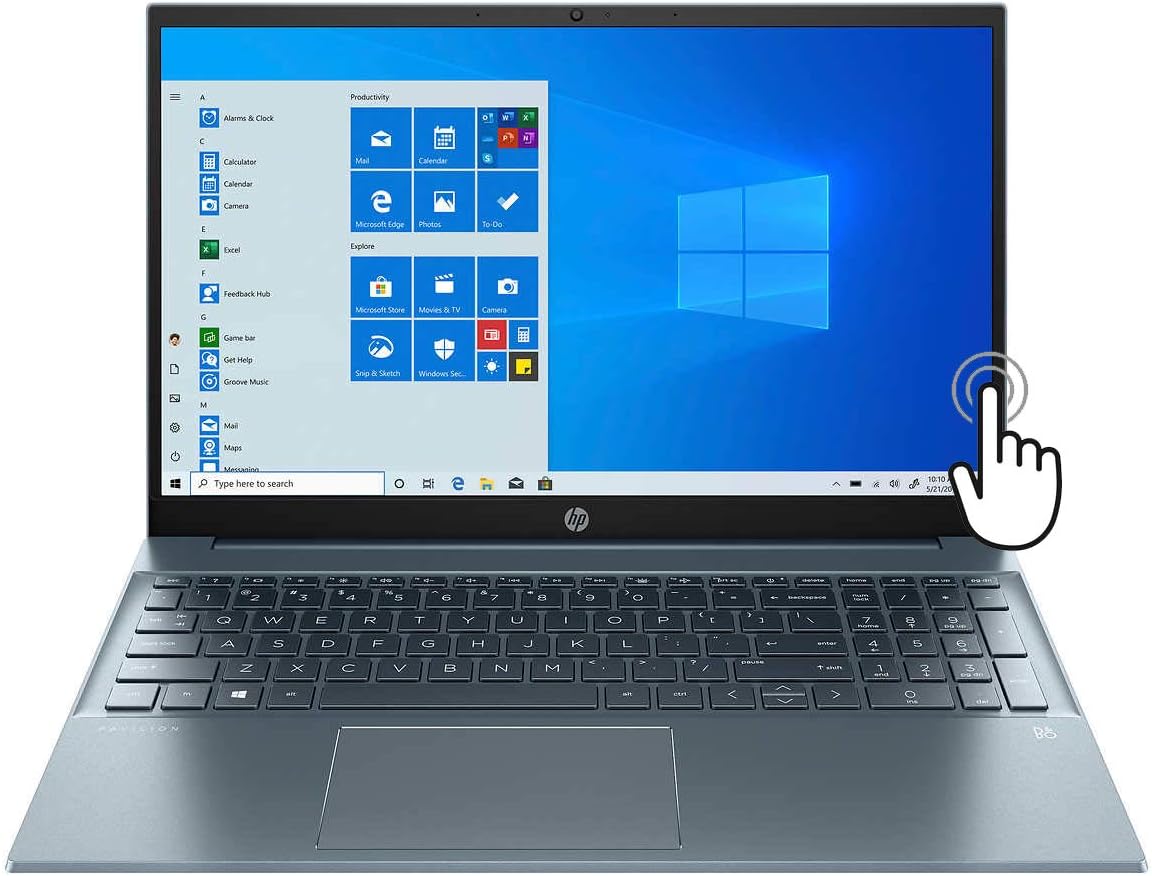
Figure 1: HP Pavilion 15 Laptop with Windows 10 interface displayed.
3. Komponenty přesview
Familiarize yourself with the various ports and features of your HP Pavilion 15 laptop.
3.1 Porty na levé straně
- Port HDMI: Connects to external displays like monitors or TVs.
- USB-C Port (Thunderbolt 4 compatible): Supports data transfer, power delivery, and DisplayPort 1.4.
- Port USB-A: Connects to standard USB devices.
- Čtečka SD karet: Pro čtení a zápis na paměťové karty SD.
- Kombinovaný konektor pro sluchátka/mikrofon: Connects to headphones or headsets with a 3.5mm jack.

Obrázek 2: View of the left side of the HP Pavilion 15, showing HDMI, USB-C, USB-A, SD card slot, and audio jack.
3.2 Porty na pravé straně
- Port USB-A: Connects to standard USB devices.
- Napájecí konektor: Connects the AC adapter for charging.

Obrázek 3: View of the right side of the HP Pavilion 15, showing a USB-A port and the power connector.
4. Ovládání notebooku
4.1 Zapnutí/vypnutí a režim spánku
- Zapnutí: Stiskněte tlačítko napájení.
- Vypnout: Click the Windows Start button, then Power > Shut down.
- Režim spánku: Close the lid or click the Windows Start button, then Power > Sleep.
4.2 Používání dotykové obrazovky
Your HP Pavilion 15 features a 15.6" Full HD touchscreen. You can interact with Windows 10 and applications directly on the screen using touch gestures. Common gestures include tapping to select, pinching to zoom, and swiping to scroll.
4.3 Podsvícená klávesnice
The integrated backlit keyboard allows for comfortable typing in low-light conditions. To adjust the backlight, use the dedicated function keys (usually Fn + F5 or F4, refer to your keyboard's icons).
4.4 Wi-Fi 6 Připojení
Your laptop supports Wi-Fi 6 (802.11ax) for faster and more reliable wireless internet connections. To connect to a Wi-Fi network:
- Klikněte na ikonu Wi-Fi na hlavním panelu.
- Vyberte požadovanou síť ze seznamu.
- Enter the network password if prompted and click Connect.
4.5 Zvuk a Webvačka
The laptop features audio by Bang & Olufsen with dual speakers for enhanced sound quality. The HP Wide Vision HD Camera includes a privacy shutter for security. Slide the shutter to cover the camera lens when not in use.
5. Údržba
5.1 Čištění notebooku
- Obrazovka: Lehce používejte měkký hadřík, který nepouští vlákna dampOpláchněte vodou nebo čističem obrazovek. Vyhněte se agresivním chemikáliím.
- Klávesnice a šasi: Použijte měkký, suchý hadřík. Na odolnou špínu použijte lehceamp Lze použít hadřík. Zajistěte, aby se do zařízení nedostala žádná tekutina.
- Porty: K jemnému odstranění prachu z portů použijte stlačený vzduch.
5.2 Péče o baterii
To prolong battery life (up to 11 hours), avoid extreme temperatures and fully discharging the battery frequently. For long-term storage, charge the battery to about 50%.
5.3 Aktualizace softwaru
Regularly check for and install Windows updates and HP driver updates to ensure optimal performance and security. Access Windows updates via Settings > Update & Security > Windows Update.
6. Řešení problémů
Tato část se zabývá běžnými problémy, se kterými se můžete setkat.
6.1 Notebook se nezapne
- Ensure the power adapter is securely connected to both the laptop and a working wall outlet.
- Ověřte funkčnost elektrické zásuvky zapojením jiného zařízení.
- Pokud je baterie zcela vybitá, nechte ji nabíjet alespoň 30 minut, než se ji pokusíte zapnout.
6.2 Problémy se zobrazením
- If the screen is blank, try pressing the brightness up key (usually F3 or F4) or connecting an external monitor to check if the display output works.
- Ujistěte se, že ovladače displeje jsou aktuální.
6.3 Problémy s připojením k Wi-Fi
- Zkontrolujte, zda je v nastavení systému Windows povolena Wi-Fi.
- Restartujte router a modem.
- Ujistěte se, že jste v dosahu sítě Wi-Fi.
- Ověřte, zda je heslo k Wi-Fi správné.
6.4 Pomalý výkon
- Zavřete nepotřebné aplikace běžící na pozadí.
- Zkontrolujte přítomnost malwaru nebo virů pomocí antivirového softwaru.
- Ujistěte se, že máte aktuální operační systém a ovladače.
- Consider freeing up disk space on your 512GB PCIe SSD.
7. Specifikace
Below are the key technical specifications for your HP Pavilion 15 laptop:
| Název modelu | HP Pavilion 15 |
| Zobrazit | 15.6 Inches Full HD (1920 x 1080) Touchscreen |
| Procesor | 11th Gen Intel Core i7-1165G7 (up to 4.7 GHz) |
| BERAN | 16 GB DDR4 |
| Skladování | 512GB PCIe NVMe SSD |
| Grafika | Grafická karta Intel Iris Xe (integrovaná) |
| Operační systém | Windows 10 |
| Bezdrátové připojení | Wi-Fi 6 (802.11ax) |
| Porty | HDMI, USB-C (Thunderbolt 4), USB-A, SD Media Card Reader, Headphone/Microphone Combo Jack |
| Životnost baterie | Až 11 hodin |
| Rozměry (DxŠxV) | 14.18 x 9.21 x 0.7 palce |
| Hmotnost | Přibližně 5 libry |
| Barva | Mlžná modrá |
8. Záruka a podpora
8.1 Záruka na produkt
Your HP Pavilion 15 laptop comes with a standard manufacturer's warranty. For detailed information regarding warranty terms, conditions, and duration, please refer to the warranty documentation included with your product or visit the official HP support website. Note that upgraded components, such as the SSD, may carry a separate 1-year warranty from the upgrade provider.
8.2 Technická podpora
Pro technickou pomoc, stažení ovladačů nebo další podporu navštivte oficiální stránky podpory HP. webmísto:
You will need your product's serial number, typically found on a label on the bottom of the laptop or in the system information within Windows.
Ask a question about this manual
Ask about setup, troubleshooting, compatibility, parts, safety, or missing instructions. Manuals+ will review the question and use this page’s manual context to help answer it.