
Zavedení
This manual provides comprehensive instructions for the Vivitar Podcast and Social Media Microphone MIC918. This high-quality condenser microphone is designed for clear audio capture for various applications, including podcasting, live streaming, gaming, voice-overs, and vocal recording. It features a simple plug-and-play USB connection, integrated volume control, and a stable tripod stand for optimal positioning.
Bezpečnostní informace
- Nevystavujte mikrofon vodě ani nadměrné vlhkosti.
- Vyhněte se extrémním teplotám nebo přímému slunečnímu záření.
- Nepokoušejte se mikrofon rozebírat ani upravovat. Ztratíte tak záruku.
- Udržujte mikrofon mimo dosah silných magnetických polí.
- K čištění používejte pouze měkký, suchý hadřík.
Konec produktuview
Obsah balení
- Vivitar MIC918 Microphone Unit
- Stand stativ
- Integrated USB Connection Cable
Microphone Components
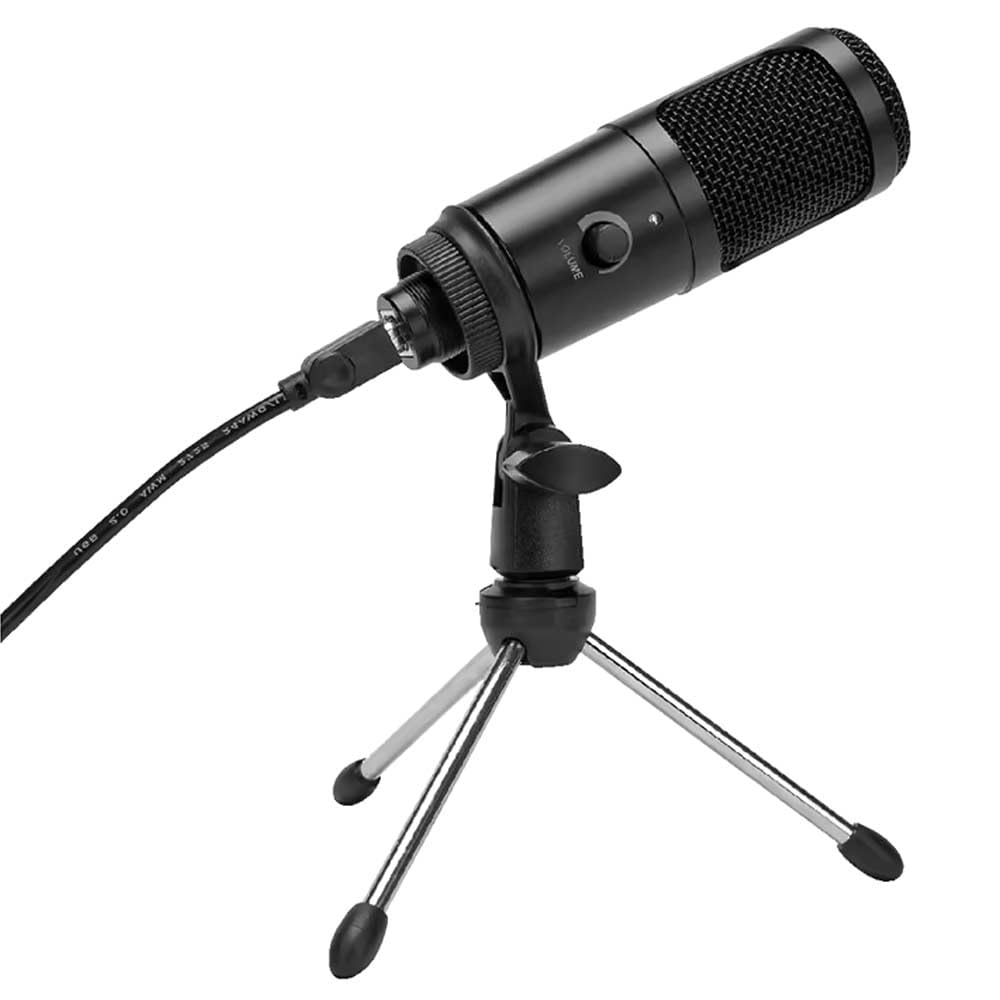
Obrázek 1: Vivitar MIC918 Microphone unit attached to its tripod stand, showing the integrated USB cable.

Obrázek 2: Strana view of the Vivitar MIC918 Microphone, highlighting the volume control knob and the Vivitar brand logo.
The microphone unit features a durable metal construction. The front side includes a volume control knob for easy audio level adjustments. The microphone is designed with a unidirectional polar pattern to focus on sound directly in front of it, reducing background noise.
Nastavení
Připojení mikrofonu
- Sestavte stojan: If not already assembled, unfold the tripod stand and ensure it is stable on a flat surface. Securely attach the microphone unit to the stand's mounting point. The rotating shaft ring allows for angle adjustment.
- Připojit k zařízení: Plug the integrated USB cable from the microphone into an available USB port on your computer, laptop, or compatible gaming console.
- Plug and Play: The Vivitar MIC918 is a plug-and-play device. Your operating system (Windows, macOS, etc.) should automatically detect and install the necessary drivers. No additional software installation is typically required.
- Vyberte jako vstupní zařízení: After connecting, navigate to your device's sound settings or the audio settings within your recording/streaming software. Select the "Vivitar MIC918" or similar USB audio device as your primary input (microphone) device.
Provozní
Nastavení hlasitosti
The microphone features a built-in volume control knob located on its side (refer to Figure 2). Rotate this knob clockwise to increase the microphone's input sensitivity (volume) and counter-clockwise to decrease it. Adjust this to achieve the desired recording level without distortion.
Umístění mikrofonu
For optimal audio capture, position the microphone directly in front of the sound source (e.g., your mouth for speaking or singing). The tilting tripod stand allows you to adjust the microphone's angle to best suit your needs. Due to its unidirectional polar pattern, the microphone is most sensitive to sounds coming from the front and less sensitive to sounds from the sides or rear, helping to minimize ambient noise.
Údržba
- Čištění: Use a soft, dry, lint-free cloth to wipe the microphone's exterior. Do not use liquid cleaners, aerosols, or solvents.
- Skladování: Pokud mikrofon nepoužíváte, skladujte jej na čistém a suchém místě, mimo dosah prachu a extrémních teplot.
- Zacházení: S mikrofonem zacházejte opatrně. Nevystavujte jej pádu ani silným nárazům.
Odstraňování problémů
| Problém | Možná příčina | Řešení |
|---|---|---|
| Z mikrofonu není slyšet žádný zvuk. | Mikrofon není správně připojen. Vybráno nesprávné vstupní zařízení. Hlasitost mikrofonu je příliš nízká. | Ensure USB cable is securely plugged into both the microphone and the device. Verify that "Vivitar MIC918" is selected as the input device in your system's sound settings or recording software. Increase the volume using the knob on the microphone and check system input levels. |
| Poor sound quality (e.g., muffled, too quiet, background noise). | Incorrect microphone positioning. Vysoký okolní hluk. Input level too high or too low. | Position the microphone closer to the sound source and ensure it's facing directly towards it. Nahrávejte v tišším prostředí. Adjust the microphone's volume knob and system input levels to an optimal range, avoiding clipping or being too faint. |
| Počítač nerozpoznává mikrofon. | Vadný USB port nebo kabel. System driver issue. | Zkuste připojit mikrofon k jinému portu USB v počítači. Restart your computer. If the issue persists, check your operating system's device manager for any driver conflicts or updates. |
Specifikace
| Funkce | Specifikace |
|---|---|
| Značka | Vivitar |
| Číslo modelu | MIC918 |
| Konektivita | USB (Plug and Play) |
| Typ mikrofonu | Kondenzátor |
| Polární vzor | Jednosměrný |
| Odstup signálu od šumu | 78 dB |
| Materiál pouzdra | Kov |
| Hmotnost položky | 0.95 libry (přibližně 0.43 kg) |
| Rozměry položky (D x Š x V) | 8.86 x 5.36 x 2.49 palců (přibližně 22.5 x 13.6 x 6.3 cm) |
| Zdroj napájení | Elektrické napájení (přes USB) |
| Kompatibilní zařízení | Computers, Laptops, Gaming Consoles |
Informace o záruce
The Vivitar Podcast and Social Media Microphone MIC918 comes with a 3-Year USA Warranty. For specific terms, conditions, and to register your product, please refer to the official Vivitar webwebové stránky nebo se obraťte přímo na jejich zákaznickou podporu. Uschovejte si doklad o koupi pro případ reklamace.
Zákaznická podpora
For further assistance, technical support, or inquiries regarding your Vivitar MIC918 microphone, please visit the official Vivitar website or contact their customer service department. Contact information can typically be found on the Vivitar webwebu v sekcích „Podpora“ nebo „Kontaktujte nás“.