
1. Úvod
This manual provides essential information for setting up, operating, maintaining, and troubleshooting your TECLAST F15S 15.6-inch laptop. Please read this manual thoroughly before using your device to ensure proper function and longevity.
2. Konec produktuview
2.1. Fyzikální vlastnosti
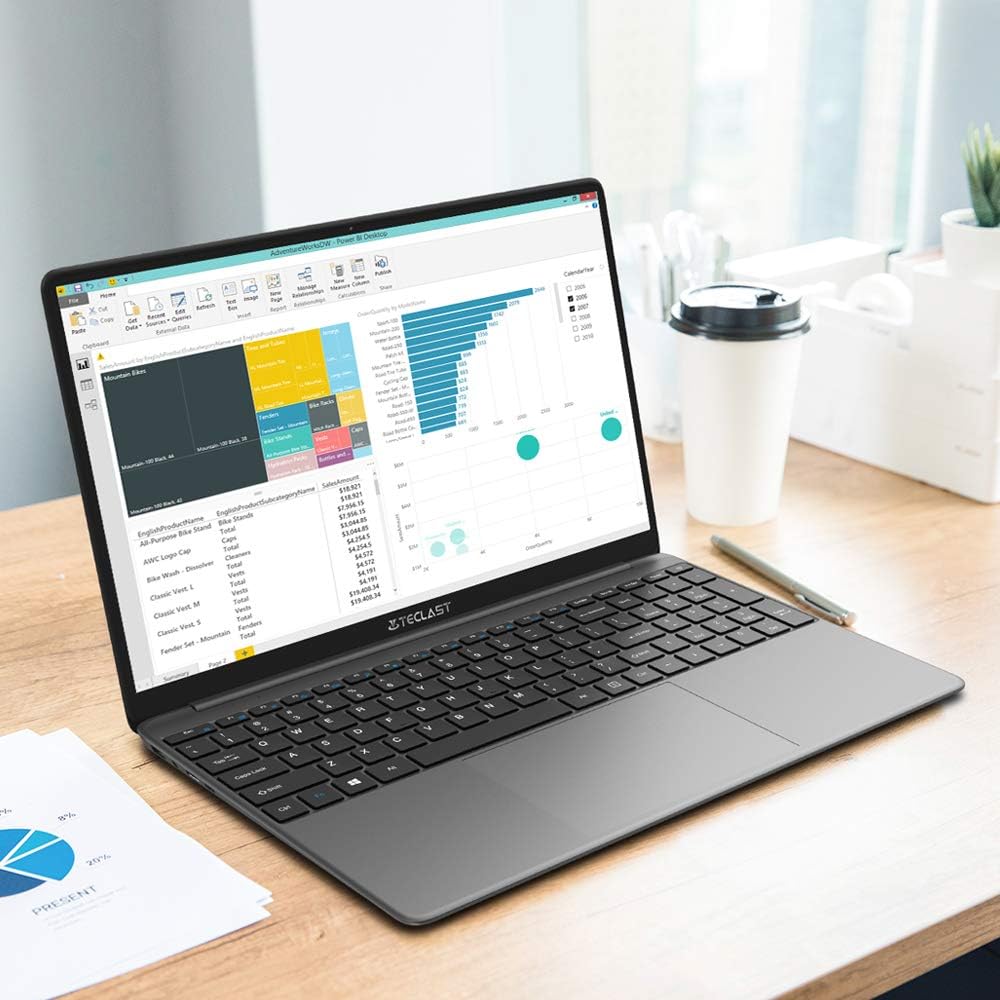
The TECLAST F15S is designed for portability and efficiency, featuring a thin metal body and a 15.6-inch Full HD display.
- Zobrazit: 15.6-inch IPS Full HD (1920x1080) with a narrow bezel.
- Design: Metal chassis, 7mm thin, and approximately 1.8 kg in weight.


2.2. Key Components and Performance
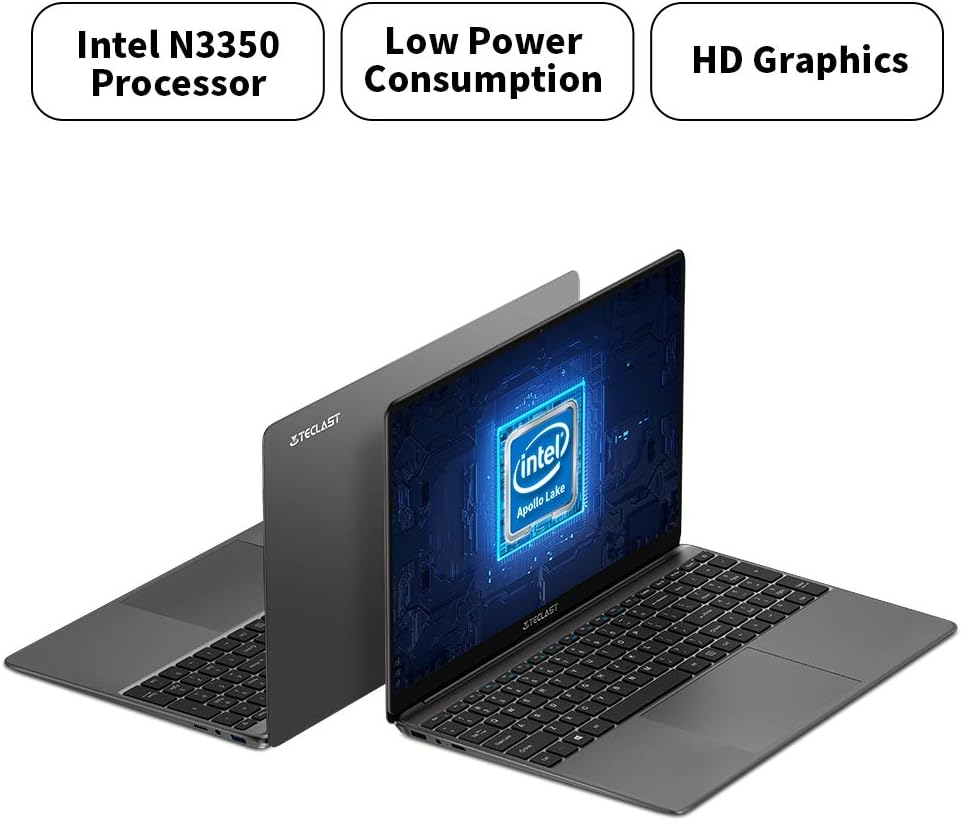
The F15S is equipped with an Intel Celeron N3350 processor, 8GB RAM, and 128GB eMMC storage, running on Windows 10.
- Procesor: Intel Celeron N3350 Dual-Core (up to 2.4 GHz).
- Grafika: Intel HD Graphics 500.
- Paměť: 8GB DDR3 RAM.
- Skladování: 128GB eMMC, expandable via TF card (up to 128GB) or SSD upgrade.
- Operační systém: Windows 10.

2.3. Porty a konektivita
The laptop offers various ports for connectivity and expansion.
- USB porty: 2x USB 3.0.
- Video výstup: 1 x Mini HDMI.
- Zvuk: 1 x Earphone Jack.
- Rozšíření úložiště: 1 x TF-Card Slot.
- Bezdrátový: Dual-band Wi-Fi (2.4G/5G), Bluetooth 4.2.

3. Nastavení
3.1. Počáteční nabíjení
Before first use, connect the laptop to the power adapter and charge it fully. The battery capacity is 38000mWh, providing approximately 7 hours of usage on a full charge.
3.2. First Power-On and Windows 10 Configuration
- Stisknutím tlačítka napájení zapněte notebook.
- During the initial Windows 10 setup, it is recommended NOT to connect to Wi-Fi immediately. If you connect to Wi-Fi, you might encounter issues with account authentication, potentially leading to a frozen setup process.
- On the Wi-Fi connection screen, look for an option like "I don't have internet" or "Skip for now" (exact wording may vary) in the bottom right corner. Select this option.
- Proceed with the setup, creating a local user account.
- Once the setup is complete and you are on the desktop, you can then connect to your Wi-Fi network and sign in with your Microsoft account if desired. The temporary local account can be removed later.
3.3. Připojení periferií
Use the available USB 3.0 ports to connect external devices such as a mouse, keyboard, or external storage. The Mini HDMI port allows connection to external displays.
4. Návod k obsluze
4.1. Klávesnice a touchpad
The laptop features a full-size keyboard with an independent numeric keypad for efficient typing. The large 140mm x 95mm touchpad supports multi-touch gestures for convenient control.
4.2. Bezdrátové připojení
- Wi-Fi: Access network settings in Windows 10 to connect to available 2.4GHz or 5GHz Wi-Fi networks.
- Bluetooth: Enable Bluetooth in Windows settings to pair with compatible devices such as headphones, speakers, or other peripherals.
4.3. Připojení externího displeje
Connect an external monitor or projector using a Mini HDMI to HDMI cable. Once connected, you can configure display settings (duplicate, extend, or second screen only) through Windows display settings.
4.4. Rozšíření úložiště
The TECLAST F15S supports storage expansion:
- TF karta: Insert a TF (Micro SD) card into the dedicated slot for additional storage, supporting up to 128GB.
- Upgrade SSD: The laptop supports upgrades with solid-state drives (SSD) for increased storage capacity and performance. Refer to the manufacturer's guidelines for compatible SSD types and installation procedures.
5. Údržba
5.1. Čištění
- Obrazovka: Použijte měkký hadřík, který nepouští vlákna dampOpláchněte vodou nebo čističem obrazovek. Vyhněte se agresivním chemikáliím.
- Tělo: Wipe the laptop's exterior with a soft, dry cloth.
- Porty: Keep ports free of dust and debris. Use compressed air if necessary, ensuring the laptop is powered off.
5.2. Péče o baterie
- Vyhněte se častému úplnému vybíjení baterie.
- Nevystavujte notebook extrémním teplotám.
- Pokud notebook skladujete delší dobu, ujistěte se, že je baterie nabitá na přibližně 50–70 %.
5.3. Aktualizace softwaru
Regularly check for and install Windows updates to ensure system stability, security, and optimal performance.
6. Řešení problémů
6.1. Běžné problémy a jejich řešení
- Notebook se nezapne: Ujistěte se, že je napájecí adaptér bezpečně připojen a baterie je dostatečně nabitá. Zkuste jinou zásuvku.
- Pomalý výkon: Close unnecessary applications, check for background processes, and ensure sufficient free storage space. Consider performing a disk cleanup.
- Problémy s připojením k Wi-Fi: Ensure Wi-Fi is enabled. Restart your router and the laptop. Check network drivers in Device Manager.
- Screen remains black on startup (pointer visible): This can sometimes occur during updates or system initialization. If it persists, try a hard reset (hold power button until off, then restart). If the issue is related to the initial Windows setup, refer to section 3.2.
- Baterie se rychle vybíjí: Adjust power settings, reduce screen brightness, close power-intensive applications, and ensure no background processes are consuming excessive power.
6.2. Kontaktování podpory
If you encounter issues that cannot be resolved using this guide, please contact TECLAST customer support or your retailer for further assistance.
7. Specifikace
| Funkce | Specifikace |
|---|---|
| Název modelu | F15S |
| Velikost displeje | 15.6 palců |
| Rozlišení displeje | 1920 x 1080 pixelů (Full HD) |
| Technologie displeje | IPS LCD |
| Procesor | Intel Celeron N3350 (Dual-Core, up to 2.4 GHz) |
| Grafika | Grafická karta Intel HD Graphics 500 |
| BERAN | 8 GB DDR3 |
| Interní úložiště | 128GB eMMC |
| Rozšíření úložiště | TF Card Slot (up to 128GB), SSD upgrade support |
| Operační systém | Windows 10 |
| Wi-Fi | Dual-band (2.4G / 5G) |
| Bluetooth | Bluetooth 4.2 |
| USB porty | 2x USB 3.0 |
| Video výstup | 1x Mini HDMI |
| Audio port | 1 x konektor pro sluchátka |
| Přední kamera | 2.0 MP |
| Baterie | 38000mWh (approx. 7 hours usage) |
| Hmotnost | 1.88 kg |
| Rozměry (tloušťka) | 7 mm |
8. Záruka a podpora
8.1. Informace o záruce
For specific warranty terms and conditions, please refer to the documentation provided with your purchase or contact the retailer/manufacturer directly. Warranty coverage typically includes defects in materials and workmanship under normal use.
8.2. Zákaznická podpora
If you require technical assistance, have questions about your product, or need to report an issue, please contact TECLAST customer support through their official website or the contact information provided by your seller.