
HyperX CLOO3 600721CF
HyperX CloudX Gaming Headset User Manual
Model: CLOO3 600721CF
Zavedení
The HyperX CloudX Gaming Headset is officially licensed for Xbox, designed to provide an exceptional audio experience for serious gamers. This manual will guide you through the features, setup, and care of your new headset, ensuring optimal performance and longevity. The CloudX headset combines signature HyperX comfort with robust durability and high-quality sound, making it an ideal choice for extended gaming sessions.
It features convenient in-line audio controls for quick adjustments without interrupting your game. The sturdy aluminum frame ensures long-lasting reliability, while 100% memory foam ear cushions and a leatherette-padded headband offer superior comfort. Equipped with 53mm drivers, the headset delivers crystal clear highs, mids, and lows with enhanced bass reproduction. The closed-cup design helps to immerse you in your game by muting external noise. The noise-cancelling microphone is detachable and can be positioned for clear communication. The CloudX is compatible with Xbox One, Xbox Series X|S, and mobile devices with CTIA standard connectors.
Co je v krabici
- HyperX CloudX Gaming Headset
- Odnímatelný mikrofon s potlačením hluku
- Uživatelská příručka (tento dokument)

Image: HyperX CloudX headset shown alongside its retail packaging, illustrating the product as it appears when unboxed.
Konec produktuview
Design a pohodlí
The HyperX CloudX headset is engineered for comfort during long gaming sessions. It features a durable aluminum frame that provides stability and longevity. The ear cushions are made from 100% memory foam and covered with premium leatherette, conforming to your ears for a comfortable fit and excellent passive noise isolation.
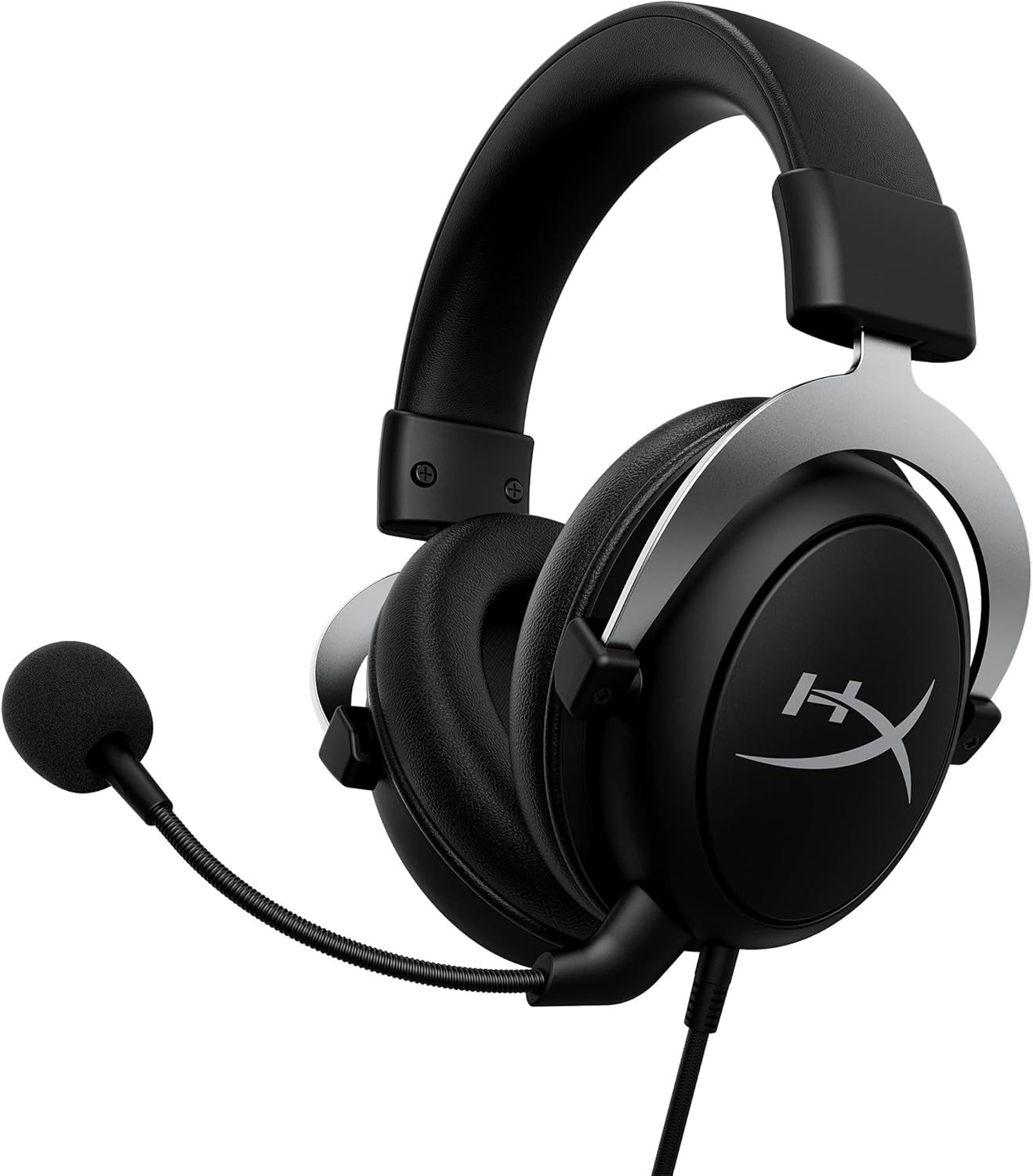
Image: The HyperX CloudX Gaming Headset, showcasing its black and silver design with the detachable microphone attached.
Kvalita zvuku
Experience immersive in-game audio with the CloudX headset's 53mm dynamic drivers. These drivers deliver crystal clear highs, rich mids, and powerful lows, enhancing your gaming experience. The closed-cup design helps to block out external distractions, allowing you to focus entirely on your game's soundscape.
Odnímatelný mikrofon s potlačením hluku
The flexible, noise-cancelling microphone ensures clear voice communication by reducing background noise. It can be easily positioned to your preference or detached when not needed, such as when listening to music or using the headset for single-player experiences.

Obrázek: Podrobný view of the HyperX CloudX headset, highlighting the detachable microphone and its connection point.
In-line Audio Controls
The headset features convenient in-line audio controls, allowing you to adjust volume and mute the microphone directly on the cable. This eliminates the need to navigate through console menus, providing quick and intuitive control over your audio settings.

Image: Close-up of the in-line audio control unit on the HyperX CloudX headset cable, showing the volume wheel and microphone mute switch.
Průvodce nastavením
Connecting to Xbox One / Xbox Series X|S
- Ensure your Xbox controller has a 3.5mm headset jack. Most modern Xbox controllers include this.
- Plug the 3.5mm audio jack from the HyperX CloudX headset firmly into the headset jack on your Xbox controller.
- If prompted, update your controller's firmware via the Xbox settings.
- Adjust the volume using the in-line audio control on the headset cable or through your Xbox audio settings.
- Ensure the microphone mute switch on the in-line control is in the 'unmuted' position if you intend to use voice chat.

Image: A person wearing the HyperX CloudX headset while holding an Xbox controller, demonstrating typical usage.
Připojení k mobilním zařízením
- The HyperX CloudX headset is compatible with mobile devices that have a CTIA standard 3.5mm audio jack.
- Plug the 3.5mm audio jack from the headset into your mobile device's audio port.
- For audio-only use, you may detach the microphone.
Návod k obsluze
Nastavení hlasitosti
Locate the volume wheel on the in-line audio control unit. Rotate the wheel upwards to increase volume and downwards to decrease volume.
Vypnutí/zapnutí mikrofonu
The in-line audio control unit features a switch to mute or unmute the microphone. Slide the switch to the position indicated for 'mute' (often with a red indicator) to turn off your microphone, and slide it to the 'unmute' position to enable it.
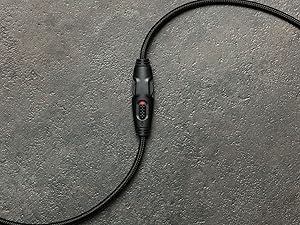
Obrázek: Detailní záběr view of the in-line audio controls, showing the volume dial and the microphone mute switch with a red indicator for the muted state.
Detaching the Microphone
To detach the microphone, gently pull it straight out from the headset's microphone port. To reattach, align the microphone's connector with the port and push it firmly until it clicks into place.
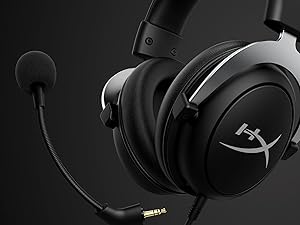
Image: The HyperX CloudX headset with its detachable microphone removed, illustrating the versatility of the design.
Údržba a péče
- Čištění náušníků: Gently wipe the leatherette ear cushions with a soft, damp tkanina. Vyhněte se používání agresivních chemikálií nebo abrazivních čisticích prostředků.
- Čisticí čelenka: Otřete čelenku měkkým, suchým hadříkem.
- Čištění mikrofonu: If necessary, gently wipe the microphone foam with a dry cloth.
- Péče o kabely: Vyhněte se ostrým ohybům nebo nadměrnému tahání za kabel, abyste předešli jeho poškození.
- Skladování: Sluchátka skladujte na chladném a suchém místě mimo dosah přímého slunečního záření a extrémních teplot.
Odstraňování problémů
Z náhlavní soupravy není žádný zvuk
- Ensure the 3.5mm jack is fully inserted into the controller or device.
- Check the in-line volume wheel and ensure it is turned up.
- Verify the audio settings on your Xbox or mobile device.
- Vyzkoušejte sluchátka s mikrofonem s jiným zařízením, abyste vyloučili problém s konkrétním zařízením.
Mikrofon nefunguje
- Ujistěte se, že je mikrofon bezpečně připojen k headsetu.
- Check the in-line microphone mute switch and ensure it is in the 'unmuted' position (no red indicator).
- Verify microphone settings on your Xbox or mobile device.
- Ensure your Xbox controller firmware is up to date.
- Pokud je to možné, otestujte mikrofon s jinou aplikací nebo zařízením.
Specifikace
| Funkce | Detail |
|---|---|
| Název modelu | CloudX |
| Technologie připojení | Kabelové |
| Jack pro sluchátka | Zásuvka 3.5 mm |
| Velikost zvukového ovladače | 53 milimetrů |
| Frekvenční rozsah | 20 Hz - 20,000 XNUMX Hz |
| Citlivost | 95 dB |
| Impedance | 41 Ohmy |
| Kontrola hluku | Aktivní potlačení hluku (mikrofon) |
| Kompatibilní zařízení | Xbox One, Xbox Series X|S, Mobile (CTIA standard) |
| Materiál | Hliník (rám) |
| Hmotnost položky | 337 gramů (11.9 unce) |
| Délka kabelu | 3 stop |
| Barva | Černá, Stříbrná |
Informace o záruce
The HyperX CloudX Gaming Headset typically comes with a manufacturer's warranty. Please refer to the warranty card included with your product or visit the official HyperX website for detailed warranty terms and conditions. The standard return policy for new products purchased from Amazon is 30 days.
Podpora
For technical assistance, troubleshooting beyond this manual, or warranty claims, please contact HyperX customer support. You can find contact information and additional resources on the official HyperX webweb. Obecné informace o produktu můžete také najít na Obchod HyperX na Amazonu.
Ask a question about this manual
Ask about setup, troubleshooting, compatibility, parts, safety, or missing instructions. Manuals+ will review the question and use this page’s manual context to help answer it.