
1. Úvod
This manual provides instructions for the setup, operation, maintenance, and troubleshooting of your ROCCAT Vulcan TKL Mechanical PC Gaming Keyboard. The Vulcan TKL is a tenkeyless mechanical keyboard designed for PC gaming, featuring Linear Titan Switches, per-key AIMO RGB lighting, an anodized aluminum top plate, and a detachable USB-C cable.
Mezi klíčové vlastnosti patří:
- Tenkeyless form factor for increased desk space and mouse movement.
- Titan Switch Mechanical with linear actuation for responsive keystrokes.
- Durable construction with a 50 million keystroke lifecycle.
- Extrémně nízká profile design to reduce wrist strain.
- Key stabilizer technology for solid and sturdy keys.
- AIMO intelligent lighting engine for customizable RGB effects.
- Mixer-style volume dial and dedicated media controls.
2. Co je v krabici
Ověřte, zda jsou v balení přítomny všechny součásti:
- ROCCAT Vulcan TKL Mechanical PC Gaming Keyboard
- Odnímatelný USB-C kabel
- Stručný průvodce (není součástí této příručky)
3. Nastavení
Follow these steps to set up your ROCCAT Vulcan TKL keyboard:
- Připojení kabelu USB-C: Locate the USB-C port on the back of the keyboard. Connect the smaller end of the provided USB-C cable to this port.
- Připojení k PC: Zapojte standardní konec kabelu USB-A do volného portu USB v počítači.

Obrázek 3.1: Připojení odpojitelného kabelu USB-C ke klávesnici.

Image 3.2: Close-up of the USB-C port on the keyboard.
- Instalace ovladače: Váš operační systém by měl automaticky detekovat a nainstalovat potřebné ovladače.
- Instalace softwaru ROCCAT Swarm: For full customization of lighting, key assignments, and macros, download and install the ROCCAT Swarm software from the official ROCCAT website. This software allows you to configure advanced features and update firmware.
4. Návod k obsluze
The ROCCAT Vulcan TKL keyboard offers a range of functions for gaming and general use.
4.1 Rozložení a funkce kláves
The keyboard features a UK layout with standard alphanumeric keys, function keys (F1-F12), and dedicated media controls.

Obrázek 4.1: Konecview of the ROCCAT Vulcan TKL keyboard layout.
- Funkční klávesy (F1–F12): These keys can have secondary functions when pressed in combination with the FN key. Refer to the keycaps for specific secondary functions (e.g., media playback, volume, lighting adjustments).
- Volič hlasitosti: Located in the upper right corner, this dial allows for quick adjustment of system volume. Rotate clockwise to increase volume, counter-clockwise to decrease.

Image 4.2: The mixer-style volume dial for audio control.
4.2 AIMO RGB Lighting
The keyboard features per-key AIMO intelligent RGB lighting. This lighting system can be customized extensively using the ROCCAT Swarm software. AIMO reacts to your input and other compatible ROCCAT devices to create dynamic lighting effects.
- Přizpůsobení: Use the ROCCAT Swarm software to select from various lighting effects, adjust brightness, and create custom lighting profiles.
- Palubní úložiště: The keyboard supports on-board profile storage, allowing you to save your preferred settings directly to the keyboard for use on different systems without the Swarm software.
4.3 Titan Switch Mechanical
The Vulcan TKL utilizes ROCCAT's Titan Switch Mechanical with linear actuation. This design provides a smooth and consistent keystroke, optimized for speed and responsiveness in gaming scenarios.

Obrázek 4.3: Detailní view of the Titan Switch Mechanical.
4.4 Ergonomický design
The keyboard features an ultra-low profile design, which helps to reduce wrist strain during extended use by allowing a more natural hand position.
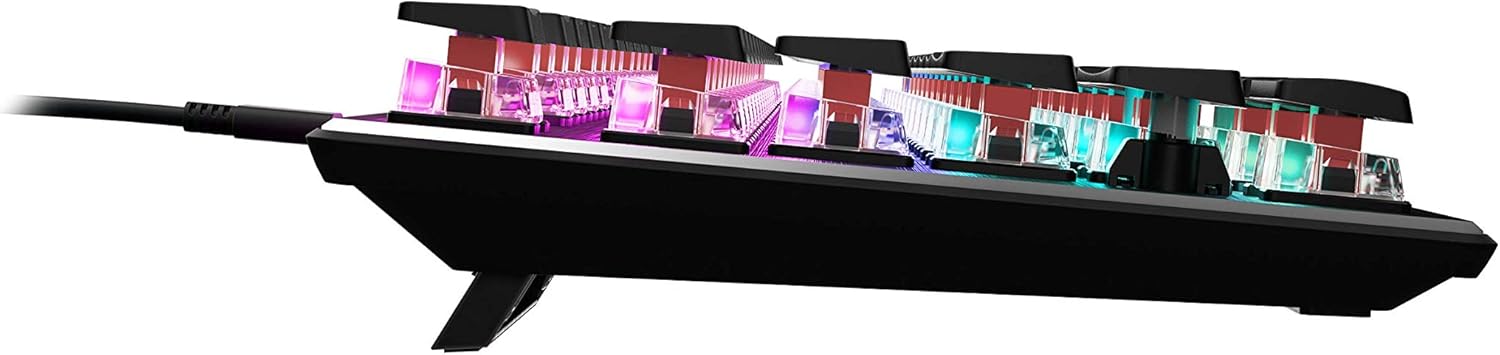
Obrázek 4.4: Boční profesionálfile of the keyboard demonstrating its low-profile design.
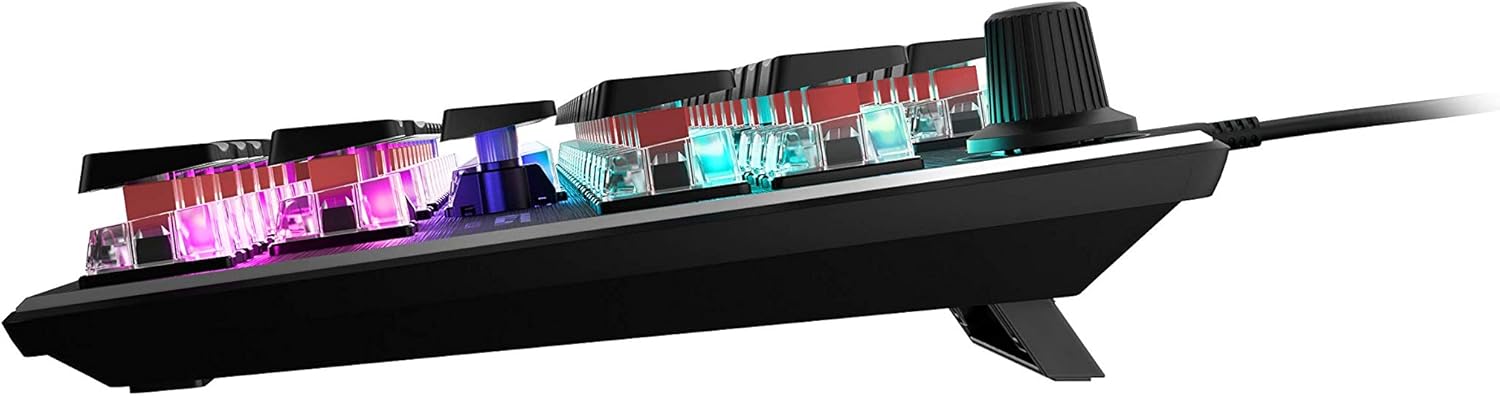
Obrázek 4.5: Boční strana view showing the keyboard's adjustable feet for ergonomic tilt.
5. Údržba
Správná údržba zajistí dlouhou životnost a optimální výkon vaší klávesnice.
- Čištění klávesnice: Regularly clean the keyboard surface and between keycaps to prevent dust and debris buildup. Use a soft, lint-free cloth, slightly dampened with water or a mild cleaning solution. For deeper cleaning, you may carefully remove keycaps (refer to online guides for safe keycap removal for your specific switch type) and use compressed air to clear debris. Ensure the keyboard is disconnected from your PC before cleaning.
- Péče o kabely: The detachable USB-C cable should be handled with care. Avoid sharp bends or excessive pulling to prevent damage to the cable or the keyboard's port.
- Skladování: Pokud klávesnici delší dobu nepoužíváte, skladujte ji v čistém a suchém prostředí mimo dosah extrémních teplot.
6. Řešení problémů
If you encounter issues with your ROCCAT Vulcan TKL keyboard, try the following troubleshooting steps:
- Klávesnice nereaguje:
- Ensure the USB-C cable is securely connected to both the keyboard and your PC.
- Zkuste připojit klávesnici k jinému USB portu na vašem počítači.
- Test the keyboard on another computer to determine if the issue is with the keyboard or your PC.
- Restartujte počítač.
- Dvojité psaní nebo neregistrace kláves:
- Ensure the keyboard firmware is up to date via the ROCCAT Swarm software.
- Clean the affected key switches using compressed air to remove any debris.
- If the issue persists, it may indicate a hardware fault. Refer to the Warranty and Support section.
- Problémy s RGB osvětlením:
- Verify that the ROCCAT Swarm software is running and the keyboard is detected.
- Check lighting settings within Swarm to ensure desired effects are enabled.
- Update the keyboard's firmware through Swarm.
- ROCCAT Swarm Software Not Detecting Keyboard:
- Ensure the keyboard is properly connected to your PC.
- Restart the Swarm software.
- Znovu nainstalujte software ROCCAT Swarm.
- Zkontrolujte, zda se nevyskytuje konfliktní software nebo ovladače.
7. Specifikace
| Značka | ROCCAT |
| Název modelu | Vulcan TKL |
| Číslo modelu | ROC-12-274 |
| Technologie připojení | USB-C (odnímatelný) |
| Popis klávesnice | Mechanická herní klávesnice |
| Typ přepínače | Mechanický spínač Titan (lineární) |
| Osvětlení | AIMO RGB osvětlení pro každou klávesu |
| Materiál | Horní deska z eloxovaného hliníku |
| Rozměry (DxŠxV) | 14.17 x 5.25 x 1.34 palce (36 x 13.3 x 3.4 cm) |
| Hmotnost položky | 2.2 libry (1 kg) |
| Kompatibilní zařízení | PC |
| Speciální funkce | Ergonomic, Tenkeyless Design |
8. Informace o záruce
ROCCAT products are covered by a manufacturer's warranty against defects in materials and workmanship. The specific terms and duration of your warranty may vary by region and product. Please retain your proof of purchase for warranty claims.
For detailed warranty information, please visit the official ROCCAT support webmísto.
9. Podpora
Pro další pomoc, technickou podporu nebo stažení nejnovějších ovladačů a softwaru navštivte oficiální stránky podpory ROCCAT. webmísto:
You can also find FAQs and community forums on the support page.