
1. Úvod
This manual provides essential information for the setup, operation, maintenance, and troubleshooting of your new Fusion5 FWIN232 Plus S2 10-inch Windows Tablet PC. Please read this manual thoroughly to ensure proper use and to maximize the device's performance and longevity.
2. Konec produktuview a klíčové vlastnosti
The Fusion5 FWIN232 Plus S2 is a versatile 10-inch Windows tablet designed for various daily computing needs. It combines portability with the functionality of a Windows PC.
Klíčové vlastnosti:
- Operační systém: Pre-installed with Windows 10 Professional for a familiar and user-friendly experience.
- Výkon: Equipped with 6GB DDR4 RAM and an N3450 quad-core CPU for efficient multitasking and daily tasks.
- Zobrazit: 10.1-inch Full HD IPS screen (1920x1200 pixels) for clear and vibrant visuals.
- Skladování: 64GB internal storage, expandable via Micro SD card.
- Konektivita: Features USB 3.0 port, Micro HDMI, and 802.11ac wireless connectivity.
- Fotoaparát: Front-facing 2MP single camera for video calls.
- Rychlé nabíjení: FusionCharge FastCharge technology allows for rapid battery replenishment.

Obrázek 2.1: Přední strana view of the Fusion5 FWIN232 Plus S2 Tablet PC, showcasing its 10.1-inch Full HD IPS display.

Figure 2.2: Diagram illustrating the various ports and buttons on the Fusion5 FWIN232 Plus S2 Tablet PC, including power, volume, headphone jack, Micro HDMI, USB 3.0, and charging ports.
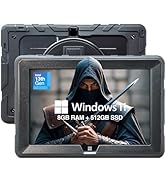
Figure 2.3: Visual summary of key features including 10.1" IPS Display, Windows 10 Professional, Intel Quad Core CPU, 6GB RAM, 64GB Storage, and Dual-Band WiFi.
3. Nastavení
3.1 Co je v krabici
- Fusion5 FWIN232+ S2 Windows Tablet
- FusionCharge Fast Charger
- Uživatelská příručka (tento dokument)
3.2 Počáteční nabíjení
Before first use, connect the FusionCharge Fast Charger to the tablet and a power outlet. It is recommended to fully charge the device. FusionCharge technology allows for 80% charge in approximately 45-50 minutes and a full charge in 70-80 minutes.
3.3 Powering On and Initial Windows Setup
- Stiskněte a podržte tlačítko napájení na boku tabletu, dokud se obrazovka nerozsvítí.
- Follow the on-screen prompts to complete the Windows 10 Professional setup. This includes selecting your language, region, and connecting to a Wi-Fi network.
- Create a user account and set up any desired security features.
4. Návod k obsluze
4.1 Základní navigace
- Dotyková obrazovka: Navigate the Windows interface by tapping, swiping, and pinching on the 10.1-inch Full HD IPS display.
- Optional Keyboard: If using a compatible docking keyboard (ASIN B08HJK5QCR), attach it to the tablet for a laptop-like experience with physical keys and a trackpad.
4.2 Připojení periferních zařízení
- USB 3.0: Connect USB devices such as external hard drives, flash drives, or mice to the USB 3.0 port for fast data transfer.
- Micro HDMI: Use a Micro HDMI cable to connect your tablet to an external display or TV.
- Micro SD karta: Insert a Micro SD card into the dedicated slot to expand storage capacity. The tablet supports up to 256GB (as per customer reviews, manual states 128KB max, but 256GB cards have been reported to work).
- Sluchátkový jack: Připojte sluchátka nebo externí reproduktory přes 3.5mm audio jack.
4.3 Použití kamery
The tablet features a front-facing 2MP single camera. This camera is suitable for video conferencing and online classes. Access the camera application from the Windows Start Menu to use it.
5. Údržba
- Čištění: Use a soft, lint-free cloth to clean the screen and exterior of the tablet. Avoid abrasive cleaners or solvents.
- Aktualizace softwaru: Regularly check for and install Windows updates to ensure optimal performance, security, and access to the latest features. Go to Nastavení > Aktualizace a zabezpečení > Windows Update.
- Správa úložiště: Pravidelně znovuview a smažte nepotřebné files or applications to free up storage space. Utilize the Micro SD card slot for additional storage of media and documents.
- Péče o baterie: To prolong battery life, avoid extreme temperatures and do not leave the tablet fully discharged for extended periods.
6. Řešení problémů
6.1 Běžné problémy a řešení
- Tablet se nezapíná: Ensure the tablet is fully charged. Connect the FusionCharge Fast Charger and wait a few minutes before attempting to power on again.
- Pomalý výkon: Close unnecessary applications running in the background. Check for available Windows updates. Ensure sufficient free storage space.
- Problémy s připojením Wi-Fi: Verify that Wi-Fi is enabled in Windows settings. Restart your Wi-Fi router and the tablet.
- Baterie se nenabíjí: Ensure the charger is securely connected to both the tablet and a working power outlet. Try a different power outlet.
Pokud se setkáte s přetrvávajícími problémy, podívejte se prosím do sekce Záruka a podpora, kde vám pomohou.
7. Specifikace
| Velikost displeje | 10.1 palce |
| Rozlišení obrazovky | 1920 x 1200 pixelů (Full HD IPS) |
| Procesor | 2.2 GHz Intel Celeron N3450 (Quad-core) |
| BERAN | 6 GB DDR4 SDRAM |
| Pevný disk | 64 GB |
| Grafický koprocesor | Grafická karta Intel HD Graphics 500 |
| Bezdrátový typ | 802.11ac |
| Operační systém | Windows 10 Professional |
| Hmotnost položky | 1.3 libry |
| Rozměry produktu | 9.72 x 6.5 x 0.31 palce |
| Zadní WebRozlišení vačky | 5 MP |
| Přední WebRozlišení vačky | 2 MP |
| Baterie | 1 lithium-polymerová baterie (součástí balení) |
8. Záruka a podpora
Your Fusion5 FWIN232 Plus S2 Tablet PC comes with a 12-month full USA warranty. For any warranty claims, technical support, or inquiries, please contact our USA service center.
Kontaktujte podporu: For assistance, please email feedback@fusion5store.com.