
AZZA CSAZ-340F
AZZA CSAZ-340F CELESTA ATX Mid Tower Gaming Case
Uživatelská příručka
1. Úvod
This manual provides comprehensive instructions for the installation, operation, and maintenance of your AZZA CSAZ-340F CELESTA ATX Mid Tower Gaming Case. Please read this manual thoroughly before beginning installation to ensure proper setup and to maximize the performance and longevity of your system components.

Obrázek 1: The AZZA CSAZ-340F CELESTA Mid Tower ATX Case, showcasinjeho design a tvarový faktor.
2. Bezpečnostní informace
- Always disconnect the power supply from the wall outlet before installing or removing any components inside the case.
- Handle all components with care to prevent damage from electrostatic discharge (ESD). Consider using an anti-static wrist strap.
- Keep the case and components away from liquids and excessive moisture.
- Zajistěte dostatečné větrání kolem skříně, abyste zabránili přehřátí.
- Do not attempt to modify the case structure or components, as this may void your warranty and pose safety risks.
- Uchovávejte malé díly a obalové materiály mimo dosah dětí.
3. Obsah balení
Ověřte, zda jsou v balení přítomny všechny níže uvedené položky:
- AZZA CSAZ-340F CELESTA ATX Mid Tower Gaming Case
- Krabice s příslušenstvím (obsahuje šrouby, distanční sloupky, stahovací pásky atd.)
- Uživatelská příručka (tento dokument)
4. Specifikace
The following table details the technical specifications of the AZZA CSAZ-340F CELESTA case:
| Funkce | Specifikace |
|---|---|
| Značka | AZZA |
| Název modelu | CSAZ-340F CELESTA |
| Typ pouzdra | Střední věž |
| Kompatibilita základní desky | ATX, Micro ATX, Mini ITX |
| Barva | Černý |
| Materiál | Kov |
| Typ montáže napájecího zdroje | Spodní montáž |
| Způsob chlazení | Vzduch |
| Fan Size (Included/Supported) | 120mm (Rear included), Supports 120mm/140mm |
| Maximální délka GPU | 320 mm |
| Maximální výška chladiče CPU | 165 mm |
| Maximální délka PSU | 160 mm |
| 3.5" HDD Support | 2 |
| 2.5" SSD Support | 4/6 (depending on configuration) |
| Podpora předního ventilátoru | 3 x 120 mm nebo 3 x 140 mm |
| Top Fan Support | 2 x 120 mm nebo 2 x 140 mm |
| Rear Fan Support | 1 x 120 mm |
| Přední držák chladiče | Up to 280mm/360mm |
| Horní podpora radiátorů | 2 x 120mm (from image) |
| Podpora zadního chladiče | 1 x 120mm (from image) |
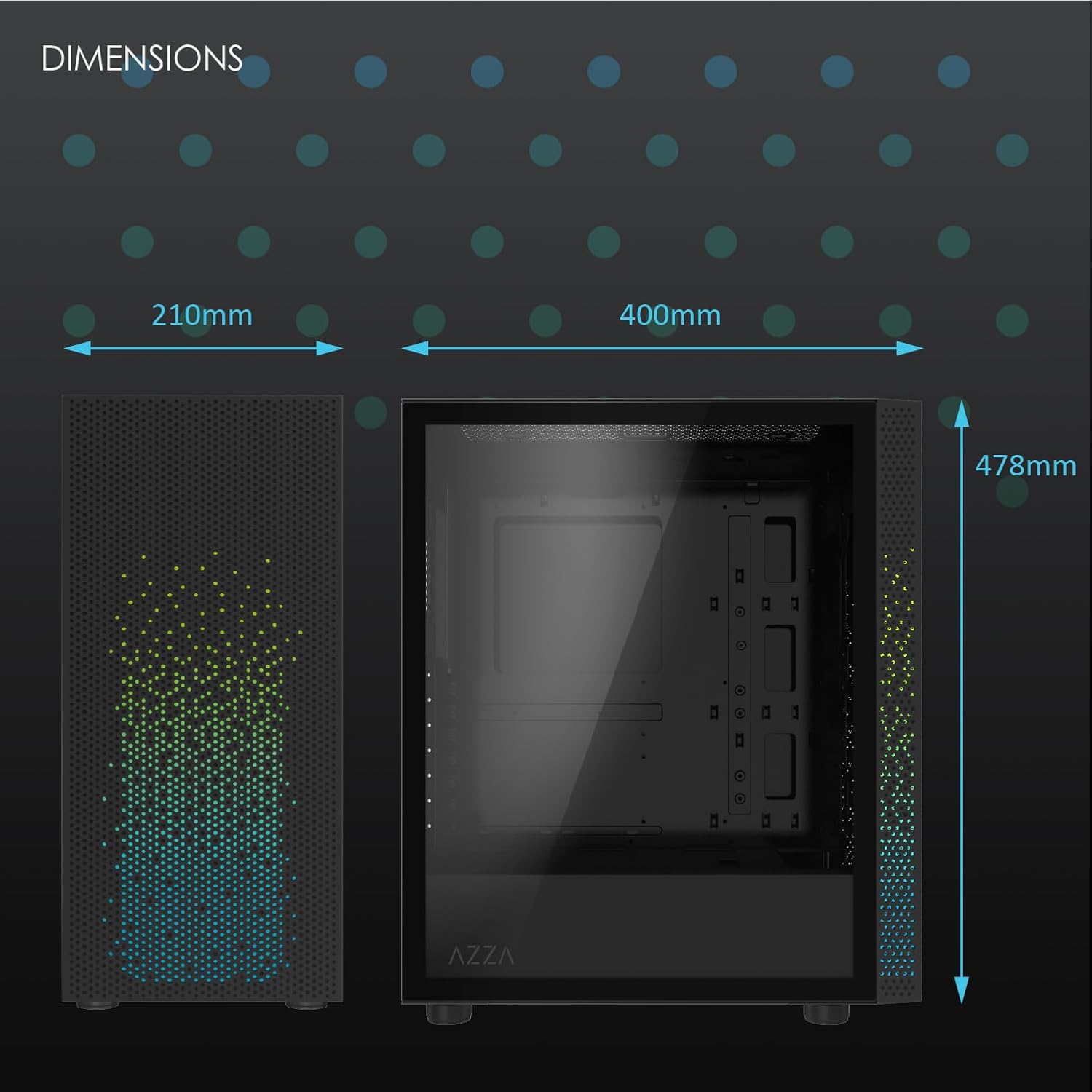
Obrázek 2: Physical dimensions of the AZZA CSAZ-340F CELESTA case: 210mm (width), 400mm (depth), 478mm (height).

Obrázek 3: Diagram illustrating fan and radiator mounting options for the AZZA CSAZ-340F CELESTA case, including front, top, and rear configurations.

Obrázek 4: Internal component support diagram for the AZZA CSAZ-340F CELESTA, showing maximum dimensions for CPU cooler, GPU, and PSU, along with drive bay locations.
5. Nastavení a instalace
Follow these steps to install your components into the AZZA CSAZ-340F CELESTA case.
5.1 Příprava případu
- Umístěte pouzdro na rovný a stabilní povrch.
- Remove the side panels. Typically, these are secured with thumbscrews at the rear of the case.
5.2 Instalace základní desky
- Install the I/O shield (if not pre-installed) into the rear opening of the case.
- Ensure the correct standoffs are installed for your ATX, Micro-ATX, or Mini-ITX motherboard. Adjust or add standoffs as needed using the provided tools.
- Opatrně umístěte základní desku na distanční sloupky a zarovnejte otvory pro šrouby.
- Secure the motherboard with the appropriate screws from the accessory box. Do not overtighten.
5.3 Instalace jednotky napájecího zdroje (PSU)
- Position the PSU in the bottom rear compartment of the case, ensuring the fan faces downwards (if there's a filtered vent) or upwards.
- Secure the PSU to the case with the provided screws from the rear.
- Protáhněte potřebné napájecí kabely otvory pro správu kabelů.
5.4 Instalace úložného disku (HDD/SSD)
- 3.5" pevné disky: Locate the drive cage. Slide the 3.5" HDDs into the drive trays and secure them, often tool-less or with screws.
- 2.5" SSD disky: Mount 2.5" SSDs to the dedicated mounting points on the motherboard tray or drive cage using screws.
- Connect SATA data and power cables to the installed drives.
5.5 Instalace grafické karty (GPU)
- Odstraňte potřebné kryty slotů PCIe ze zadní strany skříně.
- Carefully insert your graphics card into the appropriate PCIe slot on the motherboard until it clicks into place.
- Připevněte grafickou kartu ke skříni pomocí šroubů.
- Connect any required PCIe power cables from the PSU to the graphics card.
5.6 CPU Cooler Installation
Install your CPU cooler according to its specific manufacturer instructions. Ensure it does not exceed the maximum height of 165mm.
5.7 Instalace ventilátoru a chladiče
Skříň podporuje různé konfigurace ventilátorů a chladičů:
- Přední: Up to 3 x 120mm or 3 x 140mm fans, or radiators up to 280mm/360mm.
- Nahoře: Up to 2 x 120mm or 2 x 140mm fans, or 2 x 120mm radiators.
- Zadní: 1 x 120mm fan (pre-installed) or 1 x 120mm radiator.
Mount fans and radiators using the appropriate screws and ensure proper airflow direction.
5.8 Správa kabelů
Utilize the cable management cutouts and tie-down points behind the motherboard tray to route and secure cables. This improves airflow and aesthetics.
5.9 Závěrečná montáž
- Double-check all connections and ensure no cables are obstructing fans.
- Reattach the side panels.
- Connect external peripherals (monitor, keyboard, mouse, etc.) and the power cable.
6. Obsluha systému
Once all components are installed and connected, you can power on your system. The front panel features power and reset buttons, along with USB and audio ports for convenient access.

Obrázek 5: Close-up of the AZZA CSAZ-340F CELESTA's front panel, highlighting the integrated lighting effects.
7. Údržba
- Prachové filtry: Regularly clean the dust filters (if present) to maintain optimal airflow and cooling performance.
- Čištění interiéru: Periodically open the case and use compressed air to remove dust from components and fans. Ensure the system is powered off and unplugged before cleaning.
- Čištění exteriéru: Vnější povrchy otřete měkkým, damp tkanina. Vyhněte se agresivním chemikáliím.
8. Řešení problémů
Pokud narazíte na problémy, zvažte následující běžné kroky pro řešení potíží:
- Systém se nezapíná:
- Ujistěte se, že je napájecí kabel bezpečně připojen k napájecímu zdroji i k elektrické zásuvce.
- Check that the PSU switch is in the "ON" position.
- Verify all internal power connections (24-pin ATX, 8-pin CPU, PCIe power) are seated correctly.
- Confirm front panel power button cables are correctly connected to the motherboard.
- Žádný výstup na displej:
- Ensure your monitor is connected to the graphics card (not the motherboard's integrated graphics ports, unless you are using integrated graphics).
- Znovu vložte grafickou kartu do slotu PCIe.
- Zkontrolujte výběr vstupu monitoru.
- Přehřívání:
- Verify all case fans are spinning and oriented correctly for airflow.
- Vyčistěte všechny prachové filtry a vnitřní součásti.
- Ensure CPU cooler is properly seated and making good contact with the CPU.
9. Záruka a podpora
For warranty information and technical support, please refer to the official AZZA website or contact AZZA customer service directly. Keep your proof of purchase for warranty claims.
AZZA Official Webmísto: www.azza.com
Ask a question about this manual
Ask about setup, troubleshooting, compatibility, parts, safety, or missing instructions. Manuals+ will review the question and use this page’s manual context to help answer it.