
Zavedení
This manual provides comprehensive instructions for the Lexmark MS431dw Monochrome Laser Printer. It covers setup, operation, maintenance, and troubleshooting to ensure optimal performance and longevity of your device. The Lexmark MS431dw is designed for efficient monochrome printing, offering speeds up to 40 pages per minute and automatic duplex printing.

Obrázek: Přední pravý view of the Lexmark MS431dw Monochrome Laser Printer.
Nastavení
1. Vybalení tiskárny
Carefully remove the printer from its packaging. Ensure all packing materials, tapes, and protective films are removed from the exterior and interior of the printer. Retain the packaging for future transport if needed.
2. Instalace tonerové kazety
- Otevřete přední kryt tiskárny.
- Vyjměte novou tonerovou kazetu z obalu a jemně s ní zatřepejte, aby se toner rovnoměrně rozprostřel.
- Vložte tonerovou kazetu do určeného slotu, dokud nezacvakne na místo.
- Zavřete přední kryt.
3. Vkládání papíru
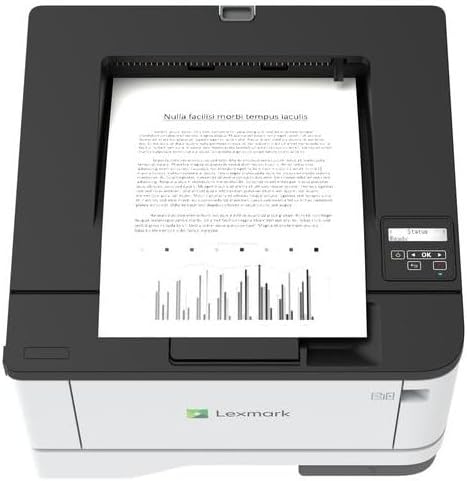
Obrázek: Nahoře view of the Lexmark MS431dw with paper loaded in the input tray.
Open the paper tray and adjust the paper guides to fit the size of your paper. Load the paper stack into the tray, ensuring it is flat and below the maximum fill line. Close the paper tray. The printer supports various media types, including card stock.
4. Připojení napájení
Připojte napájecí kabel k napájení tiskárny a poté k uzemněné elektrické zásuvce.
5. Connecting to a Network/Computer
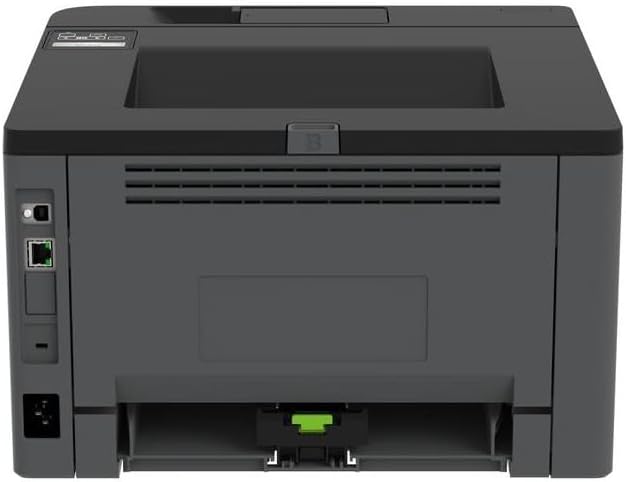
Obrázek: Zadní view of the Lexmark MS431dw, highlighting the Ethernet and power connection ports.
The Lexmark MS431dw supports Ethernet connectivity. Connect an Ethernet cable from your network router or switch to the Ethernet port on the back of the printer. For direct connection to a computer, use a USB cable (not included) if available, or configure network printing.
6. Instalace ovladače
Turn on the printer. Insert the driver CD (if provided) into your computer, or download the latest drivers from the official Lexmark support webwebu. Dokončete instalaci ovladače podle pokynů na obrazovce.
Návod k obsluze
1. Ovládací panel Overview

Obrázek: Nahoře view of the Lexmark MS431dw, showing the printer's control panel with display and buttons.
The control panel features a display screen and navigation buttons (Up, Down, OK, Back) to access printer settings, status, and functions. Refer to the on-screen menus for specific options.
2. Základní tisk
- Ujistěte se, že je tiskárna zapnutá a připojená k počítači nebo síti.
- Otevřete dokument, který chcete vytisknout, v počítači.
- Vybrat Vytisknout z nabídky aplikace (např. File > Tisk).
- Choose the Lexmark MS431dw from the list of available printers.
- Adjust print settings as desired (e.g., number of copies, paper size).
- Klikněte Vytisknout.
3. Automatický oboustranný tisk
The MS431dw supports automatic two-sided (duplex) printing. To enable this feature:
- In the print dialog box on your computer, navigate to the printer properties or preferences.
- Look for an option related to "Two-sided printing" or "Duplex printing."
- Vyberte požadovanou možnost oboustranného tisku (např. vazba na delší straně, vazba na krátké straně).
- Potvrďte svůj výběr a pokračujte v tisku.
Údržba
1. Výměna tonerové kazety
When the toner level is low, the printer's display will indicate a warning. To replace the cartridge:
- Ujistěte se, že je tiskárna zapnutá.
- Otevřete přední kryt.
- Vyjměte starou tonerovou kazetu jejím vytažením.
- Unpack a new Lexmark-compatible toner cartridge and gently shake it.
- Vložte novou kazetu, dokud nezapadne na místo.
- Zavřete přední kryt.
2. Čištění tiskárny
Pravidelné čištění pomáhá udržovat kvalitu tisku a prodlužuje životnost tiskárny.
- Vnější: Vnější povrchy otřete měkkým, damp, hadřík, který nepouští vlákna. Nepoužívejte abrazivní čisticí prostředky ani rozpouštědla.
- Interiér: Periodically open the front cover and gently remove any dust or paper debris from accessible areas using a dry, lint-free cloth. Avoid touching the fuser unit.
Odstraňování problémů
This section addresses common issues you might encounter. For more detailed troubleshooting, refer to the Lexmark support webmísto.
1. Zaseknutí papíru
- If a paper jam occurs, the printer display will show an error message indicating the location of the jam.
- Carefully open the indicated covers or trays.
- Jemně vytáhněte zaseknutý papír ve směru dráhy papíru. Neroztrhněte papír.
- Close all covers and trays. The printer should resume printing.
2. Špatná kvalita tisku
- Vybledlé výtisky: Tonerová kazeta může být nízká. V případě potřeby ji vyměňte.
- Pruhy nebo skvrny: Clean the printer's interior as described in the Maintenance section. Ensure the toner cartridge is properly seated.
- Prázdné stránky: Verify the toner cartridge is installed correctly and has toner. Check printer drivers and print settings.
3. Problémy s připojením
- Tiskárna nenalezena: Ensure the Ethernet cable is securely connected to both the printer and the network. Verify network settings on the printer and computer.
- Stav offline: Check the printer's power and network connection. Restart both the printer and your computer.
Specifikace
| Funkce | Detail |
|---|---|
| Číslo modelu | 29S0110 |
| Technologie tisku | Laser |
| Tiskový výstup | Monochromatický |
| Maximální rychlost tisku (černobíle) | Až 40 stran za minutu (ppm) |
| Technologie připojení | Ethernet |
| Speciální funkce | Auto-Duplex (Automatic Two-sided Printing) |
| Maximální vstupní kapacita listu | 900 listů |
| Print Media Support | Card stock, Plain paper |
| Hmotnost položky | 9300 gramů (přibližně 20.5 libry) |
| Wattage | 570 wattů |
| UPC | 734646695558 |
Poznámka: Specifikace se mohou změnit bez předchozího upozornění.
Záruka a podpora
Informace o záruce
Your Lexmark MS431dw printer is covered by a standard manufacturer's warranty. For specific terms, conditions, and duration of your warranty, please refer to the documentation included with your product or visit the official Lexmark webUschovejte si doklad o koupi pro případ reklamace.
Zákaznická podpora
For technical assistance, driver downloads, or further support, please visit the official Lexmark support portal.
Visit the Lexmark Store for Support