
XVICO X3S
XVICO X3S 3D Printer User Manual
Model: X3S
1. Úvod
This manual provides comprehensive instructions for the setup, operation, and maintenance of your XVICO X3S 3D Printer. The XVICO X3S is a semi-assembled DIY 3D printer kit featuring a heated bed, 2.8" touch screen, filament sensor, and open-source Marlin 2.0 firmware. It is designed for home use and supports various 1.75mm filaments.
Please read this manual thoroughly before operating the printer to ensure proper use and to prevent damage.
2. Bezpečnostní pokyny
- Tiskárnu vždy používejte v dobře větraném prostoru.
- Tiskárnu uchovávejte mimo dosah hořlavých materiálů a zdrojů tepla.
- Během provozu se nedotýkejte horké trysky ani vyhřívané podložky. Před manipulací nechte součásti vychladnout.
- Ensure the power supply is correctly connected and matches your local voltage požadavky.
- Během provozu držte děti a domácí zvířata v dostatečné vzdálenosti od tiskárny.
- Nepokoušejte se tiskárnu upravovat ani rozebírat nad rámec pokynů uvedených v této příručce.
- Před prováděním jakékoli údržby nebo čištění odpojte tiskárnu ze zásuvky.
3. Obsah balení
Po vybalení zkontrolujte, zda jsou všechny součásti přítomny a v dobrém stavu. Pokud některé položky chybí nebo jsou poškozené, kontaktujte zákaznickou podporu.
- XVICO X3S 3D Printer (semi-assembled main frame)
- Gantry Assembly (X and Z axes)
- Držák vlákna
- Napájecí kabel
- USB kabel
- SD Card with pre-loaded files and software
- Sada nářadí (klíče, šroubováky, kleště atd.)
- Sample vlákno
- Uživatelská příručka (tento dokument)
4. Nastavení a montáž
The XVICO X3S is designed for quick assembly, typically taking around 10 minutes.
- Rozbalení: Carefully remove all components from the packaging. Remove any protective foam or zip ties.
- Attach Gantry Assembly: Align the gantry assembly (X and Z axes) with the base frame. Secure it using the provided screws. There are typically four bolts connecting the X and Z axis to the rest of the machine.
- Instalace držáku filamentu: Attach the filament holder to the designated slot on the top of the printer using two bolts and two nuts.
- Připojit kabely: Connect all labeled cables, including those for stepper motors, end-stops, and the hotend/heated bed. Ensure all connections are secure.
- Připojení napájení: Connect the power cable to the printer and then to a suitable power outlet.
- Vložte SD kartu: Vložte dodanou SD kartu do slotu pro SD kartu v tiskárně.

Image: The XVICO X3S 3D Printer highlighting its build volume of 220x220x250mm, two-step assembly, resume printing, filament detection, and heated bed features.
5. Návod k obsluze
5.1. Vyrovnání postele
Accurate bed leveling is crucial for successful prints. The XVICO X3S features a glass platform on a heated bed for consistent surface temperature and easy model removal.
- Zapněte tiskárnu.
- Navigate to the "Tools" or "Prepare" menu on the 2.8" touch screen.
- Select "Leveling" or "Auto Home" to move the nozzle to the home position.
- Manually move the nozzle to each of the four corners of the print bed.
- Adjust the thumb screws under each corner of the heated bed until a piece of standard paper slides with slight friction between the nozzle and the bed.
- Repeat the process for all four corners until the bed is consistently leveled.
5.2. Vložení vlákna
The XVICO X3S supports various 1.75mm filaments like PLA, PETG, SILK, WOOD.
- Preheat the nozzle to the recommended temperature for your filament type.
- Insert the filament into the filament sensor. The blue light on the sensor will indicate filament presence.
- Feed the filament through the extruder's double gear mechanism until it reaches the hotend.
- On the touch screen, use the "Load Filament" or "Extrude" function to push the filament through the nozzle until it comes out smoothly.
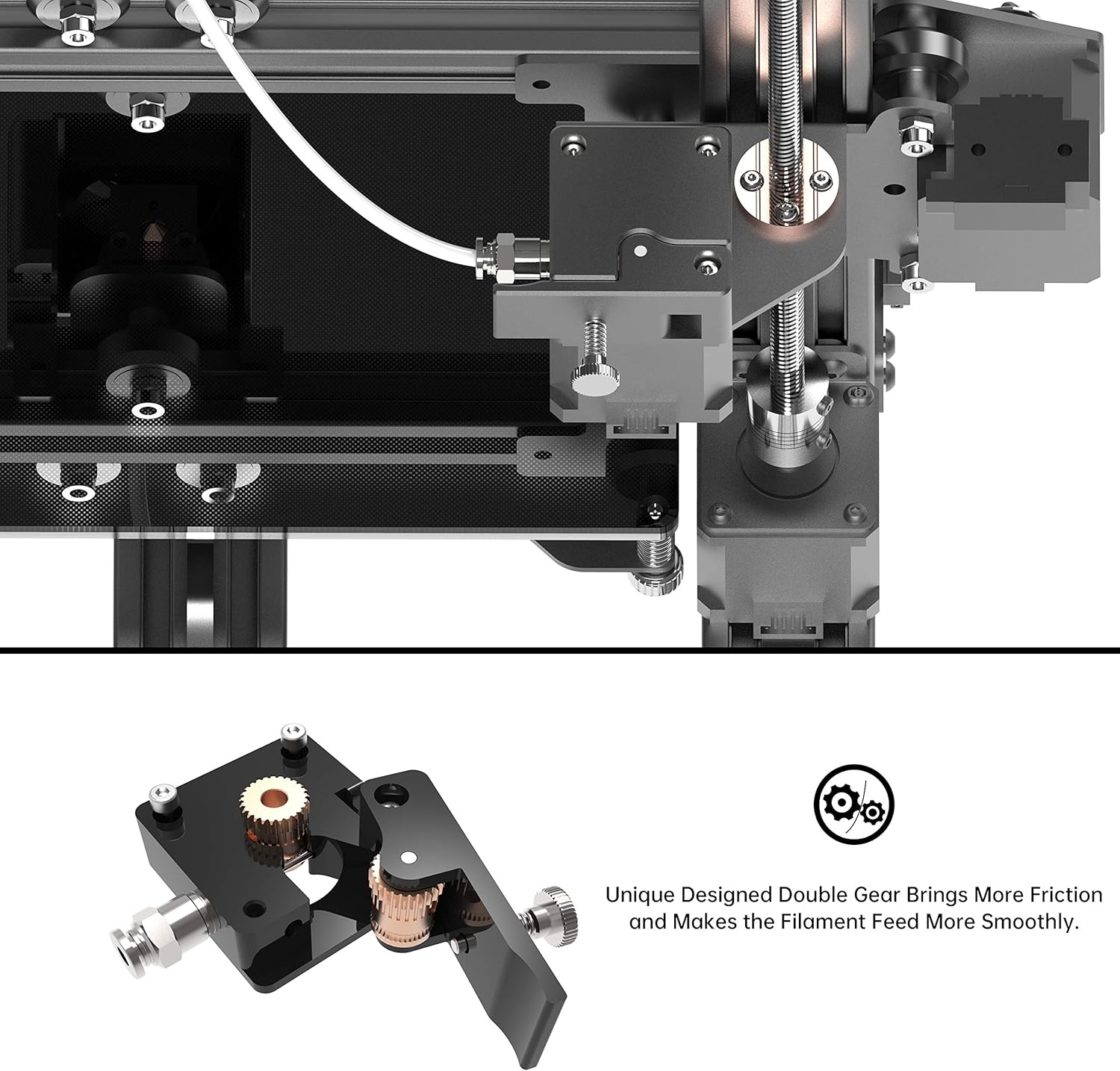
Obrázek: Podrobný view of the unique double gear extruder, designed to provide more friction and smoother filament feeding.

Image: The filament sensor on the XVICO X3S, which pauses printing when filament runs out to protect the model. The blue light indicates filament presence.
5.3. Zahájení tisku
- Prepare your 3D model (.gcode file) using a slicing software (e.g., Cura, which has a profile on the provided SD card).
- Uložte .gcode file na kartu SD.
- Insert the SD card into the printer.
- On the touch screen, navigate to the "Print" menu.
- Select your desired .gcode file ze seznamu.
- Potvrďte nastavení tisku a spusťte tisk.
5.4. Filament Detection & Resume Printing
The XVICO X3S is equipped with a filament detection sensor that automatically pauses the print if the filament runs out. It also features a resume printing function, allowing the printer to continue from the last position after a power outage. This prevents print failures and wasted material.
6. Údržba
- Vyčistěte tiskovou podložku: After each print, allow the heated bed to cool and then carefully remove the printed model. Clean the glass surface with isopropyl alcohol to ensure good adhesion for future prints.
- Čištění trysek: Periodically clean the nozzle to prevent clogs. Use a brass brush or a thin needle (provided in the tool kit) to clear any debris.
- Namažte pohyblivé části: Pro zajištění plynulého pohybu naneste každé několik měsíců na vodicí šroub osy Z malé množství lithiového maziva nebo podobného maziva a vyhlaďte tyče.
- Zkontrolujte napnutí řemene: Ensure the X and Y axis belts are properly tensioned. They should be taut but not overly tight. Adjust if necessary.
- Aktualizace firmwaru: Check the official XVICO website (if available) or community forums for any firmware updates for Marlin 2.0 to improve performance or add features.
7. Řešení problémů
| Problém | Možná příčina | Řešení |
|---|---|---|
| First layer not sticking | Bed not leveled, nozzle too far from bed, bed not heated, dirty print surface. | Re-level the print bed. Adjust Z-offset. Ensure heated bed is at correct temperature. Clean the glass bed with isopropyl alcohol. |
| Vlákno se nevytlačuje | Nozzle clogged, filament tangled, extruder gear slipping, wrong temperature. | Clear nozzle clog. Untangle filament. Check extruder tension. Verify hotend temperature. |
| Poor print quality (layer shifts, stringing) | Loose belts, incorrect print speed, retraction settings, cooling issues. | Check and tighten belts. Adjust print speed. Optimize retraction settings in slicer. Ensure part cooling fan is working. |
| Tiskárna se nezapíná | Power cable disconnected, power supply issue, faulty wiring. | Check all power connections. Ensure power switch is on. Contact support if issue persists. |
8. Specifikace
| Funkce | Detail |
|---|---|
| Model | X3S |
| Build Volume | 220 x 220 x 250 mm |
| Rozměry produktu | 17.52 x 12.28 x 20.16 palce (44.5 x 31.2 x 51.2 cm) |
| Hmotnost položky | 15.4 libry (7 kg) |
| Firmware | Open Source Marlin 2.0 |
| Obrazovka | 2.8" dotyková obrazovka |
| Průměr vlákna | 1.75 mm |
| Kompatibilní vlákna | PLA, PETG, SILK, WOOD, etc. |
| Tisková postel | Heated Bed with Glass Platform |
| Speciální funkce | Filament Detection, Resume Printing, Double Gear Extruder |

Image: The XVICO X3S 3D Printer showing its overall physical dimensions (15.35"D x 16.14"W x 19.29"H).
9. Záruka a podpora
XVICO provides a 30-day return and money-back service, along with lifetime technical support and timely online customer service for the X3S 3D Printer.
For any questions or support, please contact XVICO customer service via your order details on the platform where you purchased the product (e.g., "Click Your Account > Your Orders > Find This 3D Printer Order > Click Contact Seller"). Alternatively, refer to the support email address provided on the after-sales card included with your product.
Uschovejte si prosím doklad o koupi pro uplatnění záruky.
Ask a question about this manual
Ask about setup, troubleshooting, compatibility, parts, safety, or missing instructions. Manuals+ will review the question and use this page’s manual context to help answer it.