
Zavedení
This manual provides essential information for setting up, operating, maintaining, and troubleshooting your HP ProBook x360 11 G3 EE 2-in-1 Laptop. Designed for versatility, this device functions as both a traditional laptop and a tablet, adapting to various educational and business needs. Please read this manual thoroughly to ensure optimal performance and longevity of your device.
Nastavení
1. Vybalení a první kontrola
Carefully remove all components from the packaging. Verify that all items listed in the 'What's in the Box' section are present. Inspect the laptop for any physical damage that may have occurred during transit.
- HP laptop
2. Počáteční poplatek
Before first use, connect the laptop to a power outlet using the provided AC adapter. Allow the battery to charge fully. The charging indicator light will typically change color or turn off when charging is complete.
3. Zapnutí
Press the power button, usually located on the side or top edge of the laptop, to turn on the device. The screen will illuminate, and the system will begin to boot.
4. Nastavení systému Windows 10 Pro
Follow the on-screen prompts to complete the initial setup of Windows 10 Pro. This includes selecting your region, language, connecting to a Wi-Fi network, accepting the license agreement, and creating a user account. An active internet connection is recommended for this process to download necessary updates.

Figure 1: HP ProBook x360 11 G3 EE in laptop mode, showcasing its display and key features.
Obsluha vašeho zařízení
1. Understanding the 2-in-1 Design
The HP ProBook x360 11 G3 EE features a versatile 360-degree hinge, allowing it to transform into multiple modes:
- Režim notebooku: Tradiční konfigurace notebooku pro psaní a produktivitu.
- Režim stanu: Ideální pro prezentace nebo sledování videí ve stísněných prostorách.
- Režim stojanu: Similar to tent mode but with the keyboard facing down, suitable for touch-based interactions.
- Režim tabletu: Fully folded back, converting the device into a tablet for portability and touch navigation.

Figure 2: The laptop configured in tent mode, suitable for media consumption.

Figure 3: The laptop fully folded into tablet mode for touch-centric use.
2. Funkce dotykové obrazovky
The 11.6-inch HD touchscreen allows for intuitive interaction with Windows 10 Pro. Use gestures such as tapping, swiping, pinching, and zooming for navigation and application control.
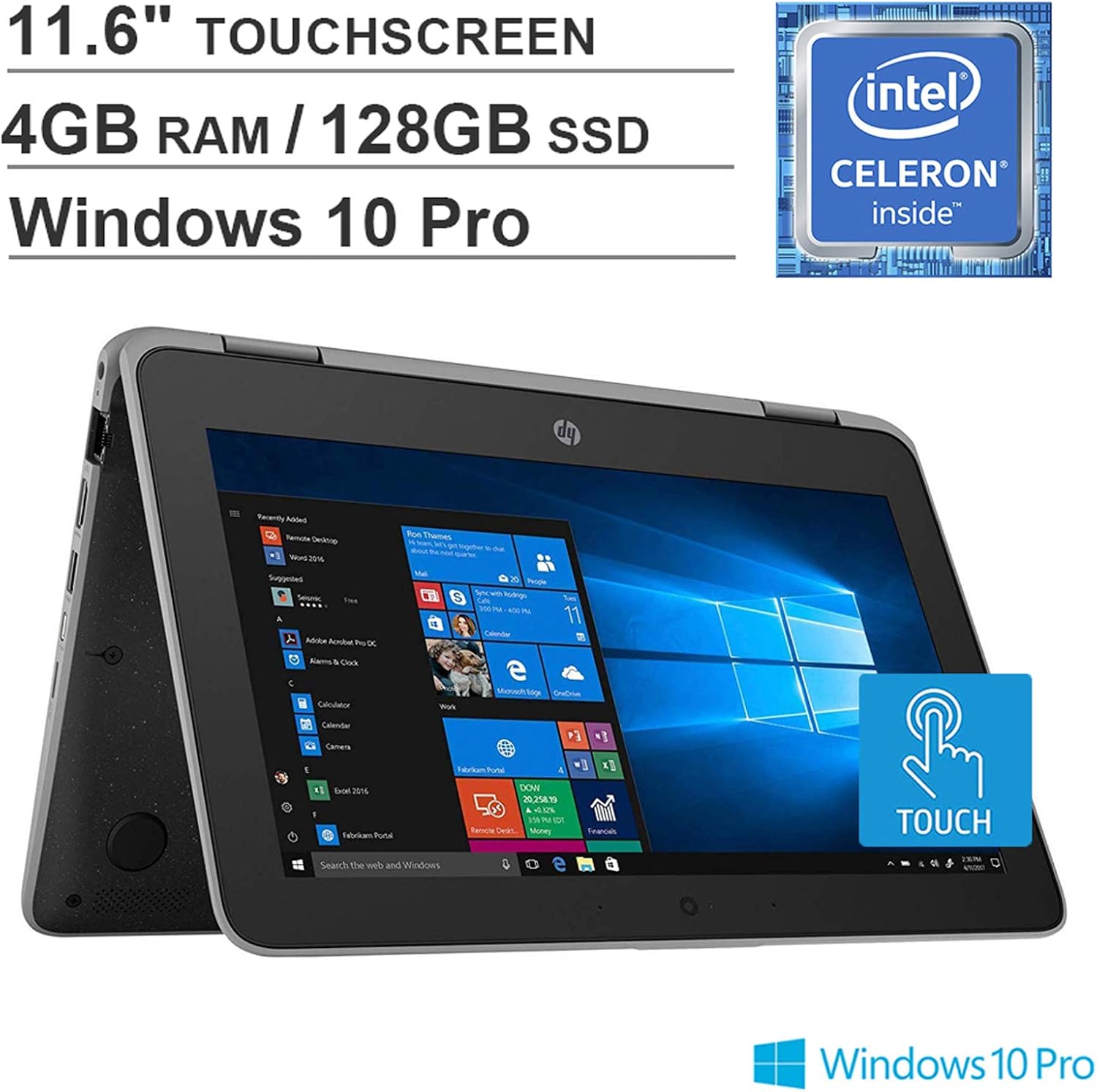
Figure 4: The touchscreen display highlighting its interactive capabilities.
3. Klávesnice a touchpad
The integrated keyboard and touchpad provide traditional input methods. The touchpad supports multi-touch gestures for enhanced navigation, including two-finger scrolling and pinch-to-zoom.

Obrázek 5: Strana view of the laptop, illustrating the keyboard and touchpad layout.
4. Připojení periferií
Notebook je vybaven různými porty pro připojení externích zařízení:
- Porty USB 3.1 1. generace (x2): Pro připojení USB zařízení, jako jsou externí disky, myši nebo klávesnice.
- Port USB typu C (x1): A versatile port for data transfer, charging, and video output (with compatible adapters).
- HDMI Port (x1): Pro připojení k externím displejům nebo projektorům.
- RJ-45 (Ethernet) Port (x1): Pro kabelová síťová připojení.
- Kombinovaný konektor pro sluchátka/mikrofon (x1): Pro audio vstup/výstup.
- Multi-format Digital Media Reader (SD, SDHC, SDXC): Pro čtení paměťových karet.
The device also supports 802.11ac Wi-Fi for wireless internet connectivity and Bluetooth for connecting wireless accessories.

Obrázek 6: Detailní view of the laptop's side ports for connectivity.
Údržba a péče
1. Čištění zařízení
K čištění obrazovky použijte jemný hadřík, který nepouští vlákna dampened with water or a screen-cleaning solution. For the keyboard and chassis, use a soft, dry cloth. Avoid harsh chemicals or abrasive materials.
2. Správa baterií
The laptop offers up to 11 hours of battery life. To maximize battery longevity, avoid extreme temperatures, and try to keep the battery charge between 20% and 80% when possible. Fully discharging the battery frequently can reduce its overall lifespan.
3. Aktualizace softwaru
Regularly check for and install Windows updates to ensure your system has the latest security patches and performance improvements. You can find update settings in the Windows Settings menu.
4. Správa úložiště
The device comes with a 128GB SSD. Periodically review vaše nainstalované aplikace a fileuvolněte úložný prostor. Pro velké soubory využijte cloudové úložiště nebo externí disky. files pro udržení optimálního výkonu systému.
Odstraňování problémů
Běžné problémy a řešení
- Zařízení se nezapíná: Ensure the AC adapter is securely connected and the power outlet is functional. Try a different outlet. If the battery is completely drained, it may take a few minutes of charging before the device can power on.
- Obrazovka je prázdná nebo bliká: Restartujte notebook. Pokud je připojen k externímu monitoru, zkuste jej odpojit. Zkontrolujte nastavení zobrazení ve Windows.
- Problémy s připojením k Wi-Fi: Ensure Wi-Fi is enabled in Windows settings. Restart your router and the laptop. Check for updated network drivers.
- Pomalý výkon: Zavřete nepotřebné aplikace. Zkontrolujte, zda procesy na pozadí nespotřebovávají prostředky. Zajistěte dostatek volného místa na SSD disku. Spusťte kontrolu systému na přítomnost malwaru.
- Dotyková obrazovka nereaguje: Restart the device. Check for updated touchscreen drivers in Device Manager.
For more complex issues, refer to the official HP support webnebo kontaktujte jejich zákaznický servis.
Technické specifikace
| Funkce | Specifikace |
|---|---|
| Značka | HP |
| Název modelu | HP X360 11 G3 2-in-1 |
| Velikost obrazovky | 11.6 palce |
| Rozlišení obrazovky | 1366 x 768 pixelů |
| Procesor | 1.1 GHz Intel Celeron N4100 |
| BERAN | 4 GB DDR4 |
| Pevný disk | 128 GB SSD |
| Grafický koprocesor | Grafická karta Intel UHD Graphics 600 |
| Operační systém | Windows 10 Pro |
| Bezdrátový typ | 802.11a/ac Wi-Fi, Bluetooth |
| Porty USB 3.0 | 2 |
| Porty USB typu C | 1 |
| HDMI porty | 1 |
| Průměrná životnost baterie | 11 hodiny |
| Hmotnost položky | 0.4 unce |
| Rozměry produktu | 11.8 x 8.11 x 0.78 palce |
| Barva | Šedá |
Záruka a podpora
As a renewed product, the warranty terms may vary from new products. Please refer to the specific warranty information provided at the time of purchase or contact your seller for details regarding the warranty period and coverage for this renewed HP ProBook x360 11 G3 EE.
Pro technickou pomoc, stažení ovladačů nebo další podporu navštivte oficiální stránky podpory HP. website. Have your product model and serial number ready when seeking support.