
Zavedení
This manual provides essential information for the setup, operation, and maintenance of your Armor3 Wired Game Controller. Designed for use with PlayStation 4, PC, and Mac, this controller offers a responsive and immersive gaming experience.
Key features include a 6.5 ft. cable for flexible placement, intense vibration-feedback, motion sensing technology, an integrated light bar for enhanced immersion, a functional touchpad, and a front speaker. Please note that some functionalities, such as vibration-feedback and touchpad, may vary when used with PC and Mac. The controller does not include a headphone jack or an extension port.
Průvodce nastavením
Follow these steps to connect your Armor3 Wired Game Controller to your device:
- Rozbalte ovladač: Carefully remove the controller from its packaging.
- Identifikace USB konektoru: Locate the standard USB-A connector at the end of the controller's 6.5 ft. cable.
- Připojit k zařízení:
- Pro PlayStation 4: Insert the USB connector into an available USB port on your PS4 console. The controller should be automatically recognized.
- Pro PC/Mac: Insert the USB connector into an available USB port on your computer. The necessary drivers should install automatically. If not, check your operating system's device manager.
- Ověřit připojení: Once connected, the controller's light bar should illuminate, indicating a successful connection.
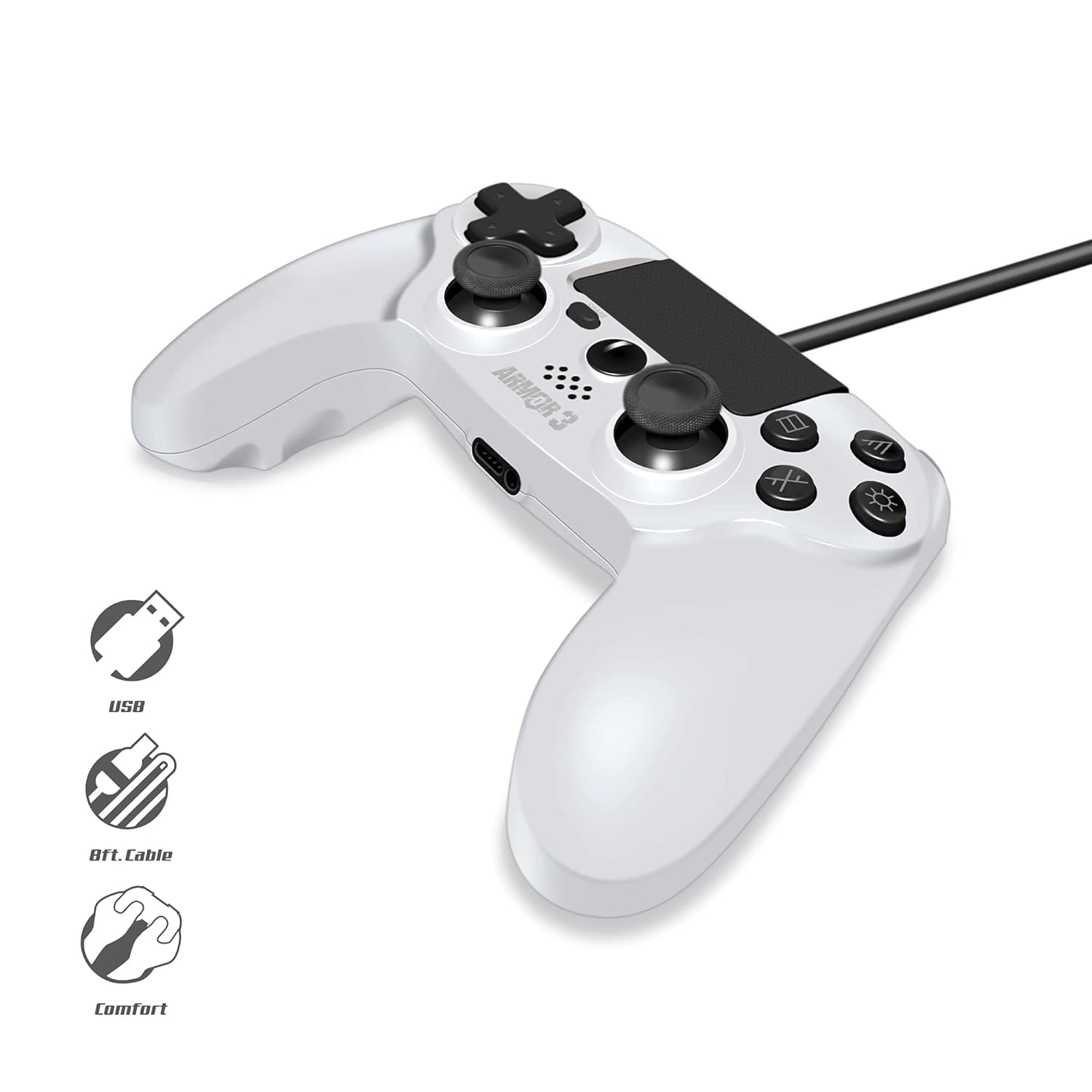
Obrázek 1: The Armor3 Wired Game Controller showing its integrated USB cable, ready for connection. The image highlights the USB connector, the generous 6.5-foot cable length, and the ergonomic design for comfortable use.
Návod k obsluze
The Armor3 Wired Game Controller provides a full range of controls for an immersive gaming experience. Familiarize yourself with the controller's layout and features:

Obrázek 2: Detailní přední strana view of the Armor3 Wired Game Controller, displaying its various buttons, analog sticks, D-pad, touchpad, and light bar. This image helps in identifying the different control inputs.
- Analogové páčky: Use the left and right analog sticks for precise movement and camera control.
- Směrový ovladač (D-Pad): Provides directional input, commonly used for menu navigation or specific in-game actions.
- Akční tlačítka: The standard PlayStation action buttons (Triangle, Circle, Cross, Square) are located on the right side for in-game commands.
- Tlačítko SDÍLET: Allows you to share gameplay moments (PS4 specific functionality).
- Tlačítko MOŽNOSTI: Typically used to access in-game menus or pause the game.
- Touchpad: The integrated touchpad offers additional input methods. Note: Touchpad functionality may vary significantly when used with PC and Mac.
- Světelná lišta: The light bar changes color to provide visual feedback, such as player identification or in-game status.
- Vibrační zpětná vazba: The controller provides immersive vibration feedback during gameplay. Note: Vibration functionality may vary when used with PC and Mac.
- Front Speaker: Certain in-game audio cues may be played through the controller's integrated speaker.
For optimal performance, ensure your console or computer's operating system is up to date. Specific game settings may allow for customization of controller inputs.
Údržba
Proper care and maintenance will extend the lifespan of your Armor3 Wired Game Controller:
- Čištění: K otření ovladače použijte měkký, suchý hadřík. V případě odolné nečistoty použijte lehceamp cloth can be used, but ensure no moisture enters the controller's openings. Do not use harsh chemicals or abrasive cleaners.
- Skladování: Store the controller in a cool, dry place away from direct sunlight and extreme temperatures. Avoid tangling the cable.
- Zacházení: Avoid dropping the controller or subjecting it to strong impacts, as this can damage internal components. Do not pull the cable excessively when disconnecting.
Odstraňování problémů
If you encounter issues with your Armor3 Wired Game Controller, please refer to the following common solutions:
| Problém | Možná příčina / řešení |
|---|---|
| Controller not recognized by PS4/PC/Mac. |
|
| Vibration feedback not working (PC/Mac). |
|
| Touchpad not responding (PC/Mac). |
|
| Tlačítka nebo analogové páčky nereagují. |
|
Specifikace
| Funkce | Detail |
|---|---|
| Číslo modelu | M07341-WH |
| Kompatibilita | PlayStation 4, PC, Mac (via USB) |
| Konektivita | Kabelové USB |
| Délka kabelu | 6.5 stop |
| Vlastnosti | Vibration-feedback, Motion Sensing Technology, Light Bar, Touchpad, Front Speaker |
| Rozměry (balení) | 6.93 x 4.57 x 3.5 palce |
| Hmotnost položky | 10.9 unce |
| Výrobce | Armor3 |
Informace o záruce
Specific warranty terms and conditions for the Armor3 Wired Game Controller are provided by the manufacturer. Please refer to the documentation included with your purchase or visit the official Armor3 webpodrobné informace o záruce a postupech registrace naleznete na webu.
Zákaznická podpora
For technical assistance, troubleshooting beyond this guide, or inquiries regarding your Armor3 Wired Game Controller, please contact Armor3 customer support. Contact details can typically be found on the product packaging or the manufacturer's official webmísto.