
MERCUSYS MR50G
Mercusys MR50G AC1900 Dual-Band Wi-Fi 5 Router User Manual
Model: MR50G
Zavedení
This manual provides comprehensive instructions for setting up, operating, maintaining, and troubleshooting your Mercusys MR50G AC1900 Dual-Band Wi-Fi 5 Router. The MR50G is designed to deliver high-speed wireless connectivity with AC1900 speeds, Gigabit Ethernet ports, and advanced features like MU-MIMO and Beamforming.

Obrázek: Přední strana view of the Mercusys MR50G router, illustrating its dual-band capabilities with 5GHz (1300 Mbps) and 2.4GHz (600 Mbps) speeds.
Průvodce nastavením
1. Obsah balení
Ověřte, zda váš balíček obsahuje následující položky:
- Mercusys MR50G AC1900 Dual-Band Wi-Fi 5 Router
- Napájecí adaptér
- Ethernetový kabel
- Quick Installation Guide (User Guide)
2. Fyzické připojení
Chcete-li připojit router, postupujte takto:
- Vypnout: Odpojte napájení modemu a routeru (pokud je to možné).
- Připojení modemu k routeru: Connect one end of the provided Ethernet cable to the WAN port (usually blue) on your MR50G router and the other end to your modem's Ethernet port.
- Připojení zařízení (volitelné): For wired connections, connect your computer or other devices to the LAN ports (yellow) on the MR50G router using Ethernet cables.
- Zapnutí: Connect the power adapter to the router's power port and plug it into a power outlet. Power on your modem, then power on the MR50G router.
- Počkejte na indikátory: Wait for the router's LED indicators to stabilize. The Power LED should be solid green.
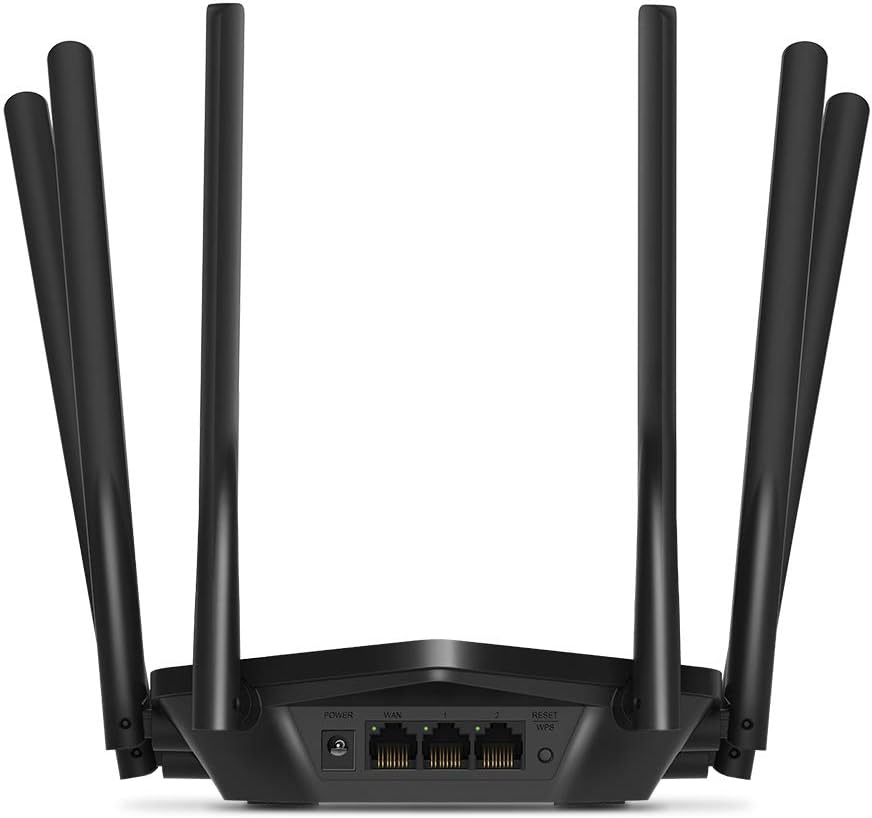
Obrázek: Zadní view of the Mercusys MR50G router, illustrating the power input, WAN port (blue), and three LAN ports (yellow) for wired connections, along with the Reset/WPS button.
3. Počáteční konfigurace
První konfigurace routeru:
- Připojení k Wi-Fi: Connect your computer or mobile device to the router's default Wi-Fi network (SSID and password are typically printed on a label on the bottom of the router).
- Přístup Web Rozhraní: Otevřete a web prohlížeč a zadejte
mwlogin.netor192.168.1.1do adresního řádku. - Vytvořit přihlašovací heslo: Follow the on-screen instructions to create a login password for the router's management page.
- Follow Quick Setup: The Quick Setup wizard will guide you through basic internet and wireless settings.
Návod k obsluze
1. Základní nastavení Wi-Fi
Po přihlášení do web rozhraní:
- Název sítě (SSID): Navigate to the Wireless settings to change your Wi-Fi network names (SSIDs) for both 2.4 GHz and 5 GHz bands.
- Heslo: Set a strong, unique password for your Wi-Fi networks. The MR50G supports WPA3 for enhanced security.
- Typ zabezpečení: It is recommended to use WPA2-PSK/WPA3-Personal for optimal security.
2. Provoz ve dvou pásmech
The MR50G operates on two frequency bands:
- 2.4 GHz: Poskytuje širší pokrytí a lepší pronikání skrz zdi, vhodné pro běžné používání internetu a starší zařízení.
- 5 GHz: Offers faster speeds and less interference, ideal for bandwidth-intensive activities like 4K streaming and online gaming, but with a shorter range.
You can configure separate SSIDs for each band or use Smart Connect to combine them into a single SSID, allowing the router to automatically assign devices to the optimal band.
3. Režim přístupového bodu
To use the MR50G as an Access Point (AP) to extend an existing wired network:
- Připojit: Connect an Ethernet cable from your existing router's LAN port to one of the MR50G's LAN ports (not the WAN port).
- Nakonfigurujte: Log into the MR50G's web interface, navigate to the Operation Mode settings, and select "Access Point Mode". Follow the prompts to complete the setup.
4. Pokročilé funkce
- MU-MIMO: Technologie Multi-User, Multiple-Input, Multiple-Output umožňuje routeru komunikovat s více zařízeními současně, což zvyšuje efektivitu sítě.
- Beamforming: Zaměřuje Wi-Fi signály na připojená zařízení, čímž zvyšuje sílu signálu a dosah.
- Podpora VPN: The router supports VPN functionality, allowing for secure remote access or connection to VPN services. Refer to the router's web interface for specific VPN client/server configurations.
- Rodičovská kontrola: Spravujte a omezujte přístup k internetu pro konkrétní zařízení nebo uživatele.
- Síť pro hosty: Vytvořte pro hosty samostatnou Wi-Fi síť a zajistěte tak bezpečnost své hlavní sítě.
Údržba
1. Aktualizace firmwaru
Regularly check for and install firmware updates to ensure optimal performance, security, and access to new features. Firmware updates can typically be found in the router's web interface under System Tools or Advanced settings.
2. Resetování routeru
If you encounter persistent issues or forget your login password, you may need to reset the router to its factory default settings:
- With the router powered on, press and hold the Reset/WPS button on the back panel for approximately 5-10 seconds until the LED indicators flash.
- Release the button and wait for the router to restart. All settings will be restored to factory defaults.
3 Optimální umístění
For the best Wi-Fi coverage and performance:
- Umístěte router na centrální místo ve vaší domácnosti nebo kanceláři.
- Avoid placing it near obstructions like thick walls, metal objects, or large appliances (microwaves, refrigerators) that can interfere with Wi-Fi signals.
- Elevate the router if possible, as Wi-Fi signals tend to spread downwards.

Image: Mercusys MR50G router positioned on a table, demonstrating a typical placement for optimal signal distribution within a living space.
Odstraňování problémů
1. Žádný přístup k internetu
- Zkontrolujte připojení: Ujistěte se, že všechny ethernetové kabely jsou bezpečně připojeny ke správným portům (WAN k modemu, LAN k zařízením).
- Restartujte zařízení: Vypněte a zapněte modem, poté router a nakonec připojená zařízení.
- Check WAN LED: Verify that the WAN LED on the router is lit, indicating a connection to the modem.
- Stav poskytovatele internetových služeb: Kontaktujte svého poskytovatele internetových služeb (ISP) a ověřte si, zda není k dispozici žádný signál.tagve vaší oblasti.
2. Pomalé rychlosti Wi-Fi
- Umístění routeru: Ensure the router is placed optimally (refer to "Optimal Placement" section).
- Rušení: Move the router away from other electronic devices that may cause interference.
- Výběr kapely: For speed-critical applications, ensure your device is connected to the 5 GHz band.
- Optimalizace kanálů: V routeru web rozhraní, zkuste změnit kanál Wi-Fi pro pásma 2.4 GHz a 5 GHz na méně přetížený.
- Firmware: Ujistěte se, že firmware vašeho routeru je aktuální.
3. Cannot Access Router Management Page
- IP adresa: Ensure you are using the correct address (
mwlogin.netor192.168.1.1). - Kabelové připojení: Try accessing the page from a computer connected directly to the router via an Ethernet cable.
- Vymazat mezipaměť prohlížeče: Vyčistěte své web mezipaměť a soubory cookie prohlížeče nebo zkuste jiný prohlížeč.
- Firewall/Antivirus: Dočasně deaktivujte veškerý firewall nebo antivirový software v počítači, který by mohl blokovat přístup.
- Reset routeru: If all else fails, perform a factory reset (refer to "Resetting the Router" section).
Specifikace
| Model | MR50G (EU) |
| Bezdrátové standardy | IEEE 802.11a / b / g / n / ac |
| Frekvence | 2.4 GHz a 5 GHz (dvoupásmové) |
| Rychlost přenosu dat | AC1900 (600 Mb/s na 2.4 GHz, 1300 Mb/s na 5 GHz) |
| Ethernetové porty | 1x gigabitový WAN port, 3x gigabitové LAN porty |
| Antény | 6x Fixed Omni-Directional Antennas |
| Zabezpečení | WPA-PSK / WPA2-PSK / WPA3-Personal |
| Rozměry (Š x H x V) | 15.72 x 17.56 x 4.5 cm |
| Hmotnost | 450 g |
| Speciální funkce | MU-MIMO, Beamforming, Access Point Mode, VPN Support, Parental Controls, Guest Network |
| Vstup napájení | 100-240V ~ 50/60Hz |
Záruka a podpora
Mercusys products come with a limited warranty. For detailed warranty information, please refer to the warranty card included with your product or visit the official Mercusys webmísto.
For technical support, firmware updates, and additional resources, please visit the Mercusys support website. You can typically find contact information and FAQs there.
Official Mercusys Webmísto: www.mercusys.com
Ask a question about this manual
Ask about setup, troubleshooting, compatibility, parts, safety, or missing instructions. Manuals+ will review the question and use this page’s manual context to help answer it.