
1. Úvod
This manual provides detailed instructions for the installation, operation, and maintenance of your new ViaBecs 10.2-inch Wireless Apple CarPlay and Android Auto Head Unit. This device is designed to enhance your driving experience with advanced features including a high-resolution touchscreen, seamless smartphone integration, and powerful audio processing. Please read this manual thoroughly before using the product to ensure proper function and safety.
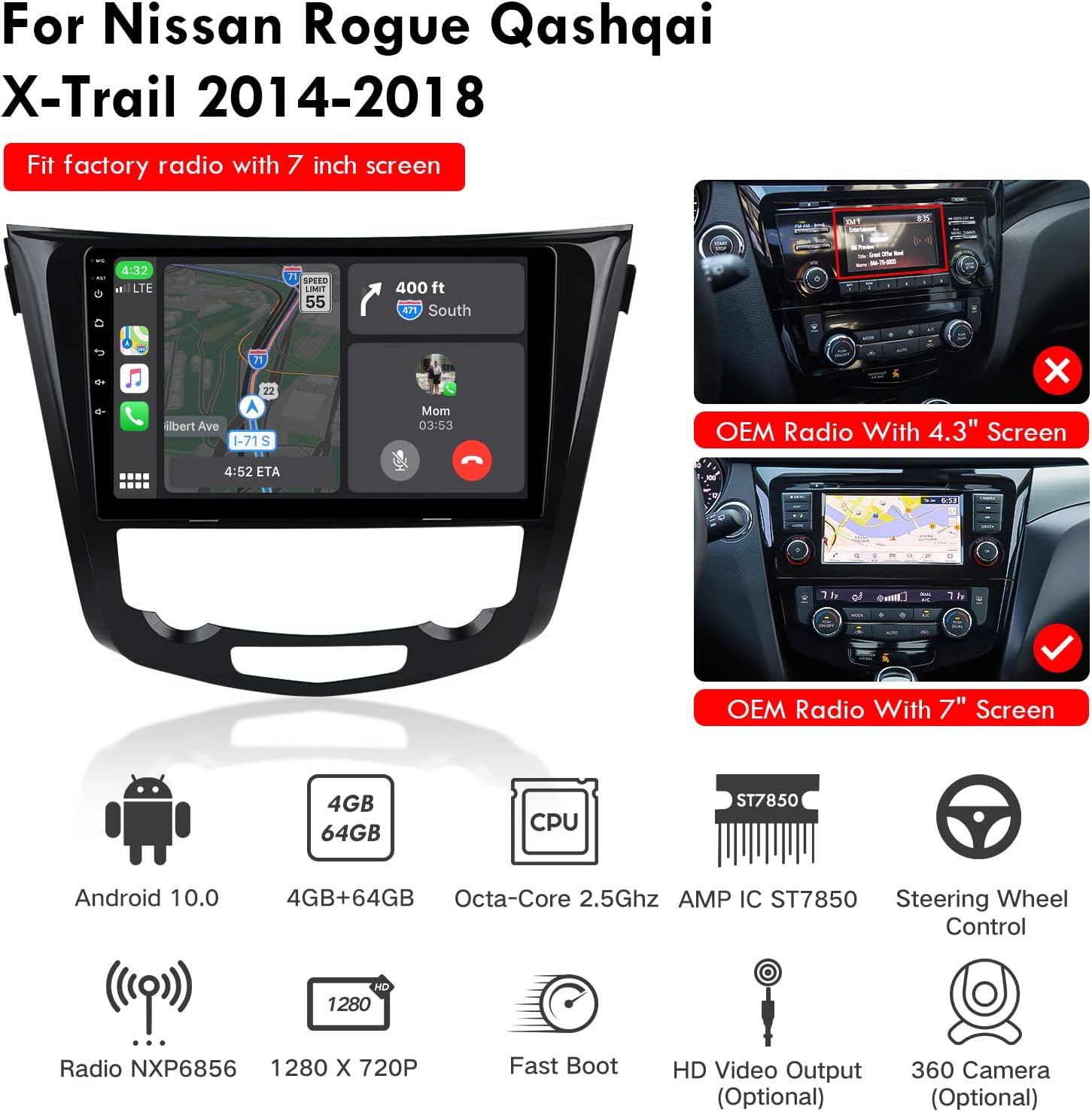
Image 1.1: ViaBecs 10.2-inch Head Unit installed in a Nissan dashboard, showing its large display and integration.
2. Bezpečnostní informace
Při řízení vozidla vždy upřednostňujte bezpečnost. Nesprávná instalace nebo použití tohoto zařízení může vést k nehodám nebo zraněním. Dodržujte následující bezpečnostní pokyny:
- Do not attempt to install or repair the unit yourself if you are not qualified. Seek professional assistance.
- Avoid operating the device's complex functions while driving. Distracted driving can be dangerous.
- Ujistěte se, že veškeré kabely jsou správně zapojeny a zajištěny, aby se zabránilo zkratům nebo úrazu elektrickým proudem.
- Udržujte hlasitost na úrovni, která vám umožní slyšet zvuky vnější dopravy.
- Nevystavujte jednotku extrémním teplotám, delšímu přímému slunečnímu záření ani nadměrné vlhkosti.
3. Obsah balení
Před zahájením instalace ověřte, zda jsou v balení přítomny všechny položky:
- ViaBecs 10.2" Head Unit
- Napájecí svazek
- GPS anténa
- 4G anténa
- USB Cables (6PIN and 4PIN)
- RCA kabely
- Externí mikrofon
- Canbus Box (if applicable for your vehicle)
- Uživatelská příručka (tento dokument)
4. Instalační příručka
Proper installation is crucial for the optimal performance of your head unit. If you are unsure about any steps, it is recommended to seek professional installation.
4.1. Schéma zapojení
Refer to the following diagram for connecting the various cables to your head unit and vehicle's electrical system.

Image 4.1: Comprehensive wiring diagram illustrating all input and output connections for the ViaBecs head unit.
4.2. Canbus Connection and Setting
The Canbus system allows your head unit to communicate with your vehicle's existing systems, such as steering wheel controls and vehicle information display. Follow these steps to connect and configure the Canbus:
- Identify the black Canbus box and the 8-PIN Canbus plug.
- Connect the 8-PIN Canbus plug to the corresponding port on the back of the head unit.
- Connect the black Canbus box to the Canbus connector from the wiring harness.
- Once the head unit is powered on and connected to the internet (via Wi-Fi or phone hotspot), navigate to the 'Settings' app.
- Vyberte nastavení „Tovární“.
- Zadejte heslo „8888“.
- In the 'Car Choose' menu, select the correct Canbox brand (e.g., 'Raise' or 'Binary') and then your car's make (e.g., 'Toyota') and model (e.g., 'Highlander').
- The head unit will automatically download and update the MCU APK. Wait for the process to complete.
- If you are unsure about the correct Canbus option, please contact ViaBecs support.
Video 4.2: This video demonstrates the physical connection of the Canbus box and the software configuration steps within the head unit's factory settings to ensure proper communication with your vehicle.
5. Počáteční nastavení
5.1. Wi-Fi and 4G Module Connection
To access online features, connect your head unit to the internet via Wi-Fi or a 4G phone hotspot. The unit includes a SIM card slot for 4G internet access.

Image 5.1: The head unit supports Wi-Fi and 4G connectivity, allowing access to online services and apps. A SIM card slot is provided for 4G internet.
5.2. Párování Bluetooth
Pair your smartphone with the head unit via Bluetooth for hands-free calling and music streaming.
- On the head unit, navigate to the Bluetooth settings.
- Ensure Bluetooth is enabled on both your smartphone and the head unit.
- Hledat available devices on your smartphone and select the head unit's Bluetooth name (e.g., 'CarBT').
- Pokud se zobrazí výzva, zadejte výchozí PIN kód „0000“.
- Po spárování můžete telefonovat handsfree a streamovat zvuk.

Image 5.2: The Bluetooth interface for music and hands-free calling, highlighting key features like Bluetooth 5.0 and automatic pairing.
6. Návod k obsluze
6.1. Bezdrátové Apple CarPlay a Android Auto
The head unit supports both wireless and wired Apple CarPlay and Android Auto, providing seamless integration with your smartphone for navigation, music, calls, and more.
- For Wired CarPlay/Android Auto: Connect your iPhone or Android phone to the head unit via the provided USB cable. Open the Zlink app on the head unit.
- For Wireless CarPlay/Android Auto: Ensure your phone's Bluetooth is on and paired with the head unit. Ensure the head unit's Wi-Fi is active. Open the Zlink app. The wireless connection should establish automatically.
- In Zlink settings, enable 'Auto Reconnect' for automatic connection next time.
- If using Android Auto, ensure 'Android Auto' is enabled in Zlink settings.

Image 6.1: The head unit supports both wired and wireless Apple CarPlay and Android Auto, allowing for flexible smartphone integration.
Video 6.1: This video demonstrates how to connect and use both wired and wireless Apple CarPlay with the ViaBecs head unit, including navigation and music playback.
Video 6.2: Krátká úvodníview showcasing the wireless Apple CarPlay features specifically for Nissan Rogue models from 2014-2018.
6.2. Funkce zrcadlového propojení
Mirror Link allows you to display your smartphone's screen directly on the head unit. This is useful for apps not natively supported by CarPlay or Android Auto.
- If CarPlay or Android Auto is active, it will automatically disconnect when initiating Mirror Link.
- Open the Tlink5 app on the head unit.
- Tap the designated Mirror Link button (often an icon resembling a phone mirroring to a screen) to initiate the mode.
- Choose between wired (USB) or wireless mirroring, then follow the on-screen prompts on both your phone and the head unit.
Video 6.3: This video illustrates how to disconnect CarPlay or Android Auto and switch to Mirror Link mode using the Tlink5 app.
6.3. Multi-Function Overview
The Android head unit offers a variety of functions accessible from its main interface:

Obrázek 6.3: Overview of the Android head unit's multi-function capabilities, including entertainment, navigation, and utility apps.
- Rozdělená obrazovka: Spouštějte dvě aplikace současně pro vylepšený multitasking.
- FM/AM rádio: Přístup k místním rozhlasovým stanicím.
- Hudba: Přehrát zvuk files z různých zdrojů.
- Video: Watch videos from local storage or streaming apps.
- YouTube/Spotify: Access popular streaming services (requires internet connection).
- Obchod Google Play: Stáhněte a nainstalujte další aplikace.
- PIP Mode Enabled: Picture-in-Picture mode for video playback while using other apps.
- 360 Camera (Optional): Support for external 360-degree camera systems.
6.4. Navigace (GPS)
The head unit features built-in GPS with support for various navigation applications.

Image 6.4: The built-in GPS supports multiple navigation apps, providing reliable route guidance.
6.5. Digitální zvukový procesor (DSP)
The integrated DSP allows for precise audio tuning with a 36-band equalizer and time alignment features to optimize sound quality within your vehicle.
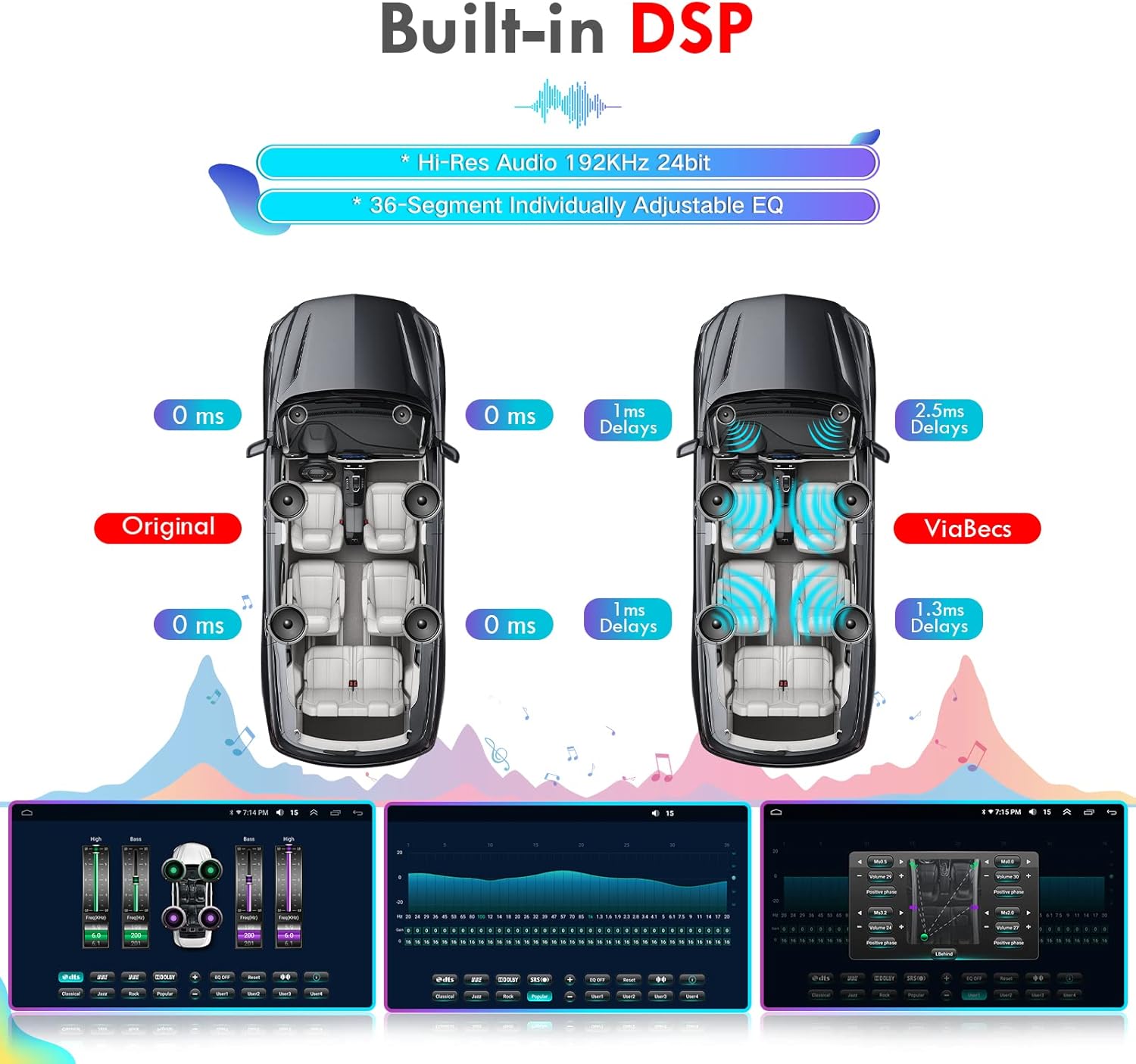
Image 6.5: The Built-in DSP provides advanced audio controls, including a 36-band EQ and time alignment, for a personalized listening experience.
6.6. Wallpaper Customization
Personalize your head unit's interface by changing the wallpaper. This can typically be done through the settings menu within the CarPlay/Android Auto interface or the main Android system settings.
7. Řešení problémů
If you encounter issues with your ViaBecs head unit, refer to the following common troubleshooting steps:
| Problém | Možná příčina | Řešení |
|---|---|---|
| Jednotka se nezapne | Nesprávné zapojení, spálená pojistka, problém se zdrojem napájení. | Check all power connections, inspect vehicle fuses, ensure proper grounding. |
| Žádný zvukový výstup | Speaker wiring issues, volume too low, incorrect audio source. | Verify speaker connections, increase volume, select correct audio input. |
| CarPlay/Android Auto se nepřipojuje | Bluetooth/Wi-Fi off, incorrect Zlink settings, faulty USB cable. | Ensure Bluetooth and Wi-Fi are active, check Zlink app settings, try a different USB cable. |
| Ovládání na volantu nefunguje | Canbus not configured, incorrect Canbus type selected. | Verify Canbus connections, reconfigure Canbus settings in Factory menu. |
| Dotykový displej nereaguje | Softwarová závada, dočasné zamrznutí. | Restart the head unit. If issue persists, contact support. |
8. Specifikace
Key technical specifications of the ViaBecs 10.2" Head Unit:
- Značka: ViaBecs
- Technologie připojení: Bluetooth
- Typ ovladače: Android
- Speciální funkce: Dotyková obrazovka
- Kompatibilní zařízení: Smartphone
- Typ konektoru: RCA
- Režim výstupu zvuku: Stereo
- Konfigurace kanálu prostorového zvuku: 4.0
- Kódování videa: MP4, 3GP, AVI, DVIX, FLV, MKV
- Výstupní výkon: 200 wattů
- Wattage: 200 wattů
- Počet kanálů: 4
- Podporované internetové služby: Netflix, Pandora, Spotify
- Způsob ovládání: Dotek
- Typ zvukového výstupu: Sluchátka
- Formát: AVI, Dolby
- Bezdrátová technologie: Bluetooth
9. Záruka a podpora
For warranty information, technical support, or any questions regarding your ViaBecs product, please refer to the official ViaBecs webnebo se obraťte přímo na jejich zákaznický servis. Uschovejte si účtenku jako doklad o koupi pro případ reklamace.
You can visit the ViaBecs Store for more information: ViaBecs Store