
1. Úvod
This manual provides comprehensive instructions for the setup, operation, and maintenance of your HP LaserJet MFP 432fdn multifunction printer. Designed for secure and efficient business solutions, this printer helps conserve energy with HP EcoSmart black toner. It is engineered to work exclusively with HP original or reused cartridges containing an HP chip. Dynamic security measures may periodically update firmware to block non-HP chipped cartridges.

Obrázek 1: Přední strana view of the HP LaserJet MFP 432fdn printer.
2. Bezpečnostní informace
Please read all safety instructions before using the printer to prevent injury or damage.
- Tiskárnu vždy připojujte k uzemněné elektrické zásuvce.
- Do not place the printer in an area with excessive dust, humidity, or direct sunlight.
- Během provozu držte ruce a volný oděv v dostatečné vzdálenosti od pohyblivých částí.
- Use only HP-approved toner cartridges.
- Unplug the printer from the power outlet before cleaning or performing maintenance.
3. Konec produktuview a Komponenty
Familiarize yourself with the main components of your HP LaserJet MFP 432fdn.
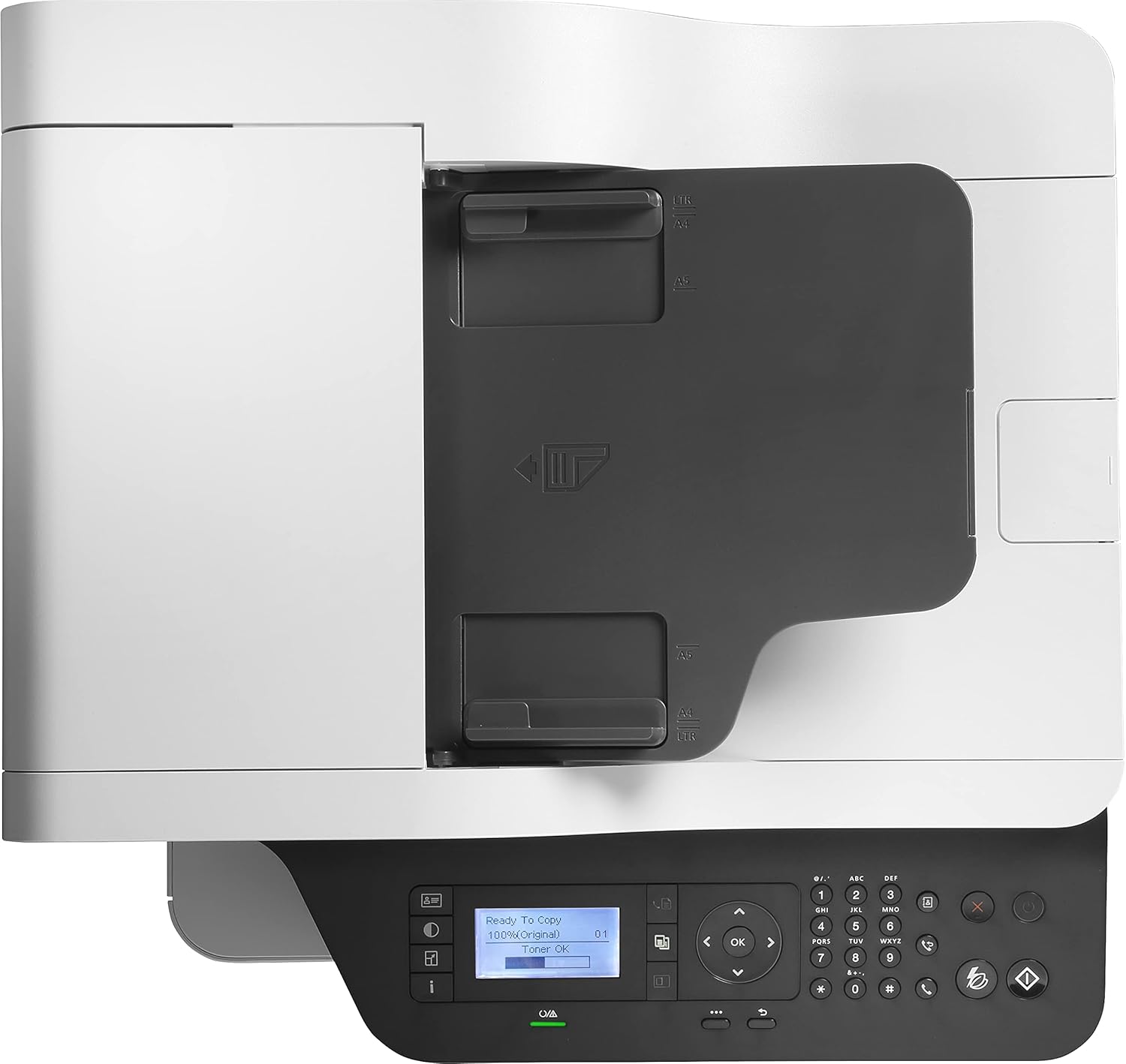
Obrázek 2: Nahoře view showing the Automatic Document Feeder (ADF) and output tray.
- Automatický podavač dokumentů (ADF): For scanning, copying, and faxing multiple pages automatically.
- Ovládací panel: Features an LCD screen and buttons for printer operation.
- Výstupní zásobník: Kde se shromažďují vytištěné stránky.
- Zásobník papíru: Main input tray for paper.
- Toner Cartridge Access: Area for installing and replacing toner cartridges.
- USB port: For direct printing or connecting to a computer.
- Ethernetový port: Pro síťové připojení.
- Fax Port: For connecting a telephone line for fax functions.

Obrázek 3: Detailní view of the control panel, including the 2-line LCD display.
4. Průvodce nastavením
4.1 Vybalení tiskárny
- Vyjměte tiskárnu z obalu.
- Odstraňte z tiskárny veškerý balicí materiál, pásky a ochranné fólie.
- Umístěte tiskárnu na stabilní a rovný povrch.
4.2 Instalace tonerové kazety

Figure 4: Toner cartridge installation area with an HP W1330A cartridge visible.
- Open the front access door to the toner cartridge compartment.
- Unpack the new HP toner cartridge (e.g., HP 330A Black W1330A).
- Jemně zatřepejte kazetou, aby se toner rovnoměrně rozprostřel.
- Vložte kazetu do tiskárny, dokud nezacvakne na místo.
- Zavřete přední přístupová dvířka.
4.3 Vkládání papíru
- Vytáhněte zásobník papíru.
- Adjust the paper guides to the correct paper size (A4, A5, A6, B5, B6, 10x15 cm, envelopes).
- Vložte papír do zásobníku a ujistěte se, že je rovný a nepřesahuje rysku maximálního naplnění.
- Zatlačte zásobník papíru zpět do tiskárny.
4.4 Připojení tiskárny
- Připojení napájení: Připojte napájecí kabel k tiskárně a poté do uzemněné elektrické zásuvky.
- USB připojení: For direct connection to a computer, use a USB cable.

Figure 5: USB port for direct connection or USB drive.
- Síťové připojení (Ethernet): Připojte ethernetový kabel z tiskárny k síťovému routeru nebo přepínači.
- Fax Connection: Připojte telefonní linku k faxovému portu tiskárny.
4.5 Instalace softwaru
Install the latest printer drivers and software from the official HP website or the provided installation disc to enable full functionality, including HP Smart features.
5. Návod k obsluze
5.1 Tisk
- Černobílý tisk: The printer supports black and white printing at speeds up to 40 pages per minute (ppm).
- Automatický oboustranný tisk: The printer automatically prints on both sides of the paper. Ensure this option is selected in your print settings.
- Podporované velikosti médií: A4, A5, A6, B5 (JIS), B6 (JIS), 10 x 15 cm, envelopes (DL, C5, B5).
5.2 Skenování
- Plochý skener: Place documents or photos face down on the scanner glass.
- Automatický podavač dokumentů (ADF): Load multiple pages into the ADF for continuous scanning. The ADF supports duplex scanning for A4 documents.
- Initiate scanning from the printer's control panel or your computer's scanning software.
5.3 Kopírování
- Place the original document on the flatbed scanner or in the ADF.
- Use the control panel to select copy options (e.g., number of copies, duplex, lighten/darken).
- Press the Copy button to start.
5.4 Faxování
- Ensure the phone line is connected.
- Place the document to be faxed on the flatbed scanner or in the ADF.
- Enter the recipient's fax number using the control panel.
- Press the Fax button to send.
6. Údržba
6.1 Výměna tonerové kazety
When the toner level is low, the printer's LCD screen will display a warning. Replace the cartridge as follows:
- Otevřete přední přístupová dvířka.
- Vyjměte starou tonerovou kazetu jejím vytažením.
- Unpack and prepare the new HP original toner cartridge (e.g., HP 330A Black W1330A, HP 330X Black W1330X, HP 330XC Black W1330XC, HP 332A Black W1332A, HP 332AC Black W1332AC).
- Vložte novou kazetu, dokud nezapadne na místo.
- Zavřete přední přístupová dvířka.
6.2 Čištění tiskárny
- Unplug the printer before cleaning.
- Otřete vnější povrch tiskárny měkkým,amp, hadřík nepouštějící vlákna.
- Sklo skeneru očistěte měkkým hadříkem a neabrazivním čističem skla.
- Obraťte se na podporu HP website for detailed instructions on cleaning internal components if necessary.
7. Řešení problémů
Tato část se zabývá běžnými problémy, se kterými se můžete setkat.
| Problém | Možná příčina | Řešení |
|---|---|---|
| Tiskárna se nezapíná | Power cord disconnected, power outlet issue | Zkontrolujte připojení napájení, zkuste jinou zásuvku. |
| Uvíznutí papíru | Incorrectly loaded paper, damaged paper, foreign objects | Opatrně odstraňte zaseknutý papír a ujistěte se, že je papír správně vložen. |
| Špatná kvalita tisku | Low toner, incorrect print settings, dirty printer components | Replace toner, adjust print settings, clean printer. |
| "Non-HP Cartridge" message | Printer designed for HP original chips | Ensure you are using an HP original or HP-chipped reused cartridge. Firmware updates may block non-HP chips. |
Podrobnější informace o řešení potíží naleznete na stránkách podpory HP. webnebo kontaktujte zákaznický servis.
8. Specifikace
| Funkce | Detail |
|---|---|
| Číslo modelu | 7UQ76A |
| Značka | HP |
| Rozměry produktu | 58.9 H x 58.9 Š x 62.6 V cm |
| Technologie připojení | Ethernet, USB |
| Technologie tisku | Laser |
| Tisk výstupu | Monochromatický |
| Maximální rychlost tisku (černobíle) | 40 stránek za minutu |
| Oboustranný tisk | Automatické (Ano) |
| Maximální rozlišení tisku (černobíle) | 1200 x 1200 dpi |
| Typ skeneru | Plochý, ADF |
| Max Sheet Capacity (ADF) | 50 listů |
| Maximální rychlost kopírování (černobíle) | 40 stránek za minutu |
| Maximální počet kopií na sérii | 2000 |
| Podporované velikosti médií | A4, A5, A6, B5 (JIS), B6 (JIS), 10 x 15 cm, envelopes (DL, C5, B5) |
| Spotřeba energie | 700 wattů (provozní) |
| Velikost displeje | 2řádkový LCD |
| Kompatibilní toner | HP 330A Black W1330A, HP 330X Black W1330X, HP 330XC Black W1330XC, HP 332A Black W1332A, HP 332AC Black W1332AC |
| Hmotnost položky | 16.9 kg |
9. Záruka a podpora
9.1 Informace o záruce
This HP LaserJet MFP 432fdn printer typically comes with a standard manufacturer's warranty. Spare parts availability in the EU is guaranteed for 2 years. Please refer to your purchase documentation or the official HP webkonkrétní záruční podmínky platné pro váš region naleznete na webových stránkách.
9.2 Zákaznická podpora
Pro technickou pomoc, stažení ovladačů nebo další informace navštivte oficiální stránky podpory HP. website. You can find contact details for customer service in your region on the HP support portal.