
1. Úvod
The Matterport Pro2 3D Camera is designed for creating high-resolution, photo-realistic 3D digital twins of various indoor spaces. This manual provides essential information to help you effectively use your camera for virtual tours, 3D mapping, and digital surveys.

2. Průvodce nastavením
Follow these steps to set up your Matterport Pro2 3D Camera:
- Nabijte kameru: Connect the included AC charging cable to the camera and a power outlet. Ensure the camera is fully charged before use. The battery provides approximately 8 hours of scan time.
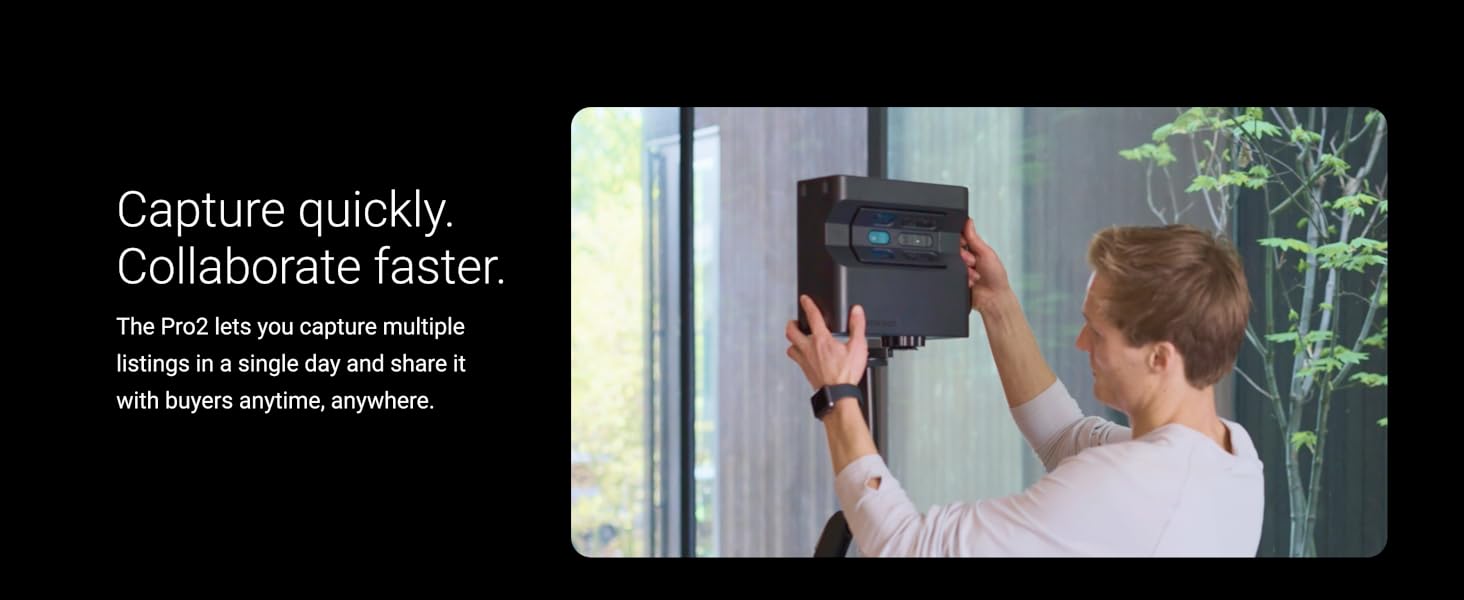
- Montáž na stativ: Securely attach the Matterport Pro2 camera to a compatible tripod. Ensure the tripod is stable on a flat surface.
- Zapnutí: Press and hold the power button located on the camera until the indicator light illuminates.
- Install Matterport Capture App: Download and install the Matterport Capture app on your iOS or Android device. This app is essential for controlling the camera and managing scans.
- Připojení k Wi-Fi: On your mobile device, go to Wi-Fi settings and connect to the Matterport Pro2 camera's unique Wi-Fi network.
- Open Capture App: Launch the Matterport Capture app. The app will detect your connected camera.

3. Návod k obsluze
The Matterport Pro2 camera captures spaces quickly and accurately. Here’s how to operate it:
3.1. Capturing a Space
- Umístěte kameru: Place the camera on its tripod in the center of the first room you wish to scan. Ensure there are no obstructions directly in front of the camera.
- Zahájit skenování: In the Matterport Capture app, tap the scan button to begin the capture process. The camera will rotate 360 degrees, capturing depth and visual data. Each scan takes approximately 30-40 seconds.
- Pohyb a opakování: After each scan, move the camera 2-3 meters (6-10 feet) to a new position within the same room or to an adjacent room. Repeat the scanning process. The app will display a map of your scanned area, helping you ensure complete coverage.
- Avoid Being in Frame: Step out of the camera's line of sight during each scan to avoid appearing in the final 3D model.
- Venkovní Views: The camera can capture outdoor 360-degree views. Position the camera to capture the desired exterior perspective.
3.2. Uploading and Processing
- Once all desired areas are scanned, connect your mobile device to the internet.
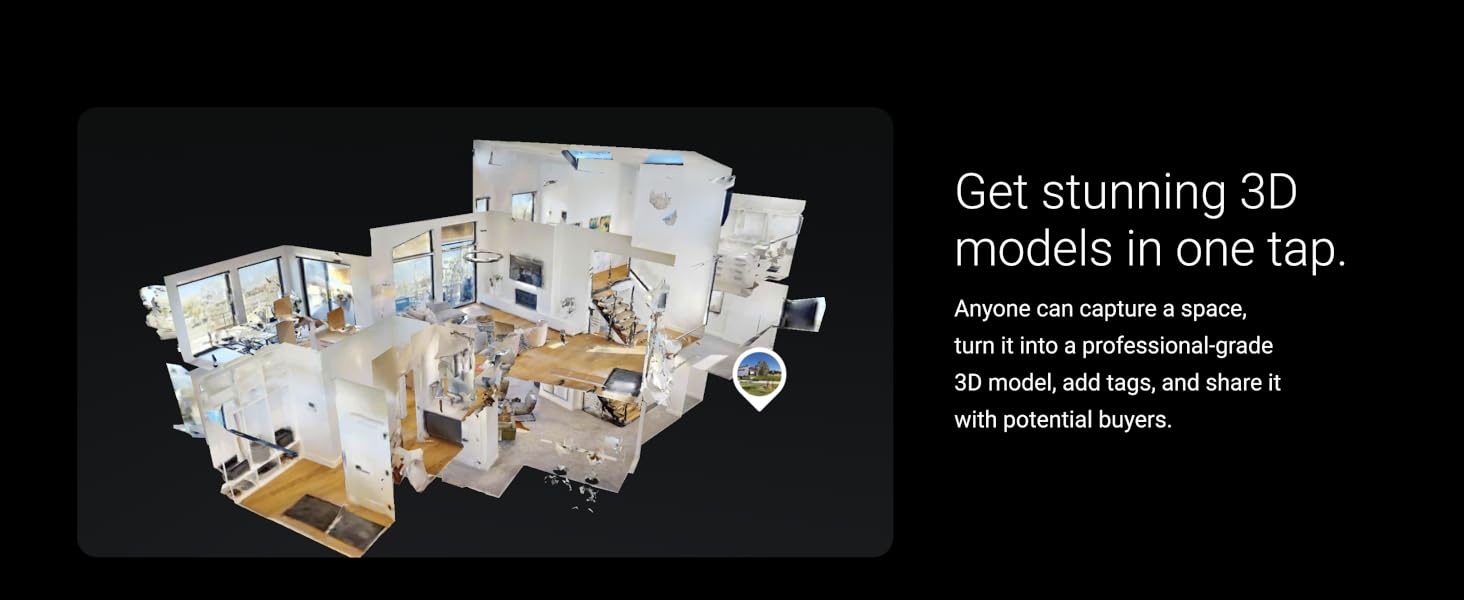
- In the Matterport Capture app, select the option to upload your scans. The Matterport cloud platform will process the data to create your 3D digital twin.
- Processing times vary based on the size and complexity of the space.
3.3. Enhancing Your Digital Twin
After processing, you can enhance your 3D model using the Matterport Workshop:
- HmotaTags: Add interactive tags to highlight key features, embed videos, photos, or documents within your 3D model.
- Štítky: Label different rooms and areas for easy navigation.
- Prohlídky s průvodcem: Create guided tours to lead viewers through specific paths in your space.
- Rozměry: Take precise measurements of walls, windows, and objects directly within the 3D model.
- Floorplans: Generate 2D floorplans from your 3D model.

3.4. Sharing Your Digital Twin
Your completed 3D digital twin can be easily shared and viewed on any device:
- Share direct links to your 3D model.
- Embed the model on websites or social media platforms.
- Generate teaser videos for promotional purposes.
3.5. Important Note on Subscriptions
The Matterport Pro2 camera requires a Matterport professional or business subscription plan for full functionality. It is not compatible with free or starter plans. Download the Matterport Capture app for more details on subscription options.
4. Instruktážní videa
4.1. Matterport Pro2 3D Camera for Digitizing Assets
Video 1: Overview of the Matterport Pro2 3D Camera's capabilities in digitizing various assets and spaces into immersive digital twins.
4.2. How to use Matterport Camera with Matterport Software
Video 2: A step-by-step guide on using the Matterport camera in conjunction with the Matterport software for capturing and processing 3D models.
4.3. Matterport Pro2 for Residential Real Estate and Airbnb
Video 3: Demonstrates the application of the Matterport Pro2 camera for creating virtual tours specifically for residential real estate and Airbnb listings.
5. Specifikace
Key technical specifications for the Matterport Pro2 3D Camera (Model MC250):
| Funkce | Hodnota |
|---|---|
| Název modelu | MC250 |
| Značka | Matterport |
| Barva | Černý |
| Efektivní rozlišení | 16 MP (134 megapixel resolution) |
| Rozlišení záznamu videa | 4K |
| Přesnost | +/- 50 mm |
| Depth Points | 1.5 Million per scan |
| Scan Time per Scan | Under 30-40 seconds |
| Průměrná životnost baterie | 8 hodiny |
| Technologie připojení | Bluetooth, WiFi |
| Hardwarové rozhraní | Infračervený |
| Rozsah makro ostření | 5 cm - 4.5 m |
| Skutečný úhel View | 300 stupňů |
| Hmotnost položky | 7.6 libry |
| Rozměry položky (D x Š x V) | 4.33"H x 9.02"Š x 10.24"V |
| Zahrnuté příslušenství | AC nabíjecí kabel |
6. Údržba
To ensure the longevity and optimal performance of your Matterport Pro2 3D Camera, follow these maintenance guidelines:
- Čištění: Use a soft, dry, lint-free cloth to clean the camera body and lenses. Avoid abrasive materials or harsh chemicals.
- Skladování: Store the camera in a cool, dry place away from direct sunlight and extreme temperatures. Use a protective case when transporting the camera.
- Péče o baterie: For long-term storage, ensure the battery is charged to approximately 50%. Avoid fully discharging the battery for extended periods.
- Aktualizace softwaru: Regularly check the Matterport Capture app for software and firmware updates for your camera to ensure you have the latest features and performance improvements.
7. Řešení problémů
If you encounter issues with your Matterport Pro2 3D Camera, refer to the following common troubleshooting tips:
- Fotoaparát se nepřipojuje k aplikaci:
- Ensure the camera is powered on and fully charged.
- Verify your mobile device is connected to the camera's Wi-Fi network.
- Restart both the camera and the Matterport Capture app.
- Check for any mobile device settings that might interfere with Wi-Fi connectivity.
- Scan Errors/Alignment Issues:
- Ensure the camera is stable on the tripod and not moving during a scan.
- Maintain consistent lighting conditions within the scanned area.
- Avoid scanning in direct sunlight, as this can affect infrared depth sensing.
- Ensure sufficient overlap between scan points (moving 2-3 meters between scans).
- Clear the area around the camera of any moving objects or people during a scan.
- Špatná kvalita obrazu:
- Čočky fotoaparátu čistěte měkkým hadříkem, který nepouští vlákna.
- Ensure adequate lighting in the room.
- Avoid scanning highly reflective surfaces directly, as they can cause distortions.
- Rychlé vybíjení baterie:
- Před použitím se ujistěte, že je fotoaparát plně nabitý.
- Minimize unnecessary Wi-Fi connections on your mobile device during scanning.
- Consider carrying a portable power bank for extended scanning sessions.
For further assistance, please refer to the official Matterport support resources.
8. Záruka a podpora
For detailed warranty information and technical support, please visit the official Matterport webnebo se obraťte na jejich zákaznický servis. Uschovejte si doklad o koupi pro případ reklamace.
Online zdroje: