
Zebra DS9208
Uživatelská příručka čtečky čárových kódů Zebra DS9208 2D/1D/QR
Model: DS9208
Značka: Zebra (Manufactured by Symbol)
1. Úvod
This manual provides comprehensive instructions for the setup, operation, maintenance, and troubleshooting of your Zebra DS9208 2D/1D/QR Barcode Scanner. The DS9208 is a versatile, hands-free presentation imager designed for efficient scanning of 1D, 2D, and QR barcodes, including those displayed on mobile phone screens. Its touchless scanning capability enhances user convenience and workflow.
2. Nastavení
Follow these steps to set up your Zebra DS9208 scanner for first-time use.
2.1 Vybalení
- Opatrně vyjměte všechny součásti z obalu.
- Verify that the package contains the Zebra DS9208 scanner unit and a USB cable.
- Uschovejte si obal pro budoucí skladování nebo přepravu.
2.2 Připojení skeneru
- Locate the USB port on the back of the DS9208 scanner.
- Connect the smaller end of the provided USB cable to the scanner's USB port.
- Connect the larger end of the USB cable to an available USB port on your computer or host system.
- The scanner will typically power on automatically and emit a short beep, indicating successful connection.
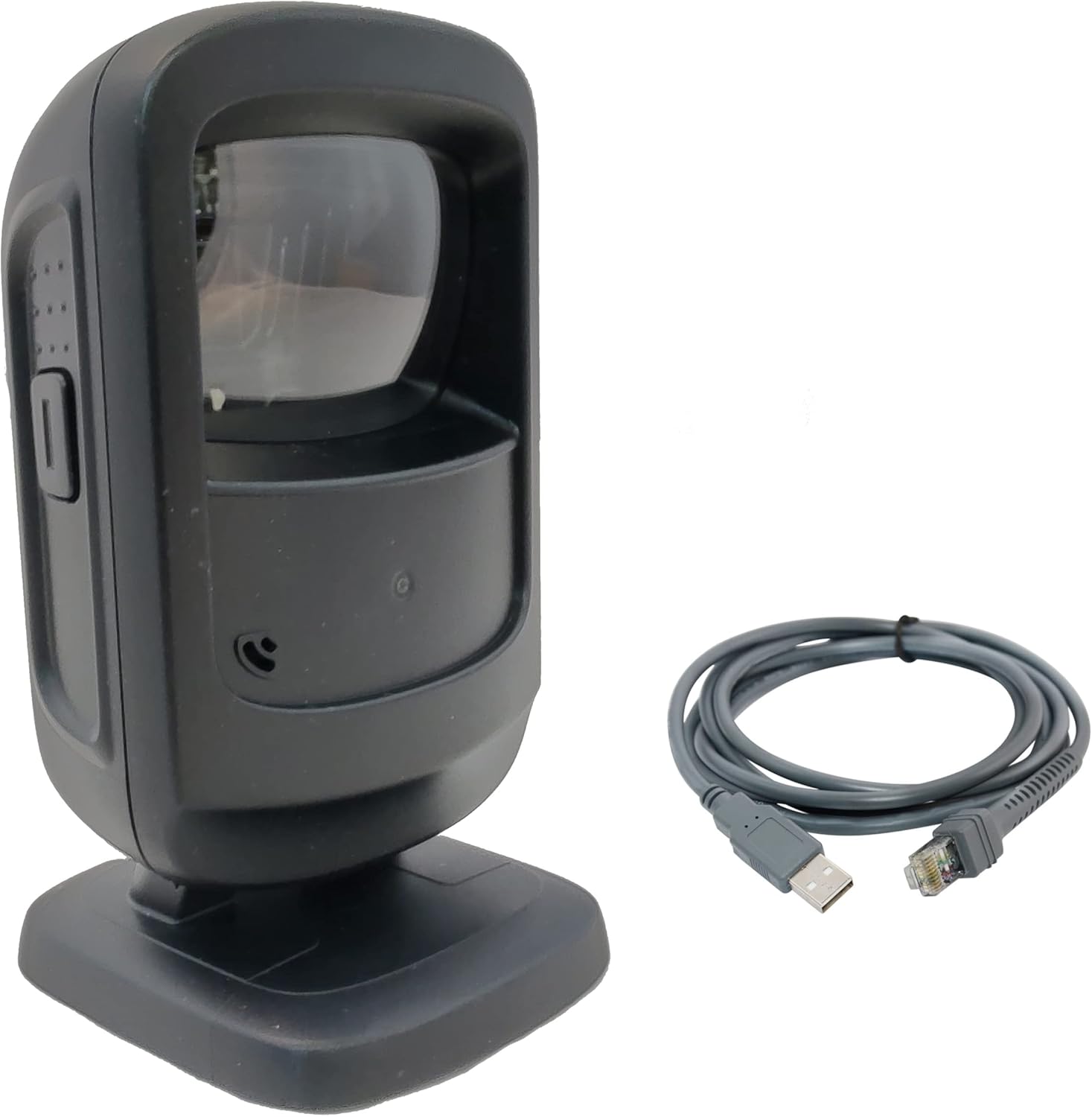
Figure 1: Zebra DS9208 scanner connected via USB cable. This image shows the black scanner unit alongside its grey USB connection cable, illustrating the components included for setup.
2.3 Driver Installation (Plug-and-Play)
The Zebra DS9208 scanner is designed for plug-and-play operation with most operating systems (Windows, macOS, Linux). Upon connecting the USB cable, your computer should automatically detect the device and install the necessary drivers. No manual driver installation is typically required.
- Wait for your operating system to confirm that the device is ready for use. This may take a few moments.
- Open a text editor or an application that accepts keyboard input (e.g., Notepad, Word, a POS application) to test the scanner.
3. Obsluha skeneru
The DS9208 offers intuitive hands-free scanning for various barcode types.
3.1 Skenování čárových kódů
- Ensure the scanner is connected and powered on. The scanning window will emit an illumination pattern when ready.
- Umístěte čárový kód do pole skeneru view, typically a few inches from the scanning window. The scanner is designed for presentation scanning, meaning you simply present the item to the scanner.
- The scanner will automatically detect and decode the barcode. A successful scan is indicated by an audible beep and a green LED illumination.
- The decoded data will be transmitted to your host system as if typed from a keyboard.

Obrázek 2: Detail view of the Zebra DS9208's scanning window. This image highlights the area where barcodes should be presented for optimal reading.
3.2 Scanning from Phone Screens
The DS9208 is optimized to read barcodes directly from mobile phone screens, including digital coupons, loyalty cards, and event tickets.
- Ensure the phone screen brightness is set to a high level for best results.
- Present the barcode on the phone screen to the scanner's window, maintaining a similar distance as with printed barcodes.
- The scanner will capture and decode the digital barcode.
3.3 Indikátory zpětné vazby
- Zvukové pípnutí: A short, high-pitched beep indicates a successful barcode decode.
- LED indikátor: A green LED flash typically accompanies a successful scan.

Obrázek 3: Strana view of the Zebra DS9208 scanner, highlighting the ergonomic design and potential button for mode switching or advanced functions (if applicable).
4. Údržba
Správná údržba zajišťuje dlouhou životnost a optimální výkon vašeho skeneru.
4.1 Čištění skeneru
- Okno skenování: Použijte měkký, čistý hadřík, který nepouští vlákna.ampened with a mild glass cleaner or water. Do not use abrasive cleaners or solvents, as these can damage the window.
- Exteriér Casing: Vnější povrch otřete měkkým, damp hadříkem. Zabraňte nadměrné vlhkosti.
- Před čištěním se ujistěte, že je skener odpojen od zdroje napájení.
4.2 Obecná péče
- Zabraňte pádu skeneru nebo jeho vystavení silným nárazům.
- Do not expose the scanner to extreme temperatures, direct sunlight for prolonged periods, or high humidity.
- Keep the scanning window clear of obstructions and debris.
5. Řešení problémů
This section addresses common issues you might encounter with your DS9208 scanner.
| Problém | Možná příčina | Řešení |
|---|---|---|
| Skener se nezapíná. | USB kabel není správně připojen nebo je USB port vadný. | Ensure the USB cable is securely connected to both the scanner and the host computer. Try a different USB port or a different USB cable if available. |
| Skener nečte čárové kódy. | Barcode damaged, poor print quality, incorrect distance, or scanner window obstructed. | Ensure the barcode is clear and undamaged. Adjust the distance between the barcode and the scanner. Clean the scanning window. Verify the barcode type is supported (1D, 2D, QR). |
| No audible beep or LED flash on successful scan. | Feedback settings may be disabled or scanner malfunction. | Check the scanner's configuration settings (if accessible via programming barcodes). If the issue persists, contact support. |
| Naskenovaná data se zobrazují nesprávně. | Keyboard layout mismatch or incorrect data formatting. | Ensure your computer's keyboard layout matches the scanner's configured output. Refer to the full programming guide for advanced data formatting options. |
6. Specifikace
Key technical specifications for the Zebra DS9208 Barcode Scanner.
- Model: DS9208
- Výrobce: Symbol (Zebra)
- Scanning Capabilities: 1D, 2D, QR Codes
- Technologie připojení: USB kabel
- Zdroj napájení: USB kabel
- Kompatibilní zařízení: Stolní počítač, notebook
- UPC: 753575424398
7. Informace o záruce
This Zebra DS9208 scanner is a renewed product. Renewed products are typically covered by a specific warranty provided by the seller or platform.
- This product is covered by the Obnovená záruka Amazonu, which provides a replacement or refund within 90 days of receipt if the product does not work as expected.
- For specific warranty details and claims, please refer to the documentation provided with your purchase or contact Amazon Renewed support directly.
8. Podpora
If you encounter issues not covered in the troubleshooting section or require further assistance, please contact the seller or Amazon Renewed support.
- prodejce: Info-Tech (as per product listing)
- Obnovená podpora Amazonu: Visit the Amazon Renewed section on Amazon.com for support options.
Ask a question about this manual
Ask about setup, troubleshooting, compatibility, parts, safety, or missing instructions. Manuals+ will review the question and use this page’s manual context to help answer it.