
Delock 11477
Delock 11477 HDMI/USB-C™ KVM Switch User Manual
Model: 11477
1. Úvod
This user manual provides detailed instructions for the installation, operation, and maintenance of the Delock HDMI/USB-C™ KVM Switch 4K 60Hz with USB 2.0, Model 11477. Please read this manual thoroughly before using the device to ensure proper functionality and to prevent damage.
2. Bezpečnostní informace
To ensure safe operation and prolong the life of your device, please observe the following safety precautions:
- Nevystavujte zařízení vlhkosti, extrémním teplotám ani přímému slunečnímu záření.
- Nerozebírejte ani neupravujte zařízení. Zrušíte tak platnost záruky a může dojít k poškození.
- Use only the specified power adapter (if applicable) and cables.
- Udržujte zařízení mimo dosah silných elektromagnetických polí.
- Během provozu zajistěte dostatečné větrání v okolí zařízení.
3. Obsah balení
Please check the package contents upon unpacking. If any items are missing or damaged, contact your vendor immediately.
- Delock HDMI/USB-C™ KVM Switch 4K 60Hz (Model 11477)
- USB-C™ to USB-C™ cable
- Kabel USB-A na USB-B
- Uživatelská příručka

Figure 3.1: Delock KVM Switch with included USB-C to USB-C and USB-A to USB-B cables.
4. Konec produktuview
The Delock KVM Switch allows you to control two computers (one with HDMI/USB-A, one with USB-C) from a single set of console peripherals (monitor, keyboard, mouse).
4.1 Front/Top Panel

Obrázek 4.1: Nahoře view of the Delock KVM Switch.
- Console USB Ports (Keyboard/Mouse): Two USB 2.0 Type-A ports for connecting your keyboard and mouse.
- PC 2 USB-C™ Port: Connects to a computer with a USB-C™ port for video and USB data.
- PC 1 USB Port: Connects to a computer's USB-A port for USB data.
- PC 1 HDMI Port: Connects to a computer's HDMI output for video.
- Přepínací tlačítko: Press to switch between PC 1 and PC 2.
- LED indikátory: Indicate the currently active PC (PC 1 or PC 2).
4.2 Zadní panel
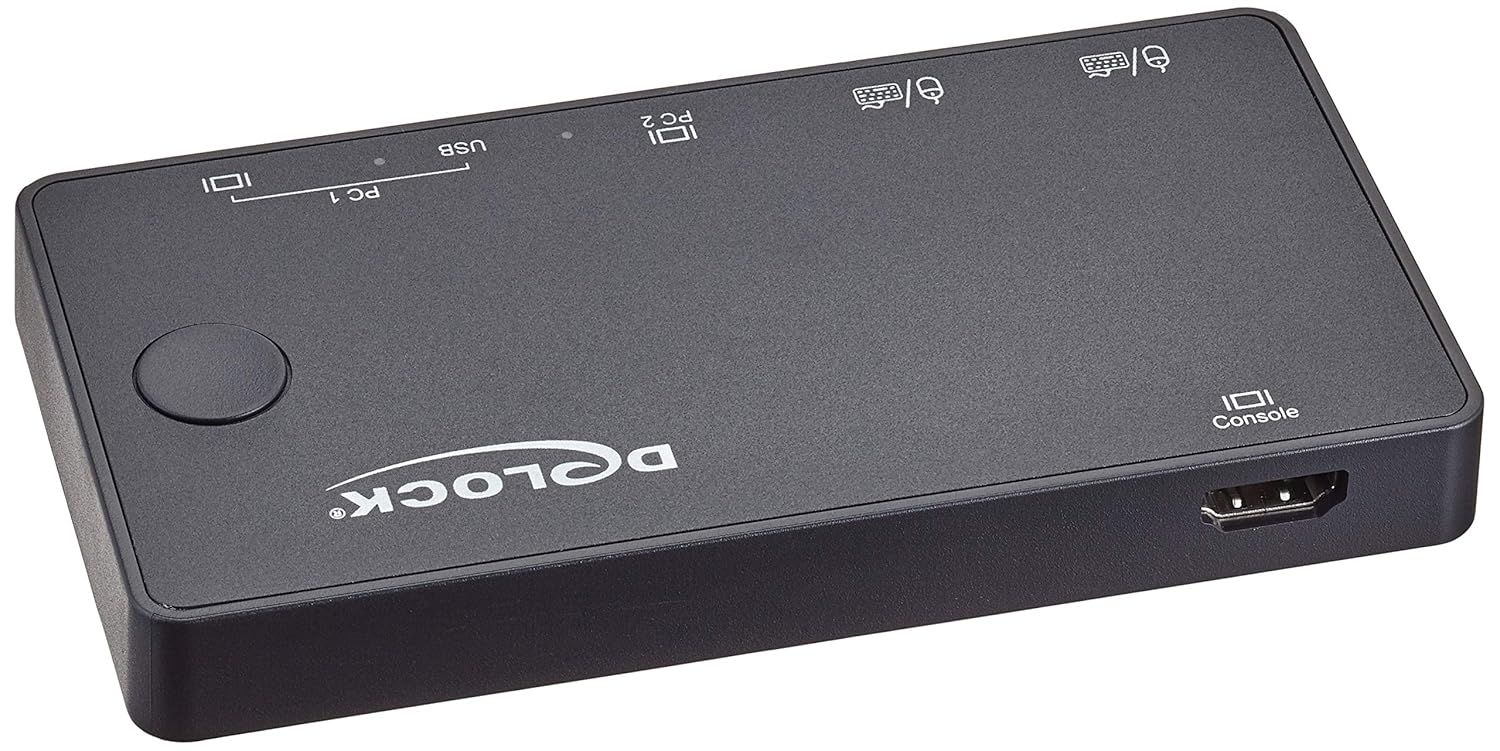
Obrázek 4.2: Zadní view of the Delock KVM Switch.
- Console HDMI Port: Připojuje se k vašemu monitoru.
5. Nastavení a instalace
Follow these steps to set up your Delock KVM Switch:
- Připojení periferních zařízení konzole:
- Connect your HDMI monitor to the "Console HDMI" port on the rear of the KVM switch.
- Connect your USB keyboard and mouse to the "Console USB" ports on the front of the KVM switch.
- Connect PC 1:
- Connect an HDMI cable from your PC 1's HDMI output to the "PC 1 HDMI" input on the KVM switch.
- Connect the included USB-A to USB-B cable from your PC 1's USB-A port to the "PC 1 USB" input on the KVM switch.
- Connect PC 2:
- Connect the included USB-C™ to USB-C™ cable from your PC 2's USB-C™ port (which supports DisplayPort Alternate Mode and USB data) to the "PC 2 USB-C™" input on the KVM switch.
- Zapnutí:
The KVM switch is typically powered via the USB connections from the connected computers. Ensure both PCs are powered on for stable operation.
Once all connections are made, the KVM switch should automatically detect the active computer. The LED indicator will show which PC is currently selected.
6. Návod k obsluze
The Delock KVM Switch offers simple operation to switch between connected computers.
6.1 Přepínání mezi počítači
To switch between PC 1 and PC 2, simply press the "Switch Button" located on the top panel of the KVM switch. The corresponding LED indicator will illuminate to show the active computer.
Poznámka: Ensure both computers are powered on and sending a video signal for seamless switching.
7. Řešení problémů
If you encounter issues with your Delock KVM Switch, please refer to the following common problems and solutions:
| Problém | Možná příčina / řešení |
|---|---|
| Na monitoru není žádný video výstup. |
|
| Klávesnice/myš nereaguje. |
|
| Cannot switch between PCs. |
|
| Video resolution/refresh rate issues. |
|
8. Specifikace
The following are the technical specifications for the Delock KVM Switch 11477:
- Model: 11477
- Funkce: HDMI / USB-C™ KVM Switch
- Rozlišení videa: Až 4K (3840 x 2160) při 60 Hz
- USB standard: USB 2.0 (for keyboard/mouse), USB-C™ (for PC 2 data/video)
- Vstupní porty:
- PC 1: 1 x HDMI, 1 x USB-B
- PC 2: 1 x USB-C™ (DisplayPort Alt Mode)
- Output Ports (Console):
- 1 x HDMI
- 2 x USB-A (for keyboard/mouse)
- Způsob přepínání: Stiskněte tlačítko
- Rozměry (DxŠxV): 3.6 x 1.72 x 2.25 palce (přibližně 91.44 x 43.69 x 57.15 mm)
- Hmotnost: 11.29 unce (cca 320 gramů)
- Provozní režim: Manuál
- Výrobce: Delock
9. Údržba
The Delock KVM Switch requires minimal maintenance. Follow these guidelines to keep your device in optimal condition:
- Čištění: K čištění vnější strany zařízení používejte měkký, suchý hadřík. Nepoužívejte tekuté čisticí prostředky ani aerosoly.
- Skladování: Pokud zařízení delší dobu nepoužíváte, skladujte jej na chladném a suchém místě mimo dosah přímého slunečního záření a extrémních teplot.
- Větrání: Ujistěte se, že ventilační otvory zařízení nejsou zablokované, aby nedošlo k jeho přehřátí.
10. Záruka a podpora
For warranty information and technical support, please refer to the documentation provided with your purchase or visit the official Delock webUschovejte si doklad o koupi pro případ reklamace.
Delock Official Webmísto: www.delock.com
Ask a question about this manual
Ask about setup, troubleshooting, compatibility, parts, safety, or missing instructions. Manuals+ will review the question and use this page’s manual context to help answer it.