
Logitech M510
Bezdrátová myš Logitech M510 – návod k obsluze
Model: M510 | Značka: Logitech
Konec produktuview
The full-size Logitech Wireless Mouse M510 provides enhanced control and comfort for laptop and PC users. Its ergonomic design with contoured shape and soft rubber grips ensures support for extended use. This mouse features three standard buttons, plus programmable Back/Forward buttons for efficient application switching and full-screen navigation. Side-to-side scrolling and zoom functionality allow for versatile horizontal and vertical navigation through various content types.
Klíčové vlastnosti
- Prodloužená životnost baterie: Up to 2 years of battery life, with an On/Off switch and smart sleep mode to conserve power.
- Přijímač Logitech Unifiing: A tiny USB receiver that stays in your laptop, allowing easy addition of compatible wireless mice or keyboards.
- Kontrolka baterie: Top-mounted indicator to prevent unexpected power loss.
- Ergonomický komfort: Contoured shape with soft rubber grips, gently curved sides, and a broad palm area for all-day support.
- Programovatelné ovládání: Three standard buttons plus customizable Back/Forward buttons for enhanced productivity, including application switching and full-screen mode.
- Versatile Scrolling: Side-to-side scrolling and zoom for horizontal and vertical navigation.
- Široká kompatibilita: Compatible with Windows 10, 11 or later, Linux, and Chrome OS.
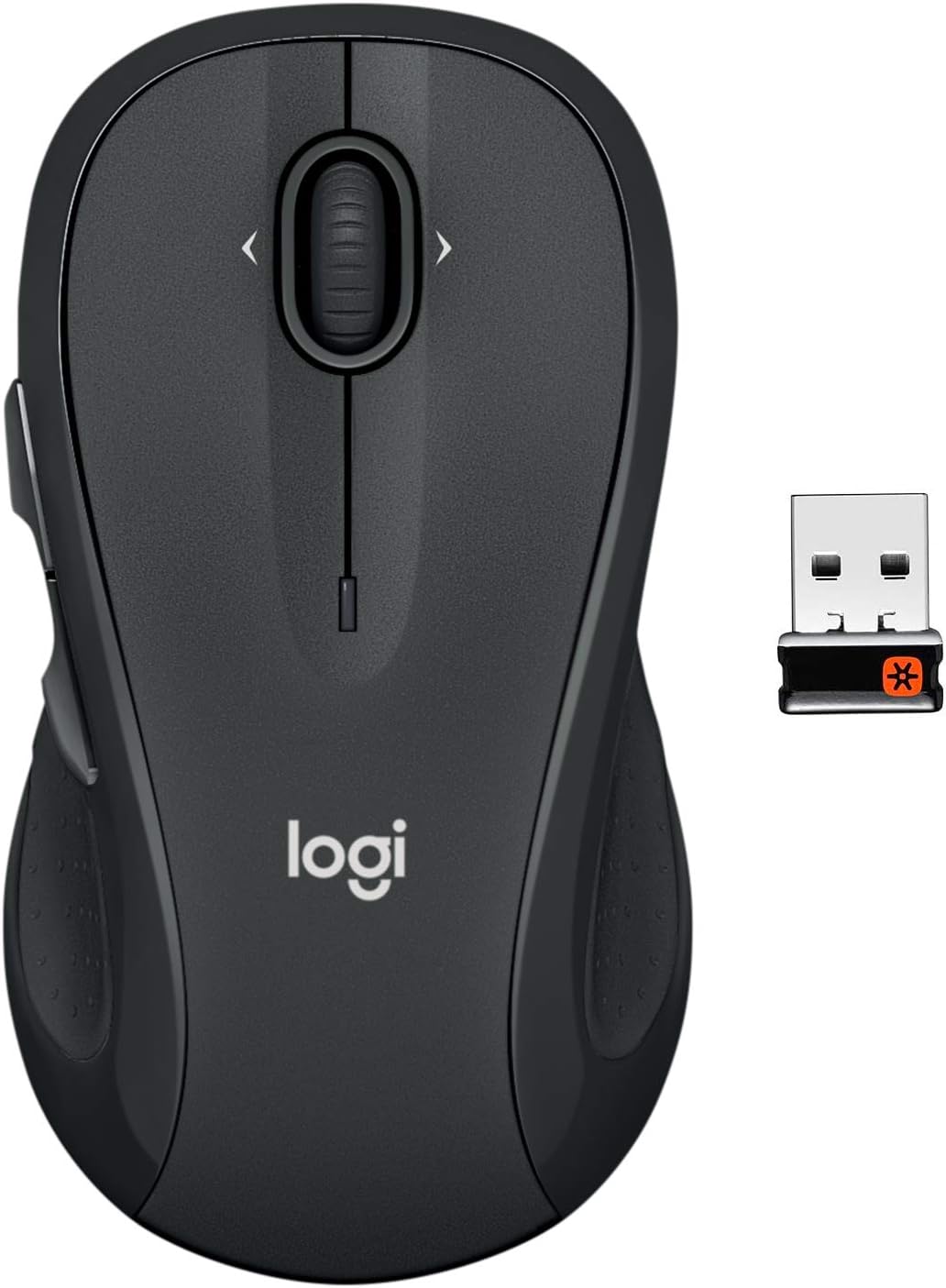
The Logitech M510 Wireless Mouse with its compact Unifying Receiver.
Nastavení
Obsah balení
- Přijímač Logitech Unifying
- 2 AA baterie
Instalace baterie
The Logitech M510 mouse comes with two AA batteries included. To install or replace batteries:
- Flip the mouse over to reveal the battery compartment on the underside.
- Sejměte kryt bateriového prostoru.
- Vložte dvě baterie typu AA a dbejte na správnou polaritu (+/-).
- Nasaďte kryt prostoru pro baterie.

Open the battery compartment to insert or replace AA batteries.
Connecting the Unifying Receiver
The tiny Logitech USB Unifying receiver allows for a reliable wireless connection. It is designed to stay plugged into your laptop without interference.
- Locate the Unifying receiver, typically stored inside the mouse's battery compartment.
- Zapojte přijímač Unifying do volného portu USB v počítači.
- Zapněte myš pomocí vypínače, který se nachází na spodní straně.
- Your computer should automatically detect and connect to the mouse.

Key features and components of the Logitech M510 mouse.
Operating Your Logitech M510 Mouse
Ergonomický design
The Logitech M510 is designed for comfort, allowing your hand to relax hour after hour. Its contoured shape with soft rubber grips and gently curved sides provides excellent support.

The ergonomic design ensures comfortable use for extended periods.
Funkce tlačítek
The M510 features multiple buttons for enhanced control:
- Kliknutí levým/pravým tlačítkem myši: Standardní funkce myši.
- Rolovací kolečko: Pro vertikální rolování.
- Programmable Back/Forward Buttons: Located on the side, these buttons can be customized to switch applications, go full screen, or perform other functions.

The M510 offers customizable controls for increased productivity.
Side-to-Side Scrolling and Zoom
The scroll wheel also supports side-to-side scrolling and zoom functionality, allowing you to navigate horizontally through documents, web pages, and images with ease.

Soft rubber grips and a versatile scroll wheel enhance usability.
Oficiální videa produktů
Neexistují žádní oficiální