
1. Úvod
The HUAWEI MateDock 3 is a compact and versatile docking station designed to expand the connectivity options of your compatible devices. It provides multiple ports including HDMI, VGA, USB-A, USB-C, an integrated microSD card reader, and a LAN (RJ45) connection. This manual provides instructions for setting up, operating, and maintaining your MateDock 3.

Obrázek 1.1: Nahoře view of the HUAWEI MateDock 3, showcasindíky kompaktnímu designu a integrovanému kabelu USB-C.
2. Obsah balení
Ujistěte se, že v balení jsou přítomny všechny položky:
- HUAWEI MateDock 3 Multi-Port Docking Station
- Uživatelská příručka (tento dokument)
3. Konec produktuview
The MateDock 3 features a range of ports to enhance your device's connectivity. Familiarize yourself with the port layout:

Image 3.1: Detailed diagram of the HUAWEI MateDock 3 ports, including LAN, USB-A, HDMI, VGA, microSD, and USB-C.
- USB-C Input Cable: Připojuje se k hostitelskému zařízení (notebook, tablet, chytrý telefon).
- Port HDMI: Connects to an external display for video and audio output.
- VGA port: Connects to an external display for video output.
- Port USB-A: Connects to USB peripherals such as keyboards, mice, or external storage.
- Port USB-C: For power delivery to the host device or connecting other USB-C peripherals.
- Port LAN (RJ45): Provides wired Ethernet network connectivity.
- Čtečka microSD karet: Pro čtení a zápis dat na microSD karty.
4. Nastavení a instalace
The HUAWEI MateDock 3 is designed for plug-and-play functionality, requiring no driver installation for most operating systems.
- Připojení k hostitelskému zařízení: Plug the integrated USB-C cable of the MateDock 3 into an available USB-C port on your laptop, tablet, or smartphone.
- Připojení napájení (volitelné): If your host device requires charging or if you are connecting power-intensive peripherals, connect a USB-C power adapter to the USB-C port on the MateDock 3.
- Připojení periferií: Connect your desired external devices (monitor, keyboard, mouse, Ethernet cable, microSD card) to the corresponding ports on the MateDock 3.
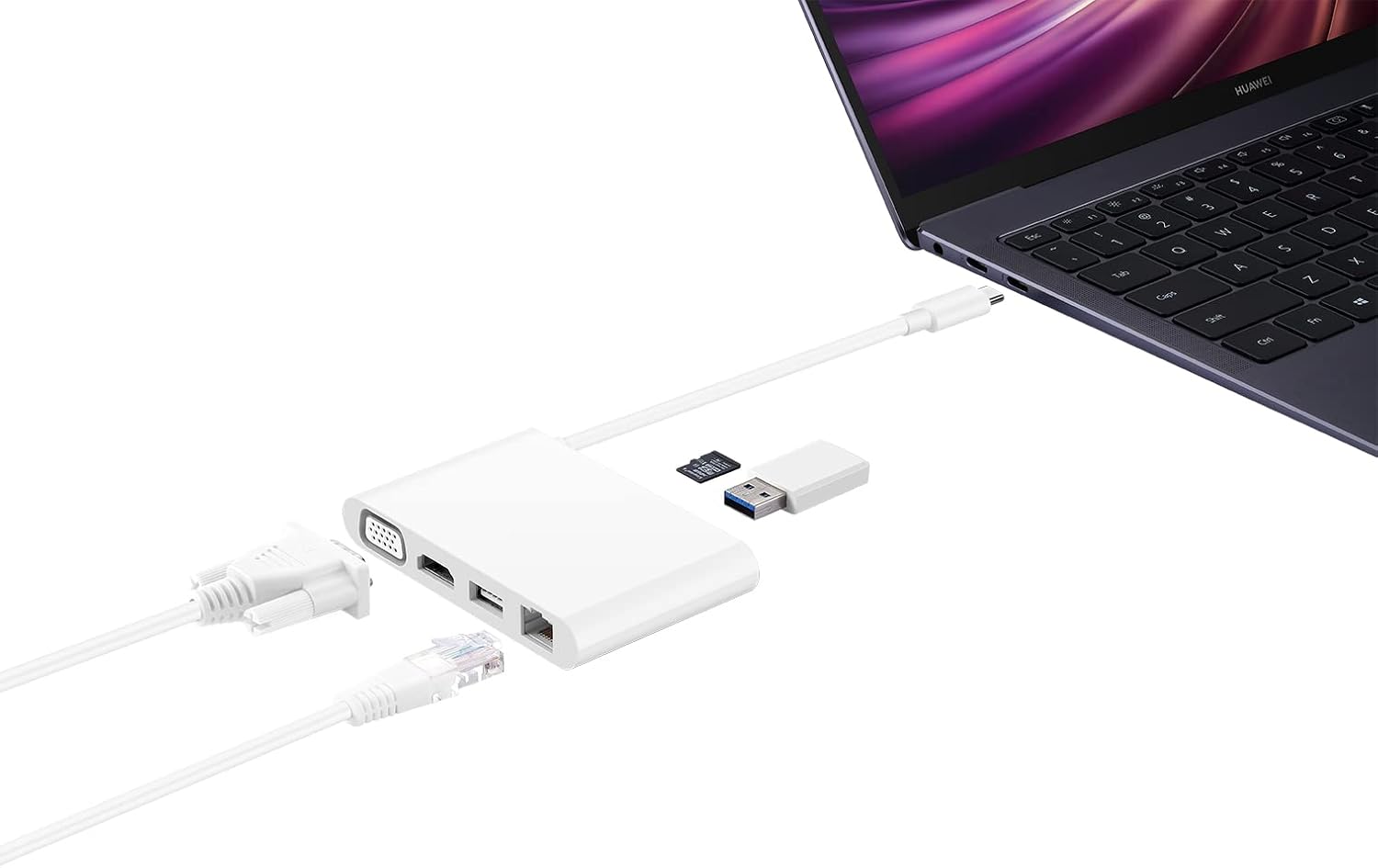
Image 4.1: The MateDock 3 in use, connected to a laptop, demonstrating connections for a monitor, Ethernet, and USB devices.
5. Návod k obsluze
5.1. Video Output (HDMI / VGA)
- Connect an HDMI cable from your monitor/TV to the HDMI port on the MateDock 3.
- Alternatively, connect a VGA cable from your monitor/projector to the VGA port on the MateDock 3.
- Your host device should automatically detect the external display. You may need to adjust display settings (e.g., mirror, extend) in your operating system.
- Poznámka: V danou chvíli lze použít pouze jeden video výstup (HDMI nebo VGA).
5.2. USB Peripherals (USB-A / USB-C)
- Plug your USB-A devices (e.g., mouse, keyboard, USB flash drive) into the USB-A port.
- The USB-C port on the dock can be used for power delivery to your host device or for connecting other USB-C peripherals.
5.3. Network Connection (LAN)
- Connect an Ethernet cable from your router or network switch to the LAN (RJ45) port on the MateDock 3.
- Your host device will establish a wired network connection.
5.4. Čtečka karet microSD
- Insert a microSD card into the designated slot on the MateDock 3.
- The card will appear as a removable drive on your host device, allowing you to access its contents.
6. Údržba a péče
- Keep the MateDock 3 clean and dry. Avoid exposure to liquids or excessive humidity.
- Nevystavujte zařízení extrémním teplotám.
- Clean the exterior with a soft, dry cloth. Avoid abrasive cleaners.
- Handle the integrated USB-C cable with care to prevent damage.
7. Řešení problémů
- Žádný výstup na displej:
- Ensure the MateDock 3's USB-C cable is securely connected to your host device.
- Verify that the HDMI or VGA cable is firmly connected to both the dock and the display.
- Zkontrolujte nastavení zobrazení hostitelského zařízení a ujistěte se, že je externí monitor správně detekován a nakonfigurován.
- Try connecting only one video output (HDMI or VGA) at a time.
- Nefunkční zařízení USB:
- Ensure the USB device is properly inserted into the USB-A or USB-C port.
- If the device requires external power, ensure the MateDock 3 is connected to a power source via its USB-C port.
- Test the USB device directly with your host device to rule out device-specific issues.
- Žádné síťové připojení:
- Verify that the Ethernet cable is securely connected to both the MateDock 3 and your router/switch.
- Check your host device's network settings.
- Ujistěte se, že váš router/switch funguje správně.
- microSD Card Not Detected:
- Ensure the microSD card is fully inserted into the slot.
- Check if the card is formatted correctly and readable by your host device.
8. Specifikace
| Funkce | Detail |
|---|---|
| Číslo modelu | 55031424 |
| Rozměry (D x Š x V) | 9.4 x 5.9 x 1.4 cm |
| Hmotnost | 86 g |
| Hardwarové rozhraní | HDMI, VGA, USB-A, USB-C, LAN (RJ45), microSD |
| Počet portů | 5 (excluding input USB-C cable and microSD slot) |
| Kompatibilní zařízení | Devices with USB-C ports supporting video output and power delivery |
| Barva | Bílý |
9. Informace o záruce
For detailed warranty information, please refer to the warranty card included with your product packaging or visit the official Huawei webUschovejte si účtenku jako doklad o koupi pro případ reklamace.
10. Zákaznická podpora
If you encounter any issues or have questions not covered in this manual, please contact Huawei customer support through their official webwebu nebo kontaktních informací uvedených v dokumentaci k produktu.