
1. Úvod
This manual provides detailed instructions for the setup, operation, maintenance, and troubleshooting of your HP Color LaserJet Pro M255dw Wireless Laser Printer. Please read this manual thoroughly to ensure proper use and optimal performance of your device.
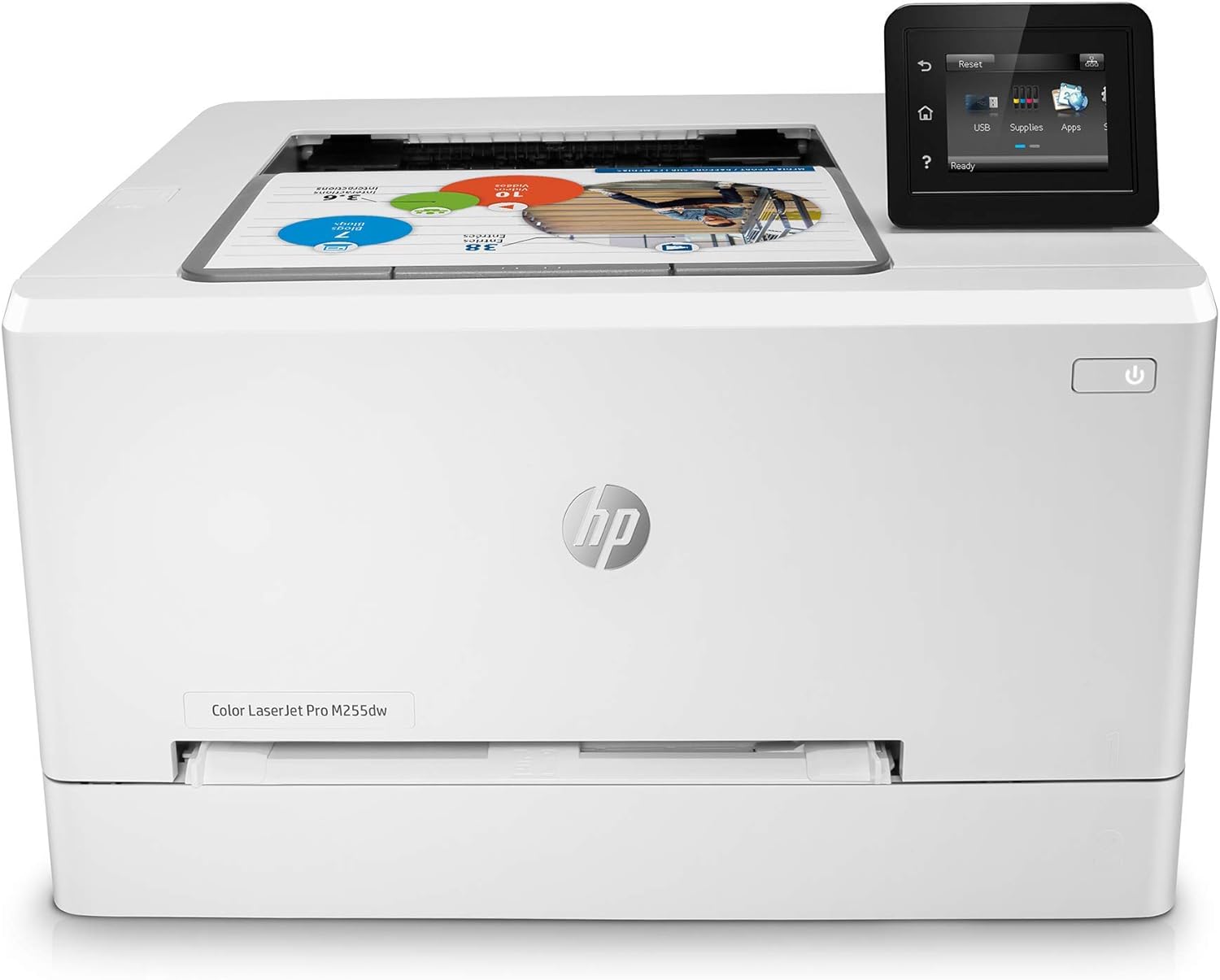
Obrázek 1.1: Přední strana view of the HP Color LaserJet Pro M255dw Wireless Laser Printer, showing its compact design and control panel.
2. Konec produktuview
2.1 Klíčové vlastnosti
- Color Laser Printing: Produces professional-quality color documents.
- Wireless Connectivity: Supports dual-band Wi-Fi for flexible placement and mobile printing.
- Fast Print Speeds: Up to 22 pages per minute (ppm) for both black and white and color.
- Automatic Two-Sided Printing (Duplex): Saves paper by printing on both sides automatically.
- 2.7" Color Touchscreen: Intuitive control panel for easy navigation and printer management.
- HP Smart App Compatibility: Enables remote printing, scanning, and printer management from mobile devices.
- Strong Security: Built-in security features to help protect data and the printer.
- Versatile Paper Handling: Supports various paper sizes from 4x6 inches to 8.5x14 inches.
- Ethernet Connectivity: For wired network connections.
- Front USB Port: For direct printing from USB drives.

Image 2.1: Diagram highlighting key features of the HP Color LaserJet Pro M255dw, including dual-band Wi-Fi, Ethernet, front USB port, automatic two-sided printing, 2.7" color touchscreen, strong security, HP Smart app integration, and a 250-sheet input tray.
2.2 Co je v krabici
Po vybalení zkontrolujte, zda jsou přítomny všechny komponenty:
- Tiskárna HP Color LaserJet Pro M255dw
- HP 206A LaserJet Toner Cartridges (Black, Cyan, Magenta, Yellow)
- Průvodce instalací
- Napájecí kabel
- USB kabel

Image 2.2: Contents of the printer box, showing the HP Color LaserJet Pro M255dw printer, toner cartridges, installation guide, power cord, and USB cable.
3. Nastavení
- Vybalení tiskárny: Odstraňte z tiskárny veškerý balicí materiál, pásky a ochranné fólie.
- Instalace tonerových kazet: Open the toner access door and insert the four HP 206A LaserJet toner cartridges (Black, Cyan, Magenta, Yellow) into their corresponding slots. Ensure they click into place.
- Vložte papír: Open the input tray and load the desired paper size and type. Adjust the paper guides to fit the paper stack.
- Připojte napájení: Připojte napájecí kabel k tiskárně a poté do uzemněné elektrické zásuvky.
- Zapnutí: Stisknutím tlačítka napájení zapněte tiskárnu.
- Počáteční nastavení na dotykové obrazovce: Follow the on-screen instructions on the 2.7" color touchscreen to select language, country/region, and date/time settings.
- Připojit k síti:
- Bezdrátové připojení: On the touchscreen, navigate to the wireless setup menu. Select your Wi-Fi network from the list and enter the password.
- Drátové (ethernetové) připojení: Připojte ethernetový kabel z routeru nebo síťového přepínače k ethernetovému portu na zadní straně tiskárny.
- USB připojení: Připojte kabel USB z tiskárny k počítači.
- Instalace softwaru/ovladačů:
- For Windows/macOS: Visit the HP support website for your printer model to download and install the latest drivers and software (e.g., HP Smart app).
- For Mobile Devices: Download the HP Smart app from your device's app store (Apple App Store or Google Play Store).
- Vytiskněte zkušební stránku: After driver installation, print a test page to confirm successful setup.
4. Návod k obsluze
4.1 Základní tisk
- Ujistěte se, že je tiskárna zapnutá a připojená k počítači nebo síti.
- Otevřete v počítači dokument nebo obrázek, který chcete vytisknout.
- V nabídce aplikace vyberte možnost „Tisk“ File menu.
- Choose "HP Color LaserJet Pro M255dw" from the list of available printers.
- Adjust print settings such as number of copies, paper size, and print quality as needed.
- Klikněte na „Tisk“.

Image 4.1: The HP Color LaserJet Pro M255dw actively printing documents, demonstrating its speed in handling tasks.
4.2 Mobilní tisk s aplikací HP Smart
The HP Smart app allows you to print, scan, and manage your printer from your smartphone or tablet.
- Download and install the HP Smart app on your mobile device.
- Open the app and follow the on-screen instructions to add your HP Color LaserJet Pro M255dw printer.
- Z aplikace můžete:
- Print Documents/Photos: Vybrat files from your device or cloud storage to print.
- Skenovat: Use your printer's scanner or your phone's camera to scan documents.
- Monitorování hladiny toneru: Check the status of your toner cartridges.
- Chytré úkoly: Create customizable shortcuts for repetitive tasks like scanning to email or cloud.
- Order Supplies: Easily reorder toner cartridges.

Image 4.2: Screenshot of the HP Smart app interface on a mobile device, illustrating options for monitoring toner levels, scanning, smart tasks, and mobile printing.
4.3 Automatický oboustranný (duplexní) tisk
The printer supports automatic duplex printing to save paper.
- When sending a print job from your computer, open the print dialog box.
- Look for an option like "Print on Both Sides," "Duplex Printing," or "Two-Sided Printing."
- Select the desired binding option (e.g., Long-edge binding for portrait, Short-edge binding for landscape).
- Potvrďte nastavení a klikněte na tlačítko „Tisk“.

Image 4.3: A stack of documents being printed, highlighting the efficiency of fast, two-sided printing.
5. Údržba
5.1 Výměna tonerové kazety
When a toner cartridge is low or empty, the printer's touchscreen will display a message. Replace cartridges as follows:
- Otevřete dvířka pro přístup k toneru na přední straně tiskárny.
- Grasp the handle of the empty toner cartridge and pull it straight out.
- Unpack the new HP 206A LaserJet toner cartridge. Gently shake it to distribute the toner.
- Vložte novou kazetu do příslušného slotu, dokud nezacvakne na místo.
- Zavřete dvířka pro přístup k toneru.
5.2 Manipulace s papírem
Proper paper loading is essential for print quality and to prevent jams.
- Podporované typy papíru: Envelopes, plain paper, photo paper, labels, cardstock, transparencies.
- Podporované velikosti papíru: Letter, Legal, Executive, Oficio, 4x6 in, 5x8 in, A4, A5, A5-R, A6, B5, B6, 16K, Postcard, Double Postcard, Envelopes (No. 10, B5, C5, DL, Monarch).
- Kapacita vstupního zásobníku: The main input tray holds up to 250 sheets.
- Vkládání papíru: Fan the paper stack before loading. Do not overfill the tray. Adjust the paper guides to lightly touch the edges of the paper stack.
6. Řešení problémů
This section addresses common issues you might encounter with your printer. For more detailed troubleshooting, refer to the HP support webmísto.
6.1 Tiskárna nereaguje
- Check power connections: Ensure the printer is plugged in and powered on.
- Verify network connection: For wireless, check Wi-Fi signal and ensure the printer is connected to the correct network. For wired, check Ethernet cable connection.
- Restart printer and computer/router: Sometimes a simple restart can resolve connectivity issues.
- Check print queue: Clear any stuck print jobs from your computer's print queue.
6.2 Problémy s kvalitou tisku
- Check toner levels: Replace any low or empty toner cartridges.
- Use genuine HP toner: Non-HP cartridges may cause print quality problems.
- Verify paper type: Ensure you are using the correct paper type for your print settings.
- Clean the printer: Refer to the HP support website for instructions on cleaning specific printer components if print quality degrades.

Obrázek 6.1: Příkladample of professional-quality color prints produced by the HP Color LaserJet Pro M255dw, demonstrating clear text and vibrant images.
6.3 Zaseknutí papíru
- Follow on-screen instructions: The printer's touchscreen will often guide you through clearing a jam.
- Open all access doors: Carefully open the front door, output tray, and any other access points to locate and gently remove jammed paper.
- Do not tear paper: Remove jammed paper slowly and carefully to avoid leaving torn pieces inside the printer.
- Ensure paper is loaded correctly: Make sure paper guides are adjusted properly and the tray is not overfilled.
7. Specifikace
| Funkce | Specifikace |
|---|---|
| Značka | HP |
| Název modelu | M255dw |
| Technologie tisku | Laser |
| Tiskový výstup | Barva |
| Technologie připojení | Ethernet, USB, Wi-Fi |
| Maximální rychlost tisku (barevně) | 22 ppm |
| Maximální rychlost tisku černobíle | 22 ppm |
| Maximální rozlišení barevného tisku | 600 dpi |
| Maximální rozlišení černobílého tisku | 600 dpi |
| Oboustranný tisk | Automatický |
| Maximální vstupní kapacita listu | 250 listů |
| Výstupní kapacita listů | 250 listů |
| Podporované velikosti médií | 4 x 6 to 8.5 x 14 inches (Letter, Legal, Executive, Oficio, A4, A5, A5-R, A6, B5, B6, 16K, Postcard, Double Postcard, Envelopes) |
| Typ inkoustu do tiskárny | Toner (HP 206A) |
| Rozměry produktu | 15"H x 17"Š x 10"V (38.1 cm H x 43.2 cm Š x 25.4 cm V) |
| Hmotnost položky | 35 libry (15.88 kg) |
| Kontrolní metoda | Dálkové ovládání, dotyková obrazovka |
| Typ skeneru | Valník |
| Další funkce tiskárny | Skenovat |
8. Záruka a podpora
8.1 Informace o záruce
This product typically comes with a one-year limited hardware warranty. For renewed products, a 90-day limited warranty is often provided. Please refer to your purchase documentation for specific warranty terms applicable to your device.
8.2 Zákaznická podpora
For technical assistance, driver downloads, and further troubleshooting, please visit the official HP support website for your printer model. HP also offers 24-hour, 7 days a week web podpora.
Podpora HP Webmísto: support.hp.com