
1. Úvod
This manual provides essential information for the setup, operation, maintenance, and troubleshooting of your HP ScanJet Pro 2000 s2 Document Scanner. Please read this manual thoroughly before using the device to ensure proper functionality and to maximize its performance.
2. Konec produktuview
The HP ScanJet Pro 2000 s2 is a compact and efficient duplex document scanner designed for various scanning needs, including documents, photos, receipts, and cards. It features a 50-page Automatic Document Feeder (ADF) and offers fast, two-sided scanning.

Obrázek 2.1: HP ScanJet Pro 2000 s2 in operation, scanning a document through the ADF.
2.1 Scanner Components

Obrázek 2.2: Key components of the HP ScanJet Pro 2000 s2, including the document input tray, output tray, control buttons, and ports.
- Document Input Tray with Extension: Holds documents for scanning.
- Sliding Paper Guides: Adjust to fit various document widths.
- Tlačítko zapnutí/vypnutí: Powers the scanner on or off.
- Tlačítko skenování: Initiates a scan job.
- Port USB 3.0: Connects the scanner to a computer.
- Připojení napájení: Připojuje napájecí adaptér.
- Document Output Tray with Extension: Shromažďuje naskenované dokumenty.
- Latch to Access Paper Path: Allows access for clearing paper jams or cleaning.
- Slot for Optional Cable-Type Security Lock: Pro zajištění zařízení.
2.2 Zadní View a Připojení
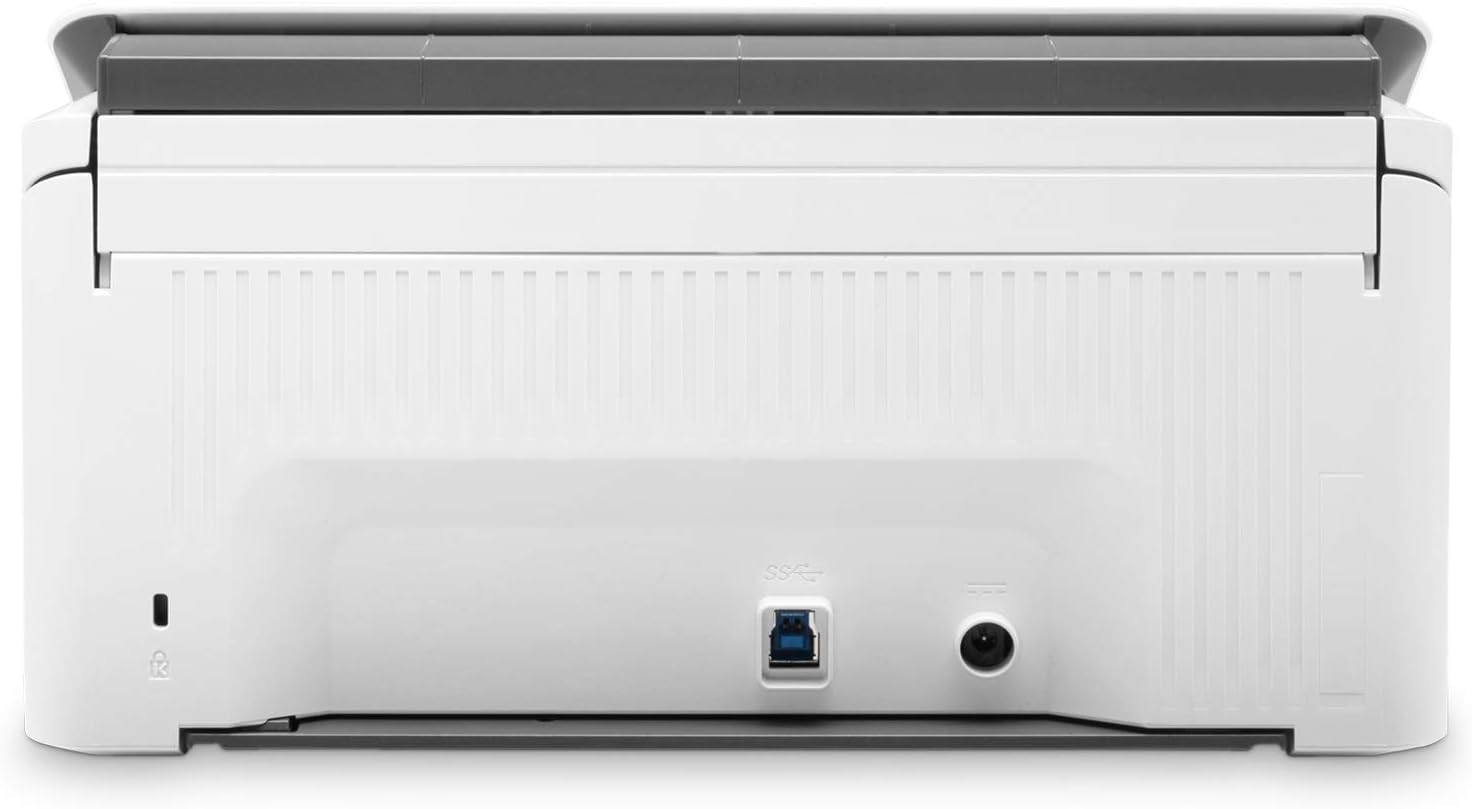
Obrázek 2.3: Zadní view of the scanner, highlighting the USB 3.0 port and power input.
The rear of the scanner houses the primary connectivity ports:
- Port USB 3.0: For high-speed data transfer to your computer.
- Příkon: Pro připojení dodaného napájecího adaptéru.
3. Průvodce nastavením
3.1 Vybalení a umístění
- Opatrně vyjměte skener a veškeré příslušenství z obalu.
- Umístěte skener na stabilní, rovný povrch s dostatečným prostorem pro podávání a výstup dokumentů.
- Odstraňte ze skeneru všechny ochranné pásky a balicí materiály.
3.2 Připojení skeneru
- Connect the power adapter to the scanner's power input port and then plug it into an electrical outlet.
- Connect one end of the USB cable to the USB 3.0 port on the scanner and the other end to an available USB port on your computer.
3.3 Instalace softwaru
- Turn on the scanner using the On/Off button.
- Insert the provided software installation disc into your computer's optical drive, or download the latest drivers and software from the official HP support webmísto.
- Follow the on-screen instructions to install the HP Scan software and necessary drivers (TWAIN/ISIS).
- Pokud se po instalaci zobrazí výzva, restartujte počítač.
Note: Ensure your operating system is compatible with the scanner software. Refer to HP's support website for system requirements.
4. Návod k obsluze
4.1 Načítání dokumentů
- Extend the document input tray and output tray.
- Adjust the sliding paper guides to the width of your documents.
- Load up to 50 pages into the Automatic Document Feeder (ADF). Ensure documents are aligned and free of staples or paper clips.
- For mixed media sizes, ensure the stack is uniform to prevent jams.
4.2 Zahájení skenování
- Ujistěte se, že je skener zapnutý a připojený k počítači.
- Otevřete software HP Scan v počítači.
- Vyberte si požadovaného skenovacího profesionálafile or create a new one. Profiles allow you to configure settings such as:
- Scan destination (e.g., folder, email, application)
- File format (e.g., PDF, JPEG, TIFF)
- Rozlišení (DPI)
- Color mode (color, grayscale, black & white)
- Duplex scanning (two-sided)
- Automatic document correction features
- Optical Character Recognition (OCR) for editable text
- Vložte dokumenty do automatického podavače dokumentů (ADF).
- Press the Scan button on the scanner or click the scan button within the HP Scan software to begin.
- The scanner will process documents at speeds up to 35 pages per minute (ppm) or 70 images per minute (ipm) for two-sided scans.
4.3 Using TWAIN/ISIS Drivers
The scanner includes full-featured TWAIN and ISIS drivers, allowing direct integration with various document management and imaging applications. Consult your application's documentation for specific instructions on using these drivers to acquire images from the HP ScanJet Pro 2000 s2.
5. Údržba
Regular maintenance ensures optimal performance and extends the lifespan of your scanner.
5.1 Čištění skeneru
- Vypnout: Před čištěním odpojte napájecí kabel.
- Vnější: Otřete vnější povrchy měkkým hadříkem, který nepouští vlákna dampOpláchněte vodou. Nepoužívejte abrazivní čisticí prostředky.
- Sklo a válečky: Open the scanner cover (using the latch to access the paper path) to expose the scanning glass and paper rollers. Gently wipe the glass with a soft cloth and a non-abrasive glass cleaner. Clean the paper rollers with a lint-free cloth dampened with isopropyl alcohol to remove paper dust and residue.
- ADF Tray: Clean any dust or debris from the document input and output trays.
- Allow all components to dry completely before reconnecting power and using the scanner.
Note: Refer to the HP support website for detailed cleaning instructions or recommended cleaning kits.
6. Řešení problémů
Tato část se zabývá běžnými problémy, se kterými se můžete setkat při používání skeneru.
6.1 Scanner Not Detected or Responding
- Zkontrolujte připojení: Ensure the USB cable is securely connected to both the scanner and the computer, and the power adapter is properly plugged in.
- Cyklus napájení: Turn off the scanner, unplug the power cord, wait 10 seconds, then plug it back in and turn it on.
- Restartujte počítač: Někdy může restartování počítače vyřešit problémy s připojením.
- USB port: Zkuste připojit skener k jinému portu USB na počítači.
- Ovladače: Verify that the latest scanner drivers are installed. Reinstall them if necessary.
6.2 Zaseknutí papíru
- Volná cesta: Open the latch to access the paper path and carefully remove any jammed paper.
- Inspect Documents: Ensure documents are free of staples, paper clips, or tears before loading.
- Úprava vodítek: Make sure the paper guides are properly adjusted to the width of the documents.
6.3 Špatná kvalita skenování
- Čistý skener: Dust or smudges on the scanning glass or rollers can affect image quality. Refer to Section 5.1 for cleaning instructions.
- Nastavení softwaru: Adjust resolution, brightness, contrast, and color settings within the HP Scan software.
- Stav dokumentu: Ensure original documents are clean and in good condition.
6.4 Slow Scanning or Software Performance
- Computer Resources: Ujistěte se, že váš počítač splňuje minimální systémové požadavky a má dostatečnou paměť RAM a rychlost procesoru. Ukončete nepotřebné aplikace.
- USB připojení: Use a USB 3.0 port for optimal speed.
- Aktualizace softwaru: Check for and install any available updates for the HP Scan software and drivers.
7. Specifikace
| Funkce | Specifikace |
|---|---|
| Název modelu | Pro 2000 s2 (6FW06A) |
| Typ skeneru | Sheet-feed, Duplex Document Scanner |
| Konektivita | USB 3.0 |
| Rychlost skenování (automatický podavač dokumentů) | Up to 35 ppm (pages per minute) / 70 ipm (images per minute) |
| Kapacita automatického podavače dokumentů (ADF) | 50 listů |
| Optické rozlišení | Up to 600 dpi (optical) |
| Výstupní rozlišení | 75 až 1200 dpi |
| Barevná hloubka | 24bitový (externí), 48bitový (interní) |
| Denní pracovní cyklus | Recommended 3,500 pages per day |
| Podporované typy médií | Cut Sheet Paper, Printed Paper (Laser and Ink), Pre-punched Paper, Bank Checks, Business Cards, Freight Bills, Carbonless Forms, Plastic Carrier Sheets for easily damaged documents, Previously stapled media with staples removed |
| Minimum Document Size | 2 x 3 palce (50.8 x 76.2 mm) |
| Maximální velikost dokumentu | 8.5 x 122 palce (216 x 3098 mm) |
| Rozměry výrobku (Š x H x V) | 11.8 x 6.8 x 6.1 palce (299.7 x 172.7 x 154.9 mm) |
| Hmotnost položky | 6 libry (2.7 kg) |
| Spotřeba energie | 24 watts (scanning), 5.4 watts (ready), 1.1 watts (sleep), 0.1 watts (auto-off) |
| Ovladače zahrnuté | TWAIN, ISIS |

Obrázek 7.1: Physical dimensions of the HP ScanJet Pro 2000 s2 scanner.
8. Informace o záruce
For detailed warranty information regarding your HP ScanJet Pro 2000 s2 scanner, please refer to the warranty card included with your product or visit the official HP support webZáruční podmínky se mohou lišit v závislosti na regionu.
9. Zákaznická podpora
If you require further assistance or have questions not covered in this manual, please contact HP Customer Support through their official website or the contact information provided with your product. Ensure you have your product model number (Pro 2000 s2) and serial number ready when contacting support.
Oficiální podpora HP Webmísto: www.hp.com/support