
Zavedení
The ONIKUMA K2-PRO Stereo Gaming Headset is designed to provide an immersive audio experience for various gaming platforms. Featuring a noise-cancelling microphone, 3D surround sound, and comfortable memory foam ear pads, this headset is engineered for extended gaming sessions. This manual provides essential information for setup, operation, maintenance, and troubleshooting to ensure optimal performance of your K2-PRO headset.

This image illustrates the ONIKUMA K2-PRO Gaming Headset in use, emphasizing its key audio features like 3D stereo surround sound and 40mm drivers, along with the noise-cancelling microphone and LED lighting.
Vlastnosti
- Immersive 3D Stereo Surround Sound: Experience rich, detailed audio for an enhanced gaming environment.
- 50mm Neodymium Magnet Drivers: Delivers powerful and clear sound reproduction.
- Adjustable Noise-Cancelling Microphone: Reduces background noise for clear communication and can be positioned for optimal voice pickup.
- Integrované RGB LED osvětlení: Enhances the gaming atmosphere with dynamic lighting effects, powered via USB.
- Pohodlný design: Features an adjustable headband, soft memory protein earmuffs, and a soft memory protein headpad for long-term comfort.
- Inline Audio Controller: Conveniently adjust volume and mute the microphone.
- Kompatibilita s více platformami: Compatible with PlayStation 4, Xbox One, PC, Nintendo Switch, and mobile devices.
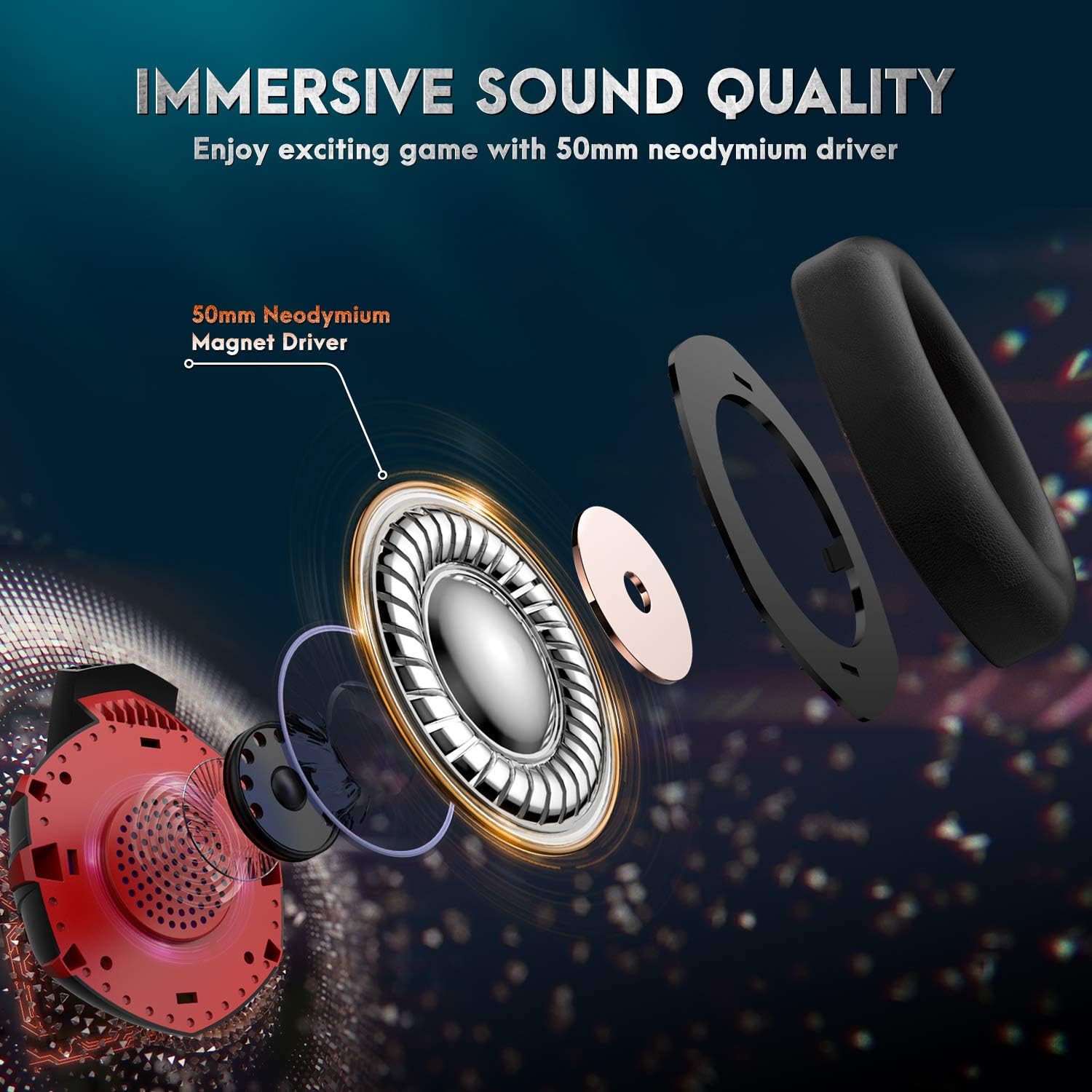
Detailní view of the headset's internal components, showcasing the 50mm neodymium magnet driver responsible for high-quality, immersive audio.
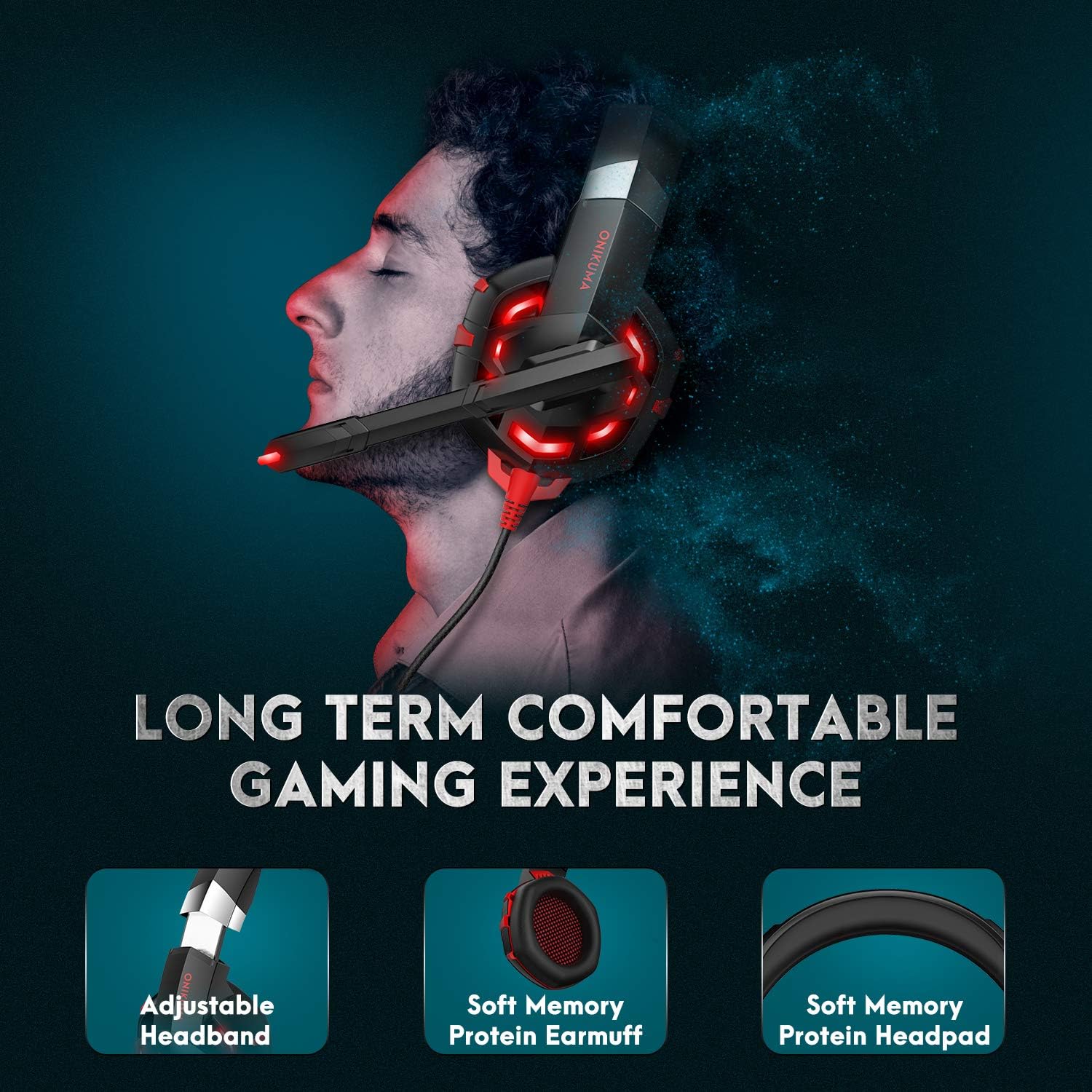
This image demonstrates the ergonomic design of the headset, focusing on the adjustable headband and soft memory protein ear cushions and headpad for extended comfort.
Obsah balení
- ONIKUMA K2-PRO Gaming Headset
- 1-to-2 Audio Splitter Cable (for PC with separate audio/mic jacks)
- Uživatelská příručka
Pokyny pro nastavení
The ONIKUMA K2-PRO headset connects via a 3.5mm audio jack for sound and microphone, and a USB connector for LED lighting. Follow the steps below for your specific device:
- For PlayStation 4 (PS4 / PS4 Pro / PS4 Slim):
- Plug the 3.5mm jack of the headset into the controller.
- Přejděte do Nastavení systému > Zařízení > Zvuková zařízení.
- Nastavte „Výstup do sluchátek“ na „Veškerý zvuk“.
- Adjust microphone level as needed.
- Plug the USB connector into a free USB port on the console for LED lighting.
- For Xbox One (Xbox One / Xbox One S / Xbox One X):
- Plug the 3.5mm jack of the headset into the Xbox One controller. (Note: Older Xbox One controllers may require a Microsoft Stereo Headset Adapter, not included).
- Go to System > Settings > Display & Sound > Audio Output.
- Adjust headset volume and microphone monitoring.
- Plug the USB connector into a free USB port on the console for LED lighting.
- For PC / Laptop:
- If your PC/laptop has separate audio (green) and microphone (pink) jacks, use the included 1-to-2 audio splitter cable. Connect the headset's 3.5mm jack to the splitter, then connect the splitter's audio and mic plugs to the corresponding ports on your computer.
- If your PC/laptop has a single combined 3.5mm audio jack, plug the headset's 3.5mm jack directly into it.
- Plug the USB connector into a free USB port on your PC/laptop for LED lighting.
- Ensure the headset is selected as the default audio input/output device in your operating system's sound settings.
- For Nintendo Switch / New 3DS XL / 3DS / 3DS XL:
- Plug the 3.5mm jack of the headset directly into the device's audio port.
- The USB connector is not typically used for these devices unless a USB power source is available for LED lighting.
- For Smartphone / Android / iOS / Tablet:
- Plug the 3.5mm jack of the headset directly into your mobile device's audio port.
- The USB connector is not typically used for mobile devices unless a USB power source is available for LED lighting.

A comprehensive diagram detailing how to connect the ONIKUMA K2-PRO headset to various gaming platforms and devices, including PlayStation, Xbox, PC, Nintendo Switch, and mobile phones.
Návod k obsluze
Ovládání hlasitosti
The headset features an inline controller on the cable. Use the scroll wheel on this controller to adjust the audio volume up or down to your preferred level.
Použití mikrofonu
The microphone is adjustable and features noise-cancelling technology. You can bend the microphone arm to position it closer to your mouth for clearer voice pickup. To mute the microphone, use the switch located on the inline controller.

This image highlights the flexible, noise-cancelling microphone and the convenient inline controller, allowing for easy adjustments during gameplay.
LED osvětlení
The headset's RGB LED lighting is powered by the USB connector. Ensure the USB is plugged into a powered USB port on your device (console, PC, etc.) for the lights to function.
Údržba
- Čištění: K otření sluchátek použijte měkký, suchý hadřík. V případě náušníků použijte mírněamp Lze použít hadřík, ale vyhněte se nadměrné vlhkosti. Nepoužívejte agresivní chemikálie ani abrazivní čisticí prostředky.
- Skladování: Sluchátka skladujte na chladném a suchém místě mimo dosah přímého slunečního záření a extrémních teplot. Nepokládejte na ně těžké předměty.
- Péče o kabely: Vyhněte se ostrým ohybům nebo nadměrnému tahání za kabel, abyste předešli jeho poškození.
Odstraňování problémů
- Žádný zvuk:
- Ujistěte se, že je 3.5mm audio konektor zcela zapojený do zařízení.
- Check the inline volume control and increase the volume.
- Ověřte, zda jsou v nastavení zvuku vašeho zařízení jako výchozí výstupní zvukové zařízení vybrána sluchátka.
- Vyzkoušejte sluchátka s mikrofonem na jiném zařízení, abyste vyloučili problém s konkrétním zařízením.
- Mikrofon nefunguje:
- Ujistěte se, že je 3.5mm audio konektor zcela zapojený do zařízení.
- Check that the microphone mute switch on the inline controller is not engaged.
- Ověřte, zda je v nastavení zvuku vašeho zařízení jako výchozí vstupní zařízení vybrán mikrofon sluchátek.
- For PC, ensure the 1-to-2 splitter is correctly connected if your PC has separate audio/mic ports.
- Vyzkoušejte mikrofon na jiném zařízení.
- LED světla nefungují:
- Ujistěte se, že je USB konektor bezpečně zapojený do napájeného USB portu.
- Vyzkoušejte jiný port USB.
Specifikace
| Název značky | ONIKUMA |
| Číslo modelu | ONIKUMA-K2R |
| Název modelu | ONIKUMA K2-PRO Red LED Light |
| Barva | Red K2 |
| Tvarový faktor sluchátek | Přes ucho |
| Technologie připojení | Wired (3.5mm audio, USB for LED) |
| Kontrola hluku | Aktivní potlačení hluku (mikrofon) |
| Speciální funkce | Volume Control, Adjustable Microphone, LED Lighting |
| Zahrnuté komponenty | Headset, 1-to-2 Splitter Cable |
| Materiál | Plast |
| Hmotnost položky | 560 gramů |
| Popis věkového rozmezí | Dospělý |
| ASIN | B085XZCYRC |
Záruka a podpora
The ONIKUMA K2-PRO Gaming Headset comes with a local warranty. For specific warranty terms and conditions, please refer to the documentation provided with your purchase or contact your local retailer.
For technical support or further assistance, please visit the official ONIKUMA website or contact their customer service department. Keep your purchase receipt or proof of purchase handy for any warranty claims.