
Zavedení
Welcome to the Marvo M422 USB Gaming Mouse user manual. This guide provides detailed instructions for setting up, operating, maintaining, and troubleshooting your new gaming mouse. The Marvo M422 is designed for gaming, featuring an optical sensor, RGB lighting, and 7 programmable buttons for an enhanced gaming experience.
Obsah balení
The Marvo M422 USB Gaming Mouse package typically includes:
- Marvo M422 USB Gaming Mouse
- Uživatelská příručka (tento dokument)
Nastavení
Follow these steps to set up your Marvo M422 USB Gaming Mouse:
Připojte myš: Locate an available USB port on your computer (PC or Laptop) or PlayStation 4 console. Insert the USB connector of the Marvo M422 mouse into the USB port.

Image: The Marvo M422 USB Gaming Mouse, showing its USB cable for connection.
Instalace ovladače: The Marvo M422 is a plug-and-play device. Your operating system (Windows, macOS, Linux) or PlayStation 4 will automatically detect and install the necessary drivers. This process may take a few moments.
Potvrzení: Once the drivers are installed, the mouse's RGB lighting will illuminate, indicating it is ready for use. You can now move the mouse and click buttons to confirm functionality.
Návod k obsluze
The Marvo M422 features 7 buttons and adjustable DPI settings for optimal performance.
Funkce tlačítek
- Levé tlačítko myši: Tlačítko primární akce.
- Kliknutí pravým tlačítkem: Tlačítko sekundární akce, obvykle pro kontextové nabídky.
- Rolovací kolečko: Scrolls content up or down. Can also be pressed for a middle-click function.
- Tlačítko DPI: (Located behind the scroll wheel) Cycles through different DPI sensitivity settings. Each press changes the sensitivity, often indicated by a change in LED color or pattern.
- Tlačítko vpřed: (Side button) Navigates forward in web prohlížeče popř file průzkumníci.
- Tlačítko zpět: (Side button) Navigates backward in web prohlížeče popř file průzkumníci.
- Programovatelná tlačítka: The 7 buttons are programmable, allowing for custom assignments via compatible software (if available).
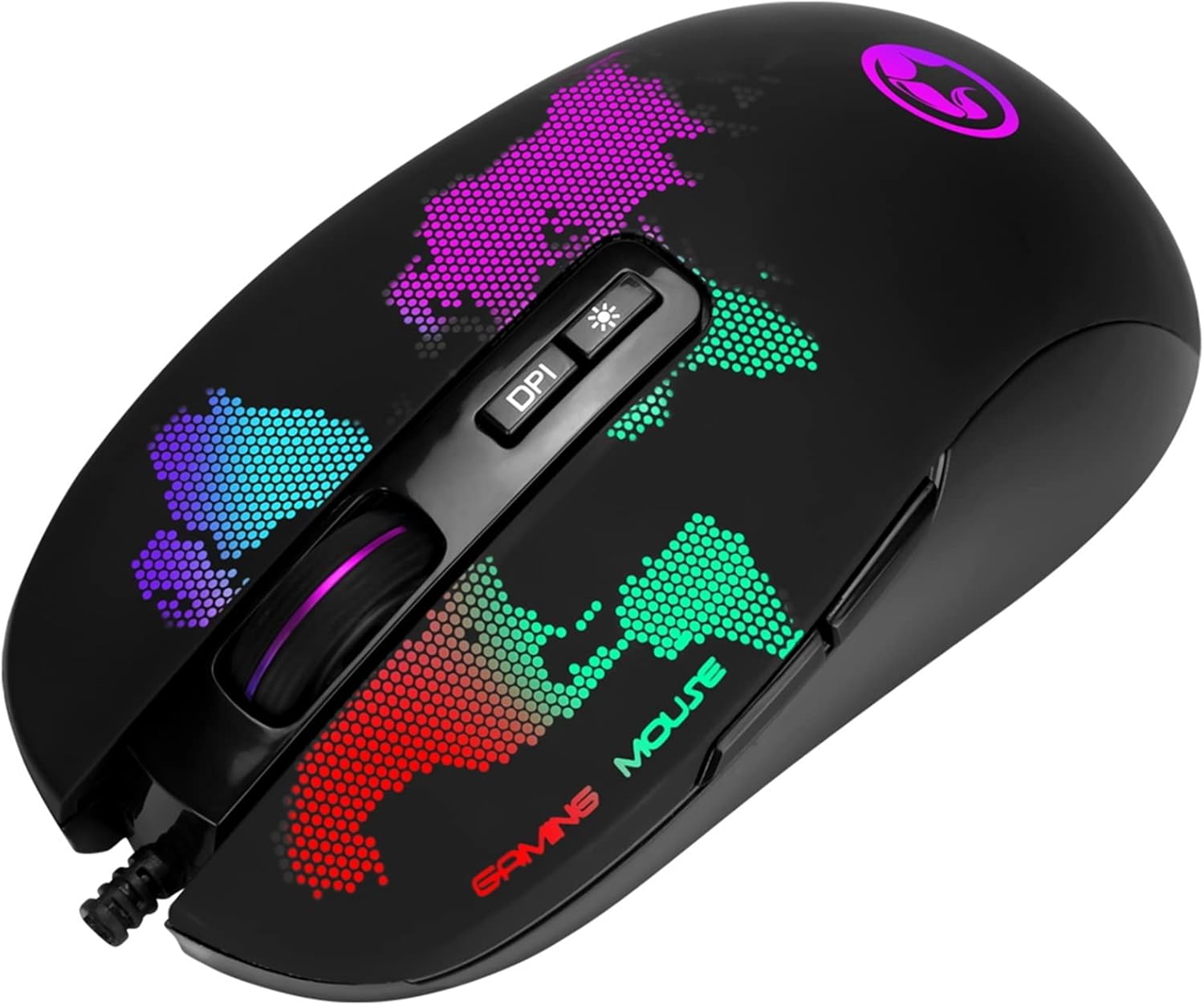
Obrázek: Nahoře view of the Marvo M422 mouse, highlighting the DPI button and scroll wheel.
Nastavení citlivosti DPI
Press the DPI button (located behind the scroll wheel) to cycle through the available DPI settings. The mouse features a 4800 DPI optical sensor, allowing for precise control. Each press will adjust the cursor speed, enabling you to find the optimal sensitivity for your tasks or games.

Obrázek: Úhlový view of the Marvo M422 mouse, showcasing its dynamic RGB lighting.
RGB osvětlení
The Marvo M422 features integrated RGB LED lighting. The lighting patterns and colors may change based on the selected DPI setting or can be customized via dedicated software (if available, please check the manufacturer's webweb s informacemi o dostupnosti softwaru).
Údržba
Proper care ensures the longevity and performance of your Marvo M422 mouse.
- Čištění: K otření povrchu myši použijte měkký, suchý hadřík. V případě odolné nečistoty lehceamphadřík vodou. Nepoužívejte agresivní chemikálie ani abrazivní materiály.
- Péče o senzor: Udržujte optický senzor na spodní straně myši čistý a bez prachu a nečistot. V případě potřeby použijte vatový tampon nebo stlačený vzduch.
- Správa kabelů: Abyste předešli poškození, vyhněte se ostrým ohybům nebo nadměrnému tahání za kabel USB.
- Skladování: Pokud myš nepoužíváte, skladujte ji v čistém a suchém prostředí mimo dosah extrémních teplot.
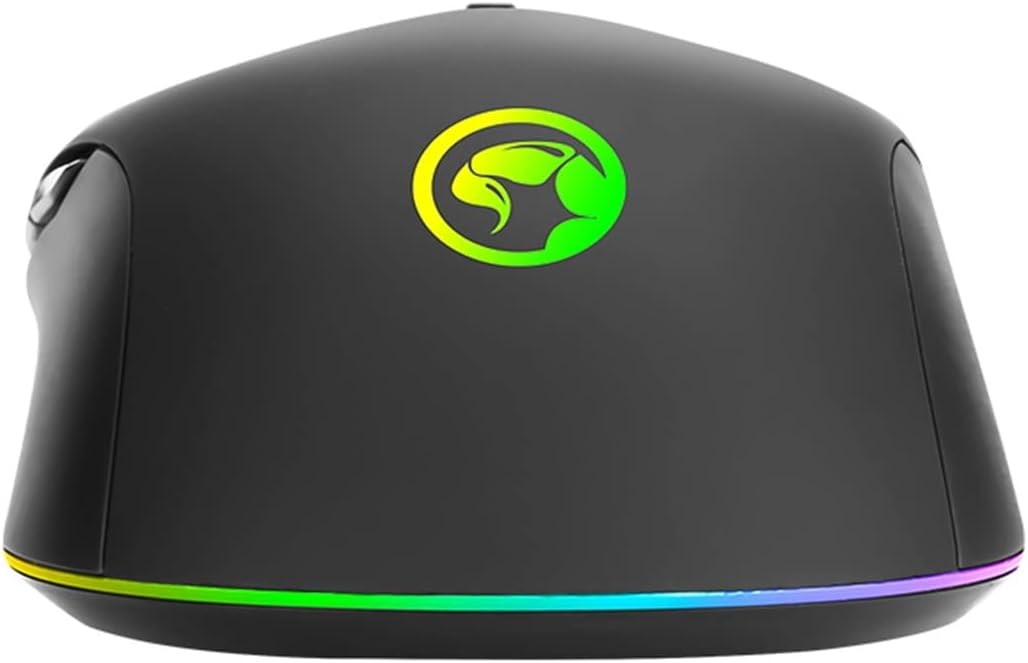
Obrázek: Zadní view of the Marvo M422 mouse, showing the base and the continuous RGB light strip.
Odstraňování problémů
If you encounter issues with your Marvo M422 mouse, refer to the following common solutions:
- Myš nereaguje:
- Ensure the USB cable is securely plugged into a working USB port. Try a different USB port or a different computer/console to rule out port issues.
- Restartujte počítač nebo konzoli.
- Pohyb kurzoru je nepravidelný nebo skokatý:
- Vyčistěte optický senzor na spodní straně myši.
- Ujistěte se, že myš používáte na vhodném povrchu (např. podložce pod myš). Vyhněte se vysoce reflexním nebo průhledným povrchům.
- Tlačítka nefungují:
- Zkontrolujte, zda nejsou na místě nějaké fyzické překážky.
- If using custom software, ensure settings are correctly configured.
- Nefunkční RGB osvětlení:
- Verify the mouse is properly connected and powered.
- If applicable, check any software settings for RGB control.
Specifikace
| Funkce | Detail |
|---|---|
| Značka | Marvo |
| Číslo modelu | M422 |
| Konektivita | USB |
| Typ snímače | Optický |
| DPI | Až 4800 XNUMX DPI |
| Počet tlačítek | 7 (programovatelných) |
| Osvětlení | RGB LED |
| Orientace rukou | Obouruký |
| Doporučené použití | Hraní |
| Kompatibilní zařízení | PC, Laptop, PlayStation 4 |
| Rozměry produktu | 12.6 x 6.7 x 4 cm |
| Hmotnost položky | 218 gramů |
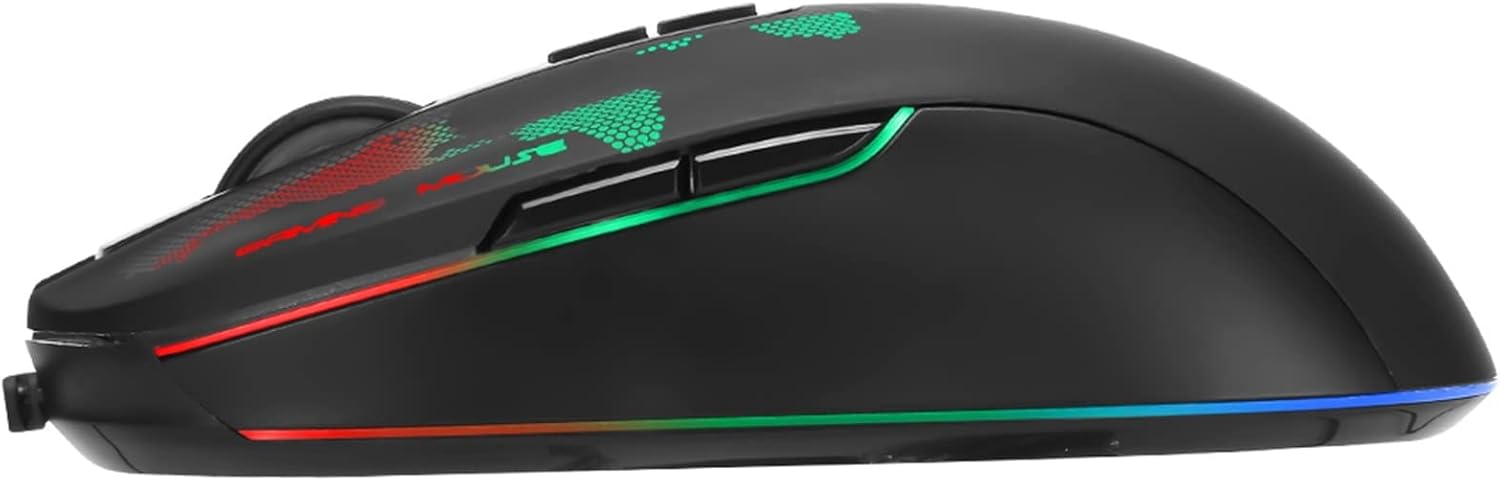
Obrázek: Boční view of the Marvo M422 mouse, illustrating the ergonomic design and side buttons.
Informace o záruce
Marvo products are manufactured to high-quality standards. For specific warranty details, please refer to the warranty card included with your product or visit the official Marvo webUschovejte si účtenku jako doklad o koupi pro případné reklamace.
Podpora
For further assistance, technical support, or inquiries regarding your Marvo M422 USB Gaming Mouse, please visit the official Marvo support webnebo kontaktujte jejich oddělení zákaznických služeb.
You can often find support resources, FAQs, and driver downloads (if applicable) on the manufacturer's webmísto.
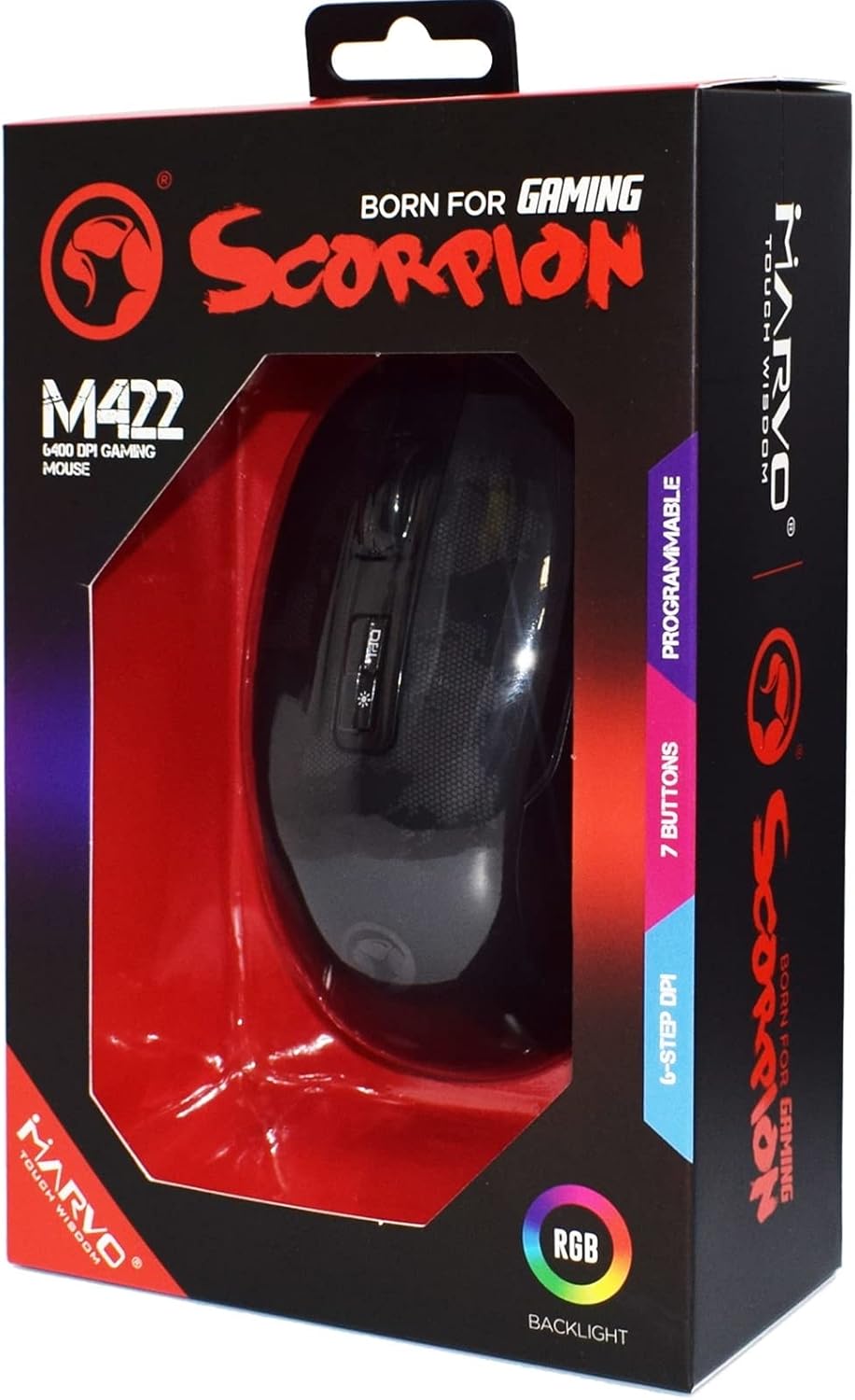
Image: The retail packaging for the Marvo M422 Gaming Mouse, showing product branding and key features.