
1. Úvod
The Marmitek View ME is an indoor Wi-Fi camera designed for remote monitoring of your home. It offers Full HD 1080p video, motion detection, two-way audio communication, and infrared night vision. This camera integrates seamlessly with the Smart me application, allowing you to control and monitor your home from your smartphone or tablet.
2. Obsah balení
Ověřte, zda jsou v balení přítomny všechny položky:
- Marmitek View ME Indoor Wi-Fi Camera
- Napájecí adaptér
- USB kabel
- Mounting Accessories (if applicable, not explicitly listed but common)
- Návod k použití (tento dokument)

Image: The Marmitek View ME product box, showing the camera and branding.
3. Konec produktuview
Familiarize yourself with the different parts of your Marmitek View ME camera.
Přední View
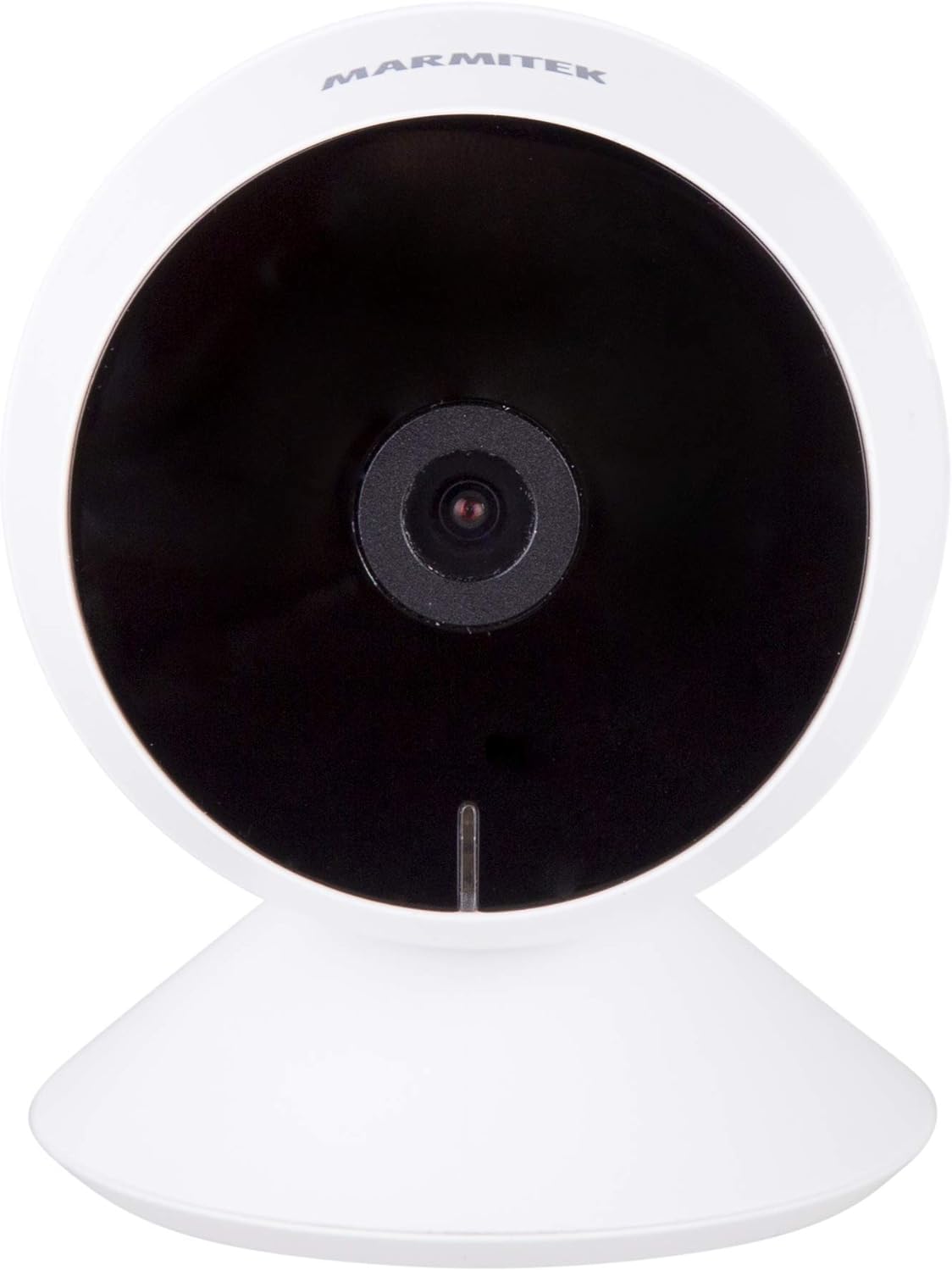
Obrázek: Přední strana view of the Marmitek View ME camera, showing the lens and indicator light.
Strana View

Obrázek: Boční view of the Marmitek View ME camera, highlighting its compact design.
Zadní View

Obrázek: Zadní view of the Marmitek View ME camera, showing the micro-USB port, speaker, and reset button.
4. Nastavení
4.1 Umístění
Position the camera in a central location within the area you wish to monitor. Ensure it has a clear line of sight and is within range of your Wi-Fi network. The camera is designed for indoor use and can be placed on a desk, shelf, or mounted on a wall or ceiling.

Image: The Marmitek View ME camera discreetly placed on a shelf in a living room environment.
4.2 Připojení napájení
- Connect the USB cable to the micro-USB port on the back of the camera.
- Zapojte druhý konec kabelu USB do dodaného napájecího adaptéru.
- Zapojte napájecí adaptér do standardní elektrické zásuvky.
- The camera will power on, and an indicator light will illuminate.

Image: The Marmitek View ME camera connected to its power adapter via a USB cable.
4.3 Instalace aplikace a vytvoření účtu
The Marmitek View ME camera operates with the Smart me application. No gateway or additional software is required.
- Stáhněte si Chytrý mě aplikaci z App Storu (iOS) nebo Obchodu Google Play (Android).
- Otevřete aplikaci a postupujte podle pokynů na obrazovce a vytvořte si nový účet, nebo se přihlaste, pokud již nějaký máte.

Image: The Smart me application logo, featuring a Wi-Fi symbol.
4.4 Připojení k Wi-Fi
- Ensure your smartphone is connected to a 2.4 GHz Wi-Fi network. The camera does not support 5 GHz networks.
- In the Smart me app, tap the "+" icon to add a new device.
- Select "Camera" or the specific model if listed.
- Follow the in-app instructions to put the camera into pairing mode (usually indicated by a flashing light). You may need to press the reset button on the camera.
- Po zobrazení výzvy zadejte heslo k síti Wi-Fi.
- The app will generate a QR code. Hold your phone with the QR code in front of the camera lens at a distance of 15-20 cm until you hear a confirmation sound from the camera.
- Once connected, the camera's indicator light will change, and you will see the camera added to your Smart me app.
4.5 Instalace SD karty (volitelné)
The camera supports local storage via an SD card (not included) for recording videos.
- Locate the SD card slot on the camera (refer to the product overview images).
- Gently insert a compatible microSD card (Class 10 or higher, up to 128GB recommended) into the slot with the contacts facing down until it clicks into place.
- In the Smart me app, navigate to the camera settings to format the SD card before first use.
5. Návod k obsluze
5.1 Živě View
Open the Smart me app and select your View ME camera from the device list to access the live video feed. You can view foo v reálném časetage odkudkoli s připojením k internetu.

Image: A person interacting with the Smart me application on a smartphone, demonstrating remote access.
5.2 Obousměrný zvuk
The camera features an integrated speaker and microphone for two-way communication. While in live view, tap the microphone icon in the app to speak through the camera, and listen to audio from the camera's surroundings.
5.3 Motion Detection & Notifications
The integrated motion detector can alert you to activity. Configure motion detection settings and notification preferences within the Smart me app. You will receive push notifications on your smartphone when motion is detected.
5.4 Nahrávání a přehrávání
If an SD card is installed, the camera can record video footage. You can set the camera to record continuously, on motion detection, or manually. Access recorded videos through the playback function in the Smart me app.
5.5 Noční vidění
The camera is equipped with infrared night vision, providing clear video footage up to 10 meters in low-light or dark conditions. This feature activates automatically when ambient light is insufficient.
5.6 Integrace chytré domácnosti
The Marmitek View ME camera is part of the Smart me ecosystem. You can link it with other Smart me products to create automated scenarios. For example, configure a rule to turn on a connected light bulb when the camera detects motion.

Image: A diagram illustrating the interconnectedness of various Smart me devices, including the camera, within a smart home setup.
6. Údržba
6.1 Čištění
To clean the camera, gently wipe the lens and exterior with a soft, dry cloth. Do not use harsh chemicals or abrasive cleaners, as these can damage the device.
6.2 aktualizací firmwaru
Periodically check the Smart me app for available firmware updates. Keeping your camera's firmware up-to-date ensures optimal performance and security.
6.3 Správa SD karty
If using an SD card for storage, regularly check its status in the app. Format the card periodically to maintain performance and free up space, or replace it if it becomes corrupted or full.
7. Řešení problémů
- Fotoaparát se nepřipojuje k Wi-Fi: Ensure your Wi-Fi network is 2.4 GHz. Check Wi-Fi password. Move the camera closer to the router. Try resetting the camera by pressing the reset button for 5 seconds.
- Žádné živé view: Check your internet connection and the camera's power supply. Ensure the camera is online in the Smart me app.
- Detekce pohybu nefunguje: Verify that motion detection is enabled in the app settings. Adjust sensitivity levels. Ensure the camera's view není bráněno.
- Problémy s obousměrným zvukem: Check your phone's microphone and speaker permissions for the Smart me app. Ensure the camera's microphone and speaker are not obstructed.
- SD karta nenahrává: Ensure the SD card is correctly inserted and formatted within the app. Check if the card is full or corrupted.
8. Specifikace
| Funkce | Specifikace |
|---|---|
| Číslo modelu | 08528 |
| Rozměry (D x Š x V) | 7.8 x 6 x 6 cm |
| Hmotnost | 240 gramů |
| Rozlišení videa | Full HD 1080p |
| Konektivita | Wi-Fi (pouze 2.4 GHz) |
| Rozsah nočního vidění | Až 10 metrů (infračervené) |
| Zvuk | Two-way (Built-in microphone and speaker) |
| Skladování | MicroSD karta (až 128 GB, není součástí balení) |
| Zdroj napájení | AC/DC (230 voltů, 2.5 wattů) |
| Vnitřní/venkovní použití | Krytý |
| Hodnocení IP | IP54 |
| Kompatibilní zařízení | Smartphone, Tablet (iOS, Android) |
9. Bezpečnostní informace
- Používejte pouze dodaný napájecí adaptér a kabel.
- Nevystavujte fotoaparát vodě nebo vlhkosti.
- Avoid placing the camera near heat sources or in direct sunlight for extended periods.
- Nepokoušejte se fotoaparát rozebírat ani opravovat sami. Požádejte o pomoc podporu.
- Uchovávejte fotoaparát mimo dosah dětí a domácích zvířat.
10. Záruka a podpora
Marmitek products are manufactured to high quality standards. For warranty information, please refer to the warranty card included with your product or visit the official Marmitek webwebu. Pro technickou podporu, pomoc s řešením problémů nebo další dotazy kontaktujte zákaznický servis Marmitek prostřednictvím jejich oficiálních kanálů.