
1. Úvod
This manual provides detailed instructions for the setup, operation, maintenance, and troubleshooting of your HP Neverstop Laser MFP 1202w Wireless Monochrome All-in-One Printer. This device is designed for efficient black-and-white printing, scanning, and copying, featuring a cartridge-free toner tank system for cost-effective operation.
For optimal performance and to ensure safe use, please read this manual thoroughly before operating the printer.
2. Bezpečnostní informace
- Tiskárnu vždy připojujte k uzemněné elektrické zásuvce.
- Nepokoušejte se opravovat tiskárnu sami. Veškerý servis svěřte kvalifikovanému personálu.
- Keep toner away from children. If toner is ingested, seek medical attention immediately.
- Avoid touching the fuser area, as it can be hot and cause burns.
- Během provozu zajistěte dostatečné větrání kolem tiskárny.
3. Obsah balení
Ověřte, zda jsou v krabici přítomny všechny položky:
- HP Neverstop Laser 1202w Printer
- Preinstalled HP Black Original Imaging Drum (~5000 pages yield)
- Referenční příručku
- Průvodce nastavením
- Regulační leták
- Leták podpory
- Průvodce zárukou
- Napájecí kabel
- USB kabel
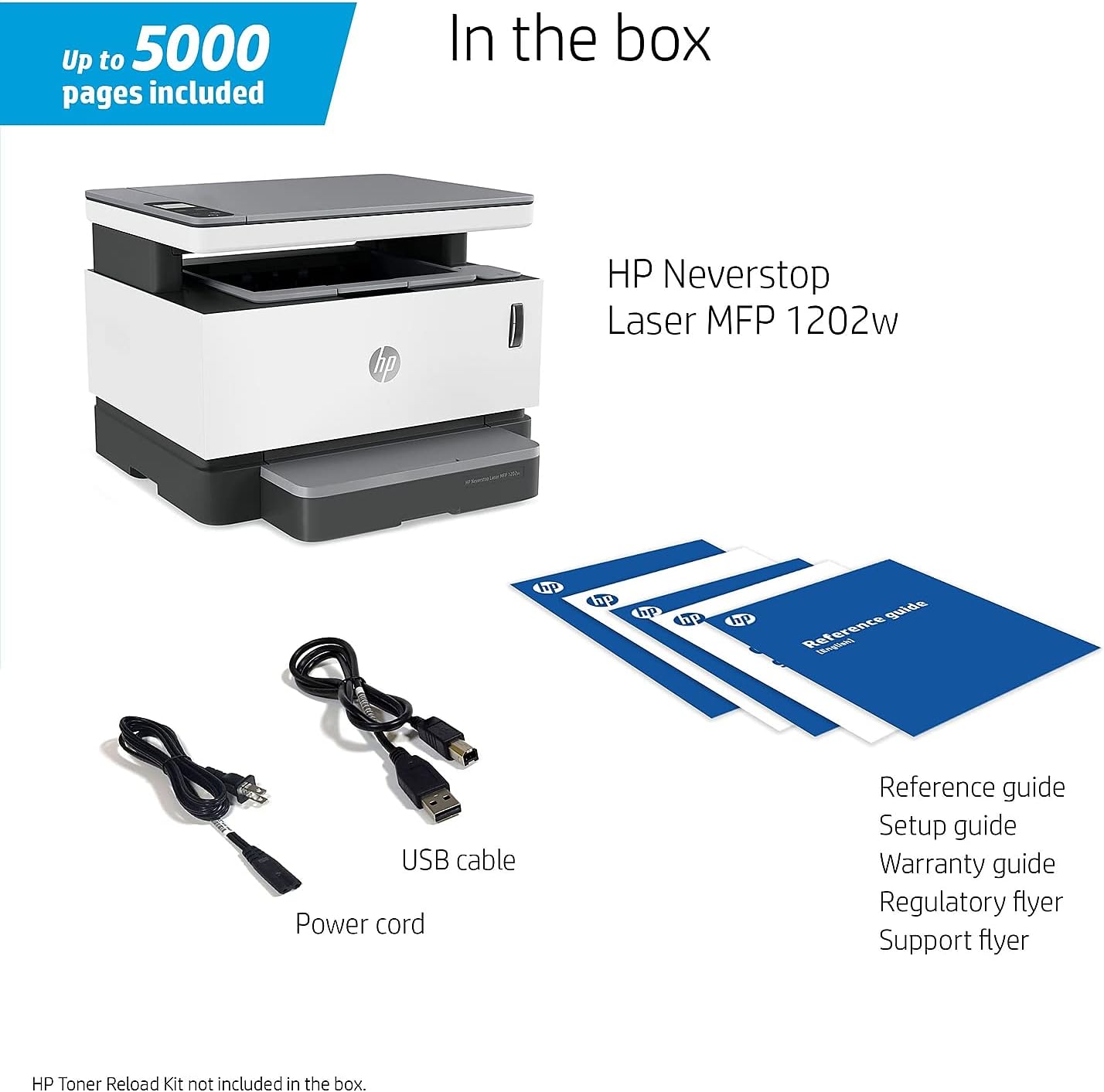
Figure 3.1: Items included in the HP Neverstop Laser MFP 1202w package.
4. Konec produktuview
The HP Neverstop Laser MFP 1202w is a multifunction printer designed for efficiency and ease of use. Key components include an intuitive LCD display, a mess-free reloadable toner system, and wireless connectivity.

Obrázek 4.1: Přední strana view of the HP Neverstop Laser MFP 1202w printer.
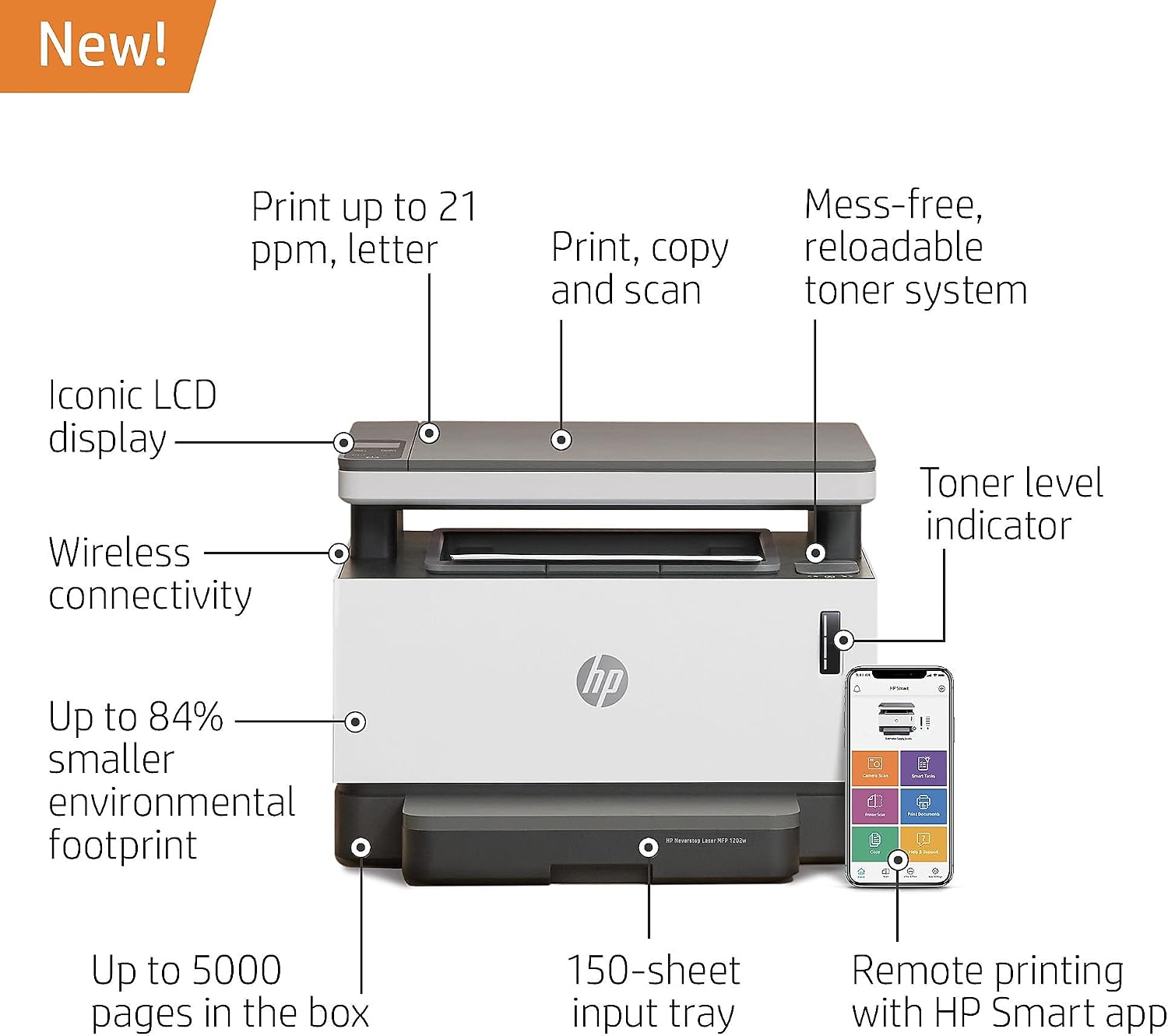
Figure 4.2: Key features and components of the HP Neverstop Laser MFP 1202w.
5. Nastavení
5.1 Vybalení
- Vyjměte tiskárnu z obalu.
- Odstraňte všechny ochranné pásky a balicí materiály z vnější i vnitřní strany tiskárny.
5.2 Připojení napájení
- Připojte napájecí kabel k napájecímu portu tiskárny.
- Zapojte druhý konec napájecího kabelu do uzemněné elektrické zásuvky.
- Stisknutím tlačítka napájení zapněte tiskárnu.
5.3 Toner Installation (Initial Setup)
The printer comes with a preinstalled imaging drum. For initial toner loading or subsequent reloads, follow these steps:
- Open the toner reload port cover on the printer.
- Shake the HP Toner Reload Kit gently.
- Align the reload kit with the port and insert it firmly.
- Twist the reload kit clockwise until it locks into place.
- Push the plunger down to release the toner into the tank.
- Once the toner is transferred, twist the reload kit counter-clockwise and remove it.
- Close the toner reload port cover.

Figure 5.1: Inserting the HP Toner Reload Kit.
5.4 Vkládání papíru
- Vytáhněte vstupní zásobník.
- Upravte vodítka papíru na správný formát papíru.
- Load up to 150 sheets of plain paper into the tray.
- Zatlačte vstupní zásobník zpět do tiskárny.
5.5 Instalace softwaru a nastavení sítě
For full functionality, install the HP Smart app on your computer or mobile device.
- Download the HP Smart app from your device's app store or hp.com/go/hpsmart.
- Follow the on-screen instructions in the app to connect your printer to your wireless network (Wi-Fi).
- Alternatively, you can connect the printer directly to your computer using the provided USB cable for a wired connection.

Figure 5.2: HP Smart app for remote printing and monitoring.
6. Návod k obsluze
6.1 Tisk
- Z počítače: Select 'Print' from your application, choose the HP Neverstop Laser MFP 1202w, and adjust settings as needed.
- Z mobilního zařízení: Use the HP Smart app to select documents or photos and send them to the printer.
- The printer supports monochrome printing at speeds up to 21 pages per minute (ppm).
- Manual duplex printing is supported. Follow prompts on your computer or printer display to reinsert paper for the second side.
6.2 Skenování
- Umístěte dokument lícem dolů na sklo skeneru.
- From the HP Smart app or your computer's scanning software, select the scan function.
- Choose scan settings (e.g., resolution, color mode, destination) and initiate the scan.
6.3 Kopírování
- Umístěte dokument lícem dolů na sklo skeneru.
- Use the printer's control panel to select the copy function.
- Adjust settings such as number of copies or darkness, then press the Start Copy button.
6.4 Bezdrátové připojení
The printer supports Wi-Fi and Wi-Fi Direct. Wi-Fi Direct allows you to print from your smartphone or tablet without needing a network router.
7. Údržba
7.1 Toner Reloading
When the toner level is low, the printer's indicator will alert you. Use an HP Toner Reload Kit (sold separately) to replenish the toner tank. Each kit provides up to 2,500 pages.
- Purchase an authentic HP Toner Reload Kit.
- Follow the toner installation steps outlined in Section 5.3. The process is designed to be mess-free and takes approximately 15 seconds.

Figure 7.1: HP Toner Reload Kit.
7.2 Čištění
- Vnější: Vnější povrch tiskárny otřete měkkým hadříkem, který nepouští vlákna. Nepoužívejte abrazivní čisticí prostředky.
- Sklo skeneru: Očistěte sklo skeneru měkkým hadříkem dampčističem skla. Nestříkejte čisticí prostředek přímo na sklo.
8. Řešení problémů
If you encounter issues with your printer, consider the following common solutions:
- Tiskárna nereaguje: Ensure the printer is powered on and properly connected to the power outlet. Check the USB cable connection if using a wired setup.
- Problémy s bezdrátovým připojením: Verify that your Wi-Fi network is active and the printer is within range. Restart your router and the printer. Use the HP Smart app to reconfigure network settings if necessary.
- Problémy s kvalitou tisku: Check toner levels. If print quality is poor, perform a cleaning cycle through the printer's software or control panel.
- Zaseknutý papír: Carefully open all access covers and remove any jammed paper. Ensure paper is loaded correctly in the input tray.
- Chybové zprávy: Refer to the printer's display for specific error codes and consult the HP support webstránky s podrobnými řešeními.
For persistent issues, contact HP Support.
9. Specifikace
| Funkce | Specifikace |
|---|---|
| Rozměry produktu | 11.55"H x 14.98"Š x 11.3"V |
| Technologie tisku | Laser |
| Tiskový výstup | Monochromatický |
| Maximální rychlost tisku (černobíle) | 21 ppm |
| Maximální rozlišení tisku (černobíle) | 600 x 600 dpi |
| Typ skeneru | Listový |
| Maximální rychlost kopírování (černobíle) | 21 ppm |
| Maximální vstupní kapacita listu | 150 listů |
| Technologie připojení | Wi-Fi, USB 2.0 |
| Oboustranný tisk | Manuál |
| Zahrnuté komponenty | Printer, Imaging Drum, Guides, Power Cord, USB Cable |
| Hmotnost položky | 24.4 libry |
| Spotřeba energie | 1202 wattů |
| Kapacita paměti | 64 MB |
| Eco-label Certified | ENERGY STAR 3.0, Blue Angel |
10. Záruka a podpora
Your HP Neverstop Laser MFP 1202w printer comes with a one-year limited hardware warranty. For assistance, HP provides 24-hour, 7 days a week free Web podpora.
For detailed warranty terms and conditions, please refer to the warranty guide included in your product package or visit the official HP support webmísto: support.hp.com