
1. Konec produktuview
The HP Z230 Workstation Desktop PC is designed for professional workloads and multitasking. It features an Intel Core i5-4590 processor, 16GB of RAM, and a 240GB Solid State Drive (SSD) for efficient data access. Connectivity options include integrated WiFi and Bluetooth, along with a DVD-RW drive. This workstation operates on Windows 11 Pro.

Figure 1: HP Z230 Workstation Desktop PC
2. Pokyny k nastavení
2.1 Vybalení
- Opatrně vyjměte pracovní stanici a veškeré příslušenství z obalu.
- Verify that all components are present: HP Z230 Workstation, power cable, keyboard, and mouse.
2.2 Připojení periferních zařízení
Connect your monitor, keyboard, mouse, and other devices to the appropriate ports on the workstation.

Figure 2: Front Panel Ports (USB 3.0, USB 2.0, Headphone, Microphone/Headphone)
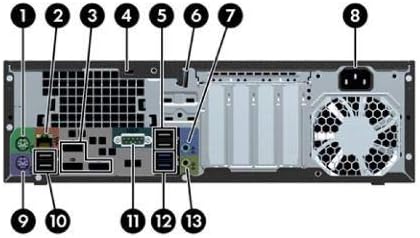
Figure 3: Rear Panel Ports (USB, DisplayPort, DVI, VGA, Ethernet, Audio, Power)
- Monitor: Connect your monitor to one of the available video output ports (VGA, DVI, or DisplayPort) on the rear panel.
- Klávesnice a myš: Connect the keyboard and mouse to any available USB ports on either the front or rear panel.
- Moc: Connect the power cable to the power connector on the rear of the workstation and then to a power outlet.
- Síť (volitelné): For a wired connection, connect an Ethernet cable to the RJ-45 port on the rear panel. For wireless, ensure the workstation is within range of a Wi-Fi network.

Figure 4: Standard USB Keyboard and Mouse for connection
2.3 Počáteční zapnutí a nastavení systému Windows 11
- Stiskněte tlačítko napájení na přední straně pracovní stanice.
- Postupujte podle pokynů na obrazovce a dokončete počáteční nastavení systému Windows 11, včetně jazyka, regionu, síťového připojení a vytvoření uživatelského účtu.
3. Návod k obsluze
3.1 Zapnutí/vypnutí
- Zapnutí: Stiskněte tlačítko napájení na předním panelu.
- Vypnout: V systému Windows klikněte na tlačítko Start a poté vyberte Napájení > Vypnout.
- Restartovat: V systému Windows klikněte na tlačítko Start a poté vyberte Napájení > Restartovat.
3.2 Using the DVD-RW Drive
The workstation includes a DVD-RW drive for reading and writing optical discs.
- Press the eject button on the DVD-RW drive to open the disc tray.
- Place a disc onto the tray with the label side facing up.
- Gently push the tray back into the drive. The operating system will typically detect the disc automatically.
3.3 USB and Audio Connections
- Zařízení USB: Connect USB devices such as external hard drives, printers, or webcams to any available USB ports.
- Zvuk: Use the headphone or microphone/headphone combo jack on the front panel for audio output or input. Rear audio jacks are also available for speakers or other audio devices.
4. Údržba
4.1 Čištění
- Ensure the workstation is powered off and unplugged before cleaning.
- Použijte měkký hadřík, který nepouští vlákna dampotřete vnější povrchy vodou nebo jemným čisticím roztokem.
- Use compressed air to clear dust from vents and ports periodically to maintain proper airflow.
4.2 Aktualizace softwaru
Pravidelně aktualizujte operační systém a ovladače, abyste zajistili optimální výkon a zabezpečení.
- Aktualizace systému Windows: Přejděte do nabídky Start > Nastavení > Windows Update a zkontrolujte a nainstalujte aktualizace.
- Aktualizace ovladačů: Navštivte podporu HP webweb s nejnovějšími ovladači pro váš konkrétní model.
4.3 Zálohování dat
Pravidelně zálohujte důležitá data na externí disk nebo cloudové úložiště, abyste předešli jejich ztrátě.
5. Řešení problémů
5.1 Bez napájení
- Ensure the power cable is securely connected to both the workstation and the power outlet.
- Ověřte funkčnost elektrické zásuvky zapojením jiného zařízení.
5.2 Žádný displej
- Check that the monitor is powered on and the video cable is securely connected to both the workstation and the monitor.
- Ujistěte se, že je na monitoru vybrán správný vstupní zdroj.
- Zkuste připojit monitor k jinému výstupnímu video portu na pracovní stanici, pokud je k dispozici.
5.3 Pomalý výkon
- Zavřete nepotřebné aplikace běžící na pozadí.
- Zkontrolujte a nainstalujte všechny čekající aktualizace systému Windows.
- Spusťte čištění a defragmentaci disku (pro pevný disk, pro SSD není nutné).
- Prohledejte systém, zda neobsahuje malware nebo viry.
5.4 Problémy s připojením k síti
- Kabelové: Ensure the Ethernet cable is properly connected and the network router/modem is working.
- Bezdrátový: Verify Wi-Fi is enabled in Windows settings and you are connected to the correct network with the correct password. Restart your router/modem if necessary.
6. Specifikace
| Funkce | Detail |
|---|---|
| Značka | HP |
| Název modelu | HP Z230 |
| Číslo modelu | J9H88UT#ABA |
| Operační systém | Windows 11 |
| Model CPU | Intel Core i5-4590 |
| Rychlost CPU | 3.6 GHz |
| Velikost nainstalované paměti RAM | 16 GB DDR3 |
| Kapacita paměti | 240 GB SSD |
| Grafický koprocesor | Grafická karta Intel HD Graphics 4600 |
| Optické paměťové zařízení | DVD-RW |
| Technologie připojení | Bluetooth, WiFi |
| Celkový počet portů USB | 6 |
| Video výstupní rozhraní | VGA, DVI |
| Rozměry položky | 23 x 20 x 9 palce |
| Hmotnost položky | 7200 gramů |
7. Informace o záruce
This HP Z230 Workstation Desktop PC comes with a 90denní omezená záruka. Please refer to your purchase documentation for specific terms and conditions.
8. Podpora
For further assistance, technical support, or warranty claims, please contact your retailer or visit the official HP support webwebu. Před kontaktováním podpory mějte připravený model produktu a sériové číslo.
- Podpora HP Webmísto: www.hp.com/support