
Zavedení
This manual provides comprehensive instructions for the Acer EK251Q P6 24.5 Inch Full HD IPS LED Monitor. It covers product setup, operation, maintenance, troubleshooting, and detailed technical specifications to ensure optimal performance and user experience. Please read this manual thoroughly before using your monitor.
The Acer EK251Q P6 monitor features a 24.5-inch IPS panel with Full HD (1920x1080) resolution, a 144Hz refresh rate, and 1ms Visual Response Boost (VRB). It supports AMD FreeSync technology for smooth visuals and incorporates Acer VisionCare technologies like BlueLightShield and Flicker-less for eye comfort. The ZeroFrame design offers an expansive viewing area, and the monitor includes HDMI and VGA connectivity.
Co je v krabici
Ověřte, zda jsou v balení přítomny všechny komponenty:
- Monitor
- Stánek
- Napájecí kabel
- HDMI kabel
- Uživatelská příručka (tento dokument)
Nastavení
1. Sestavení stojanu monitoru
Carefully remove the monitor and stand components from the packaging. Attach the stand base to the stand neck, securing it with the provided screw. Then, attach the assembled stand to the back of the monitor until it clicks into place or is secured with screws, depending on the model's design.
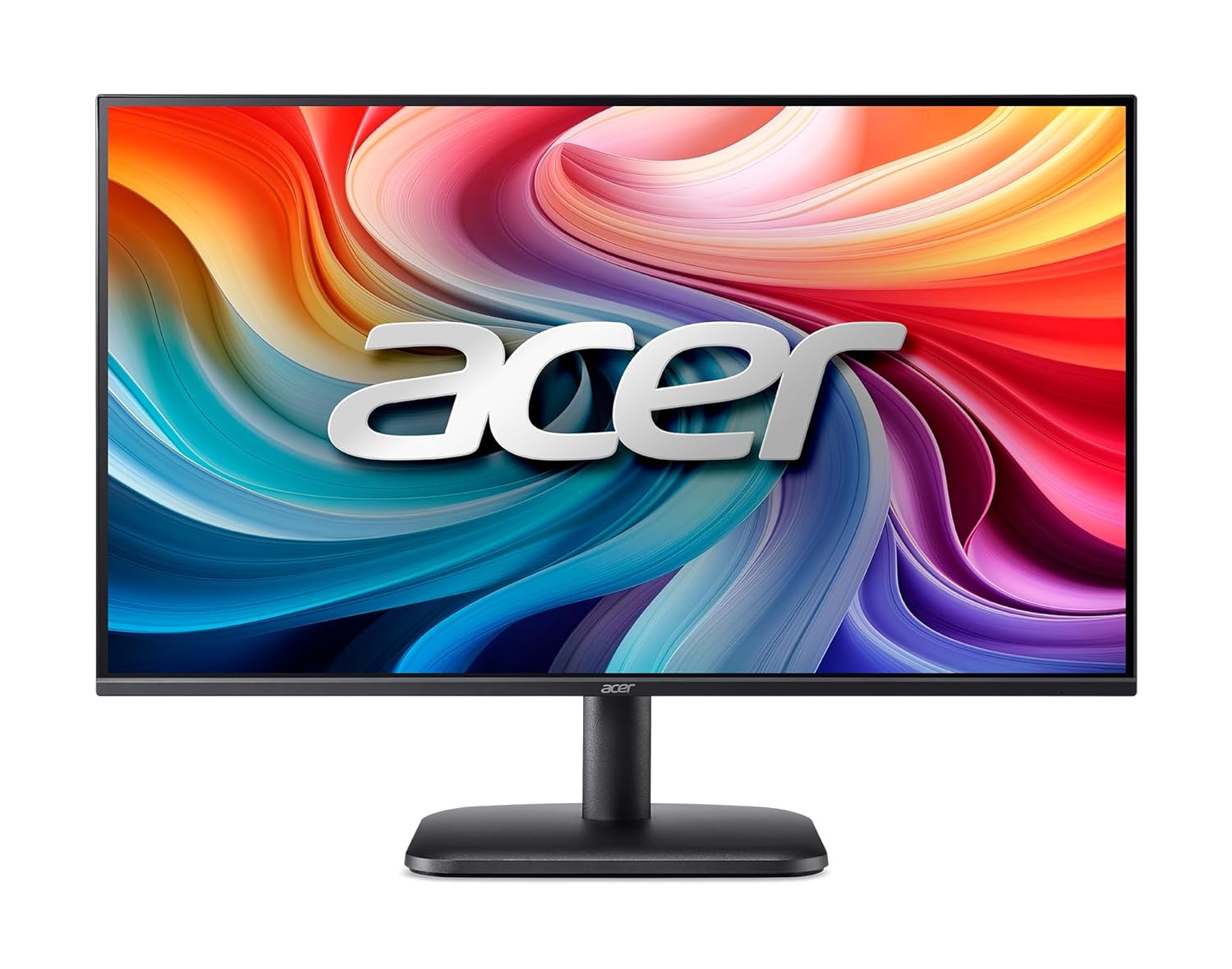
Obrázek: Přední strana view of the Acer EK251Q P6 monitor with its stand assembled.
2. Připojení monitoru
Connect the power cord to the monitor's power input and then to a power outlet. Use the provided HDMI cable to connect the monitor to your computer's HDMI port. Alternatively, you can use a VGA cable to connect to a VGA port.

Obrázek: Zadní view of the monitor highlighting the VGA and HDMI input ports.

Obrázek: Detailní zadní část view of the monitor, showing the power input, VGA port, and HDMI port.
3. Zapnutí
Press the power button located on the monitor to turn it on. Ensure your computer is also powered on. The monitor should automatically detect the input signal.
Obsluha monitoru
Ovládací prvky OSD (On-Screen Display)
The monitor features an On-Screen Display (OSD) menu for adjusting various settings. Typically, buttons are located on the bottom or rear of the monitor. Refer to the quick start guide for specific button locations and functions.
- Tlačítko nabídky: Aktivuje nabídku OSD.
- Navigační tlačítka: Používá se k pohybu mezi možnostmi nabídky.
- Tlačítko Vybrat/Zadat: Potvrdí výběr.
- Tlačítko Konec: Zavře nabídku OSD nebo se vrátí na předchozí úroveň.
Úprava nastavení zobrazení
Access the OSD menu to adjust settings such as brightness, contrast, color temperature, and input source. For optimal performance, ensure your computer's display settings match the monitor's native resolution (1920x1080) and desired refresh rate (up to 144Hz).
Obnovovací frekvence a doba odezvy
The monitor supports a 144Hz refresh rate and 1ms Visual Response Boost (VRB) for fluid motion. To enable 144Hz, ensure your graphics card and cable support this refresh rate. You may need to adjust the refresh rate in your operating system's display settings.

Image: Monitor displaying dynamic content, illustrating the fast 1ms VRB response time and 250 nits brightness.
Technologie AMD FreeSync
This monitor is equipped with AMD FreeSync technology, which synchronizes the monitor's refresh rate with your AMD graphics card's frame rate to eliminate screen tearing and stuttering. Ensure FreeSync is enabled in both the monitor's OSD menu and your AMD Radeon Software settings.

Image: Monitor displaying smooth graphics, indicating the presence of AMD FreeSync and Flicker-less technologies.
Technologie Acer VisionCare
The monitor includes several features designed to reduce eye strain during prolonged use:
- BlueLightShield: Reduces blue light emission.
- Bez blikání: Eliminates screen flickering.
- PohodlnýView: Snižuje odrazy od okolního světla.
- Nízké stmívání: Umožňuje velmi nízké úrovně jasu v tmavém prostředí.
These features can be enabled or adjusted through the OSD menu.

Image: Monitor displaying a vibrant image, with icons representing BlueLightShield, Acer ComfyView, and Low Dimming technologies.
Ergonomické úpravy
The monitor stand allows for tilt adjustment from -5° to 20° to achieve a comfortable viewing angle. For alternative mounting, the monitor is VESA 100x100 mm wall-mount compatible (mounting hardware sold separately).

Obrázek: Side profile of the monitor, illustrating its slim design and the range of tilt adjustment.
Údržba
Čištění monitoru
- Před čištěním vždy vypněte monitor a odpojte napájecí kabel.
- Lehce používejte měkký hadřík, který nepouští vlákna dampvodou nebo jemným, neabrazivním čističem obrazovek.
- Nestříkejte čisticí prostředek přímo na obrazovku.
- Nepoužívejte agresivní chemikálie, rozpouštědla nebo abrazivní materiály, protože by mohly poškodit obrazovku neboasing.
Obecná péče
- Chraňte monitor před přímým slunečním zářením, zdroji tepla a nadměrným prachem.
- Zajistěte dostatečné větrání v okolí monitoru.
- Nepokládejte na monitor ani na jeho kabely těžké předměty.
Odstraňování problémů
Pokud narazíte na problémy s monitorem, postupujte podle následujících běžných kroků pro řešení potíží:
Bez napájení / Žádný displej
- Ensure the power cord is securely connected to both the monitor and a working power outlet.
- Ověřte, zda je stisknuto tlačítko napájení na monitoru.
- Zkontrolujte, zda je zásuvka funkční, zapojením jiného zařízení.
Žádný signál / Prázdná obrazovka
- Zkontrolujte, zda je video kabel (HDMI nebo VGA) bezpečně připojen k monitoru i k počítači.
- Ujistěte se, že je v nabídce OSD monitoru vybrán správný vstupní zdroj.
- Ověřte, zda je počítač zapnutý a není v režimu spánku.
- Zkuste monitor připojit k jinému počítači nebo použít jiný videokabel, abyste vyloučili problémy s kabelem nebo počítačem.
Image Quality Issues (Blurry, Distorted, Incorrect Colors)
- Ujistěte se, že rozlišení displeje v počítači je nastaveno na nativní rozlišení monitoru (1920x1080).
- Upravte jas, kontrast a nastavení barev pomocí nabídky OSD.
- If using VGA, perform an auto-adjust function via the OSD menu if available.
- Aktualizujte ovladače grafické karty.
Flickering or Tearing
- Ensure AMD FreeSync is enabled in both the monitor's OSD and your AMD Radeon Software.
- Check the refresh rate setting in your operating system's display settings.
- Verify the video cable is properly connected and not damaged.
Specifikace
| Funkce | Detail |
|---|---|
| Značka | acer |
| Název modelu | EK251Q P6 |
| Číslo modelu | UM.KE1SI.601 |
| Velikost obrazovky | 24.5 palce |
| Typ zobrazení | IPS LED |
| Rezoluce | FHD 1080p (1920 x 1080 pixelů) |
| Poměr stran | 16:9 |
| Obnovovací frekvence | 144 Hz |
| Doba odezvy | 1 Milliseconds (VRB) |
| Jas obrázku | 250 nitů |
| Kontrastní poměr | 1500:1 |
| Viewúhel | 178 stupňů |
| Barevný gamut | 99% sRGB |
| Adaptivní synchronizace | AMD FreeSync |
| Konektivita | 1x HDMI (1.4), 1x VGA |
| Technologie péče o oči | Acer BlueLightShield, Flicker-less, ComfyView, Low Dimming |
| Typ montáže | Tilt Adjustable (-5° to 20°), VESA Wall Mount (100x100 mm) |
| Spotřeba energie | 18 wattů |
| Rozměry položky (D x Š x V) | 19.2H x 55.7Š x 40.9V centimetrů |
| Hmotnost položky | 2.79 kg |
| Země původu | Čína |
Záruka a podpora
Informace o záruce
This Acer monitor comes with a 3letá záruka výrobcePro případné reklamace si prosím uschovejte doklad o koupi. Záruka se vztahuje na výrobní vady za běžných podmínek používání.
Zákaznická podpora
For technical assistance, warranty claims, or product inquiries, please contact Acer customer support:
- Výrobce: Společnost Acer Incorporated
- Kontakt na výrobce: 8F, No. 88 Sec. 1, Xintai 5th road, Xizhi, New Teipei City, TW 221
- Dovozce (Indie): Acer India Pvt Ltd, Embassy Heights, 6th Floor, No. 13 Magrath Road, Next to HOSMAT Hospital, Bangalore, INDIA – 560025
For the most up-to-date support information, please visit the official Acer webmísto.