
1. Konec produktuview
The Aceele 10-in-1 USB C Multiport Adapter (Model AC-T17-US) is designed to expand the connectivity of your USB-C enabled devices. It provides a variety of ports including USB 3.0, HDMI 4K, SD/TF card readers, and 100W Power Delivery, enhancing your productivity and multimedia experience.

Figure 1: Aceele 10-in-1 USB C Multiport Adapter with labeled ports including USB 3.0, HDMI, PD Charging, SD, and TF slots.
2. Klíčové vlastnosti
- 4K HDMI port: Supports video output up to 4K@30Hz or 1080P@60Hz for mirroring or extending your display to an HDTV, monitor, or projector.
- 6 porty USB 3.0: Provides high-speed data transfer up to 5Gbps, suitable for connecting USB flash drives, hard drives, keyboards, mice, and other USB peripherals.
- USB C Power Delivery (PD): Supports up to 100W power delivery, allowing you to charge your laptop or other Type-C devices while using the hub.
- Čtečka karet SD/TF: Integrated slots for reading SD and TF (Micro SD) cards, facilitating data transfer from memory cards. Note: Simultaneous reading of two cards is not supported.
- Plug and Play: No additional drivers or software installation required for most operating systems.
3. Nastavení a kompatibilita
Before connecting the hub, ensure your device's USB-C port supports the necessary functions for the features you intend to use.
3.1. USB-C Port Compatibility for Video Output
For the HDMI port to function, the USB-C port on your computer or mobile device must support DisplayPort Alternate Mode (Alt Mode) or Thunderbolt 3/4. Not all USB-C ports support video output.
To confirm compatibility, check the symbols next to your device's USB-C port or consult your device's manual. Look for symbols indicating video output support (e.g., a 'D' for DisplayPort Alt Mode or a lightning bolt for Thunderbolt).
Video 1: This video demonstrates how to identify USB-C port symbols and their functions to ensure compatibility with the Aceele USB C Hub, particularly for video output capabilities.
3.2. Připojení rozbočovače
- Connect the USB-C cable of the Aceele hub to a compatible USB-C port on your laptop, tablet, or smartphone.
- For power delivery, connect your device's original power adapter to the USB-C PD port on the hub.
- Connect your desired peripherals (e.g., monitor via HDMI, USB devices, SD/TF cards) to the corresponding ports on the hub.
4. Návod k obsluze
4.1. Using USB 3.0 Ports
The hub features six USB 3.0 ports for connecting various USB devices. These ports offer data transfer speeds up to 5Gbps. Simply plug your USB devices into any of the available USB 3.0 ports.

Figure 2: The hub provides six USB 3.0 ports for connecting various peripherals like smartphones, U disks, printers, cameras, mice, keyboards, USB fans, and hard drives, supporting up to 5Gbps data transfer speed.
4.2. Using the HDMI Port
Connect an HDMI cable from your monitor, TV, or projector to the HDMI port on the hub. Ensure your device's USB-C port supports video output. Your display settings can be adjusted on your computer to mirror or extend your screen.

Figure 3: The hub supports video and audio output, with a maximum resolution of 4K@30Hz via the HDMI port, allowing connection to projectors, TVs, and monitors.
4.3. Using SD/TF Card Readers
Insert your SD or TF (Micro SD) card into the corresponding slot on the hub. The card will appear as a removable drive on your computer, allowing you to access and transfer files. Please note that the hub does not support reading both SD and TF cards simultaneously.

Figure 4: The hub features Micro SD/TF and SDXC slots, supporting various card types like Micro SD, Micro SDHC, Micro SDXC, SD, SDHC, and SDXC. It does not support reading two cards simultaneously.

Figure 5: Universal SD compatibility is shown, including SDHC, SD Card, RS-MMC, and MMC Micro, along with MicroSD, MicroSDHC, and VM MicroSDXC cards.
4.4. Using USB C Power Delivery
The USB-C PD port allows you to charge your host device (e.g., laptop) while using the hub. Connect your original USB-C power adapter to the PD port on the hub. This ensures continuous power supply to your laptop and connected peripherals.
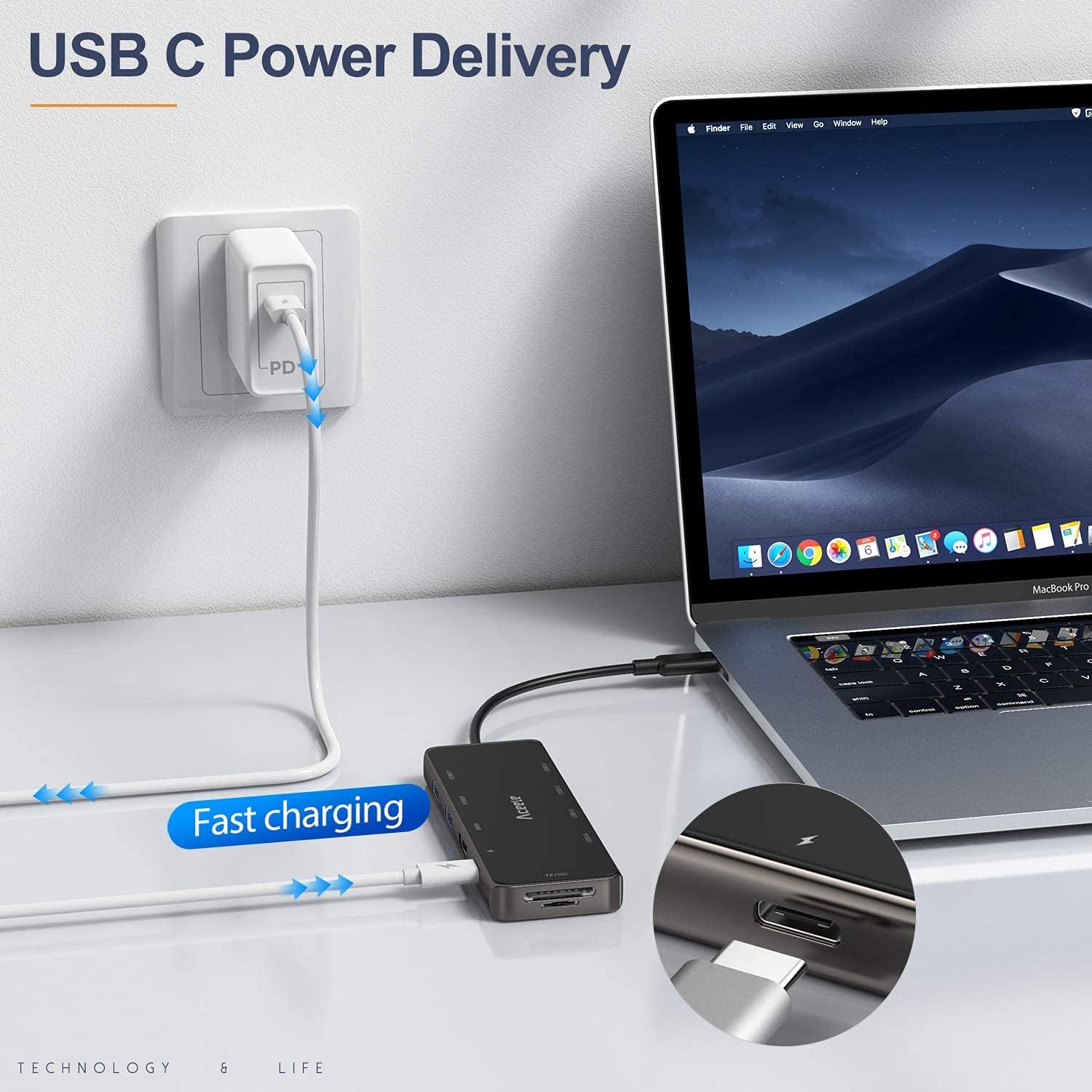
Figure 6: The USB C Power Delivery feature allows fast charging of a MacBook Pro or other compatible Type-C devices while the hub is in use.
5. Údržba
- Keep the hub away from water, fire, and corrosive liquids.
- Zabraňte pádu, nárazu nebo rozebírání zařízení.
- Clean the hub with a soft, dry cloth. Do not use chemical cleaners.
- Pokud náboj nepoužíváte, skladujte jej na chladném a suchém místě.
6. Řešení problémů
6.1. HDMI Output Not Working
- Check USB-C Port Compatibility: Ensure your device's USB-C port supports DisplayPort Alt Mode or Thunderbolt 3/4. Refer to Section 3.1.
- Kabelové připojení: Verify that the HDMI cable is securely connected to both the hub and the display.
- Nastavení obrazovky: Adjust your computer's display settings to detect the external monitor (e.g., extend or duplicate display).
- Napájení: Some devices may require external power for stable HDMI output. Connect a power adapter to the hub's PD port.
6.2. USB Devices Not Recognized
- Znovu připojit: Unplug and re-plug the USB device and the hub.
- Moc: For high-power consumption devices (e.g., external hard drives), ensure the hub is connected to a power source via its PD port.
- Řidič: While the hub is plug-and-play, some specific USB devices might require their own drivers.
6.3. Slow Charging or Power Drain
- Napájecí adaptér: Ensure you are using a sufficiently powerful USB-C power adapter (up to 100W) connected to the hub's PD port.
- Spotřeba zařízení: If many high-power devices are connected, the available power for charging your laptop might be reduced.
7. Specifikace
| Funkce | Detail |
|---|---|
| Číslo modelu | AC-T17-US |
| Rozměry produktu | 6.5 x 3.15 x 0.79 palce |
| Hmotnost položky | 5.6 unce |
| Port HDMI | 1 (4K@30Hz, 1080P@60Hz) |
| Porty USB 3.0 | 6 (Up to 5Gbps data transfer) |
| Port USB-C PD | 1 (napájení až 100 W) |
| Sloty pro čtečky karet | 1 x SD, 1 x TF (MicroSD) |
| Hardwarové rozhraní | HDMI, MicroSD, Thunderbolt, USB 3.0, USB Type C |
| Kompatibilní zařízení | Monitor/projector/TV with HDMI/VGA port from type C supported computers, Tablets, Mouse, Keyboards, Laptops, Printer, Camera, Hard Disk, SD card and TF card |
8. Záruka a podpora
Aceele products are designed for reliability and performance. For specific warranty details, please refer to the warranty card included with your product or visit the official Aceele website. If you encounter any issues or have questions regarding your Aceele 10-in-1 USB C Multiport Adapter, please contact Aceele customer support through the retailer where you purchased the product or via the contact information provided on the official Aceele webmísto.
Výrobce: acele
Datum první dostupnosti: 25. prosince 2019