
Zavedení
The Elgato 4K60 S+ is an external capture card designed for recording and streaming high-fidelity gameplay. It supports 4K60 HDR10 capture and features zero-lag passthrough, allowing you to play games in their original quality while recording. The device includes an SD card slot for standalone recording, eliminating the need for a PC during capture. It is compatible with popular broadcasting software like OBS Studio and Streamlabs OBS, and its onboard HEVC encoding minimizes CPU load and file sizes. Flashback Recording functionality allows for retroactive saving of gameplay.
Co je v krabici
Ověřte, zda jsou v balení přítomny všechny komponenty:
- Elgato 4K60 S+ Capture Card
- Napájení
- 2x USB 3.0 Cables
- Kabel HDMI 2.0
- Rychlý průvodce
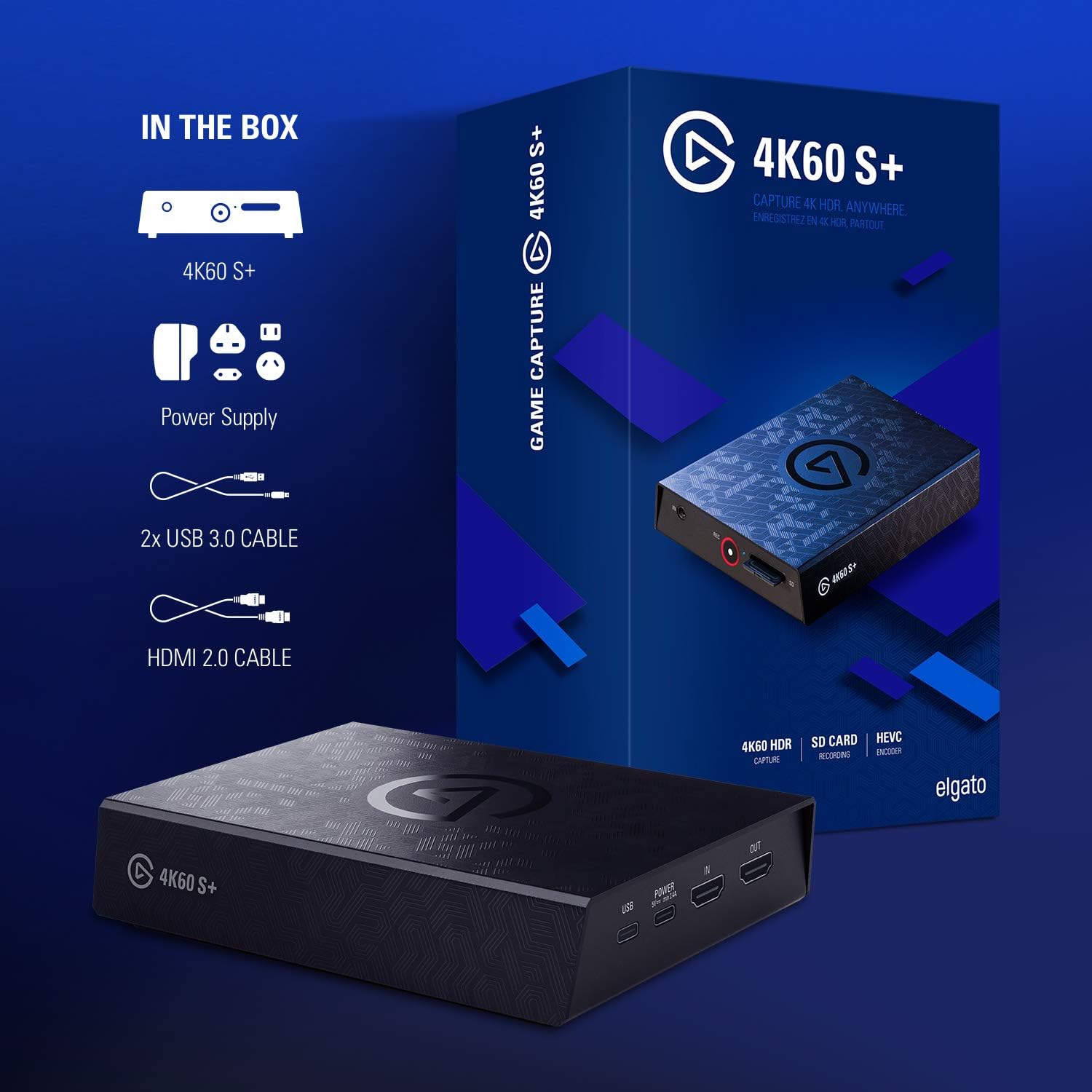
Konec produktuview
The Elgato 4K60 S+ features a compact design with essential ports for connectivity and control.
Připojení zadního panelu
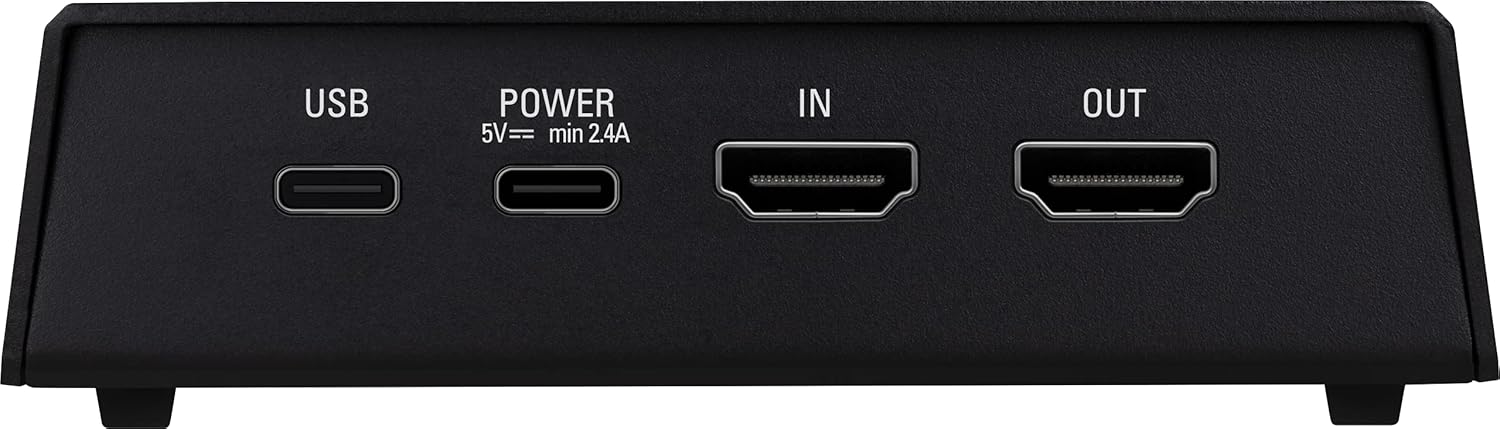
- USB: Connects to your PC for data transfer and software control.
- POWER (5V min 2.4A): Připojuje se k přiloženému napájecímu adaptéru.
- IN (HDMI): Connects to your game console or other video source.
- OUT (HDMI): Connects to your TV or monitor for zero-lag passthrough.
Ovládací prvky a připojení na předním panelu
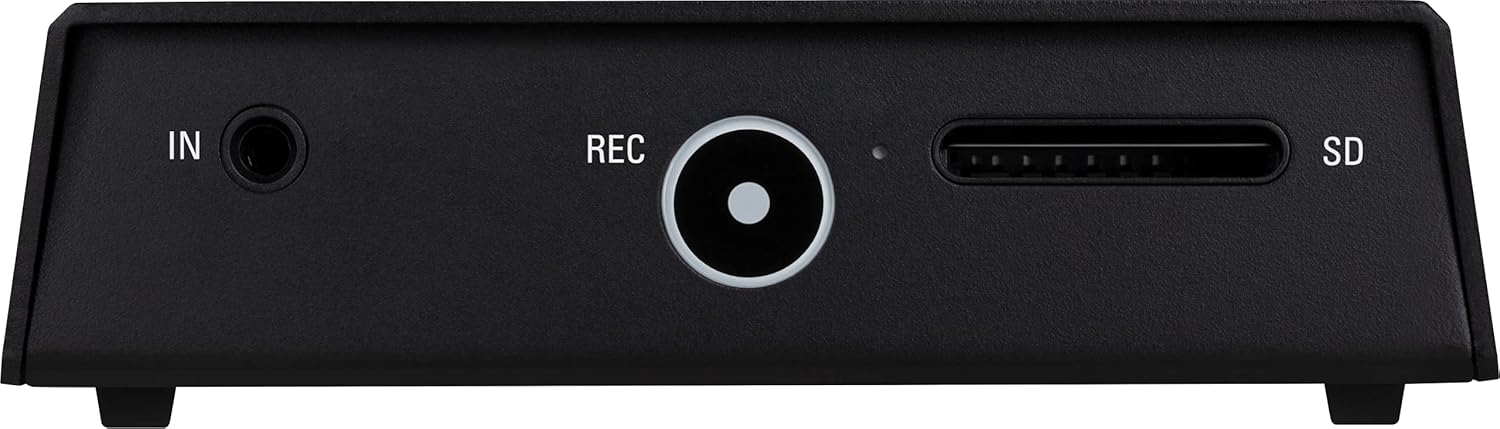
- IN (Audio): 3.5mm audio input for external audio sources.
- REC (Record Button): Initiates and stops standalone recording to the SD card.
- SD: SD card slot for standalone recording.
Nastavení
Follow these steps to set up your Elgato 4K60 S+.
1. Connect to your Console and Display
- Connect your game console (e.g., PS5, PS4, Xbox Series X/S, Xbox One X/S) to the HDMI-IN port on the Elgato 4K60 S+ using the provided HDMI 2.0 cable.
- Connect your TV or monitor to the HDMI OUT port on the Elgato 4K60 S+ using another HDMI cable (not included). This provides zero-lag passthrough for your gameplay.
- Připojte napájecí zdroj k MOC port on the Elgato 4K60 S+ and plug it into a power outlet.

2. Connect to your PC (Optional for Standalone Recording)
If you plan to record or stream via a PC, follow these additional steps:
- Connect the Elgato 4K60 S+ to your PC using one of the provided USB 3.0 cables. Use a USB 3.0 port on your computer for optimal performance.
- Download and install the Elgato 4K Capture Utility software from the official Elgato website. This software is required for PC-based recording, streaming, and device configuration.
- For streaming, configure your preferred broadcasting software (e.g., OBS Studio, Streamlabs OBS) to recognize the Elgato 4K60 S+ as a video capture device.

3. SD Card Preparation for Standalone Recording
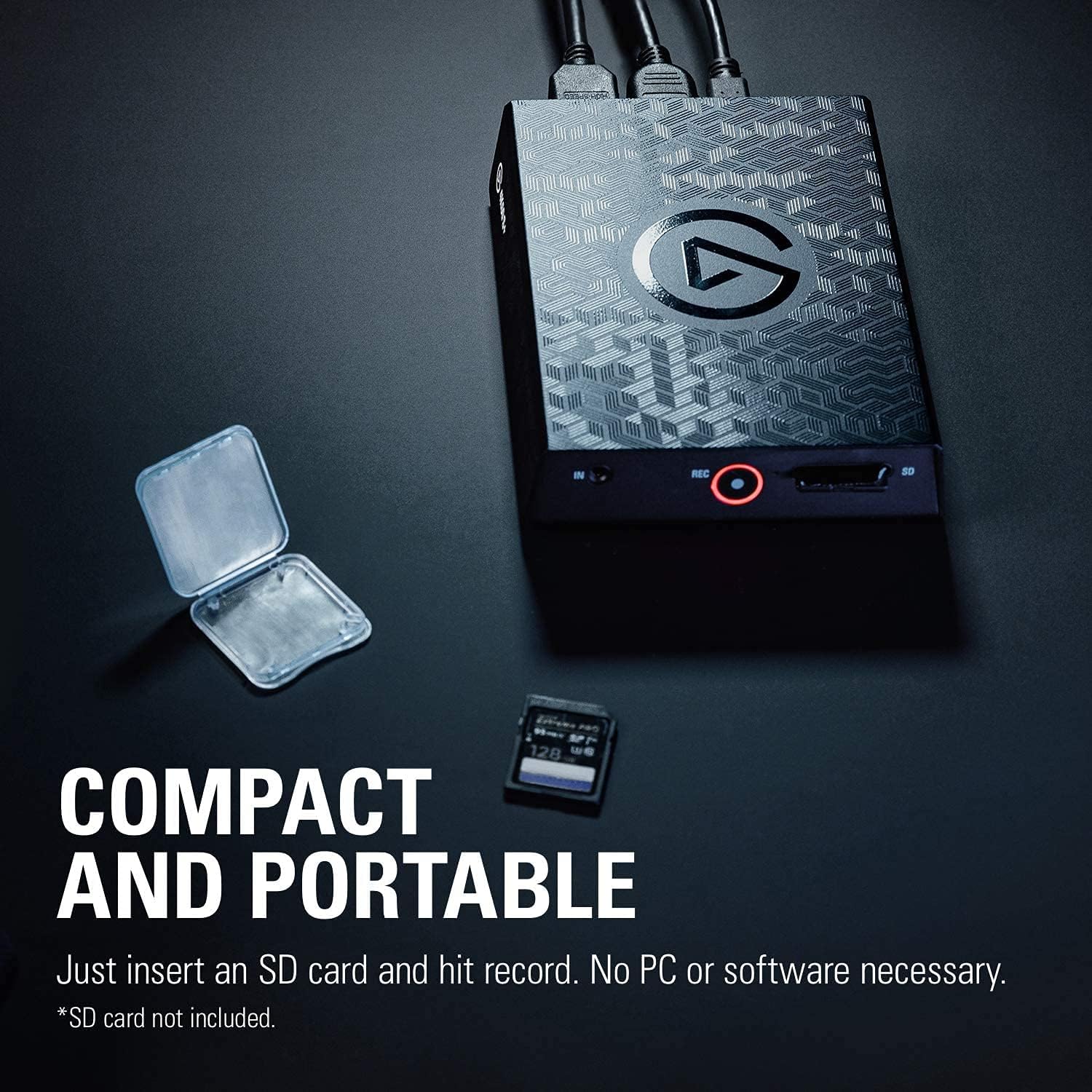
For standalone recording, an SD card (not included) is required. Ensure the SD card is formatted correctly and meets the recommended speed requirements for 4K recording.
- Insert a high-speed SD card (UHS-I / V30 or faster recommended) into the SD slot on the front of the device.
- The device will automatically create a configuration file on the SD card upon first insertion. This file can be edited via a PC to adjust recording settings such as bitrate and resolution.
Operating the Elgato 4K60 S+
PC-Based Recording and Streaming
- Ensure the Elgato 4K60 S+ is connected to your console, display, and PC as described in the Setup section.
- Launch the Elgato 4K Capture Utility software or your preferred broadcasting software (e.g., OBS Studio).
- Select the Elgato 4K60 S+ as your video input source.
- Configure your desired recording or streaming settings (resolution, frame rate, bitrate, audio sources).
- Initiate recording or streaming through the software interface.
Standalone Recording to SD Card
The 4K60 S+ allows recording directly to an SD card without a connected PC.
- Ensure the Elgato 4K60 S+ is connected to your console and display, and a compatible SD card is inserted.
- Stiskněte tlačítko REC button on the front of the device to start recording. The LED indicator around the button will illuminate red.
- Stiskněte tlačítko REC button again to stop recording. The LED indicator will turn off.
- Pro přístup k záznamu files, safely remove the SD card and insert it into a card reader connected to your PC.

Flashback nahrávání
Flashback Recording is a feature available when connected to a PC. It continuously buffers gameplay, allowing you to retroactively save moments you might have missed recording.
- With the Elgato 4K Capture Utility running, gameplay is continuously buffered.
- To save a past moment, simply drag the timeline in the software to the desired starting point and click the record button. The software will save the buffered segment.
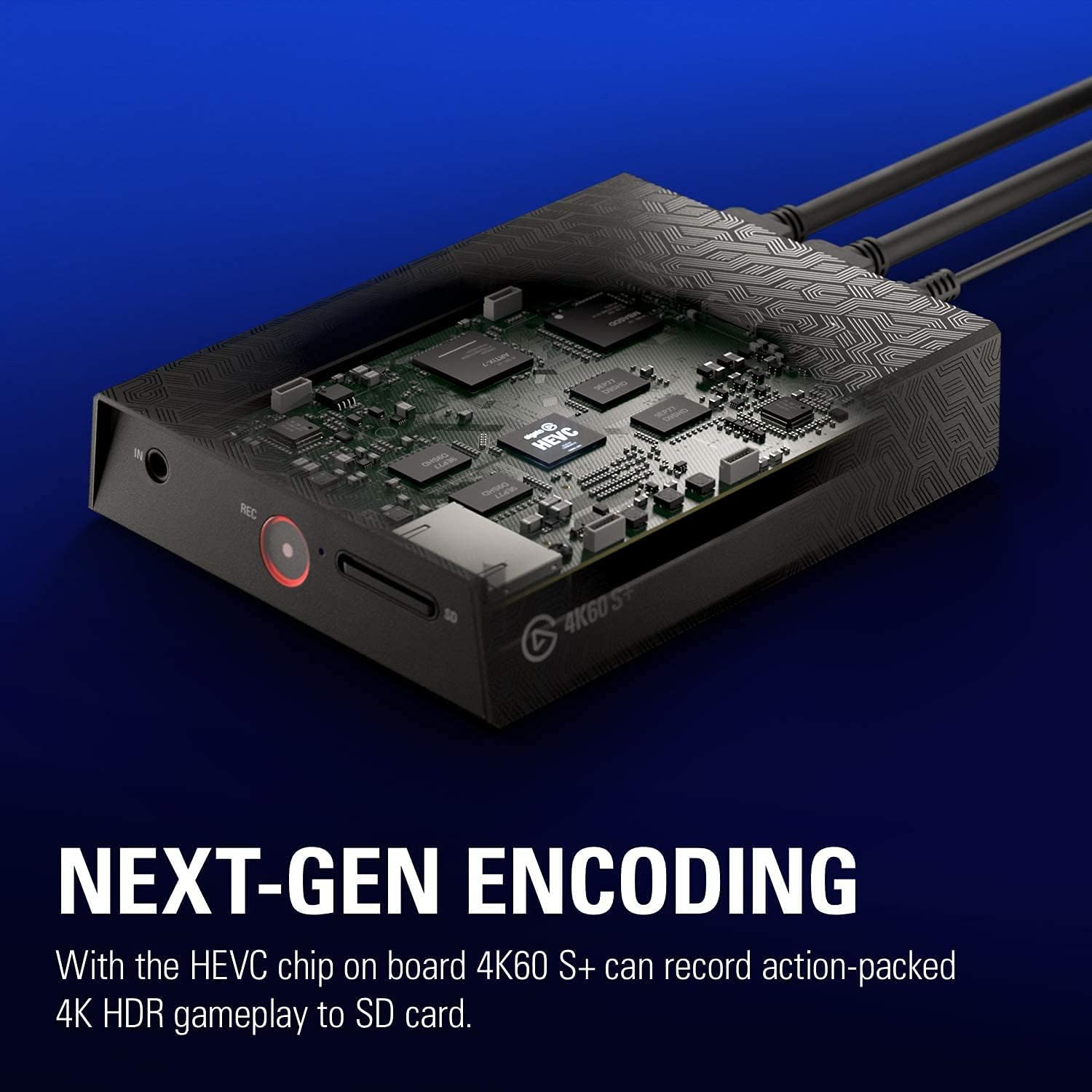
4K HDR10 Capture and HEVC Encoding
The 4K60 S+ supports capturing in 4K resolution at 60 frames per second with HDR10. The integrated HEVC (H.265) encoder ensures efficient compression, resulting in smaller file sizes without compromising video quality, and reduces the load on your computer's CPU.

Údržba
Proper maintenance ensures the longevity and optimal performance of your Elgato 4K60 S+.
- Čištění: K čištění vnější strany zařízení používejte měkký, suchý hadřík. Nepoužívejte abrazivní čisticí prostředky ani rozpouštědla.
- Skladování: Přístroj skladujte na chladném a suchém místě mimo dosah přímého slunečního záření a extrémních teplot.
- Aktualizace firmwaru: Periodically check the official Elgato webweb s aktualizacemi firmwaru. Udržování aktualizovaného firmwaru může zlepšit výkon a přidat nové funkce.
- Správa kabelů: Ensure cables are not excessively bent or strained to prevent damage to the connectors and ports.
Odstraňování problémů
This section addresses common issues you might encounter with the Elgato 4K60 S+.
Žádný signál nebo černá obrazovka
- Zkontrolujte připojení: Ujistěte se, že jsou všechny kabely HDMI a napájecí kabely bezpečně připojeny.
- HDMI Cable Quality: Use high-quality HDMI 2.0 cables, especially for 4K HDR signals.
- HDCP: Verify that HDCP is disabled on your console settings if you are experiencing issues. Some consoles may require this for capture.
- Rozlišení/Obnovovací frekvence: Ensure your console's output resolution and refresh rate are supported by the 4K60 S+.
Recording Stuttering or Choppiness (Standalone)
- Rychlost SD karty: Use an SD card with sufficient write speed (UHS-I / V30 or faster is recommended for 4K recording). Lower speed cards can cause stuttering.
- Nastavení bitrate: If you have modified the configuration file on the SD card, ensure the bitrate is not set excessively high for your SD card's capabilities.
- Firmware: Ensure your device firmware is up to date.
Recording Stuttering or Choppiness (PC-Based)
- USB připojení: Ensure the device is connected to a USB 3.0 port on your PC. Using a USB 2.0 port will limit bandwidth and can cause issues.
- PC Performance: Verify your PC meets the minimum system requirements for 4K capture and encoding. High CPU usage from other applications can affect performance.
- Nastavení softwaru: Adjust bitrate and encoder settings in your capture software (e.g., OBS Studio) to match your PC's capabilities.
Device Enters Standby Mode Unexpectedly
- The device is designed to enter standby mode when inactive. To exit standby, press the capacitive record button on the device.
- If your console requires an active HDMI display connection for remote play, you may need to ensure the 4K60 S+ is active or bypass it with an HDMI coupler when not recording.
Problémy se zvukem
- Zvukový vstup: If using the 3.5mm audio input, ensure the cable is fully inserted and the audio source is active.
- Nastavení softwaru: Check audio input settings in your capture software to ensure the correct audio device is selected and levels are adjusted.
Specifikace
| Funkce | Specifikace |
|---|---|
| Značka | Elgato |
| Číslo modelu | 10GAP9901 |
| Série | 4K60 S+ |
| Hardwarové rozhraní | USB 3.0 |
| Rozlišení záznamu videa | Up to 4K (3840x2160) at 60fps |
| Podpora HDR | HDR10 |
| Kódování | HEVC (H.265) |
| Průchod | Zero-lag 4K60 HDR10 |
| Skladování | SD Card Slot (SD card not included) |
| Operační systém | Windows |
| Hmotnost položky | 12 unce (přibližně 340 g) |
| Rozměry produktu (DxŠxV) | 5.59 x 4.37 x 1.26 palců (přibližně 14.2 x 11.1 x 3.2 cm) |
Oficiální video produktu
Watch this official video for a visual guide on the features and usage of the Elgato 4K60 S+.
Záruka a podpora
For detailed warranty information, please refer to the warranty card included with your product or visit the official Elgato website. Technical support and additional resources, including software downloads and FAQs, are available on the Elgato support pages.
Online zdroje: Elgato Official Webmísto
Kontaktujte podporu: Refer to the contact information provided on the official Elgato support page for assistance.