
1. Úvod
This manual provides instructions for the HP Color LaserJet Enterprise Flow Multifunction M776z All-in-One Wireless Duplex Printer. This device is designed for high-performance business environments, offering printing, scanning, copying, and faxing capabilities with advanced security features and efficient color output.

Obrázek 1.1: Přesview of the HP Color LaserJet Enterprise Flow MFP M776z and its main features.
2. Bezpečnostní informace
Always follow basic safety precautions when using this product to reduce the risk of injury from fire or electric shock:
- Přečtěte si a pochopte všechny pokyny v návodu.
- Dodržujte všechna varování a pokyny vyznačené na výrobku.
- Před čištěním odpojte tento výrobek ze zásuvky.
- Neumísťujte tento výrobek na nestabilní vozík, stojan nebo stůl.
- Do not block slots and openings on the product.
- Nikdy nezasunujte žádné předměty do tohoto produktu otvory ve skříni, protože by se mohly dotknout nebezpečného objemutage body nebo zkratované části.
- Nepokoušejte se tento výrobek opravit sami. Veškerý servis svěřte kvalifikovanému servisnímu personálu.
3. Co je v krabici
Upon unpacking your HP Color LaserJet Enterprise Flow Multifunction M776z, ensure all the following items are present:
- HP Color LaserJet Enterprise Flow MFP M776z Printer
- Průvodce Začínáme
- Napájecí kabel
- HP 659A LaserJet Toner Cartridges (Black, Cyan, Magenta, Yellow)
- 4 HP 660A Original LaserJet Imaging Drums

Figure 3.1: Items included with the HP Color LaserJet Enterprise Flow MFP M776z.
4. Konec tiskárnyview
The HP Color LaserJet Enterprise Flow Multifunction M776z is a robust device designed for comprehensive office tasks. It features a large touchscreen, multiple paper trays, and various connectivity options.
4.1. Rozměry
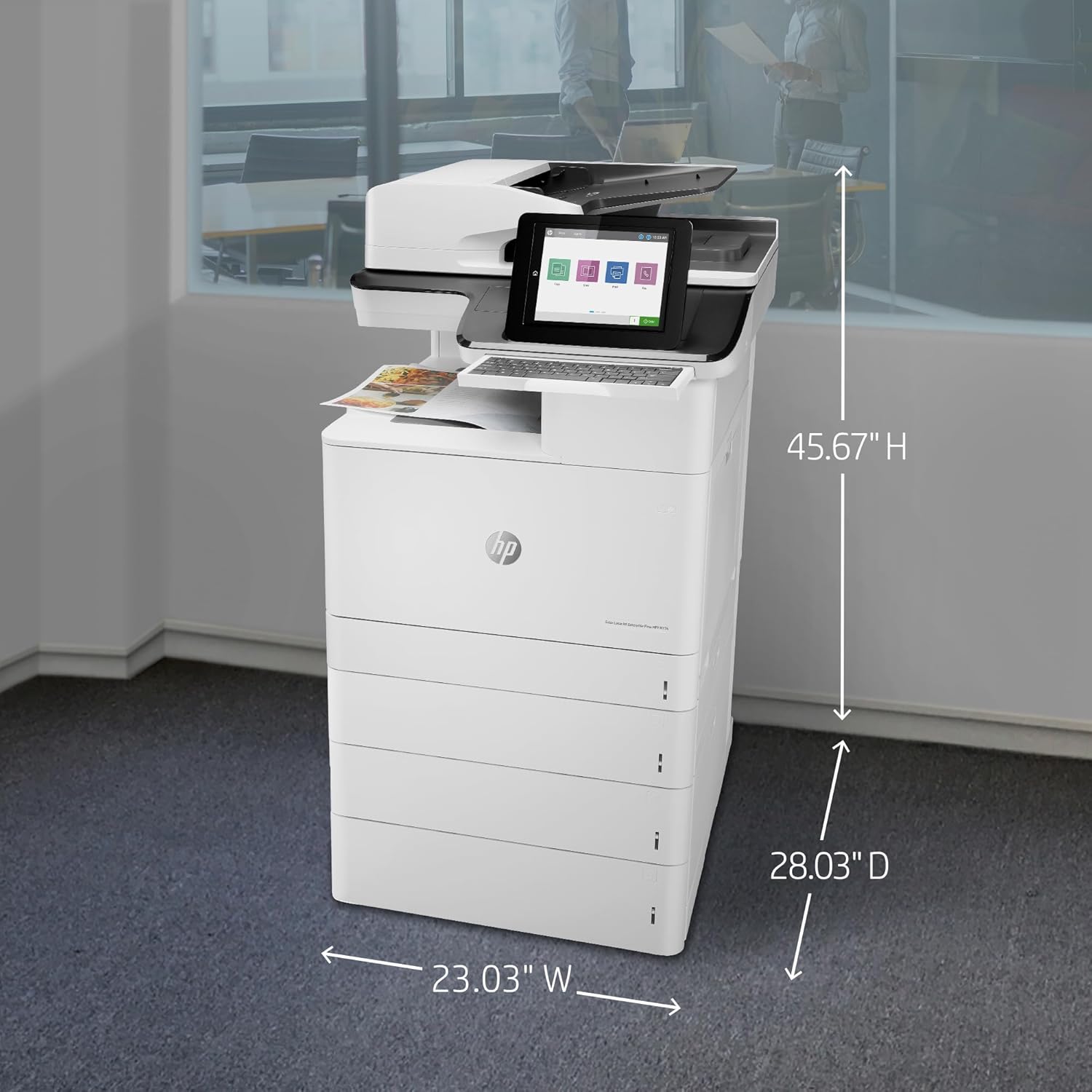
Figure 4.1: Physical dimensions of the printer, measuring 23.03"D x 45.67"W x 28.03"H.
4.2. Klíčové komponenty
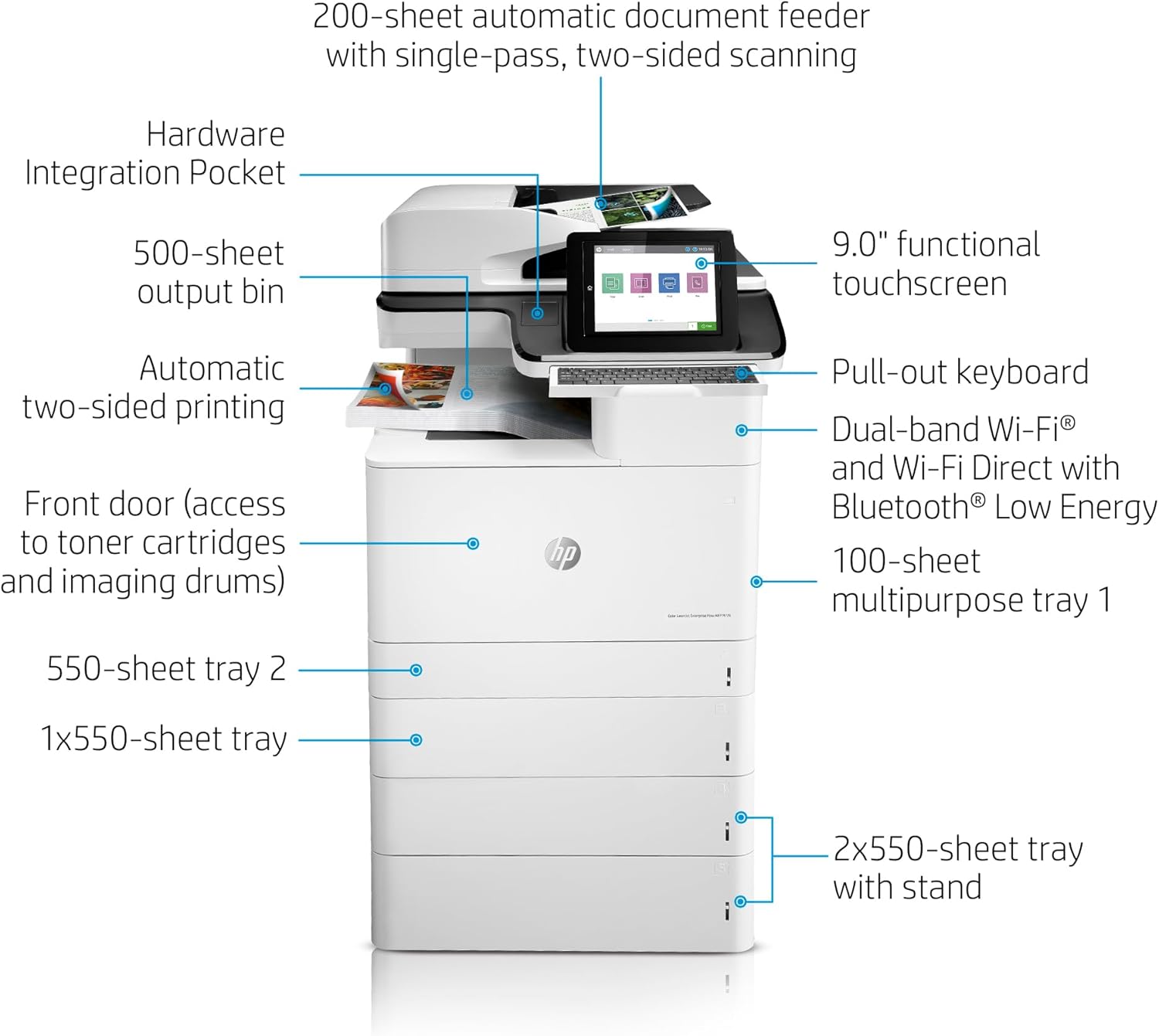
Figure 4.2: Labeled diagram highlighting key components and features of the printer.
4.3. Porty připojení

Obrázek 4.3: Zadní view of the printer showing available connectivity ports.
5. Nastavení
5.1. Vybalení a umístění
- Remove all packaging materials from the printer.
- Umístěte tiskárnu na stabilní, rovný povrch s dostatečným větráním.
- Ensure sufficient space around the printer for opening trays and accessing components.
5.2. Připojení napájení a sítě
- Připojte napájecí kabel k tiskárně a poté do uzemněné elektrické zásuvky.
- For wired network connection, connect an Ethernet cable to the Gigabit/Fast Ethernet port on the printer and to your network.
- For wireless connection, follow the on-screen prompts on the printer's touchscreen during initial setup to connect to your Wi-Fi network.
5.3. Vkládání papíru
The printer supports various paper sizes and types across its multiple trays. The main trays (Tray 2, 2x550-sheet tray) can hold up to 550 sheets each, while the multipurpose tray 1 holds 100 sheets. The automatic document feeder (ADF) can handle up to 200 pages for scanning and copying.

Figure 5.1: Loading paper into a printer tray.
5.4. Installing Toner Cartridges and Imaging Drums
The toner cartridges and imaging drums are easily accessible from the front of the machine.
- Otevřete přední přístupová dvířka tiskárny.
- Remove the old toner cartridges and imaging drums if present.
- Unpack the new HP 659A toner cartridges and HP 660A imaging drums.
- Insert each component into its corresponding slot, ensuring it clicks into place.
- Zavřete přední přístupová dvířka.

Figure 5.2: Location of toner cartridges and imaging drums for easy replacement.
5.5. Počáteční konfigurace
Follow the on-screen instructions on the 9.0-inch functional touchscreen to complete the initial setup, including language selection, date/time, and network settings.
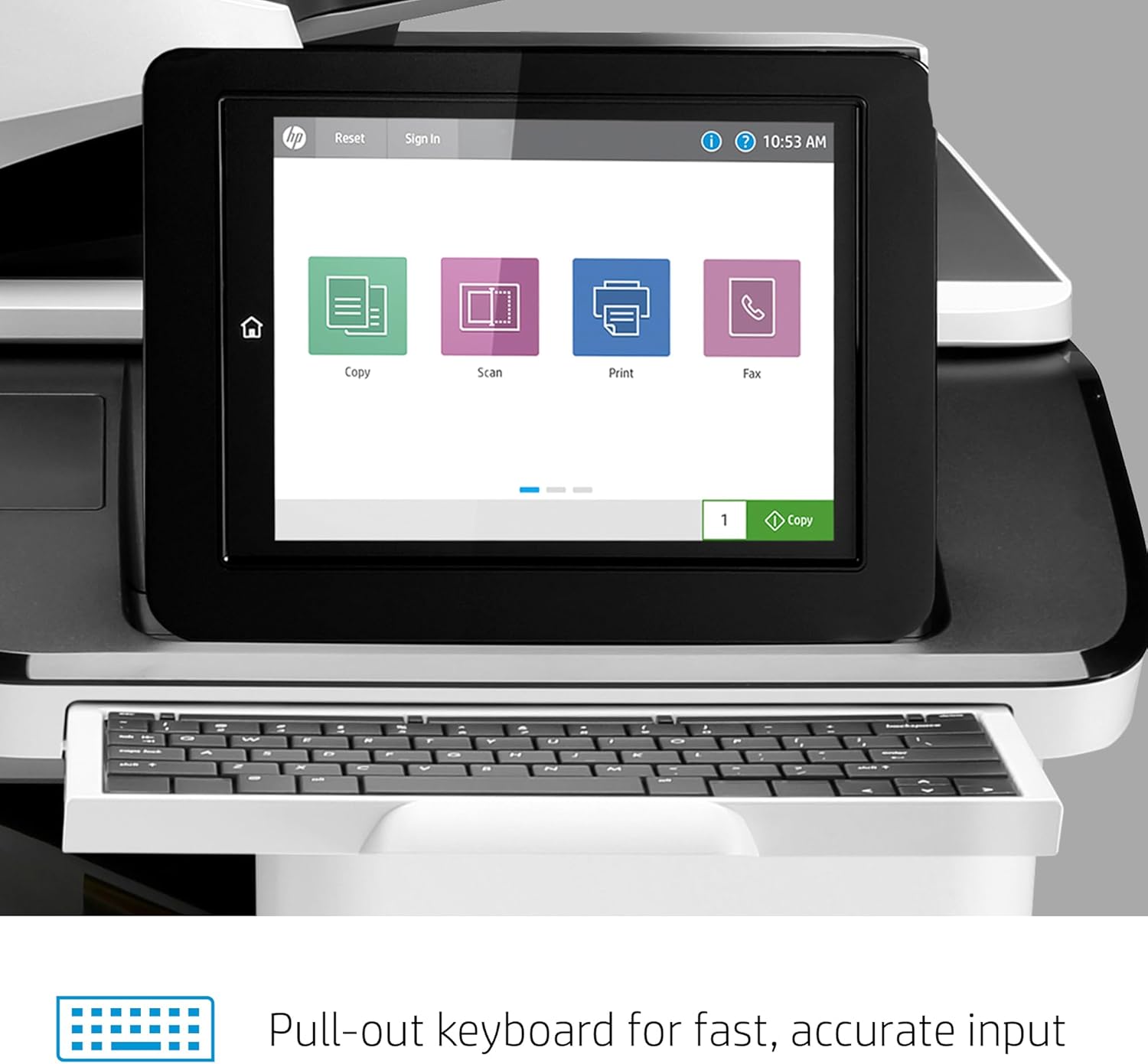
Figure 5.3: The printer's touchscreen interface and pull-out keyboard for data input.
6. Obsluha tiskárny
6.1. Basic Functions (Copy, Scan, Print, Fax)
The printer's touchscreen provides intuitive access to its core functions:
- Kopie: Place documents on the scanner glass or in the automatic document feeder, select 'Copy' on the touchscreen, and adjust settings as needed.
- Skenovat: Place documents, select 'Scan', and choose your destination (e.g., email, network folder, USB drive). The printer supports single-pass two-sided scanning and HP Every Page capture for enhanced accuracy.
- Vytisknout: Send print jobs from your computer or mobile device. The printer offers fast print speeds of up to 45 ppm (letter, black and color) and automatic two-sided printing.
- Fax: Use the 'Fax' option on the touchscreen to send faxes.

Figure 6.1: The printer's automatic two-sided printing feature in action.
6.2. Mobile Printing with HP Roam
The HP Color LaserJet Enterprise Flow Multifunction M776z supports mobile printing capabilities, including HP Roam for Business. This allows users to submit and print documents securely from various mobile devices and locations.
Video 6.1: Overview of the HP Color LaserJet Enterprise Flow MFP M776z, demonstrating its features including mobile printing and security.
7. Údržba
7.1. Replacing Consumables
Regular replacement of toner cartridges and imaging drums ensures optimal print quality and printer longevity. Refer to Section 5.4 for instructions on accessing and replacing these components.
7.2. Čištění tiskárny
Pravidelně čistěte vnější povrch tiskárny měkkým hadříkemamp, lint-free cloth. For internal cleaning, consult the detailed maintenance guide available on the HP support webmísto.
7.3. Aktualizace firmwaru
HP periodically releases firmware updates to enhance printer functionality, security, and performance. It is recommended to keep your printer's firmware up to date. These updates may also maintain the effectiveness of measures to block cartridges using non-HP chips or circuitry.
8. Řešení problémů
If you encounter issues with your printer, refer to the following common troubleshooting steps:
- Tiskárna nereaguje: Check power connections, network connectivity, and ensure the printer is not in an error state on the touchscreen.
- Problémy s kvalitou tisku: Verify toner levels, check imaging drums for damage, and ensure you are using genuine HP supplies. Perform a print quality diagnostic from the printer's menu.
- Zaseknutý papír: Follow the on-screen instructions or refer to the printer's internal diagrams to clear any jammed paper.
- Problémy s připojením k síti: Restart your router and the printer. Reconfigure wireless settings if necessary.
For more complex issues, visit the HP support webwebu nebo kontaktujte zákaznickou podporu.
9. Specifikace
| Funkce | Specifikace |
|---|---|
| Značka | HP |
| Název modelu | LaserJet Enterprise M776 |
| Číslo modelu | M776z |
| Technologie tisku | Laser |
| Tiskový výstup | Barva |
| Technologie připojení | Networkable, USB, Wireless |
| Maximální rychlost tisku (barevně) | 46 ppm |
| Maximální rychlost tisku (černobíle) | 46 ppm |
| Maximální rozlišení tisku | 1200 x 1200 dpi |
| Oboustranný tisk | Automatický |
| Typ skeneru | Valník |
| Maximum Copy Speed (Black and White) | 45 ppm |
| Maximum Copy Resolution | 1200 x 1200 dpi |
| Typ zobrazení | LCD or LED (Touchscreen) |
| Rozměry produktu (D x Š x V) | 23.03 cm x 45.67 cm x 28.03 cm |
| Maximální velikost média | A3 - 11.70" x 16.50" |
| Maximální kapacita listů | 250 (standard), up to 3900 (with optional accessories) |
| Barva inkoustu | Černá, azurová, purpurová, žlutá |
| Počet procesorů | 1 |
| Typ ovladače | iOS (compatible) |
10. Záruka a podpora
10.1. Informace o záruce
The HP Color LaserJet Enterprise Flow Multifunction M776z comes with a One Year Limited Hardware Warranty. For detailed terms and conditions, please refer to the warranty documentation included with your product or visit the official HP support webmísto.
10.2. Zákaznická podpora
For technical assistance, troubleshooting, or to access drivers and software, please visit the official HP Support webmísto or contact HP customer service. Online resources include FAQs, user forums, and downloadable manuals.