
1. Konec produktuview
The HP EliteDesk 800 G2 Business Desktop Mini Tower is a high-performance computing solution designed for business environments. This renewed product has undergone testing and certification to ensure it functions like new. It features an Intel Core i7 6700 processor, 32GB DDR4 RAM, and a 512GB SSD, running on Windows 11 Pro.

Obrázek: Úhlový view of the HP EliteDesk 800 G2 Mini Tower desktop computer, showcasinjeho kompaktní design.
2. Obsah balení
Ověřte, zda balení obsahuje všechny následující položky:
- HP EliteDesk 800 G2 Mini Tower Computer
- Napájecí kabel
- USB klávesnice
- USB myš
- USB WIFI Adapter
- Pokyny k záruce

Image: Included USB keyboard and mouse, essential peripherals for desktop operation.
3. Průvodce nastavením
3.1. Vybalování
Opatrně vyjměte všechny součásti z obalu. Uschovejte si obalový materiál pro budoucí přepravu nebo servisní potřeby.
3.2. Připojení periferií
Připojte monitor, klávesnici, myš a další zařízení k příslušným portům na stolním počítači.
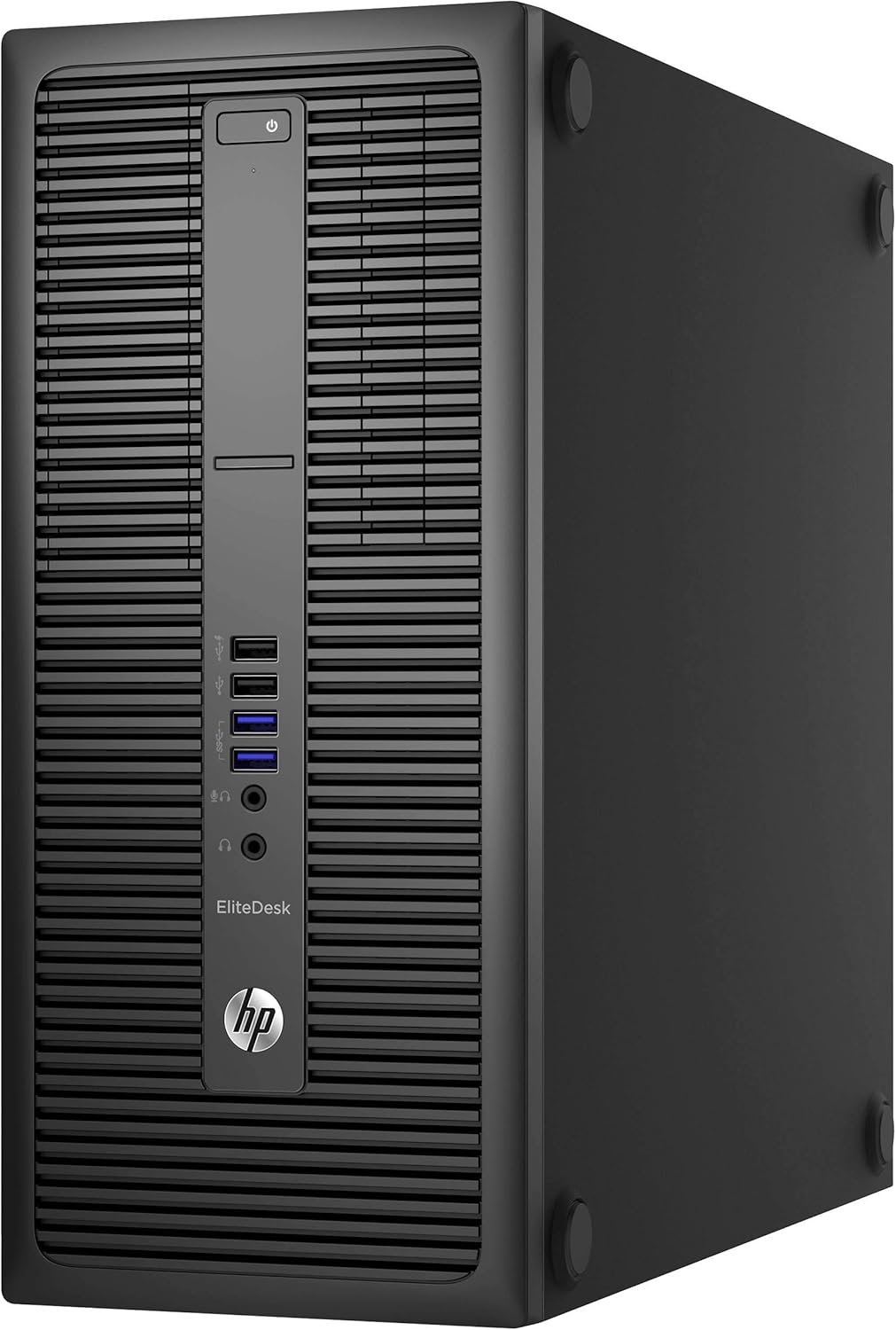
Image: Front panel of the HP EliteDesk 800 G2, showing the power button, optical drive bay, and front USB and audio ports.
- Moc: Connect the power cord to the desktop's power input and then to a wall outlet.
- Monitor: Use a DisplayPort or VGA cable to connect your monitor to the corresponding port on the rear of the desktop.
- Klávesnice a myš: Connect the USB keyboard and mouse to any available USB ports.
- Síť: For wired connection, connect an Ethernet cable to the RJ-45 network connector. For wireless, plug in the provided USB WIFI adapter.
- Zvuk: Připojte reproduktory nebo sluchátka k výstupnímu audio portu.

Image: Rear panel of the HP EliteDesk 800 G2, highlighting various connectivity options including DisplayPort, VGA, USB 3.0, Ethernet, and audio ports.
3.3. Počáteční zapnutí
Press the power button located on the front of the desktop. The system will begin to boot up.
3.4. Nastavení operačního systému
Follow the on-screen prompts to complete the Windows 11 Pro setup. This typically involves selecting language, region, accepting terms, and creating a user account.
4. Ovládání počítače
4.1. Zapnutí/vypnutí
- Zapnutí: Stiskněte tlačítko napájení na předním panelu.
- Vypnout: V systému Windows klikněte na tlačítko Start a poté vyberte Napájení > Vypnout.
- Restartovat: V systému Windows klikněte na tlačítko Start a poté vyberte Napájení > Restartovat.
4.2. Používání USB portů
The desktop features both USB 2.0 and USB 3.0 ports. USB 3.0 ports (often blue) offer faster data transfer speeds and are recommended for external hard drives or high-speed peripherals. Front USB 2.0 ports include a fast-charging option.
4.3. Audio připojení
Front panel includes a microphone/headphone combo jack and a dedicated headphone jack. The rear panel has a Line-Out connector for powered audio devices and a Line-In audio connector.
4.4. Display Connections
The desktop supports multiple displays via two DisplayPort connectors and one VGA connector on the rear panel.
4.5. Připojení k síti
Connect to a wired network using the RJ-45 Ethernet port. For wireless connectivity, ensure the USB WIFI adapter is installed and configured through Windows settings.
5. Údržba
5.1. Čištění
- Vnější: Použijte měkký, damp hadříkem k čištění vnějších povrchů. Nepoužívejte abrazivní čisticí prostředky.
- Průduchy: Periodically clean dust from the ventilation grilles using compressed air to ensure proper airflow and prevent overheating.
- Obrazovka (pokud je k dispozici): Pro připojené monitory použijte čistič určený pro obrazovky a hadřík z mikrovlákna.
5.2. Aktualizace softwaru
Regularly check for and install operating system updates (Windows Update) and driver updates to maintain system stability and security.
5.3. Zálohování dat
Doporučuje se pravidelně zálohovat důležitá data na externí disk nebo cloudové úložiště, abyste předešli jejich ztrátě.
6. Řešení problémů
Tato část se zabývá běžnými problémy, se kterými se můžete setkat.
- Bez napájení: Ensure the power cord is securely connected to both the desktop and a working power outlet. Test the outlet with another device.
- Bez displeje: Verify that the monitor is powered on and correctly connected to the desktop. Try a different display cable or monitor if available. Ensure the correct input source is selected on your monitor.
- Pomalý výkon: Close unnecessary applications. Check for background processes consuming high resources via Task Manager. Ensure sufficient free space on the SSD.
- Problémy s připojením k síti: For wired connections, check the Ethernet cable and router status. For wireless, ensure the USB WIFI adapter is properly installed and drivers are up to date. Restart your router and modem.
- Periferie nefunguje: Ensure the keyboard, mouse, or other peripherals are correctly plugged into the appropriate USB ports. Try a different USB port.
7. Technické specifikace
| Funkce | Specifikace |
|---|---|
| Procesor | Intel Core i7-6700 (3.4 GHz, up to 4.0 GHz) |
| BERAN | 32 GB DDR4 |
| Skladování | 512 GB SSD |
| Grafika | Intel HD Graphics 530 (Dedicated) |
| Operační systém | Windows 11 Pro 64bitová verze |
| Bezdrátový typ | 802.11ac (via USB adapter) |
| Přední porty | USB 2.0 (1x black), USB 2.0 Fast Charging (1x black), USB 3.0 (2x), Microphone/Headphone Combo, Headphone |
| Zadní porty | PS/2 Keyboard, PS/2 Mouse, DisplayPort (2x), VGA, USB 3.0 (4x), USB 3.0 with Wake from S4/S5 (2x), Line-Out, Line-In, Serial, RJ-45 Network |
| Rozměry (DxŠxV) | 20 x 17.99 x 10 palce |
| Hmotnost | 23.6 libry |
8. Informace o záruce a podpoře
8.1. Záruka
This Certified Refurbished product includes a minimum 90-day warranty. For specific terms and conditions, please refer to the warranty instruction document included in your package or contact the seller directly.
8.2. Technická podpora
For technical assistance, troubleshooting beyond this manual, or warranty claims, please contact the seller from whom you purchased this product. You may also visit the official HP support website for general product documentation and drivers related to the EliteDesk 800 G2 series.