
Zavedení
The NEDIS Universal Programmable Remote Control (model TVRC1140BK) is designed to manage up to 4 different devices. This remote can be programmed via a personal computer (PC) to replace original remote controls for various electronic devices, including televisions (TV), video cassette recorders (VCR), digital versatile disc players (DVD), and digital video broadcasting terrestrial receivers (DVB-T). It is engineered to replicate most functions of your original remotes, providing a consolidated control solution.
Bezpečnostní informace
- Nevystavujte dálkový ovladač přímému slunečnímu záření, teplu nebo vlhkosti.
- Zabraňte pádu dálkového ovladače na zem nebo jeho vystavení silným nárazům.
- Nepokoušejte se dálkový ovladač rozebírat ani upravovat. Ztratíte tak záruku.
- Udržujte baterie mimo dosah dětí. Při požití okamžitě vyhledejte lékařskou pomoc.
- Použité baterie zlikvidujte v souladu s místními předpisy. Nevhazujte baterie do ohně.
- Use only the specified battery type (2x AAA Alkaline).
Obsah balení
Zkontrolujte prosím balení, zda neobsahuje následující položky:
- NEDIS Universal Programmable Remote Control (TVRC1140BK)
- USB programovací kabel
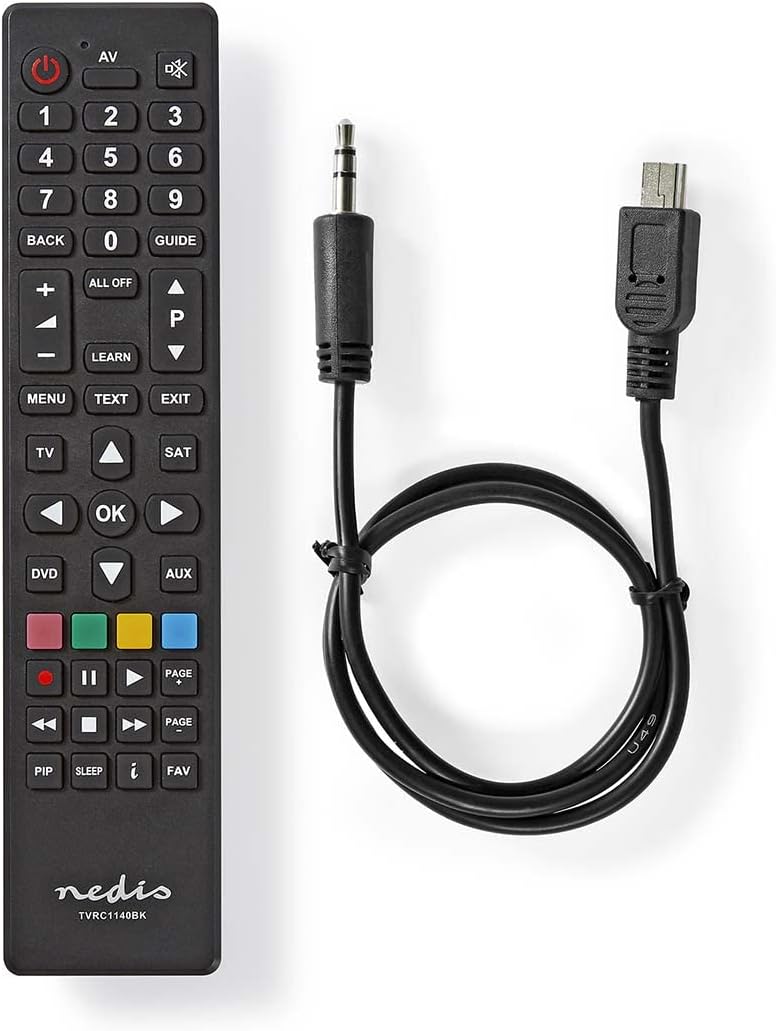
Image: The NEDIS Universal Remote Control TVRC1140BK shown alongside its USB programming cable.
Konec produktuview
The remote control features a clear button layout for intuitive operation. Familiarize yourself with the various buttons and their functions before use.

Obrázek: Přední strana view of the NEDIS Universal Remote Control TVRC1140BK, displaying all control buttons.
Klíčová tlačítka a funkce:
- Tlačítko napájení (): Zapíná nebo vypíná zařízení.
- Device Selection Buttons (TV, DVD, SAT, AUX): Vybere zařízení, které chcete ovládat.
- Numerická klávesnice (0-9): For channel selection and data input.
- Zvýšení/snížení hlasitosti (+/-): Upravuje hlasitost.
- Kanál nahoru/dolů (P/P): Mění kanály.
- Navigační tlačítka (nahoru, dolů, vlevo, vpravo, OK): Pro navigaci v menu a výběr.
- Nabídka/Konec: Accesses or exits device menus.
- Tlačítko učení: Used for programming functions from an original remote.
- Barevná tlačítka (červená, zelená, žlutá, modrá): Often used for specific functions in menus or teletext.
Nastavení
1. Instalace baterie
- Otevřete kryt prostoru pro baterie na zadní straně dálkového ovládání.
- Insert two (2) AAA Alkaline batteries, ensuring the correct polarity (+ and -) as indicated inside the compartment.
- Bezpečně zavřete kryt bateriového prostoru.
2. Programování na PC
The NEDIS TVRC1140BK remote control is programmed using dedicated software on a PC. This method allows for comprehensive device code loading and customization.
- Stažení softwaru: Visit the official NEDIS support website to download the latest programming software for the TVRC1140BK model.
- Instalace softwaru:
- If you have previously installed an older version of the software, uninstall it completely before proceeding.
- For new users, install the downloaded software directly by following the on-screen instructions.
- Připojte dálkový ovladač: Use the provided USB programming cable to connect the remote control to an available USB port on your PC.
- Proces programování: Follow the instructions within the software to select your device types (TV, DVD, VCR, DVB-T, etc.) and load the appropriate control codes onto the remote. The software typically guides you through the process of assigning functions to buttons.
Poznámka: For optimal performance and access to the latest device codes, always use the most current version of the programming software available from the manufacturer.
Obsluha dálkového ovládání
Once programmed, the remote control functions similarly to your original device remotes.
- Vyberte zařízení: Press the corresponding device button (e.g., TV, DVD, SAT, AUX) to select the device you wish to control. The indicator light on the remote may illuminate to confirm selection.
- Point and Operate: Point the remote control directly at the device's infrared receiver.
- Use Functions: Press the desired function buttons (e.g., Power, Volume, Channel, Menu, Play, Pause) to control your selected device.
Údržba
- Čištění: Dálkový ovladač otírejte měkkým, suchým hadříkem. Nepoužívejte abrazivní čisticí prostředky ani rozpouštědla.
- Výměna baterie: Replace batteries when the remote's performance degrades or if the indicator light does not illuminate. Always replace both batteries at the same time with new AAA Alkaline batteries.
- Skladování: Pokud dálkový ovladač nebudete delší dobu používat, vyjměte baterie, abyste zabránili jejich vytečení.
Odstraňování problémů
- Dálkové ovládání nereaguje:
- Zkontrolujte, zda jsou baterie správně vloženy a zda jsou dostatečně nabité. V případě potřeby je vyměňte.
- Ensure there is a clear line of sight between the remote control and the device's infrared receiver.
- Verify that the correct device mode (TV, DVD, etc.) is selected on the remote.
- Device functions not working correctly after programming:
- The device code may be incorrect or incomplete. Re-program the remote using the PC software, ensuring you select the correct manufacturer and model for your device.
- Some specific functions might not be available if the original remote had unique features not supported by the universal remote's code database.
- Consult the NEDIS support website for updated software or additional programming tips.
- PC programming software issues:
- Ensure you have uninstalled any previous versions of the software before installing the latest one.
- Check your PC's operating system compatibility with the software.
- Try using a different USB port or restarting your computer.
Specifikace
| Značka | NEDIS |
| Číslo modelu | TVRC1140BK |
| Technologie připojení | Infračervený |
| Maximální počet podporovaných zařízení | 4 |
| Kompatibilní zařízení | TV, DVD/Blu-ray Player, Set-top Box, VCR |
| Typ ovladače | Ovládání tlačítkem |
| Maximální dosah | 10 metrů |
| Jsou vyžadovány baterie | 2x AAA alkalické (nejsou součástí balení) |
| Barva | Černý |
Záruka a podpora
For warranty information, please refer to the terms and conditions provided by your retailer at the time of purchase or contact NEDIS customer support directly. For technical assistance, software updates, and additional resources, please visit the official NEDIS webmísto.