
1. Úvod
This manual provides comprehensive instructions for the installation, operation, and maintenance of your DIGITUS Wireless Dual Band Mesh Kit (Model DN-7071). Please read this manual carefully before using the device to ensure proper functionality and to prevent damage.
The DIGITUS Wireless Dual Band Mesh Kit is designed to extend and enhance your Wi-Fi coverage, providing a seamless and stable network experience throughout your home or office. It supports dual-band operation (2.4 GHz and 5.8 GHz) with a combined speed of up to 1200 Mbps, and features WPS for easy setup, along with LAN and Wi-Fi connectivity.
2. Obsah balení
Ověřte, zda jsou v balení přítomny všechny položky:
- 1 x DIGITUS 1200 Mbps Dual Band Mesh System (3 pieces)
- 1 x Uživatelská příručka
3. Konec produktuview
Familiarize yourself with the components and indicators of your DIGITUS Mesh Kit.
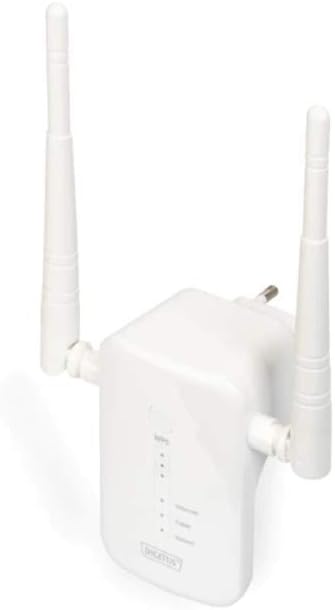
Figure 1: DIGITUS Wireless Dual Band Mesh Kit (DN-7071). This image displays the DIGITUS Wireless Dual Band Mesh Kit, a white rectangular device with two adjustable external antennas. The front panel features LED indicators for status, and a power plug is visible on the back, indicating direct wall-socket integration.
LED indikátory:
- LED napájení: Indikuje stav napájení.
- Wi-Fi LED: Indicates Wi-Fi activity and connection status.
- LAN LED: Indikuje aktivitu LAN portu.
- LED síla signálu: Indicates the strength of the mesh connection.
Porty a tlačítka:
- LAN port: Pro kabelové připojení.
- Tlačítko WPS: For quick and secure connection setup.
- Resetovací tlačítko: To restore factory default settings (usually a small pinhole button).
4. Nastavení
4.1 Počáteční umístění
Place the main mesh unit (router mode) near your internet modem/router. Subsequent mesh units should be placed strategically to cover dead zones, ensuring they are within range of another mesh unit or the main unit for optimal signal strength.
4.2 Zapnutí
- Plug the main mesh unit into a power outlet.
- Wait for the Power LED to become stable.
- Repeat for the other mesh units.
4.3 Connecting to Your Existing Network
There are two primary methods for connecting the mesh system:
Metoda 1: WPS (chráněné nastavení Wi-Fi)
- Stiskněte tlačítko WPS na vašem stávajícím routeru.
- Within two minutes, press the WPS button on the main DIGITUS mesh unit.
- The Wi-Fi LED on the mesh unit will blink during connection and become solid when successfully connected.
- Repeat for additional mesh units, pressing WPS on an already connected mesh unit or the main unit, then on the new unit.
Method 2: Manual Setup (via Web Rozhraní)
- Connect your computer to the LAN port of one of the mesh units using an Ethernet cable, or connect wirelessly to its default Wi-Fi network (SSID and password usually found on a sticker on the device).
- Otevřete a web prohlížeč a zadejte výchozí IP adresu (např.
192.168.1.1or192.168.0.1) nebo název domény (např.http://digitusmesh.net) provided in the quick start guide. - Log in with the default username and password (e.g.,
admin/admin). - Follow the on-screen wizard to configure the mesh system, including network name (SSID), password, and operating mode (e.g., Router, Access Point, Repeater).
- Uložte nastavení a v případě potřeby restartujte zařízení.
5. Návod k obsluze
5.1 Připojení zařízení
- Bezdrátová zařízení: Hledat the Wi-Fi network name (SSID) you configured and enter the password.
- Drátová zařízení: Connect devices like computers, gaming consoles, or smart TVs to the LAN port of any mesh unit using an Ethernet cable.
5.2 Optimalizace výkonu
- Umístění: Ensure mesh units are not obstructed by large objects or placed near sources of interference (e.g., microwaves, cordless phones).
- Aktualizace firmwaru: Pravidelně kontrolujte a instalujte aktualizace firmwaru prostřednictvím web rozhraní pro zajištění optimálního výkonu a zabezpečení.
- Duální pásmo: Utilize the 5 GHz band for devices requiring higher speeds (e.g., streaming, gaming) and the 2.4 GHz band for wider coverage and older devices.
6. Údržba
- Čištění: K čištění zařízení používejte měkký, suchý hadřík. Nepoužívejte tekuté čisticí prostředky ani aerosoly.
- Větrání: Ensure the mesh units have adequate ventilation and are not covered.
- Firmware: Keep the device firmware updated to the latest version for security and performance improvements.
- Resetovat: If the device is not functioning correctly, a factory reset may resolve issues. Press and hold the reset button for 5-10 seconds until the LEDs flash. Note that this will erase all custom settings.
7. Řešení problémů
- Bez napájení: Ensure the power adapter is securely plugged into the unit and a working power outlet.
- Žádné internetové připojení:
- Check the connection between the main mesh unit and your modem/router.
- Verify your modem/router has an active internet connection.
- Restart your modem, router, and mesh units.
- Slabý signál Wi-Fi:
- Relocate mesh units closer to each other or to the main unit.
- Ensure there are no major obstructions.
- Check for sources of interference.
- Nelze přistupovat Web Rozhraní:
- Ensure your device is connected to the mesh unit's network.
- Verify the correct IP address or domain name is entered.
- Zkuste vymazat mezipaměť prohlížeče nebo použít jiný prohlížeč.
- Perform a factory reset if necessary (note: this will erase all custom settings).
8. Specifikace
| Funkce | Detail |
|---|---|
| Značka | Digitus |
| Název modelu | DN-7071 |
| Barva | Bílý |
| Technologie připojení | WLAN |
| Standard bezdrátové komunikace | 802.11a, 802.11ac, 802.11b, 802.11g, 802.11n |
| Třída frekvenčního pásma | Dual Band (2.4 GHz / 5.8 GHz) |
| Speciální funkce | QoS, WPS |
| Kompatibilní zařízení | Chytrý telefon (a další zařízení s podporou Wi-Fi) |
| Porty | RJ-45 (LAN) |
| Hmotnost položky | 117 gramů |
| Zahrnuté komponenty | 1 x 1200 Mbps Dual Band Mesh System (3 pieces), 1 x User Manual |
9. Záruka a podpora
For warranty information and technical support, please refer to the official DIGITUS website or contact their customer service. Details are typically available on the product packaging or the manufacturer's official support pages.
You can find more solutions and information on the official DIGITUS webmísto: DIGITUS Solutions