
1. Úvod
This manual provides essential instructions for the installation, operation, maintenance, and troubleshooting of your METZ M40E6 40-inch Full HD Android Smart LED TV. Please read this manual thoroughly before using the television and retain it for future reference.

Figure 1: METZ M40E6 TV with Android TV interface.
2. Bezpečnostní informace
Always follow basic safety precautions when using this television to reduce the risk of fire, electric shock, and injury. Do not attempt to service this product yourself. Refer all servicing to qualified service personnel. Ensure the television is placed on a stable surface or securely mounted to prevent falling. Keep the television away from water and heat sources.
3. Obsah balení
Ověřte, zda jsou v balení obsaženy všechny níže uvedené položky:
- 1 x METZ M40E6 LED TV
- 1 x Stolní stojan
- 1 x držák na zeď
- 1 x Uživatelská příručka (tento dokument)
- 1 x Záruční list
- 1 x Remote Control (with 2 AAA batteries)
4. Nastavení
4.1. Fyzická instalace
You can install your TV using the included tabletop stand or a wall mount bracket.
4.1.1. Tabletop Stand Installation
- Televizor opatrně položte obrazovkou dolů na měkký, rovný povrch, abyste předešli jeho poškození.
- Attach the left and right stand bases to the corresponding slots on the bottom of the TV. Ensure they are oriented correctly (refer to Figure 2).
- Zajistěte základny stojanu dodanými šrouby.
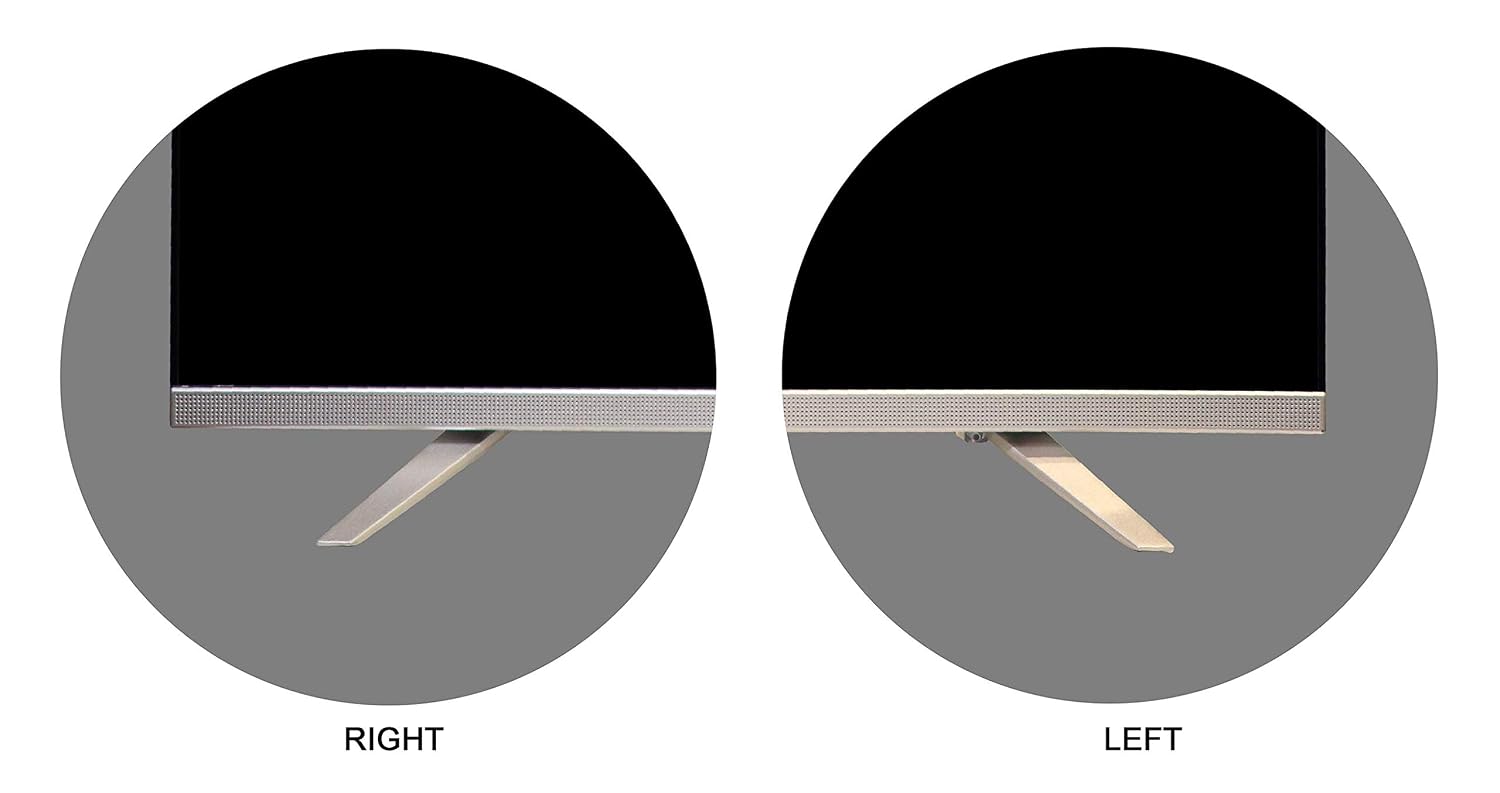
Figure 2: Tabletop stand components.

Figure 3: Stand attachment points.

Figure 4: TV with tabletop stand installed.
4.1.2. Montáž na stěnu
The TV supports a VESA mount standard of 200 x 200 mm. Use the provided wall mount bracket and follow its specific installation instructions. Ensure the wall can support the weight of the TV (approximately 6.9 kg) and the mount.
4.2. Připojení zařízení
Připojte externí zařízení k příslušným portům na zadní straně televizoru.
- HDMI porty: For connecting set-top boxes, gaming consoles, Blu-ray players, etc. (2 HDMI ports available).
- USB porty: For connecting USB storage devices to play media. (2 USB ports available).
- Digitální audio výstup: Pro připojení k externím audio systémům.
- Anténní/kabelový vstup: Pro připojení antény nebo kabelové televize.

Figure 5: Rear panel with connectivity ports.
4.3. Počáteční zapnutí a nastavení sítě
- Připojte napájecí kabel k televizoru a poté do elektrické zásuvky.
- Stisknutím tlačítka napájení na dálkovém ovladači nebo televizoru jej zapněte.
- Postupujte podle pokynů na obrazovce a dokončete počáteční nastavení, včetně výběru jazyka, časového pásma a síťového připojení.
- Vyberte svou síť Wi-Fi a zadejte heslo pro připojení k internetu.
- Sign in with your Google Account to access the Google Play Store and other Android TV features.
5. Ovládání vašeho televizoru
5.1. Funkce dálkového ovládání
The remote control allows you to navigate the TV's interface and access various functions. It features Google Assistant for voice commands.

Obrázek 6: Dálkové ovládání.
- Vypínač: Zapíná nebo vypíná televizor.
- Navigační tlačítko (nahoru/dolů/vlevo/vpravo/OK): Pro navigaci v menu a výběr.
- Tlačítko Zpět: Vrátí se na předchozí obrazovku.
- Tlačítko Domů: Otevře domovskou obrazovku Android TV.
- Tlačítko Google Assistant: Aktivuje hlasové ovládání. Stisknutím a podržením vyslovíte příkazy.
- Zvýšení/Snížení hlasitosti: Upravuje úroveň zvuku.
- Vstupní tlačítko: Výběr vstupních zdrojů (HDMI, USB, TV).
5.2. Navigace v Android TV
The Android TV home screen provides access to installed apps, recommended content, and settings. Use the navigation pad on your remote to browse.
5.3. Používání inteligentních funkcí
- Obchod Google Play: Stáhněte si a nainstalujte širokou škálu aplikací.
- Vestavěný Chromecast: Přenášejte obsah z kompatibilního chytrého telefonu, tabletu nebo počítače přímo do televizoru.
- Asistent Google: Používejte hlasové příkazy k vyhledávání obsahu, ovládání chytrých domácích zařízení a získávání informací.
- Podporované internetové služby: Access streaming platforms such as YouTube, Disney+Hotstar, Eros Now, Google Play Movies & TV, Google Play Music, Hotstar, Hungama Play, SONY LIV, Netflix, YUPP TV, Youtube Kids, and Zee5.
5.4. Výběr vstupu
Press the 'Input' button on your remote control to switch between connected devices (e.g., HDMI 1, HDMI 2, USB, TV tuner).
6. Údržba
6.1. Čištění televizoru
Před čištěním vždy odpojte televizor ze zásuvky. K otření obrazovky a skříně použijte měkký, suchý hadřík. V případě odolných skvrn lehceampen the cloth with water or a mild, non-abrasive cleaner specifically designed for electronics. Never spray cleaner directly onto the screen.
6.2. Aktualizace softwaru
Váš televizor Android TV může pravidelně dostávat aktualizace softwaru. Abyste mohli tyto aktualizace dostávat, ujistěte se, že je váš televizor připojen k internetu. Může to zlepšit jeho výkon a přidat nové funkce. Aktualizace můžete ručně zkontrolovat v nabídce nastavení televizoru.
7. Řešení problémů
Pokud se s televizorem setkáte s problémy, podívejte se na následující běžné problémy a jejich řešení:
- Bez napájení:
Ensure the power cord is securely plugged into both the TV and a working power outlet. Check if the power indicator light on the TV is on. Try a different power outlet. - Žádný obraz/zvuk:
Verify that the correct input source is selected. Check all cable connections (HDMI, antenna). Adjust volume levels. - Dálkové ovládání nefunguje:
Replace the AAA batteries in the remote control. Ensure there are no obstructions between the remote and the TV's IR sensor. For Google Assistant, ensure the remote is paired via Bluetooth (if required for voice functions). - Unable to Connect to Wi-Fi/Internet:
Check your router and modem to ensure they are working correctly. Restart your router. Go to the TV's network settings and re-enter your Wi-Fi password. Ensure the TV is within range of your Wi-Fi signal. - Netflix/Amazon Prime Video App Issues:
Some streaming applications may require specific versions or direct installation methods not available through the standard Google Play Store. If an app is not working or installing correctly, check the app's official support page for device compatibility or alternative installation instructions. Ensure the TV's software is up to date. - Špatná kvalita obrazu:
Check the source resolution. Adjust picture settings (brightness, contrast, sharpness) in the TV's menu. Ensure cables are securely connected.
8. Specifikace
Detailed technical specifications for the METZ M40E6 TV:
| Velikost obrazovky | 40 palce (101 cm) |
| Technologie displeje | LED |
| Rezoluce | Full HD (1920 1080 x XNUMX XNUMXp) |
| Obnovovací frekvence | 60 Hz |
| Operační systém | Android |
| Konektivita | 2 x HDMI, 2 x USB, Wi-Fi |
| Zvukový výstup | 16 Watts, Dolby Digital, Surround Sound |
| Zrcadlení obrazovky | Google Cast (Chromecast) |
| Podpora HDR | HDR10 |
| Viewúhel | 178 stupňů |
| Spotřeba energie | 75 wattů |
| Standardní držák VESA | 200 x 200 mm |
| Hmotnost | 6900 gramů |
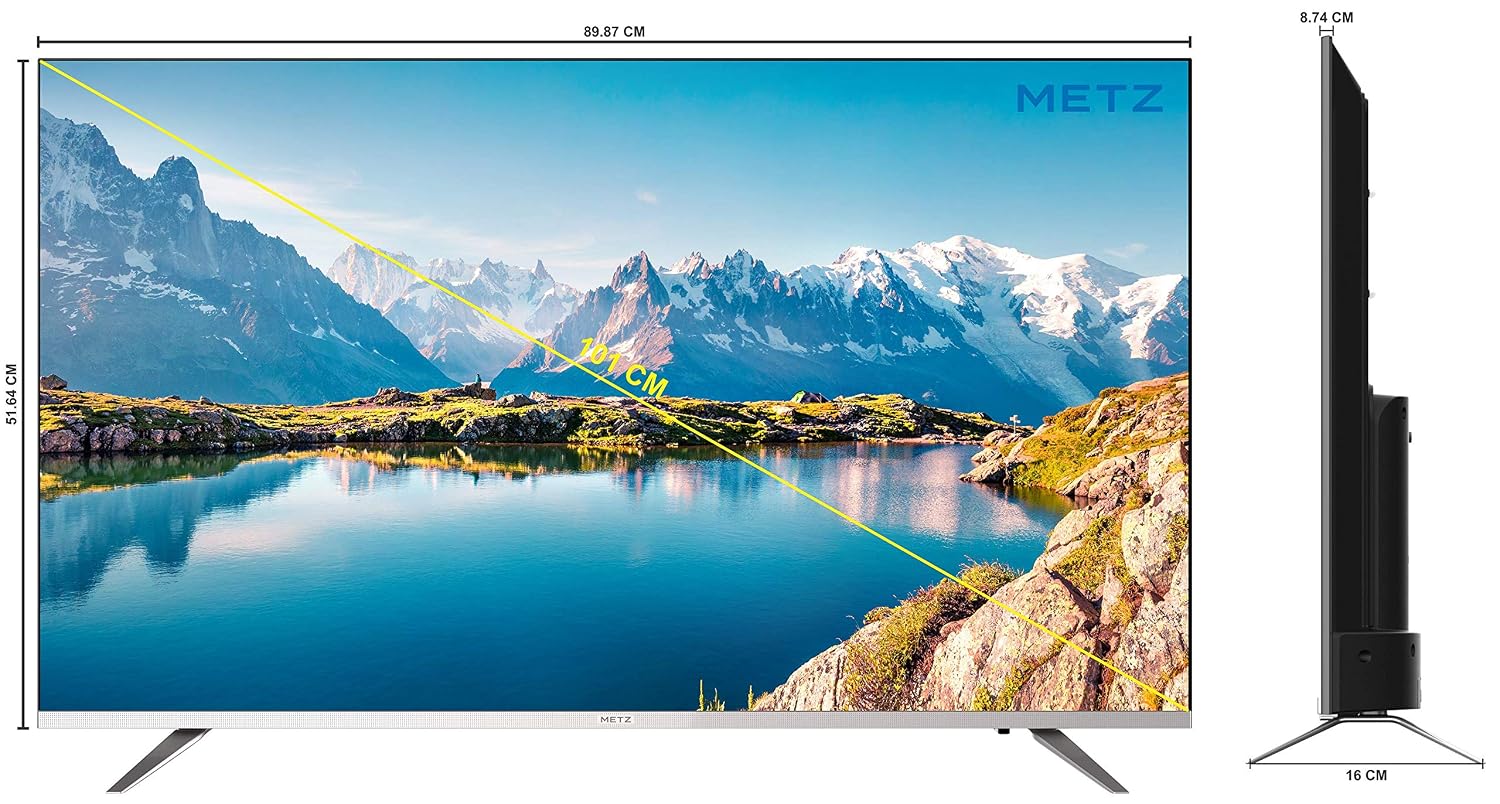
Figure 7: TV Dimensions.
9. Záruka a podpora
Your METZ M40E6 TV comes with a 2-year comprehensive warranty provided by the manufacturer from the date of purchase.
9.1. Kontaktování podpory
For assistance or to claim warranty service, please contact the brand's toll-free number: 1800-120-333-8888. When contacting support, provide your product's model name (M40E6) and the seller's details as mentioned on your invoice. The service center will schedule a convenient slot for service.
Manufacturer/Importer Contact Information: Radiant Appliances & Electronics India Pvt Ltd, No. 111 & 112, ECITY, FABCITY, Raviryal Village, Maheshwaram Mandal, RR District Hyderabad - 501141. Phone: +91-08414 667701. Email: info@radiantappliances.com