
1. Úvod
This manual provides detailed instructions for the installation, operation, and maintenance of the Titanium ED9764H5NV-2 64-Channel Network Video Recorder (NVR). Please read this manual thoroughly before using the device to ensure proper setup and functionality. Keep this manual for future reference.
2. Konec produktuview
The Titanium ED9764H5NV-2 is a high-performance 64-channel 2U Network Video Recorder designed for advanced surveillance systems. It supports 4K resolution and H.265 compression, offering efficient video storage and playback. This NVR operates on an embedded Linux system and features a 320Mbps bandwidth for robust network performance.
Klíčové vlastnosti:
- Supports up to 64 channels of 8MP/5MP/4MP/3MP/1080P/960P/720P IP input.
- H.265 high-profile compression for efficient video storage.
- 320Mbps incoming bandwidth.
- 16-channel simultaneous playback.
- Dual HDMI and one VGA video output for 4K display.
- Audio In/Out ports.
- Supports up to 8 SATA HDDs (max 10TB each, HDDs not included).
- Intuitive Graphic User Interface (GUI) for easy operation.
- Multiple recording modes: manual, timer, motion, sensor.
- Remote access via IE, CMS, and mobile applications (iOS/Android).
Obsah balení:
- Titanium ED9764H5NV-2 NVR Unit
- Napájení
- USB myš
- Šrouby pro instalaci pevného disku
- Rychlý průvodce
3. Nastavení
3.1 Instalace hardwaru
- Rozbalení: Carefully remove the NVR from its packaging. Inspect for any signs of damage.
- Instalace pevného disku (pokud je k dispozici):
The NVR does not include pre-installed hard drives. To install, open the NVR casing by removing the screws on the rear and sides. Mount the SATA hard drives into the designated bays and connect the SATA data and power cables. Secure the hard drives with the provided screws. Close the casing.
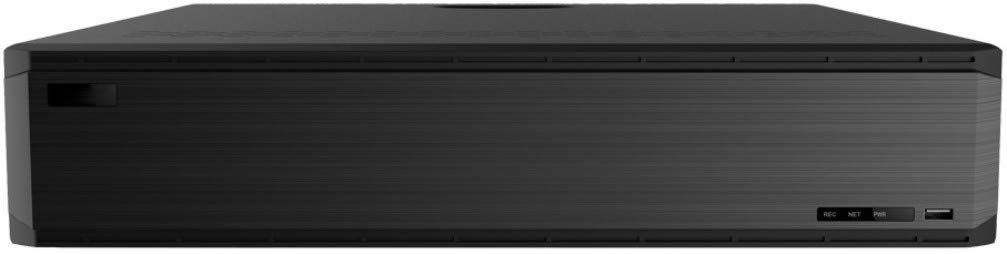
Obrázek 1: Přední strana view of the Titanium ED9764H5NV-2 NVR. This image shows the front panel of the NVR unit, featuring a sleek black design with ventilation grilles and a USB port.
- Připojení periferií:
- Connect a monitor to one of the HDMI or VGA ports.
- Connect a USB mouse to a USB port for navigation.
- Connect the NVR to your network using an Ethernet cable plugged into one of the LAN ports.
- Connect any audio input/output devices to the RCA audio ports.

Figure 2: Rear panel connections of the Titanium ED9764H5NV-2 NVR. This image displays the rear panel with various ports including VGA, HDMI, USB, LAN, Audio In/Out, Alarm In/Out, e-SATA, and power input.
- Připojení napájení: Connect the power supply to the NVR and then plug it into a power outlet. Turn on the NVR using the power switch on the rear panel.
3.2 Počáteční konfigurace
- Upon first boot, the NVR will guide you through a setup wizard. Follow the on-screen prompts.
- Set a strong password for the administrator account.
- Configure network settings (DHCP is usually enabled by default, or set a static IP address).
- Initialize any newly installed hard drives. This process will format the drives and prepare them for recording.
- Nastavte správné datum, čas a časové pásmo.
- Scan and add IP cameras to the NVR. Ensure cameras are powered on and connected to the same network.
4. Návod k obsluze
4.1 Živě View
After successful camera addition, the NVR will display the live feed from connected cameras. Use the mouse to navigate the interface. Double-click a camera view to enlarge it, or use the grid options to change the display layout.
4.2 Správa záznamů
- Režimy nahrávání: Access the "Record" menu to configure recording schedules. Options include continuous, motion detection, alarm trigger, or scheduled recording.
- Dual Stream Recording: The NVR supports dual stream technology, allowing for high-definition local storage and lower-bandwidth remote transmission.
4.3 Přehrávání
Navigate to the "Playback" menu. Select the desired camera(s) and date/time range. Use the playback controls (play, pause, fast forward, rewind, digital zoom) to review zaznamenané footage. The NVR supports 16-channel simultaneous playback.
4.4 Vzdálený přístup
- Web prohlížeč: Access the NVR via a web browser (e.g., Internet Explorer) by entering its IP address.
- CMS Software: Install the provided Central Management Software (CMS) on your PC for advanced monitoring and management.
- Mobilní aplikace: Download the official mobile application (available for iOS and Android) and scan the NVR's QR code for easy remote access.
NIKDY zálohujte
To back up recorded footage, connect a USB storage device to the NVR's USB port. In the "Backup" menu, select the desired footage and initiate the backup process. Network backup options are also available.
5. Údržba
- Pravidelný úklid: Udržujte NVR jednotku čistou a bez prachu. Používejte měkký, suchý hadřík. Ujistěte se, že ventilační otvory nejsou zablokované.
- Aktualizace firmwaru: Pravidelně kontrolujte informace od výrobce website for firmware updates. Apply updates as recommended to ensure optimal performance and security.
- Stav pevného disku: Monitor the health of your hard drives through the NVR's system settings. Replace failing drives promptly to prevent data loss.
- Zabezpečení heslem: Regularly change administrator passwords and use strong, unique combinations.
- Podmínky prostředí: Ensure the NVR operates within the specified temperature and humidity ranges (-10~50°C, 10%~90% humidity).
6. Řešení problémů
| Problém | Možná příčina | Řešení |
|---|---|---|
| NVR se nezapne. | Power cable disconnected; Power switch off; Faulty power supply. | Check power cable connection; Ensure power switch is ON; Test with a different power supply if available. |
| Na monitoru není žádný video výstup. | Monitor cable loose; Incorrect input selected on monitor; NVR resolution mismatch. | Verify HDMI/VGA cable connections; Select correct input source on monitor; Try connecting to a different monitor or reset NVR display settings. |
| Kamery se nezobrazují v živém režimu view. | Camera not powered; Network issue; Incorrect camera IP address/credentials; Camera not added to NVR. | Check camera power and network connection; Verify camera IP and login details; Ensure cameras are properly added in NVR settings. |
| Žádný záznam. | Hard drive not installed/initialized; Recording schedule not configured; Hard drive full. | Install and initialize hard drives; Configure recording schedules; Check hard drive status and free space. |
| Vzdálený přístup nefunguje. | Network configuration issues (port forwarding, DDNS); Incorrect IP address/port; Firewall blocking. | Verify network settings, port forwarding rules on router; Check NVR's network status; Temporarily disable firewall for testing. |
7. Specifikace
| Funkce | Detail |
|---|---|
| Model | ED9764H5NV-2 |
| Operační systém | Vestavěný Linux |
| Vstup IP kamery | 64 kanály |
| Video výstup | 2 HDMI, 1 VGA (4K output supported) |
| Zvukový vstup | RCA x 1 |
| Zvukový výstup | RCA x 1 |
| Obousměrný zvuk | Podporováno |
| Rozlišení nahrávání | 8MP/5MP/4MP/3MP/1080P/960P/720P |
| Režimy záznamu | Manuál, Časovač, Pohyb, Senzor |
| Přehrávací kanály | 16 kanály |
| alarm Input | 8 Channels local, supports IPC alarm input |
| Alarmový výstup | 4 kanály |
| Síťové rozhraní | RJ45 10/100/1000 Mbps x 2 |
| Šířka pásma | 320 Mbps |
| Max. Users Online | 10 |
| USB porty | USB 2.0 x 2, USB 3.0 x 1 |
| Interní HDD | SATA x 8, max 10TB per HDD (HDDs not included) |
| e-SATA | 2 |
| Napájení | ATX |
| Spotřeba energie | ≤ 15W (bez HDD) |
| Provozní podmínky | -10~50°C, 10%~90% humidity |
| Rozměry | 430 x 450 x 90mm (17.72 x 16.93 x 3.54 palce) |
| Hmotnost | 16.07 liber (cca) |
8. Záruka a podpora
For warranty information, please refer to the warranty card included with your product or visit the official Titanium website. Technical support can be obtained through the manufacturer's customer service channels. Please have your model number (ED9764H5NV-2) and purchase details ready when contacting support.
Online zdroje: For the latest drivers, firmware, and FAQs, please visit the Titanium support portal.