
1. Úvod
This manual provides essential information for setting up, operating, and maintaining your HP Prodesk 600 G3 Micro Computer. Please read these instructions carefully to ensure proper use and longevity of your device.

Image 1.1: HP Prodesk 600 G3 Micro Computer with peripherals.
The HP Prodesk 600 G3 is a compact and powerful mini PC designed for various computing tasks. Its small form factor allows for flexible placement in diverse environments.
2. Co je v krabici
Upon unpacking your HP Prodesk 600 G3 Micro Computer, verify that all listed items are present:
- HP Prodesk 600 G3 Micro Computer
- Napájecí adaptér
Poznámka: As a renewed product, additional accessories such as a keyboard, mouse, or USB Wi-Fi adapter may be included by the refurbisher. Please check your specific package contents.
3. Pokyny k nastavení
3.1 Připojení periferních zařízení
- Připojení napájení: Connect the power adaptor to the power connector on the rear of the micro PC, then plug the power cable into a wall outlet.
- Připojení displeje: Connect your monitor(s) to the DisplayPort(s) on the rear of the micro PC using DisplayPort cables. The system supports up to two DisplayPort connections.
- Zařízení USB: Connect your keyboard, mouse, and any other USB devices to the available USB 3.1 ports on the front or rear of the micro PC.
- Internetové připojení: For a wired network connection, connect an Ethernet cable from your router or modem to the RJ-45 connector on the rear of the micro PC.
- Zvuková zařízení: Connect headphones or speakers to the Universal Audio Jack on the front of the micro PC.

Image 3.1: Front panel ports including USB Type-C, USB 3.1, Headphone connector, Universal Audio Jack, and Power button.

Image 3.2: Rear panel ports including DisplayPort, USB 3.1, RJ-45, and Power connector.
3.2 První zapnutí
After connecting all necessary peripherals, press the power button located on the front of the micro PC. The system will boot up, and you may be guided through the initial Windows setup process if it's a fresh installation or a factory reset.
4. Návod k obsluze
4.1 Zapnutí/vypnutí
- Zapnutí: Stiskněte tlačítko napájení na předním panelu.
- Vypnout: V systému Windows klikněte na tlačítko Start a poté vyberte Napájení > Vypnout.
- Restartovat: V systému Windows klikněte na tlačítko Start a poté vyberte Napájení > Restartovat.
- Spát: V systému Windows klikněte na tlačítko Start a poté vyberte Napájení > Režim spánku.
4.2 Operační systém
Your HP Prodesk 600 G3 Micro Computer comes with Windows 10 Pro pre-installed. You can upgrade to Windows 11 if desired and compatible. Ensure all drivers are up-to-date for optimal performance. Windows updates are crucial for security and stability.

Image 4.1: Windows Operating System logo.
4.3 Připojení k síti
- Kabelové připojení: Connect an Ethernet cable to the RJ-45 port on the rear of the PC. The system will automatically detect the network.
- Bezdrátové připojení (pokud je k dispozici): If your unit includes a Wi-Fi adapter, navigate to Windows Settings > Network & Internet > Wi-Fi, select your network, and enter the password.
5. Specifikace
| Komponent | Specifikace |
|---|---|
| Procesor | Intel Core i5-7500T (2.7 GHz, čtyřjádrový procesor) |
| BERAN | 16 GB DDR4 |
| Skladování | 512GB SSD |
| Grafika | Grafická karta Intel HD Graphics 630 |
| Video výstup | 2 x DisplayPort (Supports 4K resolution) |
| USB porty | USB-C, USB 3.0/3.1 (multiple) |
| Síť | Gigabit Ethernet (RJ-45) |
| Operační systém | Windows 10 Pro (Upgradeable to Windows 11) |
| Rozměry (DxŠxV) | Přibližně 6.97 x 6.88 x 1.35 palce |
| Hmotnost | Přibližně 4 libry |

Image 5.1: HP Prodesk 600 G3 illustrating its compact size.

Image 5.2: Representation of the Intel Core i5-7500T processor.
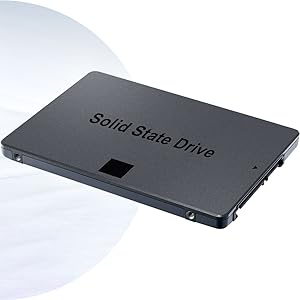
Obrázek 5.3: Příkladample of a Solid State Drive (SSD).
6. Údržba
Regular maintenance helps ensure the optimal performance and longevity of your micro computer.
- Udržujte to čisté: Pravidelně čistěte vnější povrch počítače měkkým, suchým hadříkem. K odstranění prachu z větracích otvorů a portů použijte stlačený vzduch, abyste zabránili přehřátí.
- Aktualizace softwaru: Keep your operating system and drivers updated. This improves security, performance, and compatibility.
- Záloha dat: Pravidelně zálohujte důležitá data na externí disk nebo cloudové úložiště, abyste předešli jejich ztrátě.
- Správné větrání: Ensure the PC is placed in a location with adequate airflow and that vents are not obstructed.
7. Řešení problémů
This section addresses common issues you might encounter with your HP Prodesk 600 G3 Micro Computer.
7.1 Bez napájení
- Zkontrolujte napájecí kabel: Ensure the power adaptor is securely connected to both the PC and a working electrical outlet.
- Testovací zásuvka: Zkuste do stejné zásuvky zapojit jiné zařízení, abyste se ujistili, že je pod napětím.
- Napájecí adaptér: Verify the power adaptor is the correct one for the device and is functioning.
7.2 Žádný displej
- Připojení monitoru: Ujistěte se, že je kabel DisplayPort bezpečně připojen k počítači i monitoru.
- Výkon monitoru: Confirm the monitor is powered on and set to the correct input source (e.g., DisplayPort).
- Otestujte s jiným monitorem/kabelem: If possible, test with a different monitor or DisplayPort cable to rule out faulty equipment.
7.3 Zpomalení systému
- Close Unused Programs: Close any applications running in the background that are not in use.
- Zkontrolovat aktualizace: Ensure Windows and all drivers are up-to-date.
- Skenování malwaru: Spusťte úplnou kontrolu systému pomocí renomovaného antivirového softwaru.
- Místo na disku: Ujistěte se, že je na SSD disku dostatek volného místa.
7.4 Problémy s připojením k síti
- Kabelové připojení: Check the Ethernet cable connection to both the PC and the router/modem. Verify router/modem status.
- Bezdrátové připojení: Ensure Wi-Fi is enabled in Windows settings and you are connected to the correct network with the correct password. Restart your router/modem.
8. Záruka a podpora
This HP Prodesk 600 G3 Micro Computer is a renewed product. Warranty coverage is typically provided by the refurbisher or seller, not directly by HP. Please refer to the specific warranty information provided at the time of purchase or contact your seller for details regarding their return and support policies.

Image 8.1: Microsoft Authorized Refurbisher information.
For technical assistance or questions not covered in this manual, please contact the seller or refurbisher directly. Keep your purchase receipt and product serial number readily available when seeking support.