
Zavedení
This manual provides essential information for setting up, operating, and maintaining your HP 27f 4K Monitor. Please read these instructions carefully before using your monitor to ensure proper functionality and longevity.
Klíčové vlastnosti
- Ultra High Definition 4K: Experience cinematic quality with the incredible definition of 4K.
- Height Adjustment Stand: Easily adjust your display to the most comfortable position with 100 mm range of travel.
- Panoramatický View: Ultra široký úhel 178° views konzistentními detaily a zářivými barvami.
- Moderní design: A sleek design that complements your workspace.
- Micro-edge Display: Virtually no bezel encircling the display for an ultra-wide viewing experience and seamless multi-monitor setups.
- Technologie panelu IPS: Provides consistent color and image clarity across a wide viewúhel.
- AMD FreeSync™: Reduces blurring and tearing for smoother visuals.
Co je v krabici
Ověřte, zda jsou v balení přítomny všechny součásti:
- HP 27f 4K Monitor
- A/C power cable (1.9 m / 6.2 ft)
- Power adapter (1.0 m / 3.3 ft)
- HDMI cable (1.8 m / 5.9 ft)
- Quick setup poster
- Servisní karta telefonního seznamu
- Záruční dokumentace
Nastavení
1. Sestavení monitoru
Carefully remove the monitor and stand components from the packaging. Attach the stand base to the stand column, then secure the stand to the back of the monitor. Ensure all connections are firm.
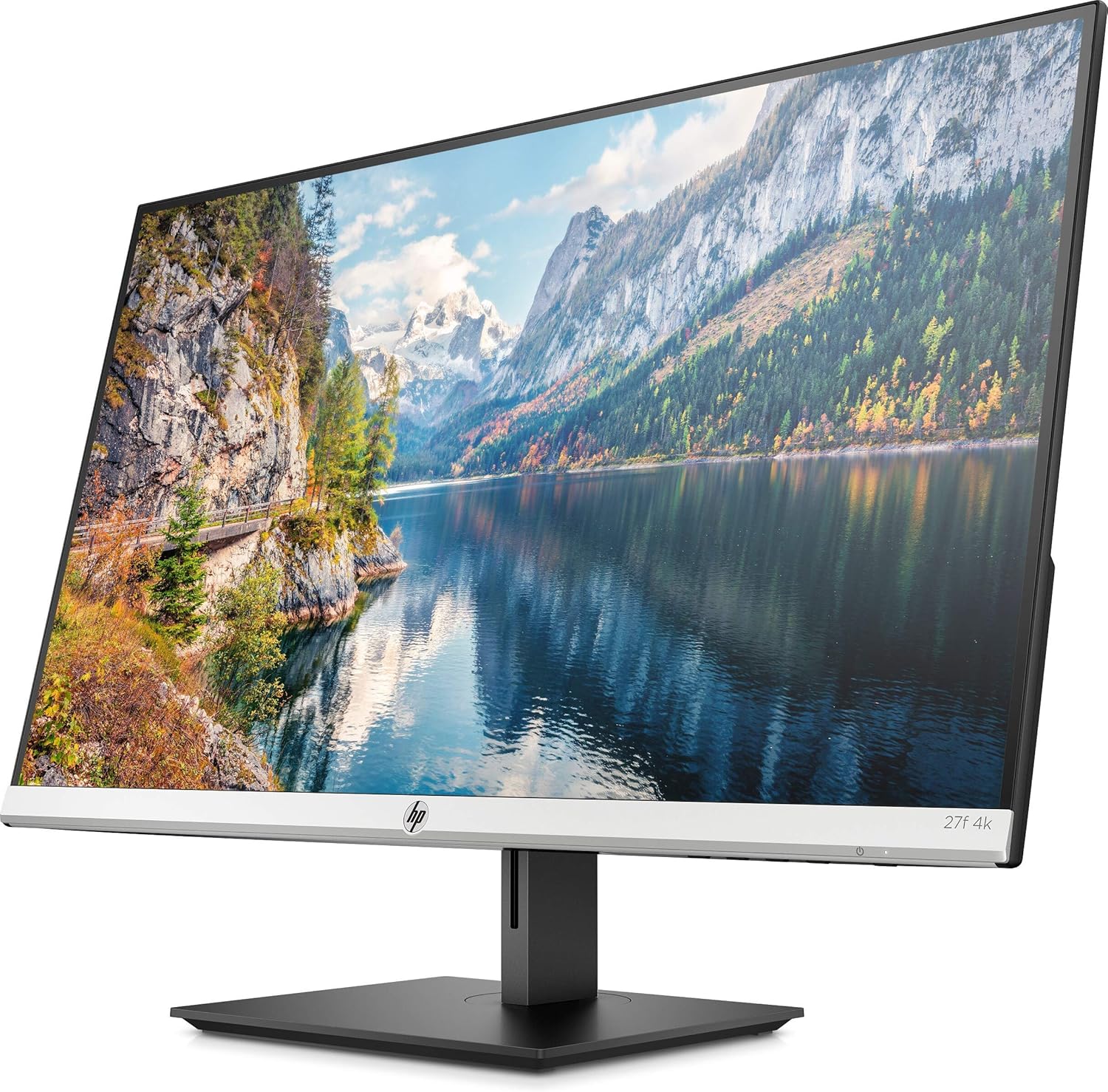
Obrázek 1: Přední strana view of the HP 27f 4K Monitor with its stand.
2. Propojovací kabely
Connect the power adapter to the monitor's power input and then to a power outlet. Use the provided HDMI cable to connect your computer to one of the HDMI ports on the monitor. Alternatively, use a DisplayPort cable if your computer supports it.

Obrázek 2: Zadní view of the monitor displaying the HDMI and DisplayPort inputs.
3. Zapnout
Press the power button on the monitor to turn it on. The monitor should automatically detect the input signal from your computer.
Obsluha monitoru
Nastavení displeje
The HP 27f 4K Monitor features a height-adjustable stand and can be tilted and rotated for optimal viewing comfort. Adjust the height by gently pushing or pulling the monitor up or down. Tilt the screen forward or backward as needed. The monitor can also be rotated to a portrait orientation.

Obrázek 3: Boční profíkfile of the monitor demonstrating its adjustable stand.
Nabídka na obrazovce (OSD).
Use the buttons located on the bottom bezel of the monitor to access the On-Screen Display (OSD) menu. This menu allows you to adjust various settings such as brightness, contrast, color temperature, input source, and other display preferences.
Nastavení více monitorů
The micro-edge bezel design allows for seamless multi-monitor configurations, enhancing your productivity and immersive experience.

Obrázek 4: Přample of a multi-monitor setup using HP 27f 4K Monitors.
Vizuální zkušenost
The HP 27f 4K Monitor delivers stunning 4K resolution and utilizes IPS Panel Technology for wide viewing angles and vibrant colors. AMD FreeSync™ technology helps reduce screen tearing and stuttering for a smoother visual experience, especially during fast-paced content.
Video 1: An official HP video showcasing the stunning 4K clarity of the HP 27f 4K Display.
Údržba
Čištění monitoru
Obrazovku jemně otřete měkkým hadříkem z mikrovlákna, který nepouští vlákna. V případě odolných šmouh ji lehce otřete.ampen the cloth with water or a screen-cleaning solution specifically designed for monitors. Avoid using harsh chemicals, abrasive cleaners, or spraying liquid directly onto the screen.
To clean the monitor's exterior, use a soft, damp cloth. Ensure the monitor is powered off and unplugged before cleaning.
Odstraňování problémů
Žádná síla
- Ujistěte se, že je napájecí kabel pevně připojen jak k monitoru, tak k funkční elektrické zásuvce.
- Zkontrolujte, zda je napájecí adaptér správně připojen.
- Ověřte funkčnost elektrické zásuvky zapojením jiného zařízení.
Žádný signál/Prázdná obrazovka
- Zkontrolujte, zda je videokabel (HDMI nebo DisplayPort) bezpečně připojen k monitoru i k počítači.
- Ujistěte se, že je počítač zapnutý a není v režimu spánku.
- Use the OSD menu to manually select the correct input source (e.g., HDMI 1, HDMI 2, DisplayPort).
- Try connecting the monitor to a different video port on your computer or using a different video cable to rule out cable or port issues.
Display Issues (Flickering, Blurry Image)
- Zkontrolujte video kabel, zda není poškozený nebo zda nejsou uvolněné spoje.
- Ujistěte se, že grafické ovladače vašeho počítače jsou aktuální.
- Adjust the display resolution and refresh rate settings on your computer to match the monitor's capabilities.
- If using AMD FreeSync™, ensure it is enabled in both the monitor's OSD and your graphics card settings.
Specifikace
Detailed technical specifications for the HP 27f 4K Monitor:

Figure 5: Diagram illustrating the dimensions of the HP 27f 4K Monitor.
| Funkce | Specifikace |
|---|---|
| Velikost stálé obrazovky | 27 palce |
| Rozlišení obrazovky | 3840x2160 (4K UHD 2160p) |
| Maximální rozlišení obrazovky | 3840 XNUMX pixelů |
| Značka | HP |
| Série | HP 27f 4K Display |
| Číslo modelu položky | 27f 4K |
| Hmotnost položky | 10.56 libry |
| Rozměry produktu | 24.16 x 7.62 x 19.74 palce |
| Barva | Natural silver and Black |
| svtage | 240 voltů (AC) |
| Poměr stran | 16:9 |
| Popis povrchu obrazovky | Anti-Glare |
Záruka a podpora
Your HP 27f 4K Monitor comes with a standard manufacturer's warranty. Please refer to the warranty documentation included in your product packaging for specific terms and conditions.
Pro technickou podporu, stažení ovladačů nebo další informace o produktech navštivte oficiální stránky podpory HP. website or contact HP customer service using the contact information provided in your documentation.