
1. Úvod
This user manual provides comprehensive instructions for the installation, operation, and maintenance of the Luxul XAP-1610 High Power Wave 2 AC 3100 Dual Band Wireless Access Point. The XAP-1610 is designed to deliver robust and high-performance Wi-Fi connectivity, supporting a wide range of devices with its advanced 802.11ac Wave 2 technology. Please read this manual thoroughly before attempting to install or operate the device.
2. Konec produktuview
The Luxul XAP-1610 is a high-performance wireless access point engineered for demanding network environments. It features dual-band operation (2.4 GHz and 5 GHz) and utilizes 802.11ac Wave 2 technology to provide increased data rates and support for multiple connected devices simultaneously.
2.1. Obsah balení
- Luxul XAP-1610 Wireless Access Point
- Mounting Hardware (if applicable, typically included)
- Quick Start Guide (often a separate document)
2.2. Physical Features and Indicators

Obrázek 2.2.1: Úhlové view of the Luxul XAP-1610 Wireless Access Point. This image shows the front and side profile of the device, highlighting its compact, rectangular design with rounded edges. Three small indicator lights are visible on the front surface, typically indicating power, network activity, and Wi-Fi status. Ventilation slots are visible along the top edge.

Obrázek 2.2.2: Shora dolů view of the Luxul XAP-1610 Wireless Access Point. This perspective clearly shows the square-like shape of the device's top surface. The three indicator lights are centrally located on the front edge. The overall appearance is clean and minimalist, designed to blend into various environments.

Obrázek 2.2.3: Strana view of the Luxul XAP-1610 Wireless Access Point. This image emphasizes the extensive ventilation grilles running along the side of the unit, crucial for heat dissipation and maintaining optimal performance. The design suggests it can be mounted flush against a surface.
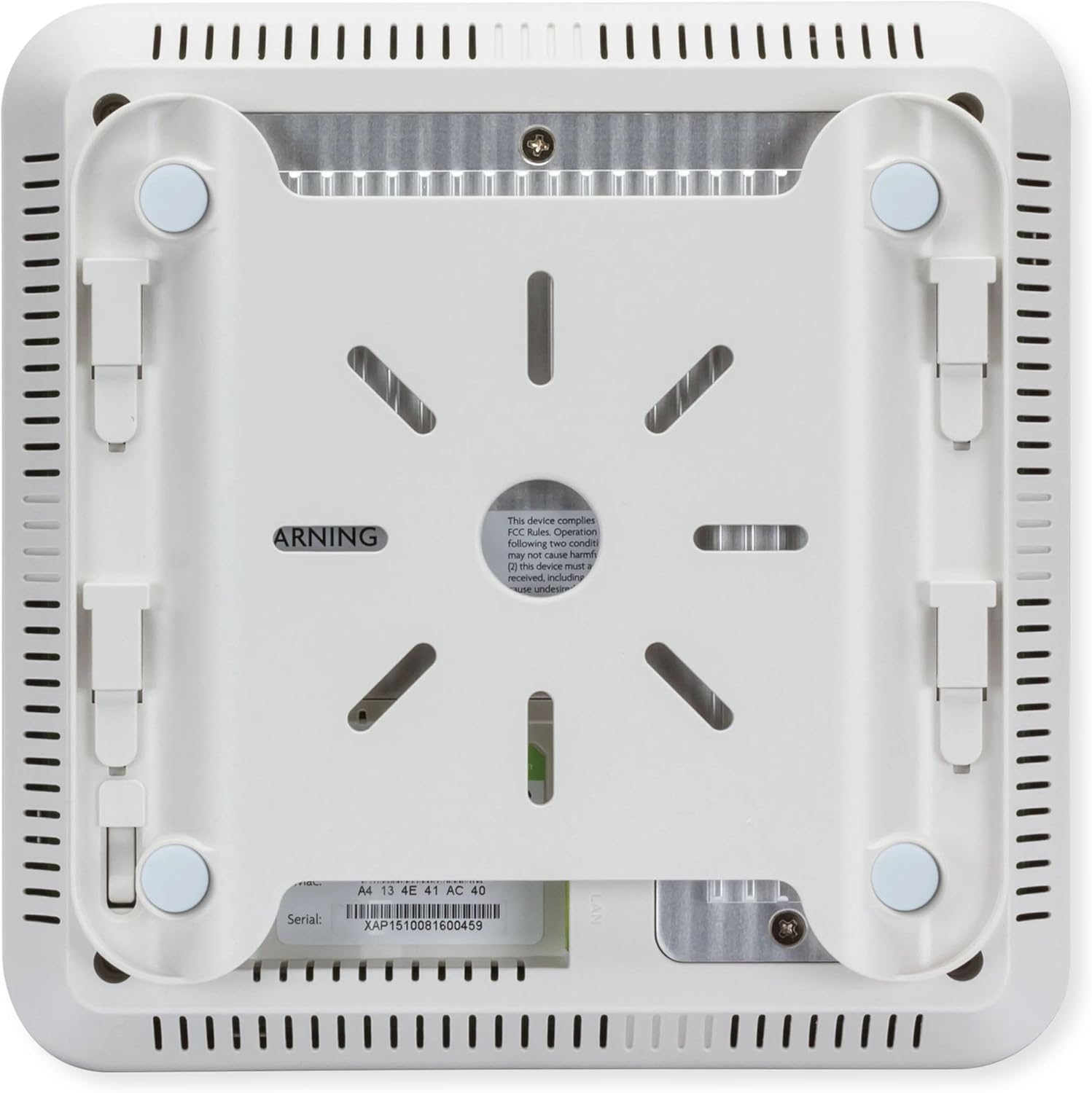
Obrázek 2.2.4: Dno view of the Luxul XAP-1610 Wireless Access Point. This view reveals the integrated mounting brackets and rubber feet for stable placement. A product label with the serial number and model information (XAP1510081600459) is visible, along with regulatory compliance markings. The Ethernet port is also visible on this side.
3. Nastavení a instalace
The XAP-1610 is designed for simple installation, requiring only a single Ethernet cable for both power and data via its integrated PoE+ port. Ensure you have a PoE+ (802.3at) compliant switch or injector available.
3.1. Montáž přístupového bodu
The XAP-1610 can be mounted on a wall or ceiling. Use the provided mounting hardware to secure the device. Ensure the mounting location allows for optimal Wi-Fi coverage and is within reach of your network cabling.
- Určete vhodné místo montáže.
- Use the mounting template (if provided) or the device itself to mark drilling points.
- Drill pilot holes and insert wall anchors if mounting on drywall.
- Secure the mounting bracket (if separate) or the device directly using screws.
- Ujistěte se, že je zařízení pevně připevněno a stabilní.
3.2. Připojování k síti
- Connect one end of an Ethernet cable to the PoE+ port on the XAP-1610.
- Connect the other end of the Ethernet cable to a PoE+ enabled port on your network switch or a PoE+ injector.
- Once connected, the indicator lights on the XAP-1610 should illuminate, indicating power and network activity.
- Allow a few minutes for the device to boot up and acquire an IP address from your network's DHCP server.
3.3. Počáteční konfigurace
The XAP-1610 can be configured via a web browser interface. Refer to the Luxul documentation or the Quick Start Guide for default IP addresses and login credentials. It is highly recommended to change default passwords immediately after initial access.
- Přístup k zařízení web rozhraní pomocí své IP adresy.
- Log in with the default username and password.
- Configure Wi-Fi network names (SSIDs), security settings (WPA2/WPA3 recommended), and passwords.
- Adjust advanced settings such as channel selection, transmit power, and VLANs as needed for your network environment.
4. Obsluha přístupového bodu
Once configured, the XAP-1610 will broadcast your Wi-Fi networks, allowing wireless devices to connect. Its dual-band capability ensures optimal performance for various devices, with the 5 GHz band providing higher speeds for compatible devices and the 2.4 GHz band offering wider coverage.
4.1. Connecting Wireless Devices
To connect a device to the XAP-1610's Wi-Fi network:
- On your wireless device (smartphone, laptop, tablet, etc.), scan for available Wi-Fi networks.
- Select the SSID (network name) you configured for the XAP-1610.
- Po zobrazení výzvy zadejte heslo k Wi-Fi (bezpečnostní klíč).
- Vaše zařízení by nyní mělo být připojeno k bezdrátové síti.
4.2. Indicator Lights Status
| Light Color/State | Popis |
|---|---|
| Plně zelená | Zařízení je zapnuté a funguje normálně. |
| Blikající zelená | Network activity (data transmission/reception). |
| Solid Amber/Orange | Indicates a warning or specific operational mode (refer to full manual for details). |
| Vypnuto | Zařízení je vypnuté nebo není napájeno. |
5. Údržba
Regular maintenance helps ensure the longevity and optimal performance of your Luxul XAP-1610.
- Aktualizace firmwaru: Pravidelně kontrolujte Luxul webweb s aktualizacemi firmwaru. Udržování firmwaru aktuální zajišťuje, že máte k dispozici nejnovější funkce, bezpečnostní záplaty a vylepšení výkonu.
- Čištění: Gently wipe the exterior of the device with a soft, dry cloth. Do not use liquid cleaners or aerosols. Ensure ventilation slots remain clear of dust and debris.
- Podmínky prostředí: Ensure the device is operated within its specified temperature and humidity ranges. Avoid placing it in direct sunlight or near heat sources.
- Sledování sítě: Regularly monitor your network for any unusual activity or performance degradation that might indicate an issue with the access point or network configuration.
6. Řešení problémů
This section addresses common issues you might encounter with the XAP-1610.
6.1. No Power / Device Not Turning On
- Verify the Ethernet cable is securely connected to both the XAP-1610 and the PoE+ source.
- Ensure your PoE+ switch or injector is powered on and functioning correctly.
- Check if the PoE+ port on your switch is enabled and providing power.
6.2. Cannot Connect to Wi-Fi Network
- Confirm you are selecting the correct SSID and entering the correct Wi-Fi password.
- Ensure the XAP-1610 is powered on and its Wi-Fi indicator lights are active.
- Check if your device's Wi-Fi adapter is enabled.
- Try restarting the XAP-1610 by disconnecting and reconnecting the Ethernet cable.
- Verify that the access point's configuration (SSID broadcast, security settings) is correct via its web rozhraní.
6.3. Slow Wi-Fi Speed or Intermittent Connection
- Rušení: Other wireless devices (cordless phones, microwaves, neighboring Wi-Fi networks) can cause interference. Try changing the Wi-Fi channel in the XAP-1610's settings.
- Síla signálu: Ensure your device is within optimal range of the access point. Obstacles like thick walls can degrade signal.
- Přetížení sítě: Too many devices on the network or high bandwidth usage can slow down speeds.
- Firmware: Ensure the XAP-1610 has the latest firmware installed.
- Problémy s kabelem: Check the Ethernet cable for damage or loose connections.
6.4. Forgetting Password / Resetting to Factory Defaults
If you forget the administrative password or need to revert to factory settings, locate the reset button on the device (often a small pinhole button). With the device powered on, press and hold the reset button for approximately 10-15 seconds until the indicator lights change, then release. The device will reboot with factory default settings.
7. Specifikace
Key technical specifications for the Luxul XAP-1610 Wireless Access Point:
| Funkce | Detail |
|---|---|
| Číslo modelu | XAP-1610 |
| Bezdrátové Standardní | 802.11ac vlna 2 |
| Frekvenční pásma | Dvoupásmové (2.4 GHz a 5 GHz) |
| Konektivita | Ethernet, Wi-Fi |
| Vstup napájení | PoE+ (802.3at) |
| Rozměry produktu | 7.3 x 7.3 x 1.7 palce |
| Hmotnost položky | 1.5 libry |
| Speciální funkce | WPS (Wi-Fi Protected Setup) |
| Kompatibilní zařízení | Gaming Console, Personal Computer, Printer, Security Camera, Smart Television, Smart Thermostat, Smartphone, Tablet |
8. Záruka a podpora
For warranty information, technical support, and additional resources, please refer to the official Luxul website or contact Luxul customer service. Keep your purchase receipt and serial number (located on the device's label) handy when seeking support.
- Online zdroje: Visit the Luxul support portal for FAQs, knowledge base articles, and downloadable documentation.
- Technická podpora: Contact Luxul's technical support team for assistance with installation, configuration, or troubleshooting issues.
- Stažení firmwaru: Access the latest firmware updates to ensure optimal performance and security.