
1. Úvod
This manual provides detailed instructions for the setup, operation, maintenance, and troubleshooting of your Xgody 9-inch Truck GPS Navigation System, Model X4. Please read this manual thoroughly to ensure proper use and to maximize the device's functionality.
2. Co je v krabici
Ověřte, zda jsou v balení přítomny všechny položky:
- Xgody 9-inch GPS Navigation Device
- Držák na palubní desku
- Car Charger (12-36V/2A)
- USB kabel
- Uživatelská příručka
3. Zařízení skončiloview
Familiarize yourself with the physical components and ports of your Xgody X4 GPS device.

Obrázek 3.1: Přední strana view of the Xgody 9-inch GPS device, showing the large touchscreen display.
Obrázek 3.2: Zpět view of the Xgody 9-inch GPS device, featuring the speaker grille and mounting points.

Obrázek 3.3: Strana view of the Xgody 9-inch GPS device, highlighting the 3.5mm earphone slot, TF card slot, AV-IN port, and 2.0 USB slot.
The device features a 9-inch capacitive touchscreen, a speaker on the rear, and various ports on the side for connectivity and expansion. These include a 3.5mm earphone slot, a TF (Micro SD) card slot, an AV-IN port for external video input, and a 2.0 USB slot for charging and data transfer.
4. Nastavení
4.1 Montáž zařízení
- Attach the dashboard mount to the back of the GPS device.
- Clean the desired area on your dashboard or windshield.
- Securely attach the suction cup mount to the cleaned surface. Ensure it is stable and does not obstruct your view.
- Upravte viewúhel sklonu pro optimální viditelnost.
4.2 Zapnutí a nabíjení
Connect the device to your vehicle's power outlet using the provided car charger. The device will typically power on automatically or can be turned on by pressing the power button. A red indicator light signifies that the device is charging. The internal battery provides approximately 1 hour of operation and takes 2-3 hours to fully charge.
4.3 Počáteční nastavení
Při prvním použití nebo po obnovení továrního nastavení může být nutné nakonfigurovat základní nastavení:
- Jazyk: Vyberte preferovaný jazyk.
- Časové pásmo: Set the correct time zone for your location.
- Typ vozidla: Choose your vehicle profile (e.g., Truck, Car, Bus, Motorhome, Bicycle, Taxi, Pedestrian) to optimize routing.
4.4 Aktualizace map
The device comes with pre-loaded maps. For lifetime map updates, refer to the manufacturer's website or contact customer support for instructions on how to download and install the latest map data. Regular map updates ensure accurate navigation and access to new roads and points of interest.
5. Návod k obsluze
5.1 Základní navigace
To begin navigation:
- From the main menu, tap 'Navigation'.
- Enter your destination address or select a Point of Interest (POI).
- Confirm the destination and the device will calculate the optimal route based on your selected vehicle profile.
- Follow the voice-guided turn-by-turn directions and on-screen map.
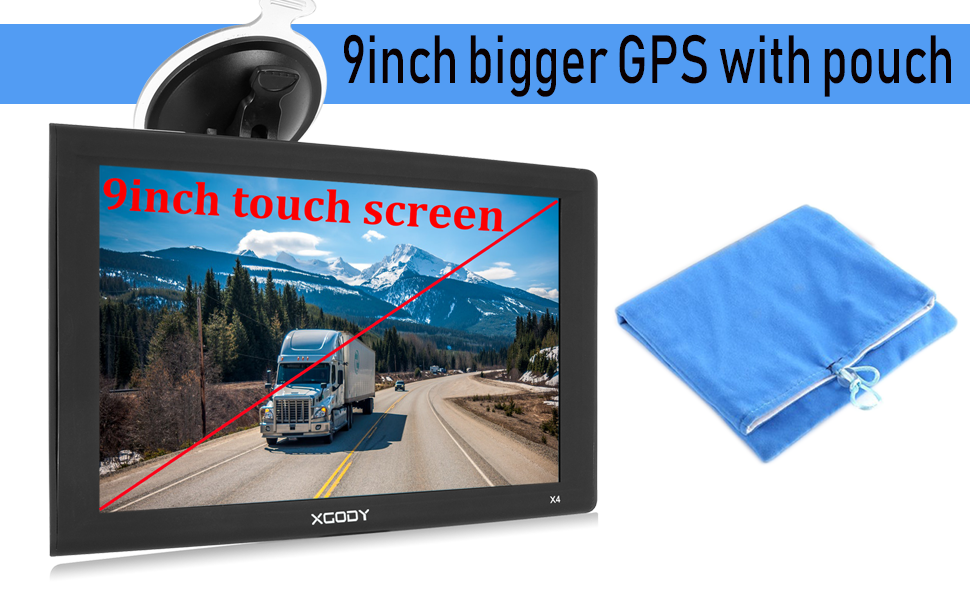
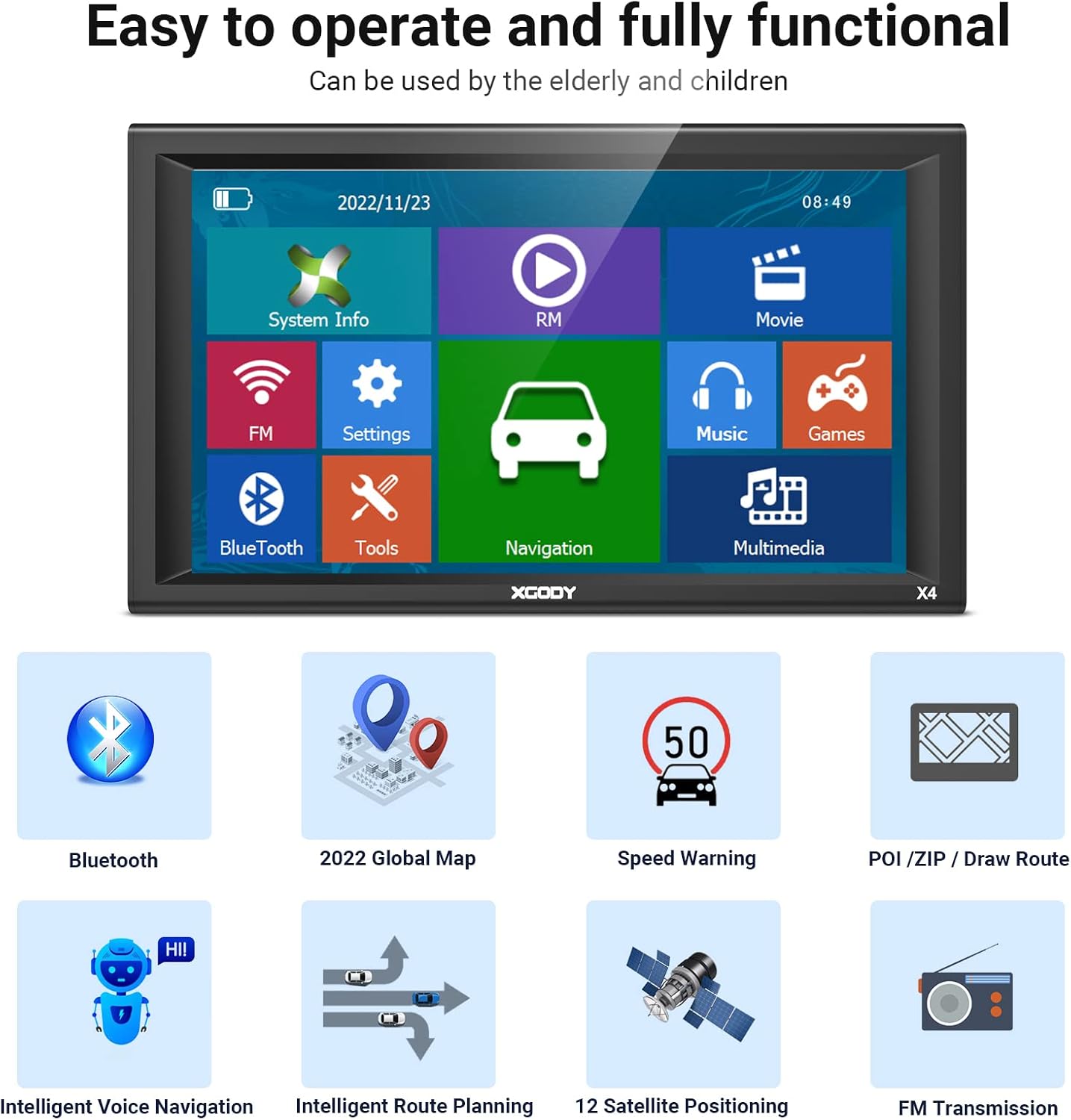
Figure 5.1: The main menu interface of the Xgody GPS, showing icons for System Info, RM, Movie, FM, Settings, Music, Games, Bluetooth, Tools, Navigation, and Multimedia.

Figure 5.2: A typical navigation screen displaying the current route, distance to next turn, estimated arrival time, and nearby points of interest like gas stations.
5.2 Vehicle Profiles and Route Planning
The Xgody X4 supports various vehicle types, allowing for customized routing. For trucks, you can input vehicle dimensions (height, width, length) and weight to avoid unsuitable roads, bridges, and tunnels. This feature helps ensure safe and efficient travel for commercial vehicles.
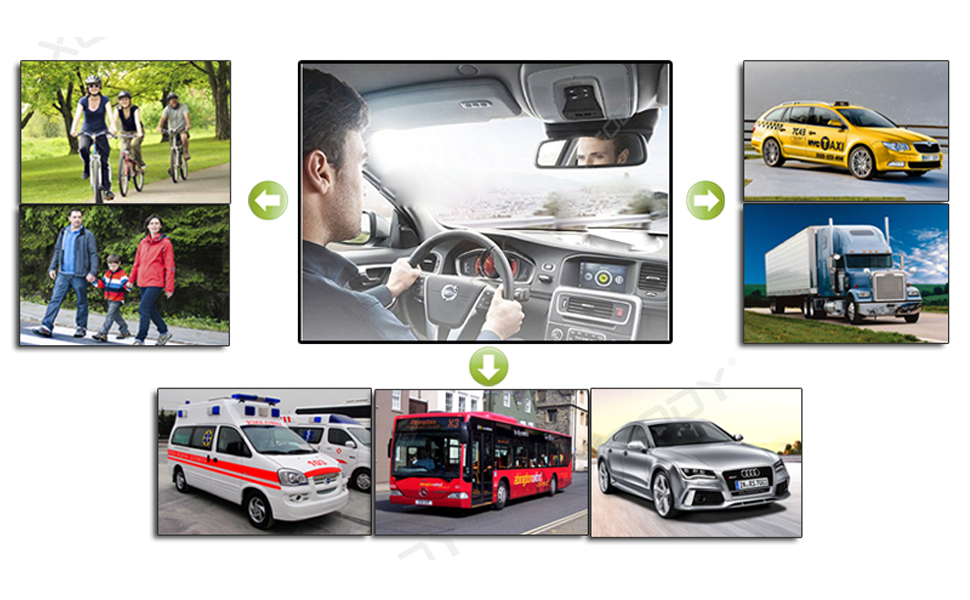
Figure 5.3: An illustration of the vehicle type selection screen, including options for car, taxi, bus, and truck, allowing for tailored navigation.
5.3 Funkce Bluetooth
Pair your mobile phone with the GPS device via Bluetooth for hands-free calling. This feature enhances safety by allowing you to make and receive calls without handling your phone while driving.

Figure 5.4: The Bluetooth hands-free calling interface on the GPS screen, showing a simulated call in progress.
5.4 AV-IN Function
The AV-IN port allows you to connect an external video source, such as a rear-view camera (not included). When connected, the GPS screen can display the camera feed, assisting with safer parking and maneuvering.

Figure 5.5: The GPS screen showing a rear camera view, demonstrating the AV-IN functionality for enhanced safety during reversing.
5.5 Points of Interest (POI) and Speed Warnings
The device provides information on various Points of Interest (POI) such as gas stations, restaurants, and rest areas. It also includes speed warnings to alert you when exceeding the speed limit, contributing to safer driving.
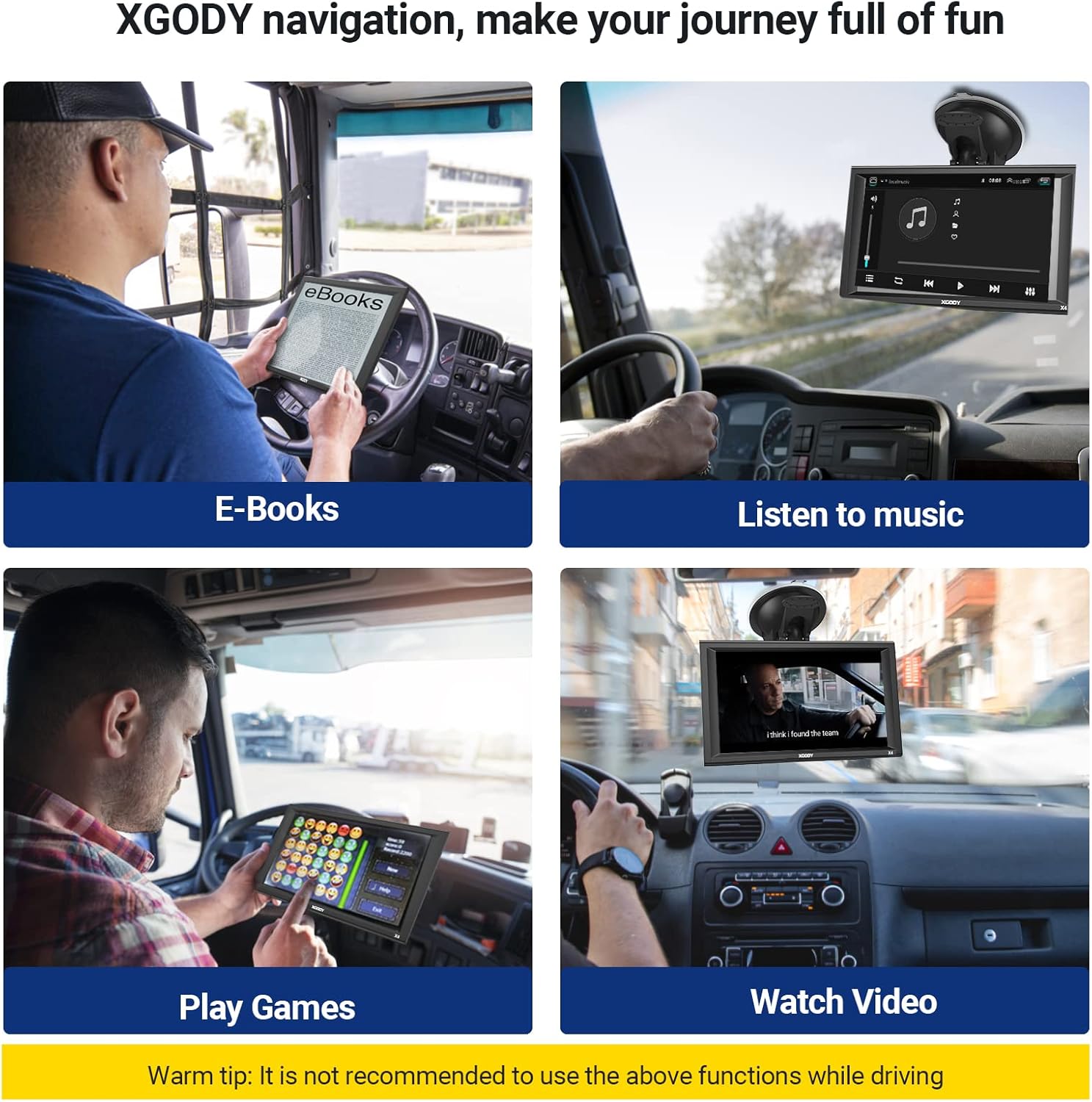
Figure 5.6: A navigation view highlighting POIs like gas stations and displaying speed camera warnings, along with current speed and estimated arrival time.
5.6 FM vysílač
The built-in FM transmitter allows you to broadcast the GPS audio instructions and multimedia sound to your vehicle's FM radio. This enables clearer audio output through your car's speaker system.
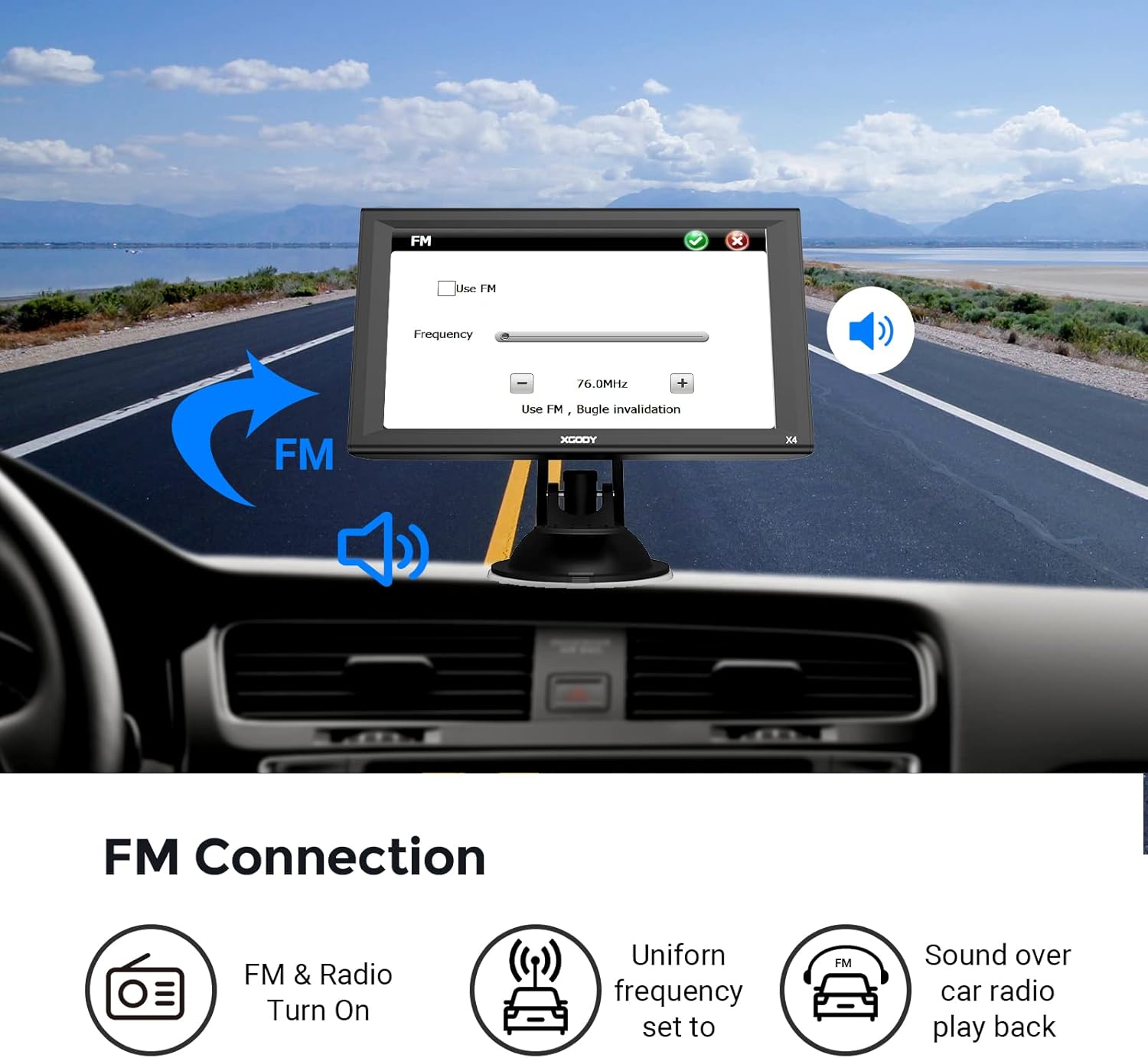
Figure 5.7: The FM connection settings screen on the GPS, allowing users to select a frequency to transmit audio to their car radio.
5.7 Multimediální funkce
The Xgody X4 can play various multimedia files, including music (MP3), videos (ASF, AVI, WMV, 3GP, MP4, RMVB), and e-books. It also includes simple games. These features are intended for use when the vehicle is stationary.
Video 5.1: An official product video demonstrating the Xgody 9-inch Truck GPS Navigation system's voice broadcast features and various modes, including truck, car, and pedestrian. The video highlights the device's ability to provide timely alerts for tunnels and toll booths.
6. Údržba
6.1 Čištění zařízení
Use a soft, dry cloth to clean the screen and exterior of the device. Avoid using abrasive cleaners or solvents, as they may damage the screen or casing.
6.2 Péče o baterii
To prolong battery life, avoid exposing the device to extreme temperatures. If the device will not be used for an extended period, charge it to approximately 50% before storage and recharge it periodically.
6.3 Aktualizace softwaru a map
Regularly check for software and map updates. Updates can improve performance, add new features, and ensure the most accurate navigation data. Follow the instructions provided by the manufacturer for updating your device.
7. Řešení problémů
This section addresses common issues you might encounter with your Xgody X4 GPS device.
7.1 Device Will Not Power On or Keeps Cycling
- Zkontrolujte připojení napájení: Ensure the car charger is securely plugged into both the device and the vehicle's power outlet. Verify the vehicle's power outlet is functioning.
- Nabíjení baterie: If the battery is completely drained, it may take a few minutes of charging before the device responds. Look for the red charging indicator light.
- Resetovat: Locate the reset button (often a small pinhole) and gently press it with a paperclip for a few seconds.
7.2 Problémy se signálem GPS
- Jasný View of Sky: Ujistěte se, že zařízení má volný a nerušený view of the sky. Tall buildings, tunnels, and dense foliage can interfere with GPS reception.
- Přemístit zařízení: Try repositioning the device on your dashboard or windshield.
- Počkejte: It may take several minutes for the device to acquire satellite signals, especially after being off for a long time or moved a significant distance.
7.3 Map Update Failures
- Připojení k internetu: Ensure a stable and fast internet connection during the download process.
- Úložný prostor: Verify that the device or inserted TF card has sufficient free space for the new map data.
- Správný postup: Double-check that you are following the exact map update instructions provided by Xgody. Incorrect procedures can lead to data corruption.
7.4 Nereagování obrazovky
- Čistá obrazovka: Ujistěte se, že obrazovka je čistá a bez nečistot nebo vlhkosti.
- Měkký reset: Perform a soft reset using the reset button.
- Překalibrovat: Some devices offer a screen calibration option in the settings menu.
7.5 Problémy se zvukem
- Nastavení hlasitosti: Check the device's volume settings and ensure it is not muted.
- FM vysílač: If using the FM transmitter, ensure the correct frequency is selected on both the GPS and your car radio. Adjust the volume on both devices.
- External Speakers/Headphones: If using external audio, ensure they are properly connected and functioning.
8. Specifikace
Below are the technical specifications for the Xgody 9-inch Truck GPS Navigation System, Model X4.
| Funkce | Specifikace |
|---|---|
| Značka | Xgody |
| Název modelu | Xgody X4 |
| Velikost obrazovky | 9 palce |
| Rozlišení displeje | 800 x 480 |
| Typ zobrazení | LCD, Capacitive Touchscreen |
| Operační systém | Android |
| Paměť (RAM) | 256 MB |
| Internal Memory (ROM) | 8 GB |
| SD slot | Micro SD socket, Max 32GB |
| GPS modul | High Sensitive GPS Receiver |
| Podporovaný satelitní navigační systém | GPS |
| Konektivita | Bluetooth, AV-IN |
| USB Slot | 2.0 USB slot |
| Slot pro sluchátka | 3.5 mm |
| Baterie | Built-in Li-ion Rechargeable 2000mAh |
| Working Time (Battery) | Přibl. 1 hodina |
| Doba nabíjení | 2-3 hodin |
| Vstup pro nabíječku do auta | 12-36V/2A |
| Podporované video formáty | ASF, AVI, WMV, 3GP, MP4, RMVB |
| Vehicle Service Type Compatibility | Bus, Truck, Car, Motorhome, Bicycle, Taxi, Pedestrian |
| Rozměry položky (D x Š x V) | 9.07 cm D x 5.51 cm Š x 0.58 cm V |
9. Záruka a podpora
9.1 Záruka na produkt
Your Xgody GPS device is covered by a manufacturer's warranty. Please refer to the warranty card included in your product packaging or visit the official Xgody webstránky s podrobnými informacemi o záručních podmínkách a délce trvání.
9.2 Zákaznická podpora
If you encounter any issues not covered in this manual or require further assistance, please contact Xgody customer support. Contact information can typically be found on the manufacturer's website or on the product packaging. When contacting support, please have your product model (Xgody X4) and purchase details readily available.