
1. Úvod
This manual provides essential information for setting up, operating, maintaining, and troubleshooting your HP Elite E7500 Desktop Computer. This renewed system is designed for reliable performance in various environments, from business to home and educational use. Please read this manual thoroughly to ensure proper use and longevity of your computer system.
2. Co je v krabici
Po vybalení zkontrolujte, zda jsou součástí balení všechny následující položky:
- HP Elite E7500 Desktop Tower
- Klávesnice
- Myš
- WiFi adaptér
- Napájecí kabel
- Monitor Cables (VGA/DVI/DisplayPort/HDMI, as applicable for your specific monitors)
- Dual 19-inch LCD Monitors (Brands Vary)
3. Průvodce nastavením
3.1. Connecting Your Monitors
- Place your monitors on a stable surface.
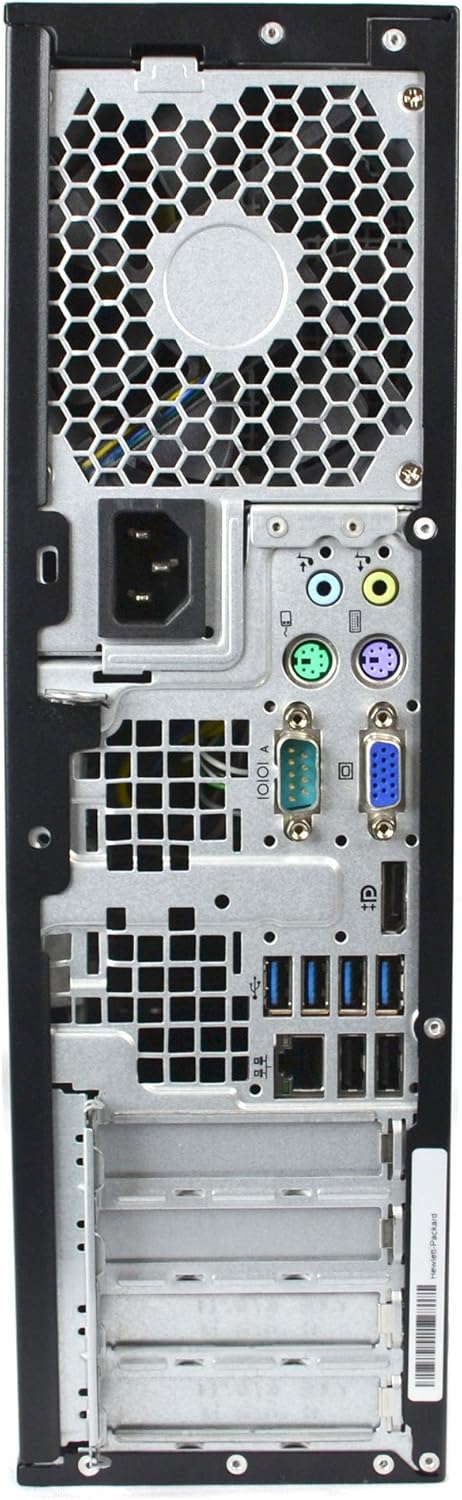
- Connect the video cables from the monitors to the corresponding video output ports on the back of the HP Elite desktop tower. Your system may have VGA, DVI, DisplayPort, or HDMI ports. Ensure a secure connection.
- Connect the power cables from the monitors to a power outlet.

Obrázek 3.1: Zadní view of the HP Elite E7500 desktop tower, highlighting the various connectivity ports including video outputs, USB ports, and audio jacks.
3.2. Připojení periferií
- Klávesnice: Connect the keyboard's USB cable to any available USB port on the desktop tower.
- Myš: Connect the mouse's USB cable to any available USB port on the desktop tower.
- WiFi adaptér: Insert the provided USB WiFi adapter into an available USB port. Drivers for the adapter should install automatically with Windows 10.
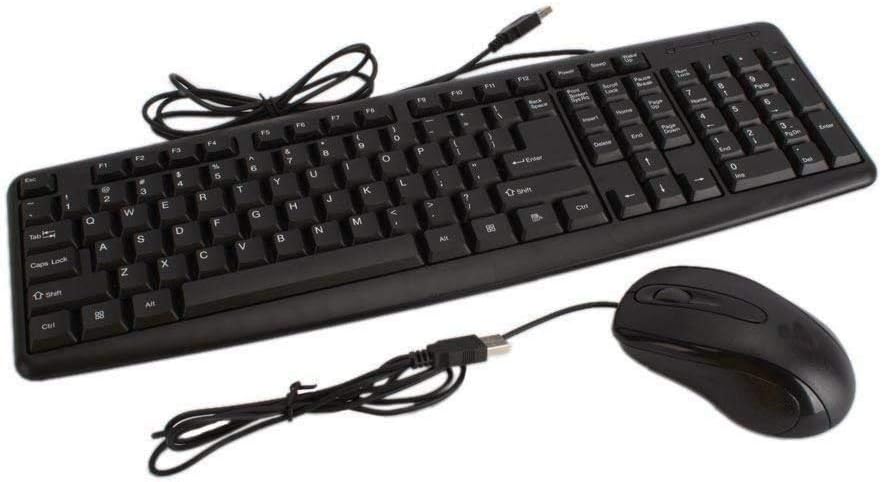
Figure 3.2: Wired keyboard and mouse, typically connected via USB ports on the desktop.

Figure 3.3: A typical USB WiFi adapter, used for wireless internet connection.
3.3. Zapnutí
- Connect the desktop tower's power cable to the power input on the back of the tower, then plug it into a power outlet.
- Stiskněte tlačítko napájení na přední straně stolního počítače.
- Press the power button on each monitor.
- The system will boot into Windows 10. Follow any on-screen prompts for initial setup.
Obrázek 3.4: Přední strana view of the HP Elite E7500 desktop tower, showing the power button and front USB/audio ports.
4. Operating System (Windows 10)
Your HP Elite E7500 Desktop Computer comes with a fresh installation of Windows 10 Home. Here are some basic operating instructions:
- První spuštění: The system may guide you through a brief setup process to personalize your Windows experience, including setting up a user account and connecting to a network.
- Připojení k internetu: If using the WiFi adapter, click the network icon in the system tray (bottom right of the screen), select your network, and enter the password. For wired connections, simply plug an Ethernet cable into the network port on the back of the PC.
- Aktualizace: It is recommended to regularly check for and install Windows updates to ensure system security and performance. Go to Nastavení > Aktualizace a zabezpečení > Windows Update.
- Nastavení dvou monitorů: To configure your dual monitors, right-click on the desktop and select Nastavení displeje. From there, you can arrange your displays, change resolution, and set display modes (e.g., Extend, Duplicate).
5. Klíčové vlastnosti a specifikace
The HP Elite E7500 Desktop Computer is configured with the following specifications:
| Komponent | Specifikace |
|---|---|
| Procesor | Intel Core 2 Duo E7500 @ 2.9 GHz |
| BERAN | 8 GB DDR3 SDRAM |
| Skladování | 1 TB SATA Hard Disk Drive (HDD) |
| Operační systém | Windows 10 Home |
| Grafika | Integrated Graphics (Dedicated Graphics Card Interface: PCI Express) |
| Optická mechanika | DVD mechanika |
| Konektivita | WiFi (802.11bgn), Ethernet |
| USB porty | 10 Total USB Ports |
| Video výstup | DisplayPort, HDMI (may vary based on specific unit/graphics card) |
| Monitory | Dual 19-inch LCD Monitors (Brands Vary) |
6. Údržba
Regular maintenance helps ensure the optimal performance and longevity of your HP Elite E7500 Desktop Computer:
- Udržujte to čisté: Regularly dust the exterior of the computer and monitors with a soft, dry cloth. Use compressed air to clear dust from vents and ports to prevent overheating.
- Aktualizace softwaru: Keep your Windows operating system and all installed software up to date. This includes security patches and driver updates.
- Antivirová ochrana: Ensure you have active antivirus software and perform regular scans to protect against malware.
- Záloha dat: Pravidelně zálohujte důležité filena externí disk nebo do cloudového úložiště, aby se zabránilo ztrátě dat.
- Správné vypnutí: Always shut down the computer properly through the Windows Start menu rather than simply cutting power.
7. Řešení problémů
Zde jsou řešení některých běžných problémů, se kterými se můžete setkat:
7.1. No Display on Monitors
- Zkontrolujte napájení: Ensure both the computer and monitors are plugged in and powered on.
- Zkontrolujte kabely: Verify that all video cables are securely connected to both the computer and monitors. Try reseating them.
- Vstupní zdroj: On your monitor, press the 'Input' or 'Source' button to cycle through available video inputs (e.g., VGA, DVI, HDMI, DisplayPort) to match the connection type.
- Single Monitor Test: If using dual monitors, try connecting only one monitor at a time to isolate the issue.
7.2. Žádné připojení k internetu
- WiFi adaptér: Ensure the USB WiFi adapter is properly inserted and its drivers are installed. Check the network icon in the system tray.
- Ethernetový kabel: If using a wired connection, ensure the Ethernet cable is securely plugged into both the computer and the router/modem.
- Router/modem: Restart your internet router and modem.
- Windows Network Troubleshooter: Right-click the network icon in the system tray and select "Troubleshoot problems."
7.3. Pomalý výkon
- Close Unused Programs: Close any applications running in the background that are not actively being used.
- Vyčištění disku: Run Windows Disk Cleanup to remove temporary files. Hledat "Disk Cleanup" in the Start menu.
- Defragment Hard Drive: For HDD systems, regularly defragmenting the drive can improve performance. Hledat "Defragment and Optimize Drives" in the Start menu.
- Check for Malware: Perform a full system scan with your antivirus software.
8. Záruka a podpora
This HP Elite E7500 Desktop Computer is a renewed product. Please refer to the specific warranty information provided by your seller at the time of purchase. Typically, renewed products come with a limited warranty covering hardware defects.
For technical support, please contact the seller or the Microsoft Authorized Refurbisher (MAR) from whom you purchased the system. Contact information should be included with your purchase documentation.
Additional support resources for Windows 10 can be found on the official Microsoft Support webmísto: support.microsoft.com/en-us/windows