
1. Úvod
The LB-Link BL-WR3000 is a 300Mbps Wireless AP/Client High Speed Router designed to provide reliable and fast wireless connectivity. Featuring three 5dBi high gain omni-directional antennas, it ensures stronger signals and extended transmission distances. This manual provides detailed instructions for setting up, operating, maintaining, and troubleshooting your device to ensure optimal performance and network security.
2. Konec produktuview
2.1 Klíčové vlastnosti
- Supports IEEE 802.11n/b/g and IEEE 802.11.3/3u standards.
- Three 5dBi High Gain Omni-directional Antennas for enhanced coverage.
- MIMO technology for improved wireless transmissions and stability.
- Supports QoS (Quality of Service) Bandwidth Control.
- WPS button for quick and secure wireless setup.
- Supports WDS Bridge mode to easily expand wireless networks.
- Built-in firewall with IP, MAC, and URL filters for network control.
- Supports WPA2, WPA, WEP (128 / 64-bit encryption), WPA-PSK, WPA2-PSK and WPA/WPA2-PSK mixed encryptions.
2.2 Obsah balení
Ověřte, zda váš balíček obsahuje následující položky:
- LB-Link BL-WR3000 Wireless Router
- Napájecí adaptér
- Ethernetový kabel
- Průvodce rychlou instalací
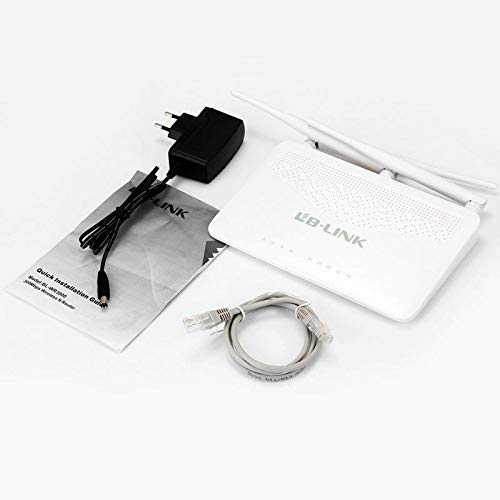
This image shows the typical contents found in the LB-Link BL-WR3000 package: the wireless router unit, a power adapter for electrical connection, an Ethernet cable for wired connections, and a Quick Installation Guide for initial setup.
3. Nastavení
3.1 Fyzické připojení
- Umístění routeru: Place the router in a central location to maximize wireless coverage. Avoid obstructions like thick walls or large metal objects.
- Připojte antény: Ensure the three external antennas are securely attached and oriented vertically for best signal.
- Připojení k napájení: Plug the power adapter into the router's power port and then into a wall outlet. The power indicator light should illuminate.
- Připojení k internetu (WAN): Connect an Ethernet cable from your modem's LAN port to the router's WAN port (usually distinct in color, e.g., yellow).
- Connect to Computer (Optional LAN): For initial setup or wired access, connect an Ethernet cable from your computer to one of the router's LAN ports (usually blue).
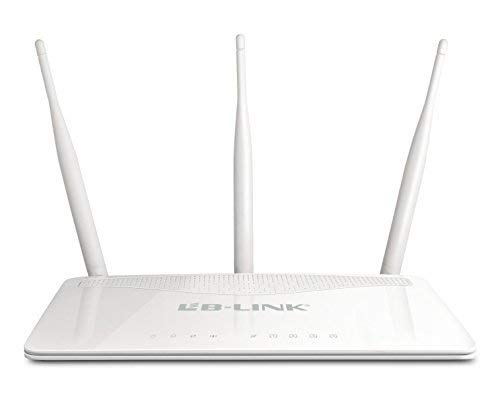
This image displays the front of the LB-Link BL-WR3000 wireless router, featuring three external omni-directional antennas for enhanced signal coverage. The front panel includes multiple LAN ports (blue), a WAN port (yellow), and a power input.
3.2 Počáteční konfigurace
- Přístup k Web Rozhraní: Otevřete a web browser on a computer connected to the router (either wired or wirelessly using the default SSID). Enter the router's default IP address (e.g., 192.168.1.1 or 192.168.0.1) do adresního řádku a stiskněte klávesu Enter.
- Přihlášení: Zadejte výchozí uživatelské jméno a heslo (obvykle
adminfor both, refer to the Quick Installation Guide for specifics). - Spusťte Průvodce nastavením: Follow the on-screen instructions of the setup wizard to configure your internet connection type (e.g., PPPoE, Dynamic IP, Static IP) and set up your wireless network name (SSID) and password.
- Změnit výchozí přihlašovací údaje: For security, it is highly recommended to change the default login username and password for the router's web rozhraní.
4. Provozní režimy
The BL-WR3000 supports multiple operating modes to suit various networking needs.
4.1 Režim routeru
In Router Mode, the device acts as the primary connection point for your network, sharing an internet connection with multiple wired and wireless devices. It performs Network Address Translation (NAT) and acts as a DHCP server.
4.2 Režim přístupového bodu (AP)
In AP Mode, the device connects to an existing wired network and broadcasts a wireless signal, allowing wireless devices to connect to the wired network. It essentially extends the reach of a wired network wirelessly.
4.3 Klientský režim
In Client Mode, the device acts as a wireless adapter for a wired device. It connects wirelessly to an existing wireless network and provides internet access to a single wired device (e.g., a desktop PC or gaming console) via its Ethernet port.
4.4 WDS Bridge Mode
Wireless Distribution System (WDS) Bridge Mode allows the router to wirelessly connect to another router or access point to expand the wireless network coverage without the need for cables. This is useful for extending your Wi-Fi signal to areas with weak coverage.
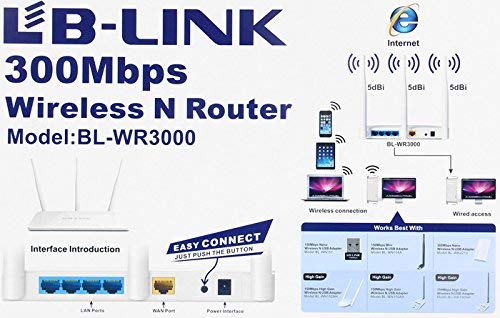
This diagram highlights the various ports and buttons on the rear panel of the LB-Link BL-WR3000 router. It shows the LAN ports, WAN port, power interface, and the WPS (Wi-Fi Protected Setup) button for quick and secure wireless connections.
5. Bezpečnostní prvky
The BL-WR3000 offers robust security features to protect your network from unauthorized access.
- Bezdrátové šifrování: Supports WPA2, WPA, WEP (128 / 64-bit), WPA-PSK, WPA2-PSK, and WPA/WPA2-PSK mixed encryption protocols. WPA2-PSK is recommended for the strongest security.
- WPS (Wi-Fi Protected Setup): Allows for quick and secure connection of WPS-enabled devices by simply pressing the WPS button on the router and the client device, or by entering a PIN.
- SSID Broadcasting Control: You can choose to hide your wireless network name (SSID) to make it less visible to unauthorized users.
- Filtrování MAC adres: Restrict network access to only specific devices based on their unique MAC addresses.
- Built-in Firewall: Provides basic network protection against external threats.
- IP, MAC, and URL Filtrování: Allows administrators to control access to specific websites or block certain devices from accessing the internet.
6. Údržba
Pravidelná údržba pomáhá zajistit dlouhou životnost a optimální výkon vašeho routeru.
- Aktualizace firmwaru: Periodically check the LB-Link official webweb pro aktualizace firmwaru. Aktualizace firmwaru může zlepšit výkon, přidat nové funkce a opravit bezpečnostní zranitelnosti.
- Běžný restart: Rebooting the router every few weeks can resolve minor performance issues and clear temporary data.
- Fyzické čištění: Keep the router free from dust and debris. Ensure ventilation holes are not blocked to prevent overheating.
- Konfigurace zálohy: It is advisable to back up your router's configuration settings before performing major changes or firmware updates.
7. Řešení problémů
This section addresses common issues you might encounter with your BL-WR3000 router.
- Žádný přístup k internetu:
- Check if the WAN indicator light on the router is on.
- Ujistěte se, že je ethernetový kabel z modemu bezpečně připojen k portu WAN routeru.
- Restartujte modem a poté router.
- Ověřte nastavení připojení k internetu v routeru web interface (e.g., PPPoE username/password).
- Weak Wireless Signal or Frequent Disconnections:
- Relocate the router to a more central position, away from obstacles and interference sources (e.g., cordless phones, microwaves).
- Adjust the orientation of the antennas.
- Check for overlapping Wi-Fi channels with neighboring networks and try changing your router's wireless channel in the settings.
- Nelze přistupovat k routerům Web Rozhraní:
- Ujistěte se, že je váš počítač připojen k routeru (kabelem nebo bezdrátově).
- Verify that your computer's IP address is set to obtain automatically (DHCP).
- Zkuste vymazat mezipaměť prohlížeče nebo použít jiný prohlížeč.
- If you forgot the login credentials, you may need to perform a factory reset (see below).
- Obnovení továrního nastavení: If you encounter persistent issues or forget your login password, you can perform a factory reset. With the router powered on, press and hold the reset button (usually a small pinhole button) for about 5-10 seconds until the lights flash. This will restore the router to its default factory settings, requiring you to reconfigure it.
8. Specifikace
| Funkce | Specifikace |
|---|---|
| Značka | LB-Link |
| Číslo modelu | BL-WR3000 |
| Bezdrátové standardy | IEEE 802.11n, IEEE 802.11g, IEEE 802.11b |
| Ethernetové standardy | IEEE 802.3, IEEE 802.3u |
| Rychlost bezdrátového připojení | Až 300 Mbps |
| Typ antény | 3x 5dBi Omni-directional Antennas |
| Frekvenční pásmo | 2.4 GHz |
| Rozhraní | 1x 10/100M auto-negotiation WAN port, 4x 10/100M auto-negotiation LAN ports |
| Zabezpečení | WPA2, WPA, WEP (128 / 64-bit), WPA-PSK, WPA2-PSK, WPA/WPA2-PSK mixed, MAC Address Filtering, SSID Broadcast Enable/Disable |
| Vlastnosti | QoS, Firewall, IP/MAC/URL Filtering, WDS Bridge, WPS |
| Velikost nainstalované paměti RAM | 64 MB |
| Kompatibilní zařízení | Laptop, Desktop, Smartphones, Tablets |
| Barva | Bílý |
9. Záruka a podpora
9.1 Informace o záruce
The LB-Link BL-WR3000 router comes with a 3letá záruka na výměnu from the date of purchase. Please retain your proof of purchase for warranty claims. The warranty covers manufacturing defects and malfunctions under normal use. It does not cover damage caused by misuse, accidents, unauthorized modifications, or acts of nature.
9.2 Technická podpora
For technical assistance, troubleshooting beyond this manual, or warranty inquiries, please contact LB-Link customer support. Refer to the official LB-Link webNejnovější kanály podpory naleznete na webových stránkách nebo na kontaktních informacích uvedených v obalu produktu.
- Online podpora: Visit the official LB-Link webweb s častými dotazy, ovladači ke stažení a zdroji podpory.
- E-mailová podpora: Contact customer service via email for detailed inquiries.
- Telefonická podpora: Check the LB-Link webweb s regionálními telefonními čísly podpory.