
1. Úvod
This manual provides comprehensive instructions for the installation, operation, and maintenance of your Sierra Wireless AirLink LX40 LTE Router. The LX40 is a compact LTE router designed for IoT and edge processing applications, offering reliable cellular connectivity.
Key features include 4G LTE Cat 4 support, Power-over-Ethernet (PoE) capability for flexible deployment, and compatibility with the ALEOS Application Framework (AAF) for advanced edge processing. It also integrates with AirLink Complete for remote network management and support.
2. Obsah balení
Ověřte, zda jsou v balení produktu přítomny všechny položky:
- Sierra Wireless AirLink LX40 LTE Router Unit
- Napájecí jednotka
- LTE Antennas (typically two)
- Ethernetový kabel
- Stručný průvodce a bezpečnostní informace
3. Fyzický overview
Familiarize yourself with the physical components and connectors of the LX40 router.
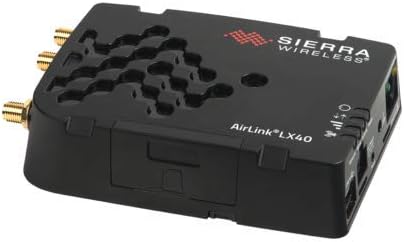
Image: Front-top view of the Sierra Wireless AirLink LX40 LTE Router, showing the Sierra Wireless logo, AirLink LX40 model name, ventilation pattern, and antenna connectors on the left side. The right side shows LED indicators and ports.
3.1 Indikátory na předním panelu
- LED napájení: Indikuje stav napájení.
- LED diody síly signálu: Multiple LEDs indicating cellular signal strength.
- LED sítě: Indicates cellular network connection status.
3.2 Rear/Side Panel Connectors
- Anténní konektory: SMA connectors for LTE antennas.
- Ethernetové porty: RJ45 ports for wired network connections, supporting PoE.
- Příkon: Konektor pro připojení externího napájecího adaptéru.
- Slot pro SIM kartu: Slot for inserting the cellular SIM card.
4. Nastavení
4.1 Instalace hardwaru
- Vložte SIM kartu: Open the SIM card slot cover and carefully insert your activated cellular SIM card into the designated slot until it clicks into place. Ensure correct orientation.
- Připojit antény: Screw the provided LTE antennas onto the corresponding antenna connectors on the router. Hand-tighten only.
- Připojení Ethernetu (volitelné): If connecting a device via wired network, plug one end of an Ethernet cable into an Ethernet port on the LX40 and the other end into your device (e.g., computer, switch).
- Připojte napájení: Plug the power adapter into the router's power input and then into a suitable power outlet.
4.2 Počáteční zapnutí
Upon connecting power, the router will begin its startup sequence. Observe the Power LED, which should illuminate steadily. The Signal Strength and Network LEDs will flash and then stabilize as the router establishes a cellular connection. This process may take a few minutes.
5. Provoz
5.1 LED indikátory
Understanding the LED indicators is crucial for monitoring the router's status:
| LED | Postavení | Popis |
|---|---|---|
| Moc | Plně zelená | Zařízení je zapnuto. |
| Signál | Varies (1-3 Green) | Indicates cellular signal strength (more LEDs = stronger signal). |
| Síť | Plně zelená | Připojeno k mobilní síti. |
| Síť | Blikající zelená | Attempting to connect to cellular network. |
5.2 Přístup k Web Rozhraní
Chcete-li nakonfigurovat pokročilá nastavení, přejděte do nastavení routeru web-rozhraní pro správu:
- Ensure your computer is connected to the LX40 via an Ethernet cable.
- Otevřete a web prohlížeč (např. Chrome, Firefox).
- Enter the router's default IP address (commonly
192.168.1.1or192.168.13.31, refer to the Quick Start Guide for exact details) into the address bar and press Enter. - Log in using the default username and password (also found in the Quick Start Guide or on the device label).
The LX40 also supports the ALEOS Application Framework (AAF) for custom edge processing and IoT applications, allowing for advanced customization and integration.
6. Údržba
6.1 aktualizací firmwaru
Pravidelně kontrolujte podporu Sierra Wireless. webweb s aktualizacemi firmwaru. Udržování firmwaru routeru aktuálního zajišťuje optimální výkon, zabezpečení a přístup k novým funkcím. Pečlivě dodržujte pokyny dodané s balíčkem aktualizace firmwaru.
6.2 Čištění
To clean the router, disconnect it from power. Use a soft, dry cloth to wipe the exterior surfaces. Avoid using liquid cleaners or abrasive materials, as these can damage the device.
7. Řešení problémů
If you encounter issues with your AirLink LX40 router, consider the following basic troubleshooting steps:
- Bez napájení: Ujistěte se, že je napájecí adaptér bezpečně připojen k routeru i k funkční zásuvce. Zkontrolujte kontrolku napájení.
- Bez mobilního připojení: Verify the SIM card is correctly inserted and activated. Check the Signal Strength and Network LEDs. Ensure antennas are properly attached. Try restarting the router.
- Žádný přístup k internetu: If the Network LED is solid, but you have no internet, check your device's network settings. Ensure the router's cellular data plan is active.
- Nelze přistupovat Web Rozhraní: Confirm your computer is connected via Ethernet and its IP address is in the same subnet as the router. Clear your browser's cache or try a different browser.
For more detailed troubleshooting guides and solutions, please visit the official Sierra Wireless support webmísto.
8. Specifikace
The following table outlines key technical specifications for the Sierra Wireless AirLink LX40 LTE Router:
| Funkce | Detail |
|---|---|
| Název modelu | LX40 |
| Technologie připojení | Ethernet, Cellular (LTE) |
| Standard bezdrátové komunikace | 802.11ac (Note: Product description states 'No Wi-Fi' for this specific model, verify configuration) |
| Třída frekvenčního pásma | Dvoupásmový |
| Kompatibilní zařízení | Personal Computer, IoT Devices |
| Doporučená použití pro produkt | Home, Industrial IoT, Edge Computing |
| Barva | Černý |
| Typ antény | Fixed (External SMA connectors for user-supplied antennas) |
| Hmotnost položky | 13.6 unce |
| Rozměry balení | 6.1 x 5.7 x 2.1 palce |
9. Záruka a podpora
The Sierra Wireless AirLink LX40 LTE Router is covered by a manufacturer's warranty. Please refer to the warranty documentation included with your product or visit the official Sierra Wireless webstránky pro podrobné podmínky.
For technical assistance, product registration, and access to the latest resources, visit the Sierra Wireless Support Portal. Your purchase includes the first year of network management and support with AirLink Complete, providing comprehensive assistance for your device.
10. Oficiální produktová videa
V poskytnutých datech nebyla k tomuto produktu nalezena žádná oficiální produktová videa od prodejce.