
HP 9015
Uživatelská příručka k bezdrátové barevné multifunkční tiskárně HP OfficeJet Pro 9015
Model: 9015
Zavedení
This manual provides comprehensive instructions for the HP OfficeJet Pro 9015 All-in-One Wireless Color Printer. It covers setup, operation, maintenance, and troubleshooting to ensure optimal performance and user experience. Please read this manual thoroughly before using your printer.

Obrázek: Přední strana view of the HP OfficeJet Pro 9015 All-in-One Wireless Color Printer, showing its compact design and front control panel.
Co je v krabici
Před zahájením instalace ověřte, zda jsou všechny komponenty přítomny:
- Tiskárna HP OfficeJet Pro 9015 All-in-One
- Inkjet Cartridges (Setup cartridges)
- Napájecí kabel
- Referenční příručka
- Regulatory and Flyer and Ink Caution Flyer
- Instalační plakát
Průvodce nastavením
Follow these steps to set up your HP OfficeJet Pro 9015 printer:
1. Vybalení a umístění
- Vyjměte tiskárnu z obalu a odstraňte všechny ochranné pásky a balicí materiály.
- Place the printer on a stable, flat surface with adequate space for ventilation and paper trays.
2. Připojení napájení
- Připojte napájecí kabel k zadní straně tiskárny a poté k uzemněné elektrické zásuvce.
- Stisknutím tlačítka Napájení zapněte tiskárnu.
3. Instalace inkoustové kazety
- Otevřete přístupová dvířka inkoustových kazet.
- Insert the HP setup ink cartridges into their corresponding slots until they click into place.
- Zavřete přístupová dvířka inkoustových kazet.
4. Initial Configuration and Wireless Setup
- Follow the instructions on the printer's control panel to select your language, country/region, and date/time.
- The printer will guide you through connecting to your wireless network. Select your Wi-Fi network from the list and enter the password if prompted.
- Alternatively, for a wired connection, connect an Ethernet cable from your router to the printer's Ethernet port.

Image: The HP OfficeJet Pro 9015 printer highlighting key features such as self-healing Wi-Fi, dual-pass 2-sided copy and scan, remote print and scan with HP Smart app, 250-sheet input tray, customizable Smart Tasks, and voice-activated printing.
5. Instalace softwaru
- Na počítači nebo mobilním zařízení přejděte na 123.hp.com to download and install the HP Smart app and printer drivers.
- Follow the on-screen instructions to complete the software installation and register your printer.
Návod k obsluze
Tisk dokumentů
- Load paper into the input tray. The printer supports various sizes including 3x5, 4x6, 5x7, 8x10, and up to 8.5x14 inch.
- V počítači nebo mobilním zařízení otevřete dokument, který chcete vytisknout.
- Select "Print" from the application menu. Choose the HP OfficeJet Pro 9015 as your printer.
- Adjust print settings such as color/monochrome, single-sided/duplex (automatic), paper type, and quality.
- Click "Print". The printer can achieve up to 22 ppm for monochrome and 18 ppm for color.
Skenování dokumentů
The printer offers both flatbed and automatic document feeder (ADF) scanning.
- Používání automatického podavače dokumentů: Place documents face up in the automatic document feeder. The ADF can handle up to 35 pages for two-sided scanning.
- Používání plochého lože: Lift the scanner lid and place the document face down on the glass.
- From the printer's control panel or the HP Smart app, select "Scan".
- Choose scan settings such as destination (computer, email, cloud), resolution, and file typ.
- Spusťte skenování.

Image: A user placing documents into the automatic document feeder of the HP OfficeJet Pro 9015 for two-sided copying and scanning.
Kopírování dokumentů
- Vložte originální dokument na sklo skeneru nebo do automatického podavače dokumentů (ADF).
- Na ovládacím panelu tiskárny vyberte možnost „Kopírovat“.
- Adjust settings such as number of copies (up to 99), color/monochrome, and two-sided copying.
- Stiskněte tlačítko „Spustit kopírování“.
Using Smart Tasks
Smart Tasks allow you to automate repetitive tasks like scanning to email or cloud services. Access and customize Smart Tasks via the HP Smart app or the printer's control panel.
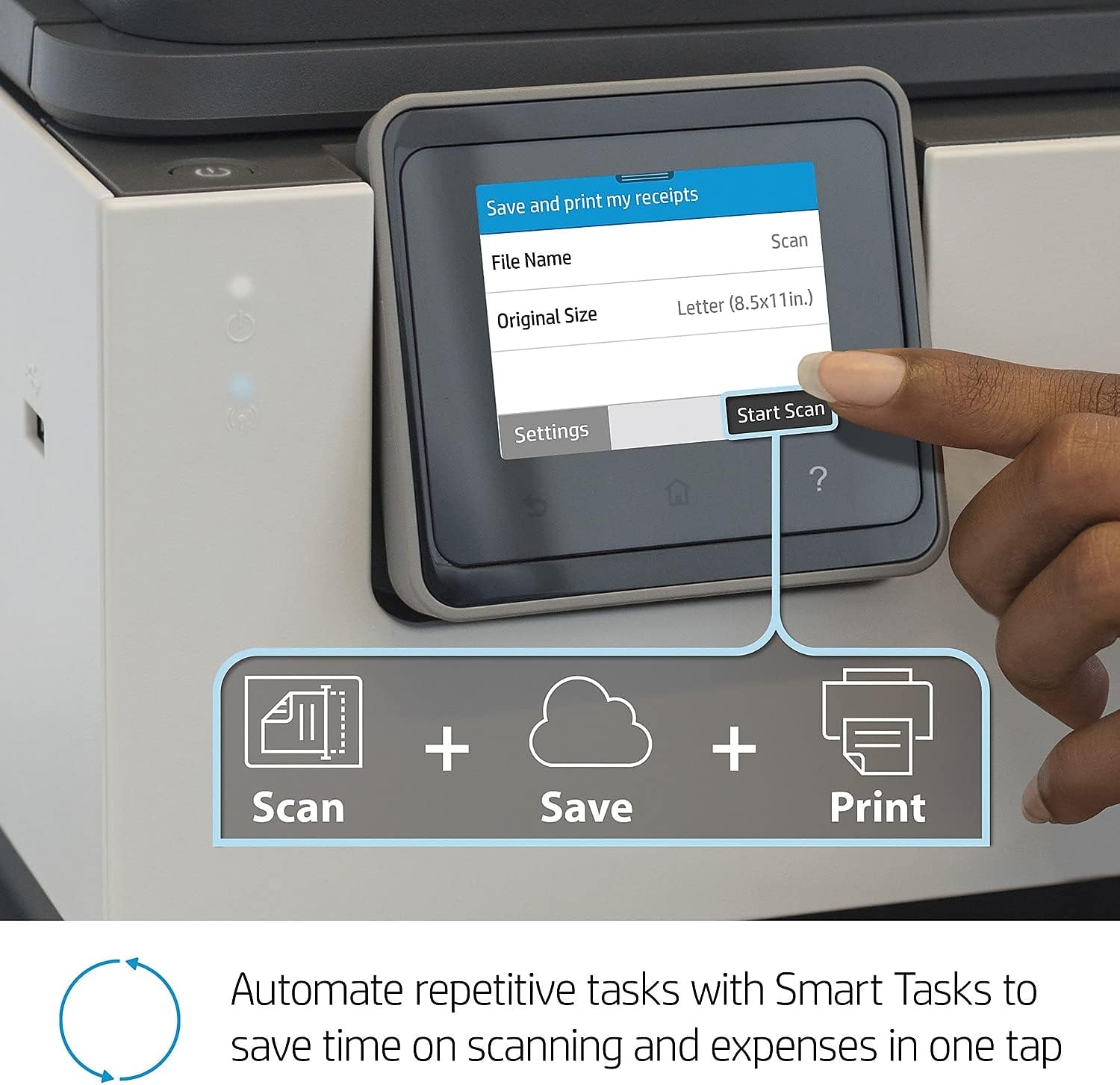
Image: A close-up of the HP OfficeJet Pro 9015's touchscreen display showing the "Smart Tasks" menu, illustrating how to automate scanning and expense tracking.
Funkce aplikace HP Smart
The HP Smart app provides remote printing and scanning capabilities, monitors ink levels, and allows for easy mobile printing.

Image: A smartphone displaying the HP Smart app interface, showing options for scanning, printing photos, printing documents, and monitoring ink levels.
Voice-Activated Printing
The HP OfficeJet Pro 9015 is compatible with Amazon Alexa and Google Assistant for voice-activated printing commands. Refer to your smart assistant's documentation for specific command syntax.
Údržba
Výměna inkoustových kazet
- When an ink cartridge is low or empty, a message will appear on the control panel or in the HP Smart app.
- Otevřete přístupová dvířka inkoustových kazet.
- Press the tab on the old cartridge to release it and pull it out.
- Unpack the new HP original ink cartridge and insert it into the correct slot until it clicks.
- Zavřete přístupová dvířka inkoustových kazet.
Čištění tiskárny
- Pravidelně otírejte vnější povrch tiskárny měkkým hadříkem, který nepouští vlákna.
- Očistěte sklo skeneru měkkým hadříkem a čističem skla (neabrazivním).
- Refer to the HP Smart app or printer settings for options to clean printheads or align cartridges if print quality issues arise.
Aktualizace firmwaru
HP periodically releases firmware updates to improve printer performance and security. Ensure your printer is connected to the internet to receive automatic updates or check for them manually through the printer's control panel or HP Smart app.
Odstraňování problémů
Problémy s připojením
- Tiskárna se nepřipojuje k Wi-Fi: Ensure your Wi-Fi router is on and within range. The HP OfficeJet Pro 9015 features self-healing Wi-Fi, which attempts to detect and resolve connectivity issues automatically. You can also restart your router and printer.
- Cannot print from device: Verify that your computer or mobile device is connected to the same network as the printer. Check printer status in the HP Smart app.

Image: A visual representation of the HP OfficeJet Pro 9015's self-healing Wi-Fi capability, showing it detecting and resolving connectivity problems.
Problémy s kvalitou tisku
- Pruhy nebo vybledlé výtisky: Check ink levels and replace any low or empty cartridges. Run a printhead cleaning cycle from the printer's maintenance menu or HP Smart app.
- Misaligned text or images: Proveďte zarovnání tiskové hlavy z nabídky údržby tiskárny.
Zaseknutý papír
- If a paper jam occurs, the printer's control panel will display instructions.
- Carefully open access doors and remove any jammed paper, pulling gently in the direction of the paper path.
- Ujistěte se, že je papír správně vložen a že vstupní zásobník není přeplněný.
Obavy o bezpečnost
The HP OfficeJet Pro 9015 includes best-in-class security features to protect against viruses and malware. Ensure your printer's firmware is up to date and use strong network passwords.

Image: A conceptual image illustrating the HP OfficeJet Pro 9015's best-in-class security features protecting the device from digital threats.
Technické specifikace
| Funkce | Detail |
|---|---|
| Název modelu | OfficeJet Pro 9015 |
| Rozměry produktu (D x Š x V) | 10.94 cm x 17.3 cm x 13.48 cm |
| Hmotnost položky | 3.1 libry |
| Technologie připojení | Ethernet, USB, Wi-Fi |
| Technologie tisku | Inkoustové |
| Tiskový výstup | Barva |
| Maximální rychlost tisku (černobíle) | 22 ppm |
| Maximální rychlost tisku (barevně) | 18 ppm |
| Maximální rozlišení černobílého tisku | 1200 x 1200 dpi |
| Typ skeneru | Listový |
| Maximální vstupní kapacita listu | 250 listů |
| Oboustranný tisk | Automatický |
| Další funkce tiskárny | Copy, Fax, Scan |
| Kompatibilní zařízení | Notebooky, počítače, chytré telefony |
| Typ ovladače | Amazon Alexa, Vera |
| Spotřeba energie | 30 wattů |
Záruka a podpora
Informace o záruce
The HP OfficeJet Pro 9015 All-in-One Wireless Color Printer comes with a Limited Warranty. For specific terms and conditions, please refer to the warranty documentation included with your product or visit the official HP support webmísto.
Zákaznická podpora
Pro další pomoc, technickou podporu nebo stažení nejnovějších ovladačů a softwaru navštivte oficiální stránky podpory HP. website or contact HP customer service. You can find contact information and resources at support.hp.com.
Důležité právní upozornění
Tato tiskárna používá dynamické zabezpečení, které může být pravidelně aktualizováno aktualizacemi firmwaru. Tiskárna je určena k použití výhradně s kazetami s originálním čipem HP. Kazety s čipem jiného výrobce než HP nemusí fungovat nebo mohou přestat fungovat. Více informací naleznete na adrese: www.hp.com/learn/ds
Ask a question about this manual
Ask about setup, troubleshooting, compatibility, parts, safety, or missing instructions. Manuals+ will review the question and use this page’s manual context to help answer it.