
Zavedení
This manual provides comprehensive instructions for the installation, operation, and maintenance of your Aerocool LUX RGB 650M semi-modular power supply. The LUX RGB 650M is designed to deliver stable power to your PC components while offering customizable RGB lighting effects. Please read this manual thoroughly before installation and use to ensure proper functionality and safety.

Obrázek: Úhlový view of the Aerocool LUX RGB 650M Power Supply, showcasing its black finish and RGB lighting panel.
Bezpečnostní informace
- Před instalací nebo údržbou se ujistěte, že je zdroj napájení odpojen od síťové zásuvky.
- Neotevírejte napájecí jednotku. Vysoká hlasitosttages are present inside, which can cause electric shock.
- Install the power supply in a well-ventilated area. Do not block the ventilation openings.
- This product is designed for use in personal computers. Do not use it for any other purpose.
- Chraňte zdroj napájení před vodou, vlhkostí a extrémními teplotami.
- Use only the cables provided with the power supply. Using third-party cables may cause damage.
Obsah balení
Ověřte, zda jsou v balení přítomny všechny položky:
- Aerocool LUX RGB 650M Power Supply Unit
- Modular Cable Set (PCIe, SATA, Peripheral)
- Main ATX 20+4 Pin Cable (fixed)
- CPU 4+4 Pin Cable (fixed)
- AC napájecí kabel
- Montážní šrouby
- Uživatelská příručka
Nastavení a instalace
Follow these steps to install your Aerocool LUX RGB 650M power supply:
- Připravte si počítačovou skříň: Ujistěte se, že je počítač vypnutý a odpojený ze zásuvky. Otevřete skříň počítače, abyste se dostali k montážní oblasti napájecího zdroje.
- Montáž napájecího zdroje: Carefully slide the LUX RGB 650M into the designated power supply bay in your PC case. Secure it with the provided mounting screws.
- Connect Fixed Cables:
- Připojte 20+4 Pin ATX cable to your motherboard's main power connector.
- Připojte 4+4 Pin CPU cable to your motherboard's CPU power connector.
- Připojení modulárních kabelů: Identify the necessary modular cables for your components (graphics card, SSDs/HDDs, optical drives).
- Connect the required Kabely PCIe to your graphics card(s).
- Připojit SATA napájecí kabely to your storage drives (SSDs, HDDs).
- Připojit Peripheral (Molex) cables for any other components requiring them.

Obrázek: Úhlový view of the Aerocool LUX RGB 650M Power Supply, illustrating the semi-modular design with fixed and detachable cables.
- Správa kabelů: Utilize the semi-modular design to manage cables efficiently, improving airflow and aesthetics within your PC case.
- Connect RGB:
- For motherboard synchronization, connect the power supply's Addressable RGB cable to a +5V Addressable RGB header on your compatible motherboard.
- If your motherboard does not have an Addressable RGB header, you can control the lighting effects directly via the LED control button on the power supply.
- Připojení napájení: Connect the AC power cord to the power supply's input socket and then to a wall outlet. Ensure the power switch on the PSU is in the OFF (0) position before plugging it in.
- System Configuration Note: For optimal performance and stability, ensure your system's power requirements do not exceed the PSU's capacity. A recommended maximum configuration for this 650W model is an Intel i5 processor, an RTX 3060 graphics card, and 16GB DDR4 RAM. For precise power calculations, consult online PSU calculators.
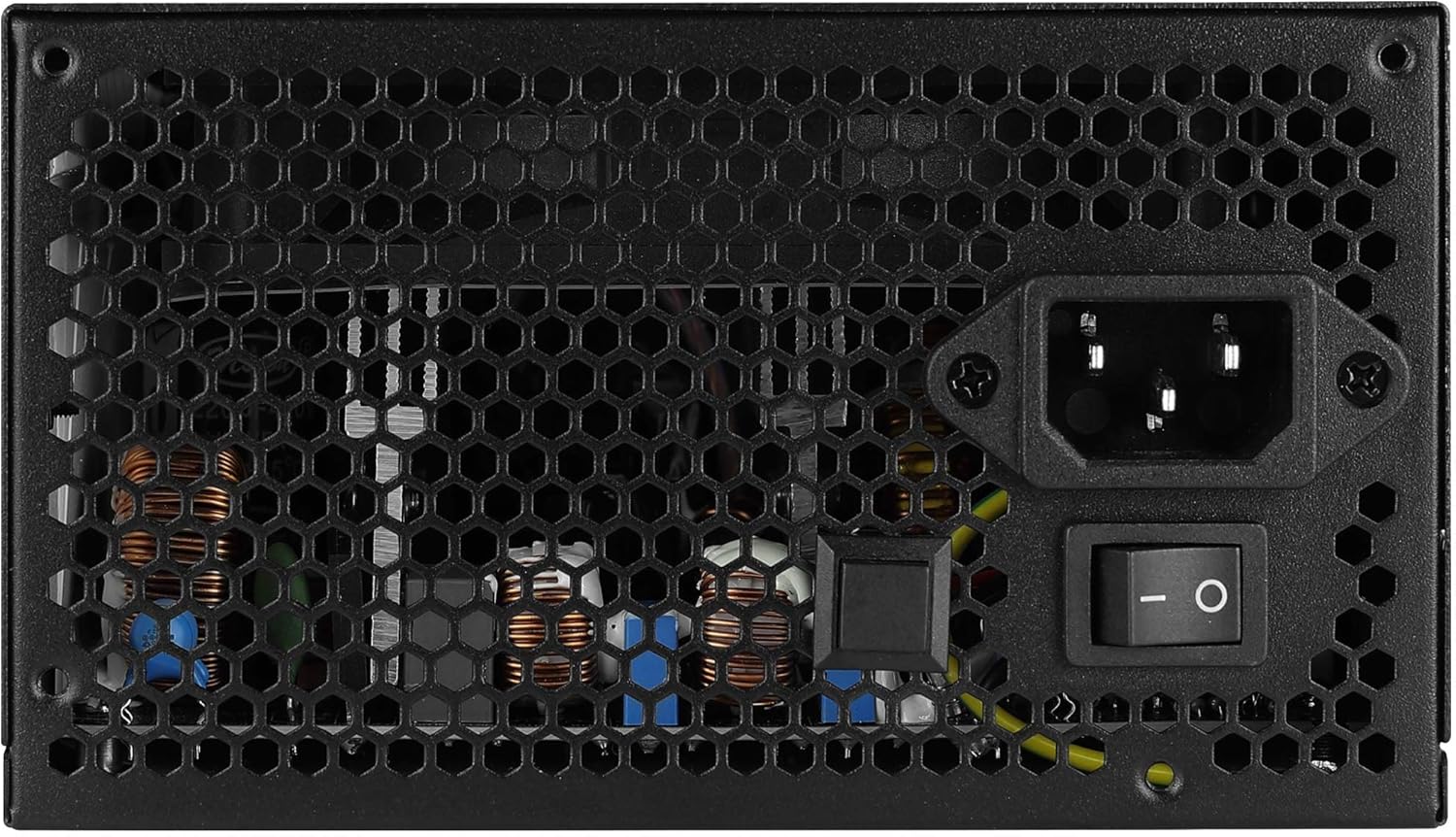
Obrázek: Zadní view of the Aerocool LUX RGB 650M Power Supply, showing the AC power input, power switch, and ventilation grille.
Návod k obsluze
Po úspěšné instalaci postupujte podle těchto kroků pro obsluhu napájecího zdroje:
- Zapnutí: Flip the power switch on the rear of the power supply to the ON (I) position. Then, power on your computer using the case's power button.
- Ovládání RGB osvětlení:
- Via LED Control Button: If not connected to a motherboard ARGB header, press the dedicated LED control button on the power supply to cycle through 13 predefined lighting effects.
- Prostřednictvím softwaru základní desky: If connected to a +5V Addressable RGB header on your motherboard, you can control and synchronize the power supply's lighting effects using your motherboard's RGB software (e.g., ASUS Aura Sync, MSI Mystic Light Sync, Gigabyte RGB Fusion, ASRock Polychrome Sync).
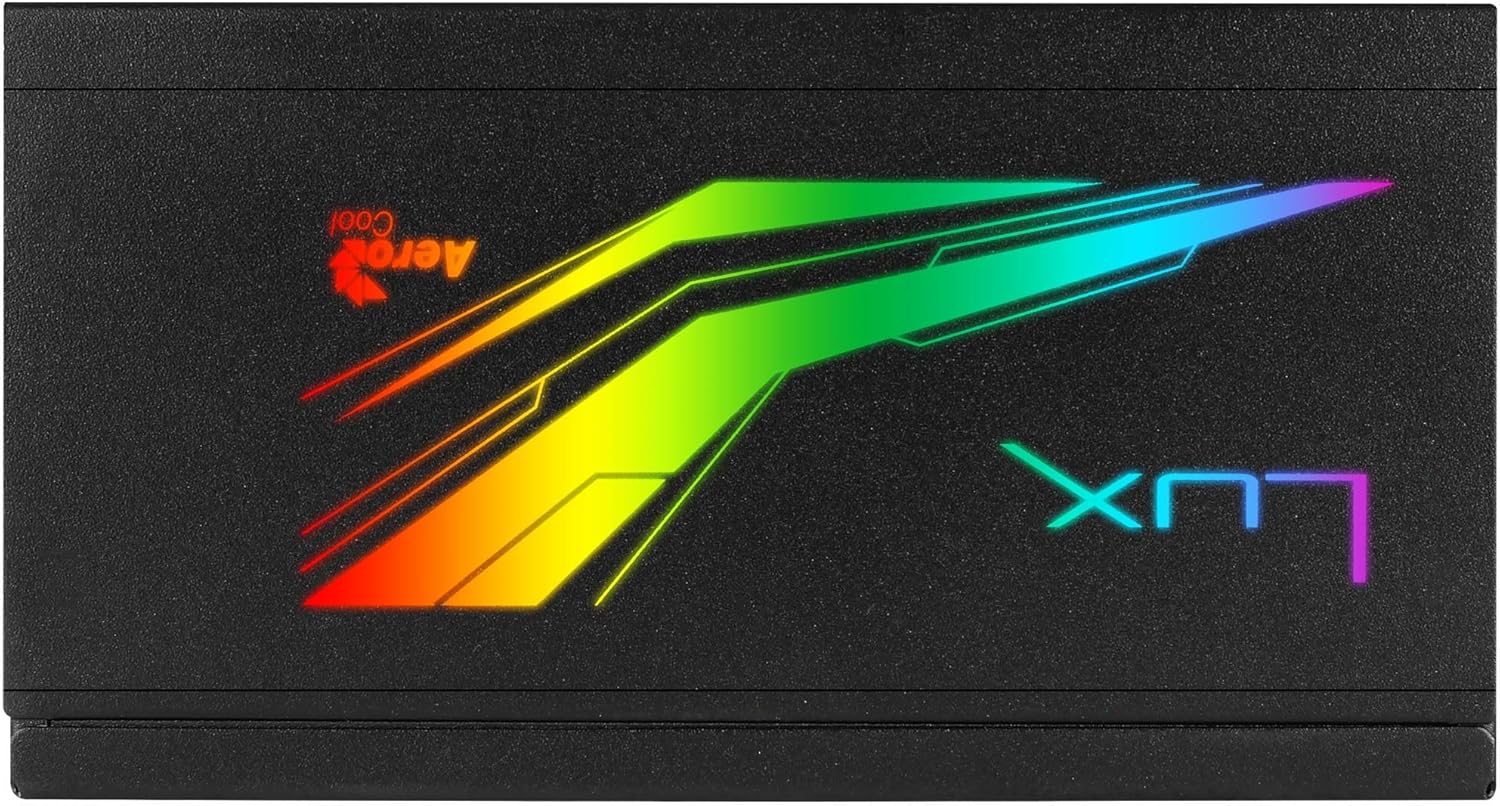
Obrázek: Nahoře view of the Aerocool LUX RGB 650M Power Supply, highlighting the integrated RGB lighting panel with the "LUX" and "AeroCool" logos.
Údržba
Správná údržba zajišťuje dlouhou životnost a optimální výkon vašeho zdroje napájení:
- Čištění prachu: Periodically clean the power supply's fan and ventilation grilles to prevent dust buildup, which can impede airflow and cooling. Use compressed air for best results. Ensure the power supply is off and unplugged before cleaning.
- Proud vzduchu: The LUX RGB 650M features a 30% increased ventilation area for enhanced airflow. Ensure your PC case has adequate ventilation to support efficient heat dissipation from the power supply.
- Provoz ventilátoru: The 12cm silent black fan operates with optimized thermal fan speed control, adjusting its speed based on temperature to maintain quiet operation and effective cooling.

Obrázek: Boční view of the Aerocool LUX RGB 650M Power Supply, highlighting the extensive honeycomb ventilation pattern for improved airflow.
Odstraňování problémů
Pokud narazíte na problémy se zdrojem napájení, podívejte se na následující běžné problémy a jejich řešení:
- Systém není napájen:
- Zkontrolujte, zda je napájecí kabel bezpečně připojen k napájení i k elektrické zásuvce.
- Ensure the power switch on the rear of the PSU is in the ON (I) position.
- Verify that all power cables (20+4 Pin ATX, 4+4 Pin CPU, PCIe, SATA) are correctly and firmly connected to their respective components.
- Otestujte zásuvku ve zdi pomocí jiného zařízení, abyste se ujistili, že je pod proudem.
- Nestabilita/pády systému:
- Ensure your system's power draw does not exceed the 650W capacity of the PSU. Overloading can cause instability.
- Zkontrolujte, zda nejsou uvolněné kabelové spoje.
- Ensure adequate ventilation within the PC case to prevent overheating.
- Nefunkční RGB osvětlení:
- If using the LED control button, ensure it is being pressed correctly to cycle effects.
- If connected to a motherboard ARGB header, verify the connection is secure and that your motherboard's RGB software is installed and configured correctly. Ensure it's a +5V ARGB header, not a +12V RGB header.
Specifikace

Image: Electrical specifications label for the Aerocool LUX RGB 650M Power Supply, detailing voltage a proudové výstupy.
| Funkce | Detail |
|---|---|
| Číslo modelu | LUXRGB650M |
| Značka | AeroCool |
| Výkon | 650 wattů |
| Certifikace účinnosti | 80Plus 230V EU Bronze (up to 88%+ efficiency) |
| Form Factor | ATX |
| Návrh kabeláže | Polomodulární |
| Způsob chlazení | Air (12cm silent black fan with optimized thermal speed control) |
| RGB osvětlení | Prism RGB (13 predefined effects via button, compatible with +5V Addressable RGB motherboards) |
| Vstupní objemtage | 115-230 voltů |
| Rozměry (D x Š x V) | 16 x 15 x 8.6 cm |
| Hmotnost | 1.5 kg |
| Kompatibilní zařízení | Osobní počítač |
Záruka
The Aerocool LUX RGB 650M Power Supply comes with a 2-letá záruka on spare parts. Please retain your proof of purchase for warranty claims. The warranty covers defects in materials and workmanship under normal use. It does not cover damage caused by misuse, accident, modification, or unauthorized repair.
Podpora
For technical assistance, troubleshooting beyond this manual, or warranty inquiries, please contact AeroCool customer support. Visit the official AeroCool webstránky s kontaktními informacemi a dalšími zdroji.
Online zdroje: www.aerocool.io