
PIX-LINK LV-WR07
Uživatelská příručka k bezdrátovému routeru PIX-LINK LV-WR07
Model: LV-WR07
1. Úvod
Thank you for choosing the PIX-LINK LV-WR07 Wireless Router. This device is designed to provide a high-speed wireless network connection for your home or small office. With 300Mbps wireless speed and two external antennas, it ensures stable and wide-ranging Wi-Fi coverage. This manual will guide you through the setup, operation, and maintenance of your new router.

Image 1.1: The PIX-LINK LV-WR07 Wireless Router, showcasindíky kompaktnímu provedení a dvěma externím anténám.
2. Vlastnosti produktu
- Vysokorychlostní bezdrátové připojení: Up to 300Mbps data transmission rate, ideal for smooth HD streaming, online gaming, and fast web procházení.
- Rozšířené pokrytí: Equipped with two external antennas to ensure a strong and stable Wi-Fi signal across your space.
- Více portů: Features 5 LAN ports for reliable wired connections to devices like desktop computers, smart TVs, and gaming consoles.
- Funkce WPS: Supports Wi-Fi Protected Setup (WPS) for easy and secure wireless connection setup.
- Široká kompatibilita: Connects seamlessly with various devices including gaming consoles, tablets, and smart televisions.

Image 2.1: Illustration of the router's network coverage and compatibility with various devices, including laptops, smartphones, and PCs.
3. Obsah balení
Prosím, ověřte, zda jsou v balení přítomny všechny položky:
- PIX-LINK LV-WR07 Wireless Router
- Napájecí adaptér
- Ethernetový kabel
- Stručný návod k instalaci (tato příručka)
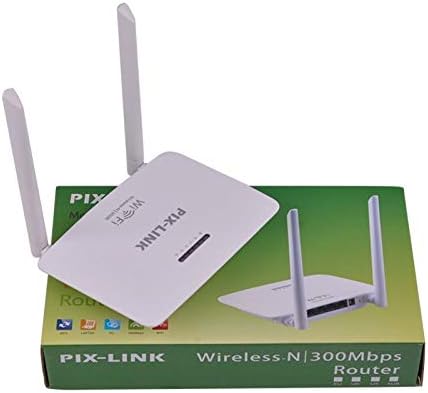
Image 3.1: The PIX-LINK LV-WR07 Wireless Router shown with its retail packaging, indicating the product as it appears in the box.

Image 3.2: The essential accessories included with the router: the power adapter for electrical connection and an Ethernet cable for wired network setup.
4. Průvodce nastavením
4.1 Hardwarové připojení
- Zapnutí: Connect the power adapter to the router's power port and then plug the adapter into a standard electrical outlet. The power indicator light on the router should illuminate.
- Připojení k internetu Zdroj: Connect one end of the provided Ethernet cable to your modem's LAN port or your internet service provider's (ISP) Ethernet wall jack. Connect the other end of the Ethernet cable to the WAN port (usually labeled differently or colored) on your PIX-LINK LV-WR07 router.
- Připojte své zařízení:
- Kabelové připojení: For initial setup or stable connection, connect your computer to one of the router's LAN ports (usually yellow) using another Ethernet cable.
- Bezdrátové připojení: Locate the default Wi-Fi network name (SSID) and password printed on a label on the bottom or back of your router. Connect your wireless device (laptop, smartphone, tablet) to this network.
4.2 Počáteční konfigurace (Web Rozhraní)
After connecting the hardware, you can configure your router via a web prohlížeč.
- Přístup k nastavení routeru: Otevřete a web browser (e.g., Chrome, Firefox, Edge) on a device connected to the router. In the address bar, type the default IP address (e.g.,
192.168.1.1or192.168.0.1) and press Enter. This IP address is usually found on the router's label. - Přihlášení: Objeví se přihlašovací okno. Zadejte výchozí uživatelské jméno a heslo (obvykle
adminpro oba nebo dle specifikace na štítku routeru). - Spusťte Průvodce nastavením: Most routers have a Quick Setup Wizard. Follow the on-screen instructions to configure your internet connection type (e.g., DHCP, Static IP, PPPoE) and set up your new Wi-Fi network name (SSID) and a strong password.
- Uložit nastavení: After configuring, save your settings and restart the router if prompted.
5. Ovládání routeru
5.1 Připojení zařízení k Wi-Fi
Připojení zařízení k síti Wi-Fi:
- V zařízení přejděte do nastavení Wi-Fi.
- Select your Wi-Fi network name (SSID) from the list.
- Enter the Wi-Fi password you set during configuration.
- Vaše zařízení by nyní mělo být připojeno k internetu.
5.2 Používání WPS (chráněné nastavení Wi-Fi)
WPS allows you to connect devices to your Wi-Fi network without entering the password manually.
- Press the WPS button on your router (usually located on the back or side, labeled 'WPS'). The WPS LED indicator will start blinking.
- Within two minutes, activate WPS on your client device (e.g., a wireless adapter, smartphone, or printer). Refer to your device's manual for specific instructions on activating WPS.
- Zařízení se automaticky připojí k vaší síti Wi-Fi.
5.3 Wired Connections (LAN Ports)
The router provides multiple LAN ports for wired connections, offering stable and fast connectivity for devices like desktop computers, gaming consoles, and smart TVs.
- Simply connect an Ethernet cable from the device's Ethernet port to any available LAN port on the router.
- The corresponding LAN indicator light on the router should illuminate, indicating a successful connection.
6. Údržba
- Optimální umístění: Umístěte router do centrální polohy, mimo dosah překážek (silné zdi, kovové předměty) a zdrojů rušení (mikrovlnné trouby, bezdrátové telefony), abyste maximalizovali pokrytí Wi-Fi.
- Udržujte v čistotě: Regularly clean the router's exterior with a soft, dry cloth. Ensure ventilation holes are not blocked to prevent overheating.
- Aktualizace firmwaru: Pravidelně kontrolujte oficiální stránky PIX-LINK website for firmware updates. Updating firmware can improve performance, add new features, and fix bugs. Follow the instructions provided on the webmísto pečlivě.
- Pravidelně restartovat: Restartování routeru každých pár týdnů může pomoci vymazat jeho paměť a vyřešit drobné problémy se sítí, čímž se zlepší celkový výkon.
7. Řešení problémů
7.1 Žádné připojení k internetu
- Check if the power adapter is securely connected and the router is powered on.
- Ensure the Ethernet cable from your modem/ISP is securely connected to the router's WAN port.
- Restart your modem and then your router. Wait a few minutes for them to fully boot up.
- Ověřte nastavení typu internetového připojení v nastavení routeru web interface (e.g., DHCP, Static IP, PPPoE).
- Kontaktujte svého poskytovatele internetových služeb (ISP) a ověřte si, zda není k dispozici žádný signál.tagve vaší oblasti.
7.2 Slow Wi-Fi Speed or Intermittent Connection
- Přemístěte router do centrálnější polohy, dále od překážek a rušení.
- Ujistěte se, že firmware vašeho routeru je aktuální.
- Snižte počet zařízení připojených k síti, zejména těch, která vykonávají činnosti s vysokou šířkou pásma.
- Zkuste změnit kanál Wi-Fi v nastavení routeru, abyste se vyhnuli rušení ze sousedních sítí.
7.3 Nelze přistupovat k routerům Web Rozhraní
- Ensure your device is connected to the router (either via Ethernet cable or Wi-Fi).
- Verify that you are typing the correct IP address (e.g.,
192.168.1.1) in the browser's address bar. - Vymažte mezipaměť a soubory cookie prohlížeče nebo zkuste jiný web prohlížeč.
- If you forgot the login credentials, you may need to perform a factory reset (see section 7.4).
7.4 Jak provést obnovení továrního nastavení
A factory reset will restore the router to its default settings, including the default Wi-Fi name and password, and login credentials.
- With the router powered on, locate the Reset button (often a small pinhole) on the back or bottom of the router.
- Use a paperclip or a thin object to press and hold the Reset button for about 5-10 seconds until the router's lights flash or change behavior.
- Release the button and wait for the router to restart. You will then need to reconfigure it using the initial setup steps.
8. Technické specifikace
| Funkce | Popis |
|---|---|
| Značka | PIX-LINK |
| Model | LV-WR07 |
| Rychlost bezdrátového připojení | 300 megabitů za sekundu (Mbps) |
| Antény | 2 externí antény |
| Počet portů | 5 (1 WAN, 4 LAN) |
| Technologie připojení | Wi-Fi, LAN |
| Speciální funkce | WPS (Wi-Fi Protected Setup) |
| Kompatibilní zařízení | Gaming Consoles, Tablets, Smart Televisions |
9. Informace o záruce
PIX-LINK products are designed for reliability and performance. For specific warranty terms and conditions, please refer to the warranty card included with your product or visit the official PIX-LINK webUschovejte si účtenku jako doklad o koupi pro případ reklamace.
10. Zákaznická podpora
If you encounter any issues that are not covered in this manual or require further assistance, please contact PIX-LINK customer support. You can usually find contact information (phone number, email, or support portal) on the official PIX-LINK webmístě nebo na obalu produktu.
Before contacting support, please have the following information ready:
- Product Model: LV-WR07
- Serial Number (found on the product label)
- Podrobný popis problému, který máte
- Steps you have already taken to troubleshoot
Ask a question about this manual
Ask about setup, troubleshooting, compatibility, parts, safety, or missing instructions. Manuals+ will review the question and use this page’s manual context to help answer it.