
Zavedení
This manual provides essential instructions for setting up, operating, maintaining, and troubleshooting your Toybox Alpha One 3D Printer. Please read this guide thoroughly to ensure optimal performance and a safe user experience. The Toybox Alpha One is designed for ease of use, making 3D printing accessible for all ages.

Image: The Toybox Alpha One 3D Printer, shown with several spools of colorful "printer food" filament and a yellow 3D-printed object on its print bed. This illustrates the printer's compact design and the variety of materials available.
1. Nastavení
1.1 Rozbalení a počáteční umístění
Carefully remove all components from the packaging. Ensure the printer is placed on a stable, level surface in a well-ventilated area, away from direct sunlight and drafts. The package includes the 3D Printer, power supply, and 8 rolls of Printer Food (filament).
1.2 Připojení napájení
- Connect the power supply to the printer's power input port.
- Zapojte napájecí zdroj do standardní elektrické zásuvky.
- Stisknutím tlačítka napájení zapněte tiskárnu.
1.3 Zatížení vlákna
The Toybox Alpha One features an easy filament loading system. Follow these steps:
- Select a roll of Toybox Printer Food.
- Insert the end of the filament into the designated loading port on the printer.
- The printer will automatically detect and feed the filament. Ensure it feeds smoothly without tangles.
1.4 Aplikace a připojení k Wi-Fi
The Toybox Alpha One connects to the cloud via Wi-Fi for seamless operation through its dedicated app.
- Download the Toybox app from your device's app store (available for iOS and Android).
- Otevřete aplikaci a podle pokynů na obrazovce vytvořte účet nebo se přihlaste.
- Within the app, select the option to add a new printer and follow the prompts to connect your Alpha One to your Wi-Fi network. The printer supports 2.4GHz Wi-Fi bands.

Image: A smartphone showing the Toybox app, positioned next to the Toybox 3D printer. The printer is actively creating a white skull model, demonstrating app-controlled printing.
2. Návod k obsluze
2.1 Selecting and Printing Toys
The Toybox app provides access to a vast catalog of designs and a Creator Space for custom creations.
- Browse the Toybox catalog within the app to find a design you wish to print. New toys are added regularly.
- Alternatively, use the Creator Space to upload your own designs or draw them directly in the app. Your creations are stored in the cloud.
- Once a design is selected, confirm the print settings (if applicable) and initiate the print from the app. The printer will begin the process automatically.

Image: A user interacting with the Toybox app's 'Creator Space' on a tablet, customizing a digital character. Beside the tablet, a physical 3D-printed version of a character is held, illustrating the transition from digital design to physical object.
2.2 Sledování a odstraňování výtisků
While the printer operates, it is advisable to monitor the initial layers to ensure proper adhesion. The Alpha One features a removable print bed for easy print removal.
- Once printing is complete, allow the print bed and the printed object to cool down.
- Gently remove the flexible print bed from the printer.
- Flex the print bed to easily detach the printed object. No tools like knives are typically required.
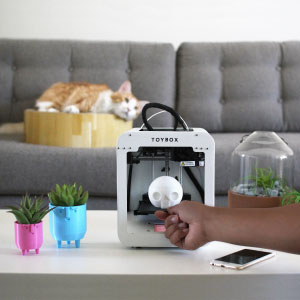
Image: A hand carefully detaching a white 3D-printed skull from the flexible print bed of the Toybox 3D printer. This demonstrates the ease of removing finished prints.
3. Údržba
3.1 Čištění tiskové podložky
Regularly clean the print bed to ensure optimal adhesion for future prints. Use a soft cloth and, if necessary, a small amount of isopropyl alcohol to wipe down the surface. Ensure the bed is completely dry before starting a new print.
3.2 Extruder Maintenance
Over time, the extruder nozzle may accumulate debris or require adjustment. If you notice issues with filament extrusion, consult online resources or the Toybox support team for guidance on cleaning or adjusting the 4mm Smooth-Flow Extruder Head. There are many helpful videos on platforms like YouTube that can assist with this.
3.3 Skladování filamentu
Store unused Printer Food (filament) in a cool, dry place, ideally in an airtight container. This prevents moisture absorption, which can negatively impact print quality.
4. Řešení problémů
This section addresses common issues you might encounter with your Toybox Alpha One 3D Printer.
4.1 Problémy s přilnavostí tisku
- Prints not sticking to the bed: Ensure the print bed is clean and free of dust or grease. Re-calibration of the print bed may be necessary.
- Prints warping or detaching mid-print: The Alpha One does not have a heated bed, making prints susceptible to drafts. Try placing the printer in an area free from drafts or consider using an enclosure (e.g., a cardboard box) to maintain a stable temperature around the print area.
4.2 Filament Feeding Problems
- Filament not feeding or misfeeding: Check the filament spool for tangles or knots. Ensure the filament is correctly inserted into the loading port. If the extruder is clogged, refer to the Extruder Maintenance section.
4.3 Problémy s kvalitou tisku
- Layer shifting or misaligned prints: This can occur if the printer is bumped or moved during operation. Ensure the printer is on a stable surface. Calibration of the machine is key for consistent results.
- Poor detail or rough surfaces: Ensure you are using genuine Toybox Printer Food. Check for any clogs in the extruder.
4.4 Problémy s připojením
- Printer disconnects from Wi-Fi: Ensure your Wi-Fi network is stable and the printer is within range of your router. The printer supports 2.4GHz Wi-Fi. Restarting both the printer and your router can sometimes resolve connectivity problems.
5. Specifikace
Image: The Toybox 3D printer displayed alongside a detailed list of its technical specifications, providing a quick reference for its capabilities and physical attributes.
| Funkce | Detail |
|---|---|
| Model | Alpha One |
| Rozměry produktu | 7.4 x 7.4 x 9.05 cm (hloubka x šířka x výška) |
| Hmotnost položky | 6.6 liber (3 kilogramů) |
| Objem tisku | 7 x 8 x 9 cm |
| Rychlost tisku | 60 mm/s |
| Rozlišení tisku | 200 mikronů |
| Extruder | 4mm Smooth-Flow Extruder Head |
| Tisková postel | Easy-Peel removable bed |
| Kompatibilní systémy | STL, OBJ, gCode |
| Wi-Fi | pásmo 2.4 GHz |
| LCD obrazovka | Dotyková obrazovka |
| Tiskové materiály | PLA non-toxic plastic |
| svtage | AC 100V-240V |
| Kompatibilní zařízení | Personal Computer (via app) |
6. Záruka a podpora
6.1 Informace o záruce
The Toybox Alpha One 3D Printer comes with a 6-month warranty period. Additionally, a 30-day no-reason free return policy is available from the date of purchase.
6.2 Zákaznická podpora
For any questions, assistance with setup, or troubleshooting, the Toybox customer support team is available to help. Please refer to the contact information provided on the official Toybox website or within the Toybox app.
Additional resources, such as helpful video tutorials, can be found on platforms like YouTube. There are also community groups, such as Facebook groups, where users share tips and support.